How to Shut Down Windows 11: Every Safe Method
Use Start > Power > Shut down for normal Windows 11 use; if you need the keyboard only, Alt+F4 on the desktop works, and a frozen PC should get Ctrl+Alt+Delete before you hold the power button for 10 seconds. A bad shutdown can lose unsaved work or corrupt open files. This guide covers the safest shutdown method for normal PCs, laptops, frozen systems, and cases where you want to avoid updates.
What you’ll need
- A working mouse or keyboard.
- Access to the desktop, lock screen, or sign-in screen.
- Optional: Command Prompt, Windows Terminal, or the Run dialog.
- Saved work in any open apps.
📊 wikiHow says Windows 11’s Power icon is at the bottom-right of the Start menu. Source: Wikihow.
Shutdown methods by situation
Choose the method that fits the PC state. On a normal desktop, Start > Power > Shut down is the standard path. If the mouse is not available, keyboard shortcuts are faster. If Windows is locked or slow to respond, use the lock screen, Ctrl+Alt+Delete, or the command line instead.
| Situation | Fastest method | Uses mouse? | Safe for unsaved work? | Good for frozen PC or locked screen? |
|---|---|---|---|---|
| Normal desktop use | Start > Power > Shut down | Yes | No | No |
| Keyboard-only at the desktop | Alt+F4, then choose Shut down | No | No | No |
| Locked or sign-in screen | Power icon on the lock screen | Usually yes | No | Yes, if Windows is still responding |
| Windows is less responsive | Ctrl+Alt+Delete, then Power | No | No | Yes, if the security screen opens |
| GUI methods fail | shutdown /s in Terminal or Command Prompt | Either | No | Sometimes |
| Emergency freeze | Hold the physical power button 5-10 seconds | No | No | Yes, as a last resort |
Say your laptop is open on the desktop with a document unsaved in Word. Do not shut down first. Save the file, then use Start > Power > Shut down so Windows can close apps cleanly.
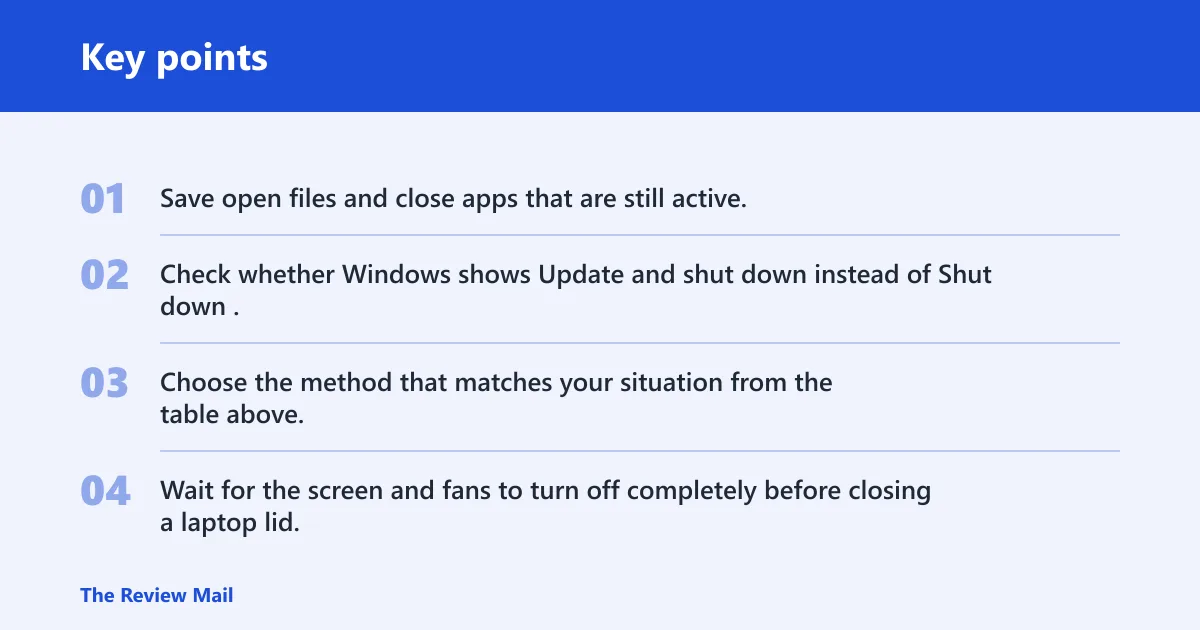
- Save open files and close apps that are still active.
- Check whether Windows shows Update and shut down instead of Shut down.
- Choose the method that matches your situation from the table above.
- Wait for the screen and fans to turn off completely before closing a laptop lid.
The proper shutdown path is Start > Power > Shut down. Microsoft gives that sequence for Windows 11, and the same support page also applies it to Windows 10 (per Microsoft support). It is the safest normal method because Windows can close open processes in order. (Microsoft Support)
Use the Start menu power button
Open Start, then select the Power button and choose Shut down. In Windows 11, that Power icon sits at the bottom-right of the Start menu, and the same path works from the desktop when no app has focus. That is the standard shutdown route for most users.
- Select Start.
- Select Power.
- Select Shut down.
Use the Power User menu
Right-click the Start button or press Start key plus X to open the Power User menu. From there, choose Shut down or sign out, then select Shut down. This is a fast menu path when you want to stay on the keyboard or avoid opening the full Start menu.
- Press Start key plus X.
- Select Shut down or sign out.
- Select Shut down.
How do you shut down Windows 11 with the keyboard?
Use Alt+F4 on the desktop, then pick Shut down in the Shut Down Windows dialog. If the desktop is not focused, close or minimize windows first so the shortcut acts on the desktop itself. You can also use Win+X, then the keyboard to reach Shut down or sign out.
Alt+F4 on the desktop
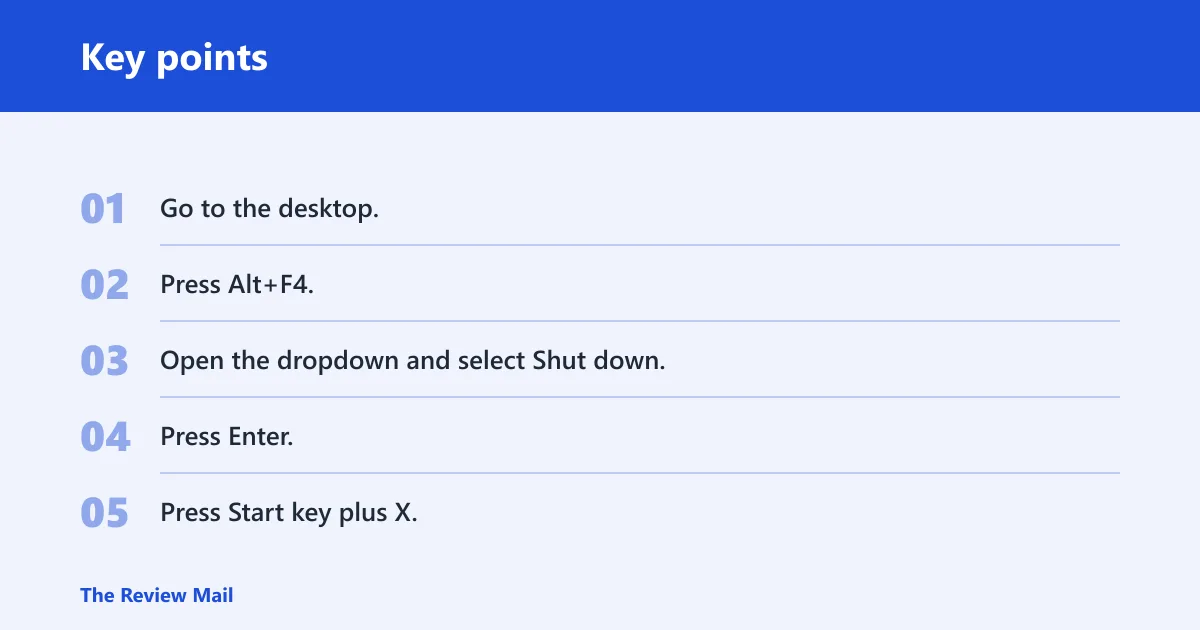
Alt+F4 is the fastest keyboard-only method on the desktop. It opens the Shut Down Windows dialog, where you choose Shut down from the dropdown and confirm. How-To Geek notes that this works when windows are closed or minimized (reported by howtogeek.com).
- Go to the desktop.
- Press Alt+F4.
- Open the dropdown and select Shut down.
- Press Enter.
Win+X to the Power User menu
Press Start key plus X, then use the arrow keys to reach Shut down or sign out. This is useful when you want a menu-driven path without touching the mouse. WindowsLoop notes that the Power User menu opens with Start key plus X (reported by WindowsLoop).
- Press Start key plus X.
- Use the arrow keys to highlight Shut down or sign out.
- Press Enter, then choose Shut down.
Run dialog or Windows Terminal
Press Win+R, type shutdown /s, then press Enter. In Command Prompt or Windows Terminal, the same command works there too. WindowsLoop also lists shutdown /s /f /t 0 in the Run dialog for an immediate shutdown path, which forces running apps to close (reported by WindowsLoop).
- Press Win+R, or open Windows Terminal.
- Type shutdown /s.
- Press Enter.
How do you shut down Windows 11 from the lock screen?
Use the power icon on the lock screen or sign-in screen, then choose Shut down. You do not need to sign in first. This is the right path when the PC is locked and you want to power it off without opening the desktop or starting any apps.
Use the lock-screen power icon
The power icon appears at the sign-in or lock screen, and wikiHow notes that you can shut down from the login screen as well (reported by wikiHow). This is useful for shared PCs, kiosk-style setups, and any locked session where the desktop is not available.
- Wake the screen if needed.
- Select the power icon.
- Select Shut down.
Picture a school laptop that is locked after class. If the screen is on the sign-in page, use the power icon there instead of forcing a restart. That keeps the shutdown clean and avoids interrupting a background save or sync task.
How do you shut down Windows 11 when it freezes?
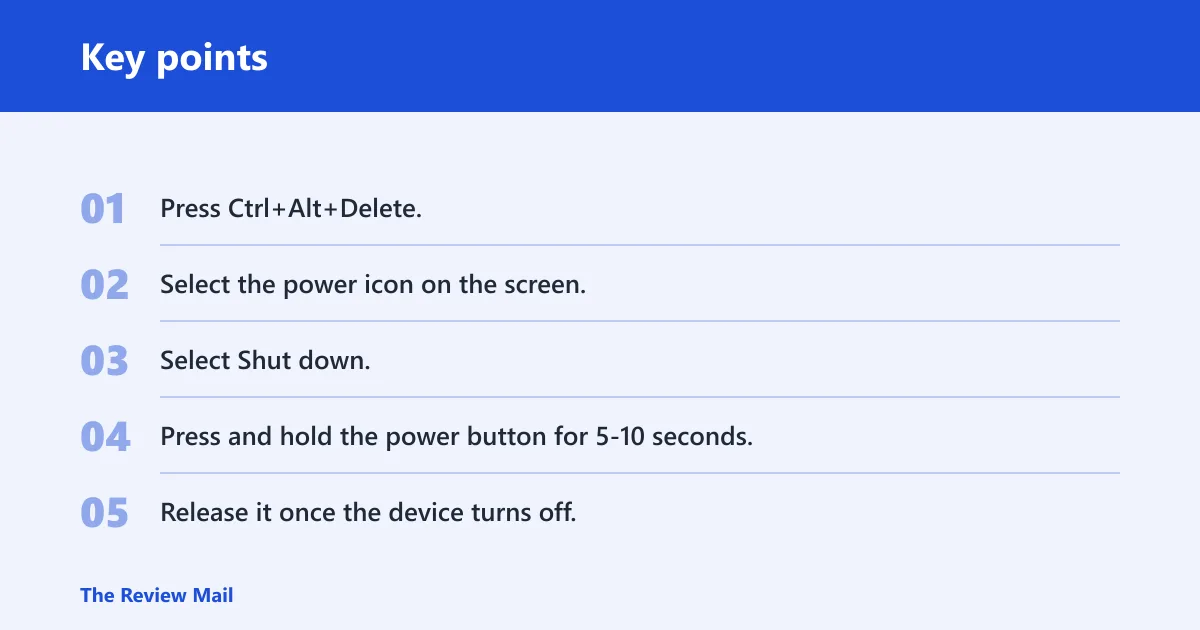
Start with Ctrl+Alt+Delete. If the security screen appears, use the power icon there and choose Shut down or Restart. If Windows is completely unresponsive, use the physical power button only as a last resort. Holding it for 5-10 seconds is for emergencies only (reported by howtogeek.com).
Try Ctrl+Alt+Delete first
Ctrl+Alt+Delete can still open a security screen even when the desktop is stuck. The same source says you can use that screen to reach shutdown options, including the power icon (reported by howtogeek.com). This is safer than cutting power immediately because Windows may still close processes cleanly.
- Press Ctrl+Alt+Delete.
- Select the power icon on the screen.
- Select Shut down.
Use the physical power button only in emergencies
If the PC does not respond at all, press and hold the power button for 5-10 seconds. The same source says that should be reserved for emergencies (reported by howtogeek.com). The same source notes that power-button behavior can be changed in Control Panel, so a quick press may already be set to shut down or sleep.
- Press and hold the power button for 5-10 seconds.
- Release it once the device turns off.
- Wait a few seconds before pressing it again.
Suppose a 14-inch laptop freezes on a black app window while the fan keeps running. Try Ctrl+Alt+Delete first. If nothing appears, hold the power button for 5-10 seconds, then restart and let Windows check the app later.
How do you shut down Windows 11 without updating?
Choose Shut down, not Update and shut down, when that option is available. That said, shutting down does not cancel a pending update forever. Windows can still apply update work on the next boot, and sometimes it will label the power choice as Update and shut down instead.
Check the power menu label
If Windows offers both options, the label matters. Shut down closes the session and powers off. Update and shut down installs pending update items before the system switches off. If your goal is to avoid a surprise install during this power-off, check that menu before you click anything.
- Open Start > Power.
- Read the label next to the shutdown option.
- Select Shut down only if you do not want update installation to begin now.
Avoid stopping an active update
Do not cut power while Windows is already installing updates. A forced shutdown during update work can leave the system in a bad state on the next boot. If the machine is clearly updating, let it finish before shutting it down or restarting it later.
How do you shut down a Windows 11 laptop?
A Windows 11 laptop generally uses the same shutdown paths as a desktop PC. The difference is what happens after shutdown: the lid-close setting, battery drain, and wake behavior can change the result. If you want the laptop fully off, wait for the screen and lights to go dark before closing the lid.
Watch lid-close behavior and battery impact
Some laptops are set to sleep when you close the lid, while others shut down or do nothing. That setting is separate from the shutdown command itself. If you need the machine off for travel, use Start > Power > Shut down first, then close the lid after the fans stop.
- Choose Start > Power > Shut down.
- Wait for the laptop to power off completely.
- Close the lid only after the screen goes dark.
Use keyboard-only access on a laptop
If the trackpad is not responding, use Alt+F4 on the desktop or Win+X, then Shut down or sign out. Those shortcuts work on laptops and desktops alike. The keyboard route is especially useful on a notebook when the pointer is frozen but the system still responds to keys.
Common mistakes
Most shutdown errors come from confusing one power state with another. Sleep keeps the session in memory. Sign-out ends the account session but does not power off the device. Restart reloads Windows. Force shutdown is a last resort, not a normal daily method.
- Mistaking Sleep for Shut down: Sleep uses less power, but the PC is still on.
- Using the power button as a routine habit: reserve a long hold for emergencies only.
- Forcing shutdown during an update: let update installation finish if it has already started.
- Assuming every lid-close action means shutdown: many laptops are set to sleep instead.
- Skipping save steps: close work first so files are not left half-written.
Frequently asked questions
How do I shut down Windows 11 without a mouse?
Use Alt+F4, Win+X, or Win+R. All three work from the keyboard alone. If Windows is locked, the lock-screen power icon still gives you a mouse-free path if you can navigate with the keyboard or touchscreen.
How do I shut down Windows 11 properly?
The proper method is Start > Power > Shut down. That is the standard Windows 11 path and the one Microsoft documents for normal power-off use. Save open files first, then wait for the screen and lights to turn off completely.
How do I force shut down Windows 11?
Hold the power button for 5-10 seconds only if Windows is completely unresponsive and Ctrl+Alt+Delete does not help. That is an emergency move. After power returns, let Windows check any apps or files that may have been interrupted.
How do I shut down Windows 11 from Command Prompt?
Open Command Prompt or Windows Terminal, type shutdown /s, and press Enter. If you want immediate action from the Run dialog, WindowsLoop lists shutdown /s /f /t 0 there as well, which closes running apps before power-off (reported by WindowsLoop).