Account Locked Windows 11: How to Unlock It Safely
If Windows 11 says your account is locked, first identify whether it is a local, Microsoft, or workplace/school account. Repeated bad sign-ins may clear after about 10 to 30 minutes, but policy-based locks can require the source of the failures to be fixed. Ignoring the account type can send you down the wrong reset path and keep the lockout coming back. This guide shows how to tell the account type, find the lockout cause, and regain access the right way.
What a Windows 11 lockout means
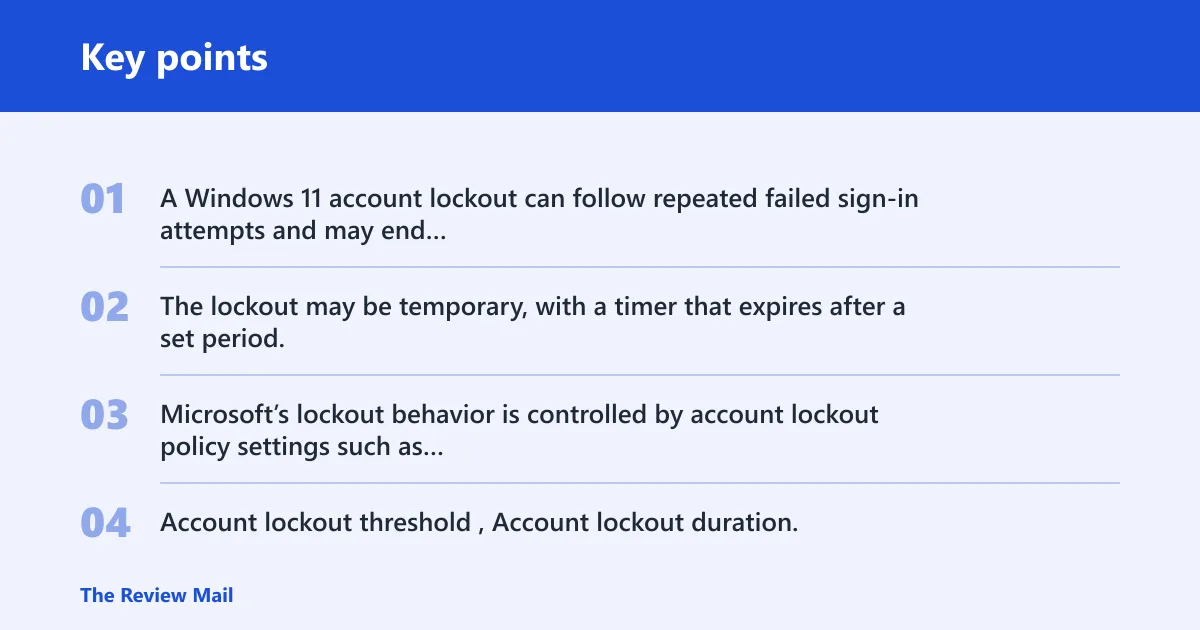
A Windows 11 account lockout can follow repeated failed sign-in attempts and may end after a set period or continue until the cause is corrected. The lockout may be temporary, with a timer that expires after a set period, or it may keep returning until the device, account, or policy setting that caused the failures is corrected. Microsoft’s lockout behavior is controlled by account lockout policy settings such as threshold, duration, and reset counter after time, which are documented in Microsoft Learn. Account lockout threshold, Account lockout duration, and Reset account lockout counter after explain the three policy values that govern many Windows sign-in blocks.
How do I lock Windows 11?
To lock Windows 11, press Win+L, or open the Start menu and choose the account menu to lock the PC. You can also press Ctrl+Alt+Del and select Lock. This is different from an account lockout, which happens when repeated failed sign-ins trigger a security policy or temporary block.
Local account vs Microsoft account
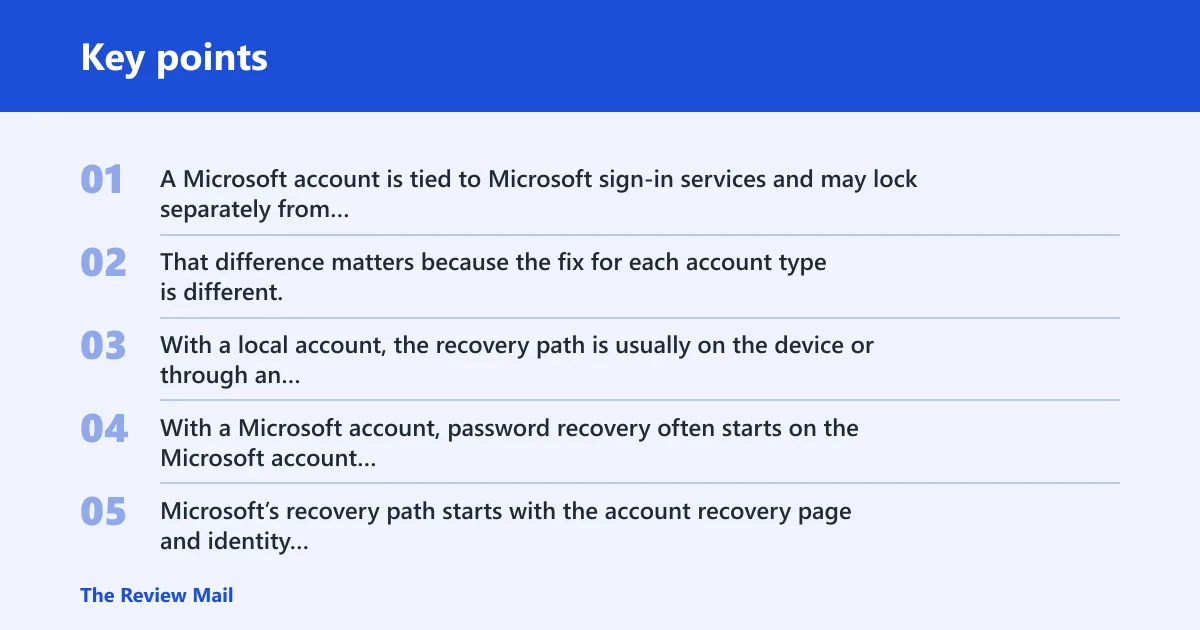
A local account exists only on the PC. A Microsoft account is tied to Microsoft sign-in services and may lock separately from the Windows sign-in on the device. That difference matters because the fix for each account type is different, especially when the password changed somewhere else.
With a local account, the recovery path is usually on the device or through an administrator. With a Microsoft account, password recovery often starts on the Microsoft account recovery flow, then the new password must be used on the PC after the lockout clears. Microsoft’s recovery path starts with the account recovery page and identity verification steps on the web, not with a Windows-only reset. Recover your account is the official Microsoft support route for regaining access to a Microsoft account.
Temporary lockout vs policy-based lockout
Some lockouts end on their own after the configured duration. Others keep returning because Windows is counting repeated failures against the same account. The behavior depends on account lockout policy, which typically sets the failure threshold, the lockout duration, and when the failed-attempt counter resets. On supported Windows 11 editions, these settings can be viewed in Local Security Policy; Microsoft documents that the account lockout policy is available there on editions that include the snap-in.
What repeated sign-in failures trigger
Windows can count repeated bad passwords, old saved credentials, a service still using an outdated password, or a mapped resource retrying a stale sign-in. If those retries continue, the account can lock again minutes after you clear it.
Say your laptop is joined to a home Microsoft account and a tablet still has the old password saved. The laptop clears the lockout, then the tablet retries the stale password in the background and the account locks again. The password itself may be correct; the repeated retry is the problem.
Why this account keeps locking
Repeated lockouts usually mean one source is still trying the wrong password. The source may be a saved credential in Credential Manager, a service set to run under that account, a mapped drive, an email app, or a managed-device policy that keeps enforcing a bad sign-in path. If you are unsure whether the issue is local, Microsoft, or managed, start with the account type and the last place the password was changed, then check for retry sources before changing the password again.
Saved credentials retrying an old password
Credential Manager can store passwords for apps, network shares, remote sessions, and websites. If one of those entries still points to an old password, it can keep trying in the background and trigger another lockout even after the interactive sign-in works.
Services, mapped resources, or apps using stale sign-ins
Services that run under a user account are a common source of repeated failures. So are mapped network drives, scheduled tasks, and sync tools that reconnect on startup. If their saved password is wrong, they can keep failing without any obvious error on the sign-in screen.
Work or school policy settings on managed devices
On managed devices, an administrator can often set the lockout threshold and duration through Group Policy. A policy-based lockout can look like a password problem, but the real issue may be repeated sign-in activity from software the user cannot change without admin help.
How long does it stay locked?
How long a Windows account stays locked depends on the configured lockout duration and the reset counter setting. Many users see a temporary lockout that ends after a short wait, but managed devices can use stricter settings that keep the account locked longer or reset the counter only after a set time.
Lockout threshold
The threshold is the number of failed sign-in attempts allowed before Windows locks the account. If the threshold is low, a few bad tries can trigger a lockout. If it is higher, the same account may tolerate more mistakes before Windows blocks the next sign-in.
Lockout duration
Lockout duration is how long the account remains locked after the threshold is reached. This is the part most users notice first. If the duration is 15 minutes, access may return after waiting, but the lockout can return if the failure source is still active.
Reset counter after time
The reset counter setting clears the failed-attempt count after a period of time. If the counter resets after 15 minutes and the duration is 15 minutes, a user who keeps retrying too soon may never get out of the cycle. The timer and the source of failure both matter.
How do you clear Windows 11?
Start by waiting for the lockout period to expire if the account is only temporarily blocked. If the password was changed elsewhere or forgotten, reset it through the correct account path. On a managed device, an administrator may need to clear the lockout or reset the account before sign-in works again.
Wait for the lockout period to expire
If the lockout is temporary and you know the password is current, wait for the configured duration to pass. Do not keep retrying every minute. Repeated attempts can extend the problem or make it look like the password is still wrong when the lockout timer is the real blocker.
Reset the password if it was changed or forgotten
If the password changed on another device, update the password through the right account system first. A Microsoft account may need web-based recovery. A local account may need an administrator reset or the device’s recovery options. Use the matching path; do not mix the two account types.
Ask an administrator to clear or reset the account
For workplace or school devices, an administrator may have to reset the account, clear the lockout, or adjust the policy. If the PC is managed, local changes may be limited. A user can wait all day and still not regain access if the device policy keeps forcing the lockout.
Why is my Windows account locked?
Your Windows account is usually locked because Windows saw too many failed sign-in attempts in a short time. That can happen from a wrong password, stale saved credentials, or a service and app chain that keeps retrying in the background. On managed devices, policy can make the lockout persist.
A common first-timer mistake is to reset the PIN in Windows 11 and stop before checking whether the account is also locked by the organization’s security policy. If a VPN client, mail app, or network mapping still uses the old password, the account can lock again within minutes. The fix has to remove the retry source, not only the visible error.
Why does my user account keep getting locked out?
When an account keeps locking out, the repeated failures are usually coming from the same place each time. A consolidated workflow works best: identify the failure source in Event Viewer, check stored credentials, then review services, scheduled tasks, and managed account settings for anything still using the old password.
Event Viewer security events that point to the source
In Event Viewer, review the Windows Logs > Security log around the lockout time. Failed logons commonly appear as event 4625, and account lockout events commonly appear as 4740; Microsoft Learn documents these security event references. If the same account is targeted repeatedly in a short period, the pattern often points to a service, task, or device retrying in the background rather than a person typing the password.
Credential Manager entries that may retry old passwords
Open Control Panel > User Accounts > Credential Manager and check both Windows Credentials and Generic Credentials for saved items tied to the account. Remove outdated entries for remote desktop, network shares, mail tools, and mapped resources. Then sign in again with the current password and watch for a recurrence.
Services and scheduled tasks using stale sign-ins
Open Services from the Start menu or run services.msc, then inspect services configured to run under the affected user account. Also open Task Scheduler and review tasks that run whether the user is logged on or not. If either location stores the wrong password, update the account or stop the retrying task/service until the correct credentials are entered.
Work or school account settings on managed devices
For managed devices, open Settings > Accounts > Access work or school and confirm the connected organization account is healthy. If the device is joined to an employer or school environment, policy can override local settings, and the lockout may be enforced by the directory or security baseline rather than by a local Windows-only rule. In that case, IT may need to correct the account or policy at the source.
Account lockout decision table
| Symptom | Likely cause | Where to check in Windows 11 | Fastest fix |
|---|---|---|---|
| Microsoft sign-in works on the web, but Windows keeps locking the account | Microsoft account password changed elsewhere, or a device still uses an old password | Microsoft account recovery, then Credential Manager and saved sign-ins on the PC | Reset the Microsoft account password, then update or remove stale saved credentials |
| Only one PC is affected and the account exists only on that device | Local account lockout or a local sign-in policy | Local Security Policy, Event Viewer, and the local user account settings | Wait for the lockout duration, then reset the local password or ask an administrator |
| Work or school device keeps locking after sign-in from apps or startup items | Managed policy, service account, or enterprise app retrying the password | Group Policy, Event Viewer, Task Scheduler, Services, and assigned network resources | Have IT review the policy and update the app or service credentials |
| Lockout returns soon after a successful sign-in | Cached credentials or a background app still using an old password | Credential Manager, startup apps, email clients, VPN tools, and mapped drives | Remove or update the stale credential, then sign in again |
| Lockout happens after a small number of bad attempts | Account lockout policy threshold is low | Local Security Policy on supported editions, or Group Policy on managed devices | Confirm the threshold, duration, and reset counter settings with the admin |
Where to check the lockout policy
The lockout policy controls how many failures trigger the lock, how long the lock lasts, and when the counter resets. On supported Windows 11 editions, these settings are available in Local Security Policy. On managed devices, Group Policy may control the same settings centrally. Microsoft’s policy documentation covers the exact meaning of threshold, duration, and reset counter after time, and the Local Security Policy snap-in is the place to view them on editions that include it.
Local Security Policy on supported editions
Open Local Security Policy and check the account lockout policy entries under Security Settings > Account Policies > Account Lockout Policy. Confirm the threshold, duration, and reset counter after time. If these settings are strict, the device can lock after just a few failures and stay locked until the timer expires.
Group Policy on managed devices
Managed business devices may receive the lockout policy from Group Policy rather than local settings. If local changes do not stick, that is a clue that the domain or organization is enforcing the setting. In that case, only the administrator can change the active policy.
What to confirm in threshold and duration settings
Check three values together: the failed-sign-in threshold, the lockout duration, and the reset counter after time. Looking at only one number can mislead you. A short duration with a short reset window can still produce repeated lockouts if the retry source remains active.
How to trace repeated failures
Use a focused path instead of jumping between tools. Start with the Security log in Event Viewer, then move through stored credentials, services, scheduled tasks, and work or school account settings. That sequence lines up the event history with the likely retry source and avoids duplicate checks.
Event Viewer security log review
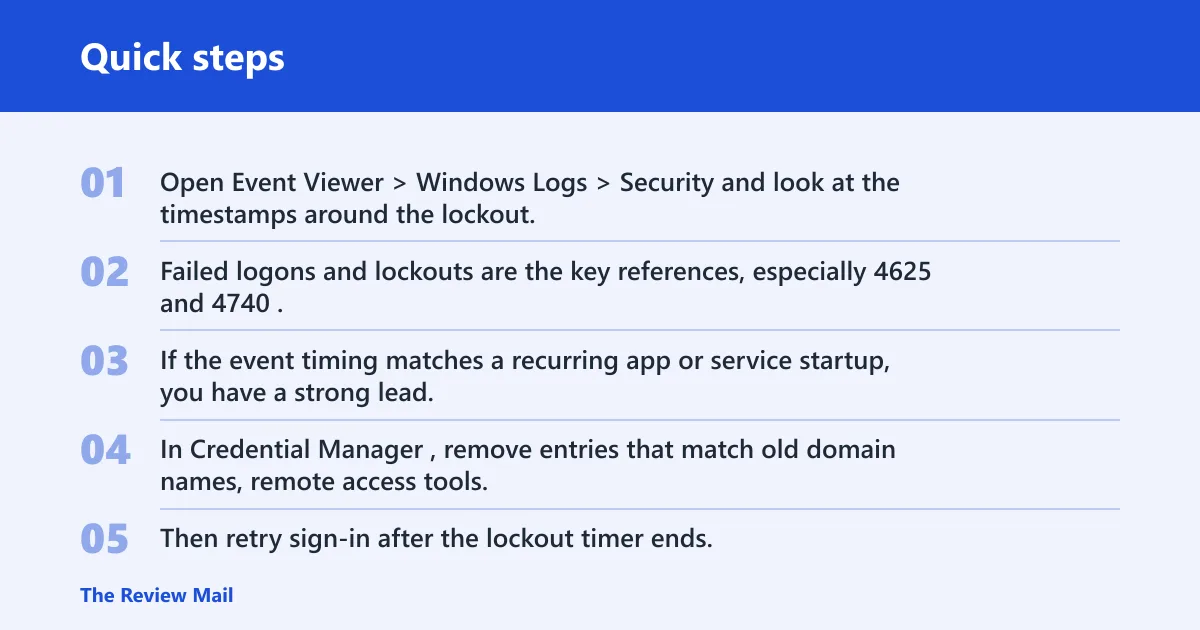
Open Event Viewer > Windows Logs > Security and look at the timestamps around the lockout. Failed logons and lockouts are the key references, especially 4625 and 4740. If the event timing matches a recurring app or service startup, you have a strong lead.
Credential Manager cleanup
In Credential Manager, remove entries that match old domain names, remote access tools, file shares, and mail or sync apps. Then retry sign-in after the lockout timer ends. If the account remains stable, the stale stored credential was likely the cause.
Services and Task Scheduler checks
Inspect Services for logon accounts tied to the affected user, then open Task Scheduler and look for tasks that run at startup or on a schedule with stored credentials. These locations often retry silently and lock the account without any obvious message to the user.
Work or school account settings
Open Settings > Accounts > Access work or school to confirm the device is connected to the right organization account. If the sign-in issue only appears on a managed PC, the account may be governed by a policy or directory-side restriction that needs IT to change it.
Frequently asked questions
How long does a Windows account stay locked?
It stays locked for the configured lockout duration. On some devices that may be a short wait, while managed systems can use a longer timer. If the source of failed sign-ins is still active, the account can lock again as soon as the counter reaches the threshold.
How do I clear a Windows account?
First wait for the lockout timer to expire if it is a temporary lock. If the password was changed or forgotten, reset it through the correct account path. On a managed device, ask an administrator to clear the lockout or reset the account.
What setting causes repeated account lockouts in Windows 11?
The account lockout policy controls the threshold, duration, and reset counter after time. A low threshold can make a few mistakes trigger a lock. If the policy is enforced through Group Policy, local changes may not change the active behavior.
Is it a local account lockout or a Microsoft account issue?
If the account exists only on the device, it is a local account problem. If the password changed through Microsoft sign-in services, it may be a Microsoft account issue instead. That distinction decides whether you use local recovery, Microsoft recovery, or an administrator reset.