Fix High RAM Usage Windows 11
Check Task Manager first: if one process owns most of the Memory column, close it cleanly or repair it before changing Windows settings. If no single app stands out and memory stays high while idle, the cause is usually cache, startup load, a background service, pagefile pressure, or faulty RAM.
What high memory means
Windows 11 can show high RAM use without a fault. Cached and standby memory are meant to speed up loading, so the real checks are whether Available memory stays low, whether commit charge keeps rising, and whether the Memory column stays high at idle or only jumps during use.
How to read the Memory column
Open Task Manager, go to the Processes tab, sort by the Memory column, and identify the top consumer. The important question is whether memory stays high after the PC settles, not whether it briefly spikes during startup, updates, or a scan. A short burst is different from steady pressure.
If one browser or app dominates the Memory column, that points to the app. If memory stays elevated at idle and rises again as soon as you open one more app, that points more toward limited RAM capacity, background load, or paging pressure than a single leak.
Likely causes, ranked
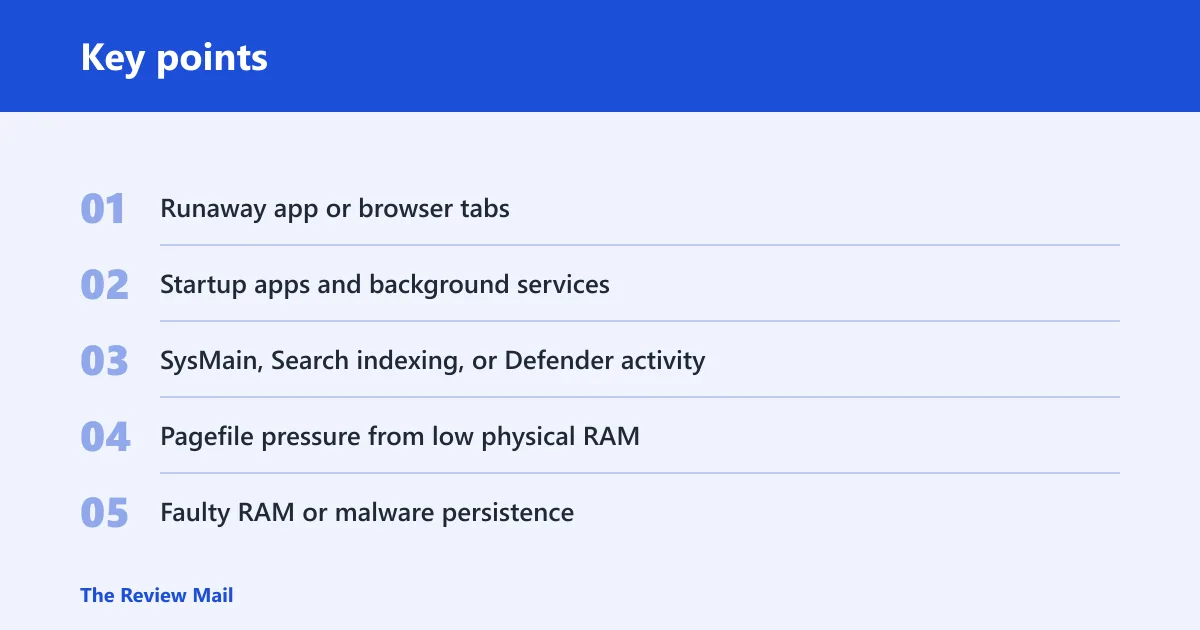
- Runaway app or browser tabs
- Startup apps and background services
- SysMain, Search indexing, or Defender activity
- Pagefile pressure from low physical RAM
- Faulty RAM or malware persistence
| Symptom | Likely cause | What to check in Task Manager | Safe first fix | When to escalate |
|---|---|---|---|---|
| Idle-high memory | Cache, startup load, or limited RAM | Processes tab; Memory sort; Available memory; Commit charge | Restart, then recheck at idle | If it returns to the same level and paging rises, review startup apps and pagefile settings |
| Browser-driven memory | Too many tabs or extensions | Browser process near the top of Memory; background processes still running | Close tabs and relaunch the browser | If usage keeps climbing, test without extensions or with a fresh profile |
| Startup bloat | Too many items launching after sign-in | Startup apps impact column; processes reappearing after reboot | Disable nonessential startup apps | If a relaunching app stays high, uninstall or repair it |
| SysMain | Background preloading service | Service activity with no obvious app cause | Stop SysMain in Services for a test | If high memory returns after restart, leave it off only if the system stays stable |
| Defender scan activity | Antimalware Service Executable during scans | Scanner process active while the PC is busy or idle | Check scan timing and let the scan finish | If the process loops at high use, run a full malware scan and update Defender |
| Possible RAM hardware faults | Bad module or unstable slot | No clear app culprit; random crashes or corrupted files | Run Windows Memory Diagnostic | If errors appear, test modules one at a time or seek service support |
How do I fix high ram usage in Windows 11?
Start with the top process in Task Manager, then move through startup apps and background services before changing hardware. On Windows 11, high RAM use is often explained by modern browsers, background processes, or too little memory for the workload, so the first goal is to separate a single app problem from a system-wide pressure problem.
- Open Task Manager with Ctrl+Shift+Esc.
- On Processes, sort by Memory and note the top app.
- If one app dominates, close it cleanly and reopen it only if needed.
- Restart the PC and check whether the same process climbs again after sign-in.
- If no single app stands out, move to startup apps, SysMain, Search, and Defender checks.
Which startup apps should you disable?
Disable nonessential entries, not drivers or security tools. Startup apps can raise memory use sharply, and Task Manager shows which ones have high impact. After changing them, restart and see whether the same app or service comes back on its own.
- Open Task Manager and select Startup apps.
- Sort by Startup impact.
- Disable items you do not need immediately after sign-in, such as chat tools, launchers, updaters, and tray helpers.
- Leave antivirus, touchpad, audio, and storage utilities alone unless you know their role.
- Restart, then return to Processes and compare Memory usage at idle.
Watch for relaunching apps
Some apps relaunch themselves through scheduled tasks or update helpers. If memory drops after you disable startup items but rises again later, look for the same process returning under a different name. That usually means the app itself still starts in the background.
Why is a browser or app using so much RAM?
Browsers and modern apps often sit at the top of the Memory column because they keep tabs, scripts, extensions, and background tasks loaded. The question is not whether a browser uses RAM; it is whether its usage keeps rising, stays high after closing tabs, or blocks everything else from running smoothly.
- In Task Manager, stay on Processes and sort by Memory.
- Expand the browser entry to see sub-processes if it supports them.
- Close heavy tabs first, then disable unnecessary extensions.
- Quit the browser fully, then reopen it and compare the Memory column.
- If an app keeps climbing without more use, repair or reinstall that app.
Browser-driven memory on lower-RAM systems
Browsers can use a large share of available memory on any PC with many tabs or extensions open. On lighter systems, that can make the browser look like the root cause when it is really the first app to hit a capacity ceiling. The useful test is whether memory settles after closing tabs and relaunching the browser.
Does SysMain, Search, or Defender cause it?
Yes. SysMain, Windows Search indexing, and Windows Defender can all raise memory use during background work. SysMain preloads commonly used data, Search indexing can spike after updates, and Defender can rise during scans. Those spikes are normal unless the process loops, never settles, or keeps returning at every boot.
- Open Services with Win+R, type
services.msc, and press Enter. - Find SysMain. Right-click it, choose Stop, then test idle memory again.
- Check Windows Search activity after updates by watching disk and memory together in Task Manager.
- Open Windows Security and review scan history if Antimalware Service Executable stays high for a long time.
- If the same service stays high every boot, re-enable it one at a time to isolate the offender.
SSD versus HDD matters here
High memory use feels worse on HDD systems because background churn slows everything down. An SSD does not reduce RAM use by itself, but it makes Search, Defender, browser cache, and startup activity less painful. That is why older HDD PCs often seem more memory hungry than the numbers alone suggest.
How do I tell whether the problem is RAM, pagefile, or a background app?
Use commit charge and paging activity to tell memory pressure from a simple app spike. If Available memory is low, commit is rising, and the disk light stays busy while apps slow down, the system may be leaning on the pagefile because physical RAM is tight. That is different from one app using lots of working set memory.
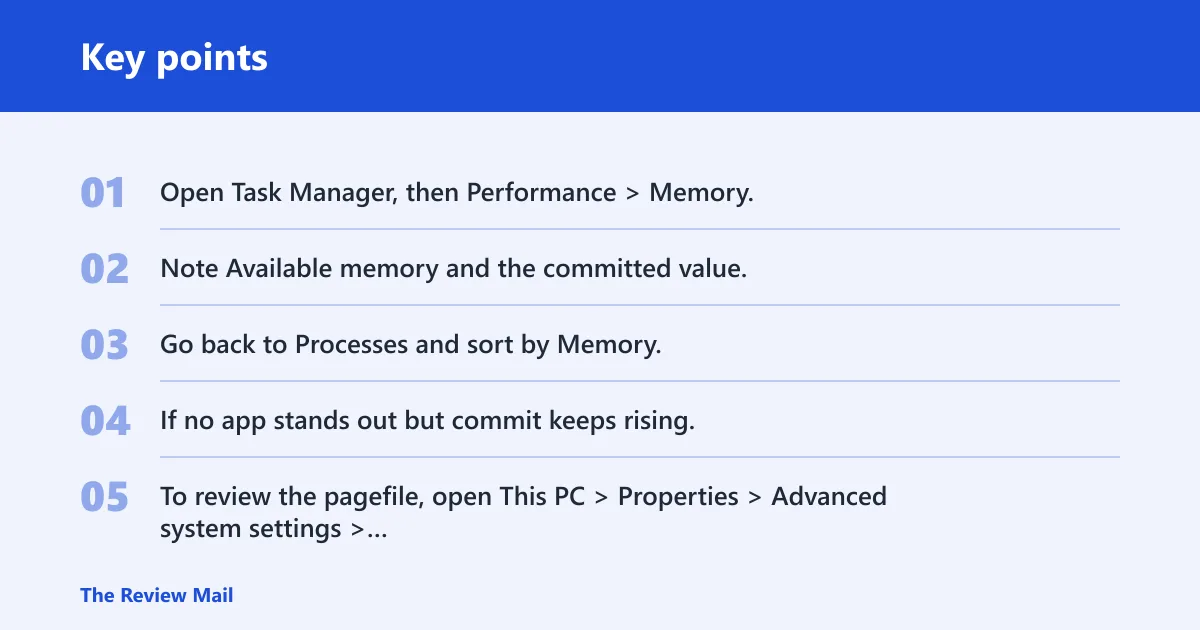
- Open Task Manager, then Performance > Memory.
- Note Available memory and the committed value.
- Go back to Processes and sort by Memory.
- If no app stands out but commit keeps rising, the machine may need more RAM or a better pagefile setup.
- To review the pagefile, open This PC > Properties > Advanced system settings > Performance Settings > Advanced > Virtual memory.
For the pagefile, the safest default is usually System managed size. That keeps Windows in charge of growth and shrink decisions, which is the least risky choice when the issue is ordinary memory pressure rather than a specific fault. A custom size is a troubleshooting exception, not the first move.
A simple rule helps here: if memory is high because everyday apps or too many startup items are crowding RAM, changing the pagefile will not fix the root cause. If Windows is paging heavily, commit is climbing, and the system becomes sluggish under load, leaving the pagefile enabled and system managed is usually the right first step.
When to run a malware scan
If memory stays high with no clear app cause, run Microsoft Defender or another reputable antivirus scan. Malware can hide behind ordinary process names, so check for unusual background processes, repeated relaunches, and scan loops. If Defender itself is the only process rising during a scheduled scan, that is usually normal.
When to check for bad RAM
Run Windows Memory Diagnostic if you see crashes, corrupted files, random app exits, or memory use that makes no pattern across reboots. The test is reboot-based: open Start, type Windows Memory Diagnostic, choose Restart now and check for problems, and let the test complete before judging the result.
How can I lower memory usage on a Windows 11 laptop?
On a laptop, the safest approach is the same: remove startup load, trim browser tabs, and separate normal caching from a real shortage. If the machine pages heavily under light work, the issue is usually pressure on available memory, not a setting that Windows is ignoring.
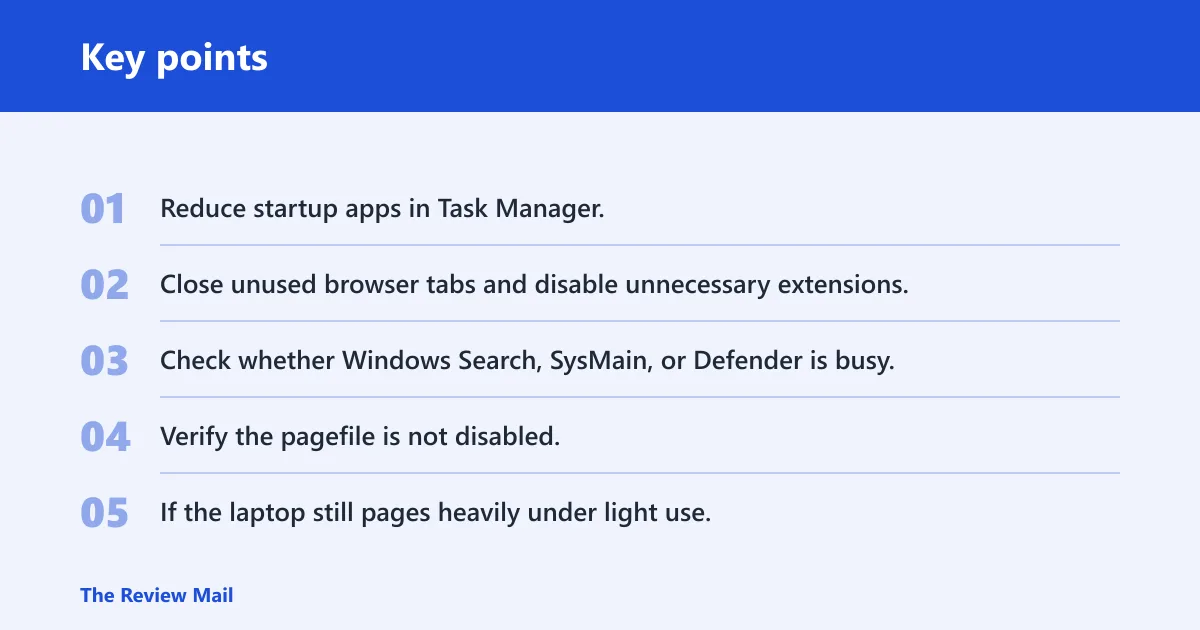
- Reduce startup apps in Task Manager.
- Close unused browser tabs and disable unnecessary extensions.
- Check whether Windows Search, SysMain, or Defender is busy.
- Verify the pagefile is not disabled.
- If the laptop still pages heavily under light use, plan for more RAM or an SSD if it still uses an HDD.
If that did not work, try this next
Move from app checks to a clean boot, then to Windows update and driver repair. If the problem survives a clean boot, the cause is deeper than a random startup item. If it disappears, the culprit is usually a background service or third-party app that loads with Windows.
- Open System Configuration with msconfig.
- On Services, hide Microsoft services and disable the rest for a test.
- On Startup, open Task Manager and disable nonessential items.
- Restart and retest at idle.
- If the issue remains, install Windows updates and optional driver updates from Settings > Windows Update > Check for updates.
Do this in order if you want the fastest path: 1) check the top Memory process in Task Manager, 2) restart and confirm whether it returns at idle, 3) disable nonessential startup apps, 4) test SysMain, Search, and Defender behavior, 5) verify the pagefile is enabled and system managed, 6) run Windows Memory Diagnostic if crashes or corruption point to hardware.
Frequently asked questions
How do I reduce ram usage in Windows 11 without installing anything?
Open Task Manager, sort Processes by Memory, close the top consumer, and disable nonessential startup apps. Then restart and compare idle memory before and after. If Available memory still sits low, check SysMain, Search indexing, and Defender before changing anything else.
Why is Windows 11 using so much RAM when idle?
Idle-high memory can be normal if Windows is holding cache and standby data, but it should not keep climbing or leave Available memory near zero. Compare idle readings after a fresh restart, then watch whether memory rises again without opening apps. Persistent growth points to a service or startup item.
Does SysMain cause high RAM usage in Windows 11?
It can, especially on HDD systems and low-RAM PCs. Open services.msc, stop SysMain, and watch whether the Memory column settles. If the system becomes quieter at idle, SysMain was contributing; if nothing changes, turn it back on and keep looking.
When is high RAM usage a sign of bad hardware or malware?
Suspect hardware if Memory behavior is unstable across reboots, crashes appear, or files corrupt without a clear software cause. Suspect malware if unknown processes keep returning, security tools are disabled, or memory use stays high with no normal app explanation. In either case, run Windows Memory Diagnostic and a full antivirus scan.
How do I optimize RAM usage in Windows 11?
Use the Memory column in Task Manager to find the top consumer, remove unneeded startup items, keep Windows and drivers updated, and leave the pagefile enabled. If the system still pages under light work, adding more physical RAM is often the cleanest fix.