Win 11 File Explorer Slow: Fixes That Actually Work
If Win 11 File Explorer is slow, match the fix to the symptom: slow launch usually points to Home or Quick access, slow folder loads often point to thumbnails, shell extensions, or network locations, slow search points to indexing, and slow right-click menus points to context-menu add-ons. Skip the symptom type and you can waste time changing settings that do nothing.
What kind of slowness do you have?
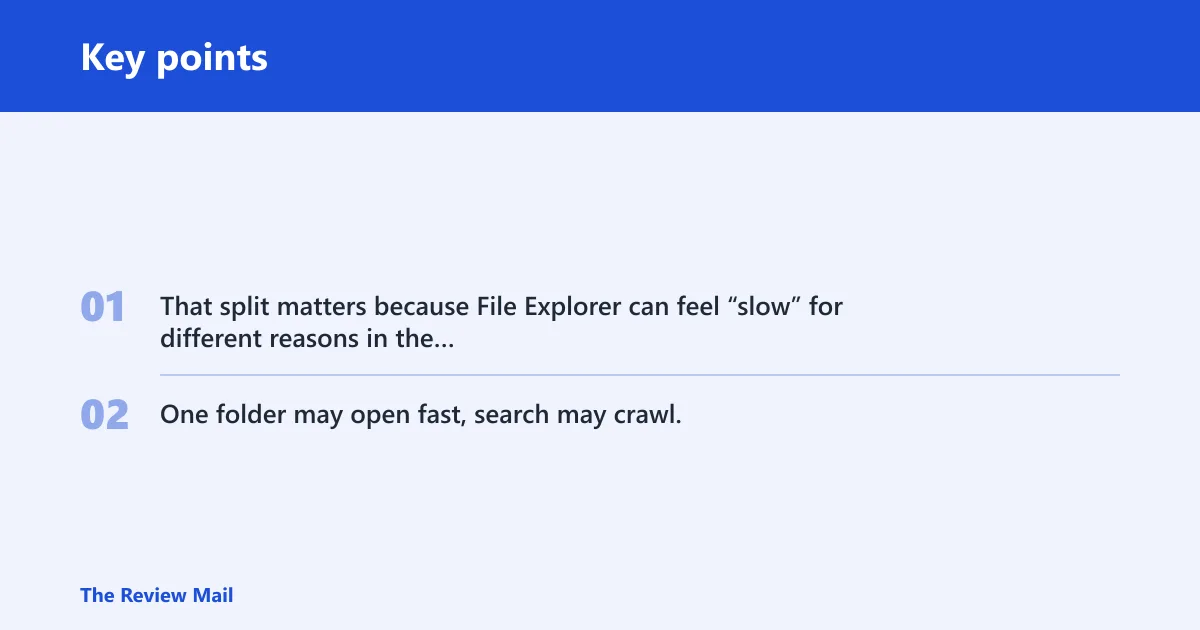
That split matters because File Explorer can feel “slow” for different reasons in the same session. One folder may open fast, search may crawl, and the context menu may lag only after a right-click on one file type.
File Explorer slowdown matrix
| Symptom | Likely cause | Fastest safe fix | Deeper fix | When to suspect network, mapped drives, or shell extensions |
|---|---|---|---|---|
| Slow launch | Home or Quick access loading recent, pinned, cloud, or known folders | Restart the Windows Explorer process, then switch the landing page to This PC if needed | Remove stale pinned items and test whether a mapped drive is hanging startup | Suspect it when the delay appears before any folder opens, especially after sign-in |
| Slow folder opening | Thumbnail generation, preview-heavy folders, shell extensions, or a slow path | Rebuild the thumbnail cache and retest a simple local folder | Reduce preview-heavy behavior and audit third-party shell extensions | Suspect it when image or video folders are much slower than text-only folders |
| Slow search | Search index problems or locations excluded from indexing | Open Indexing Options and use Advanced > Rebuild | Check included locations and confirm the files are local, not cloud-only or remote | Suspect it when search is slow in one library, one network share, or one synced folder |
| Slow right-click | Too many context menu items or shell extensions | Use Show more options only when needed, then test without third-party add-ons | Audit and remove unnecessary shell extensions and menu items | Suspect it when the delay happens only on right-click, not on open or search |
Why is File Explorer slow to open?
Slow launch usually comes from File Explorer opening to Home or Quick access and waiting on recent items, cloud files, pinned entries, or a mapped drive. The fastest first step is to restart the Windows Explorer process. If that does not help, switch the default landing page to This PC and check for a stuck network location.
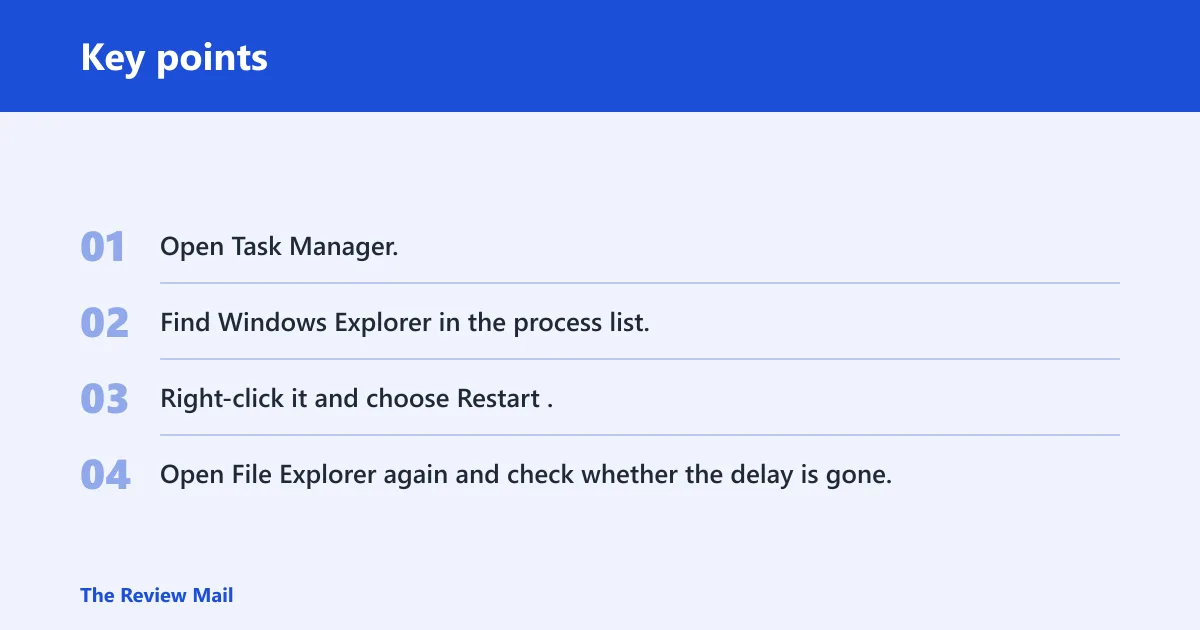
Restart Windows Explorer
Microsoft says File Explorer can be opened from the taskbar, Start menu, or with Windows logo key + E, but launch delays are often fixed sooner by restarting the Windows Explorer process itself. In Task Manager, the process appears as Windows Explorer. Restarting it clears the app shell and is a quick first step.
- Open Task Manager.
- Find Windows Explorer in the process list.
- Right-click it and choose Restart.
- Open File Explorer again and check whether the delay is gone.
Change Home or quick access to This PC
Microsoft recommends File Explorer Home for faster access to recent and cloud files, but that only helps if those items load cleanly. Microsoft also documents an option to open File Explorer to This PC instead of Home. If launch is the problem, that switch is often the smallest useful change.
Quick access in Windows 11 version 22H2 shows six known folders by default: Desktop, Documents, Downloads, Pictures, Music, and Videos. If one of those locations is slow, Home can feel slow too because it pulls those entries up front. (Microsoft Support)
Check for delayed network or mapped-drive connections
A launch delay that appears before any folder window is usable often points to a network path, mapped drive, or unreachable location in Home, Quick access, or a pinned item. If File Explorer opens quickly to This PC but not to Home, that is a useful clue. It suggests the delay may be tied to connection lookups rather than Explorer itself.
Picture a laptop that opens File Explorer slowly only after waking on a café Wi-Fi network. If a mapped drive tries to reconnect every time, the app can stall before the window feels ready. Remove or fix the network reference first, then retest the local launch path.
Why does Windows Explorer take so long to load folders?
Slow folder opening usually comes from one of three places: thumbnail generation, preview-heavy content, or shell extensions that hook into folder views. If the delay is worst in folders full of photos or videos, start with the thumbnail cache. If it happens in every folder, test for add-ons and network paths next.
Rebuild the thumbnail cache
AddictiveTips notes that File Explorer slowdowns may show up as thumbnails loading late and the green progress bar taking a long time. When folders contain many images or videos, the thumbnail cache can become the bottleneck. Rebuilding it through Disk Cleanup is a practical first repair for that pattern.
- Open Disk Cleanup.
- Select the Windows drive.
- Choose the thumbnail-related cleanup option.
- Run the cleanup and open the slow folder again.
Reduce preview-heavy folder behavior
Folders with large image sets, video previews, or heavy preview-pane use tend to take longer to render. If the slowdown is limited to those folders, the problem may be content-specific rather than global. Turn off preview-heavy viewing for a moment and compare the result with a plain list view in a simple local folder.
Say your Pictures folder has 2,000 mixed files and opens slowly, but Documents opens at normal speed. That points away from a general Explorer failure and toward thumbnail generation or folder-specific behavior.
Test for shell extensions
The same source says shell extensions can slow File Explorer. These third-party add-ons plug into folder views and can add delay when Explorer builds the window. If a folder loads slowly everywhere, especially after installing an app that adds Explorer integration, audit recent add-ons and remove anything unnecessary.
Built-in Windows behavior should stay fast in a simple local folder. If only one folder type stalls, a shell extension or location-specific handler is a stronger suspect than the whole app.
Why is File Explorer search so slow?
Slow search inside File Explorer usually points to the search index, not the folder window itself. Start with Indexing Options and the Advanced > Rebuild command. Then check whether the file lives in a local indexed location, a cloud-synced folder, or a network share that search cannot scan as quickly.
Rebuild the search index
The same source recommends rebuilding the search index from Indexing Options when Explorer search is slow. That is the most direct fix for delayed results or a spinning search box that takes too long to return names. Rebuilding helps when the index is stale, incomplete, or corrupted.
- Open Indexing Options.
- Select Advanced.
- Choose Rebuild.
- Wait for the index to repopulate, then test search again.
Check included locations
The index only helps if the target location is included. If search feels slow in one folder but not another, confirm that the folder is actually covered by indexing. Cloud-only files and some network paths can behave differently from local files, so a slow result there may not mean the index is broken.
Confirm whether the delay is local or remote
If search is slow in a synced folder but fast in Documents, the delay may come from cloud status checks or network latency rather than Explorer search itself. Start with a local, ordinary folder on the internal drive. If local search is quick, the problem is probably tied to the path, not the whole app.
Why is the right-click menu lagging?
Right-click lag is often caused by context-menu items or shell extensions. Windows 11’s streamlined context menu keeps common actions at the top, and the classic Windows 10 menu is still available through Show more options. If the delay shows up mostly on right-click, the menu stack is the place to inspect first.
Understand the Windows 11 Command Bar and context menu
Microsoft says the streamlined context menu keeps common actions at the top, while Show more options opens the classic menu. That distinction matters because extra add-ons often attach to the older, fuller menu path. If the new menu feels quick but the classic path lags, third-party entries are a likely reason.
Audit shell extensions and context menu items
The same source says context menu items can also slow File Explorer down. That can happen when many apps add their own entries for archive tools, sync tools, image tools, or cloud clients. The more items that load on right-click, the longer the menu can take to appear.
A common first-timer mistake is blaming all of File Explorer when only one action is slow. If opening folders is fine but right-clicking a file takes several seconds, focus on the menu itself before changing search or thumbnail settings.
Remove or disable unnecessary third-party add-ins
Tools such as ShellMenuView can help disable extra context menu handlers so you can compare the result against Windows-only behavior. That is useful when one file type, such as images or archives, triggers a delay that other file types do not. Remove the add-in if the slowdown disappears after it is disabled.
Repair checks for broader Windows problems
If the slowdown does not match one symptom and instead appears across launch, folders, search, and right-click, broader system repair is reasonable. Start with SFC /scannow, then look at network repair only when Explorer behavior points to a network path. Do not skip the symptom check and jump straight to resets.
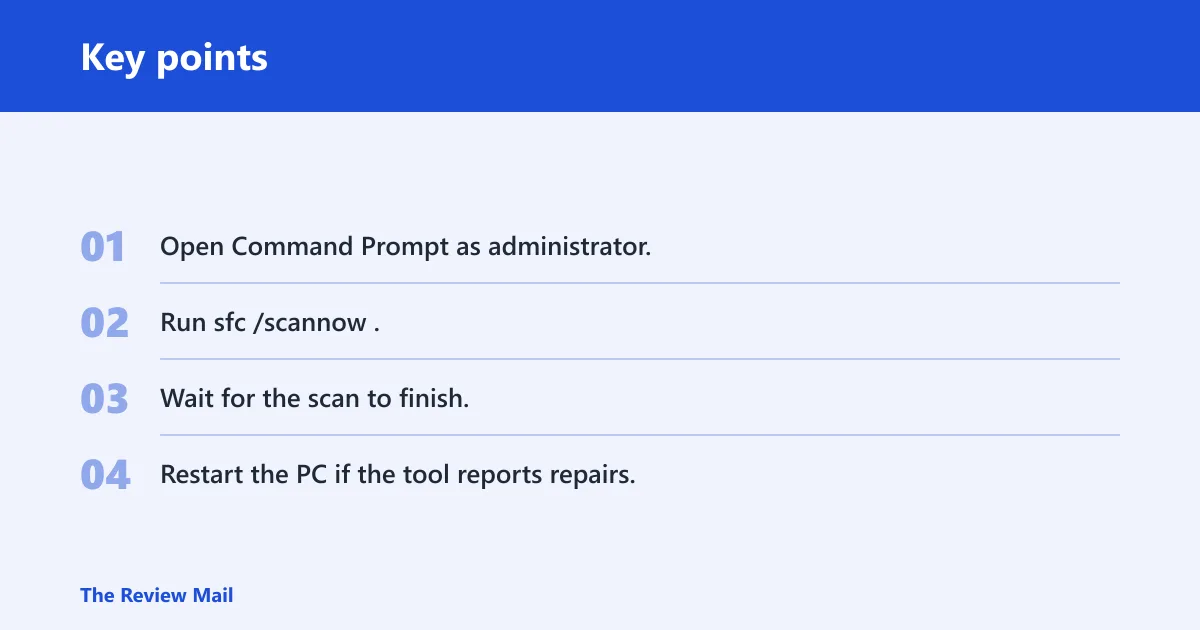
Run SFC /scannow
The same source suggests running sfc /scannow when needed. That scan checks Windows system files and can take about 15 minutes at least in one source. Use it when Explorer behavior looks wider than a single cache, index, or menu issue.
- Open Command Prompt as administrator.
- Run
sfc /scannow. - Wait for the scan to finish.
- Restart the PC if the tool reports repairs.
Reset network components only when network behavior is the clue
AddictiveTips also recommends netsh winsock reset for network-related problems. Use it only when the delay clearly tracks to mapped drives, remote paths, or online access problems. It requires an administrator Command Prompt and a restart, so it is not the first move for a local thumbnail or search issue.
Use Windows Update and built-in repair options first
If the issue follows a recent update or a corrupted component, install current Windows updates before deeper troubleshooting. Built-in repair paths are the safer choice when you have not yet isolated the slowdown mode. That keeps you from changing several unrelated settings at once.
Frequently asked questions
Why is file explorer slow windows 11?
The usual causes are different depending on the symptom. Slow launch often points to Home or Quick access, slow folders often point to thumbnails or shell extensions, slow search points to indexing, and slow right-click menus point to context-menu add-ons. Start with the matching fix instead of a broad reset list.
How do I fix windows 11 file explorer slow to open?
Restart Windows Explorer first from Task Manager. If launch still drags, switch File Explorer to open in This PC instead of Home and check for a mapped drive or pinned network location that stalls startup. If the delay disappears when opening This PC, the issue is likely tied to the landing page.
Why does windows explorer take so long to load folders: folders usually load slowly?
Folders usually load slowly when thumbnail generation, preview-heavy content, or shell extensions are involved. Rebuild the thumbnail cache through Disk Cleanup, then retest a plain local folder. If only image or video folders are slow, the folder content is a stronger clue than a general Explorer failure.
How do I restart file explorer in windows 11?
Open Task Manager, find Windows Explorer, and choose Restart. That is the quickest first-line fix for a slow or frozen Explorer window. It refreshes the process without a full reboot, which makes it a good first check before changing settings.
Should I open file explorer to home or this pc for speed?
If speed is the goal, This PC is often the better test because it avoids the Home landing page’s recent and cloud-focused behavior. Microsoft recommends Home for faster access to recent and cloud files, so the better choice depends on what is slowing down. Use This PC when launch itself is the problem.
Can quick access make file explorer slow in windows 11?
Yes. Windows 11 version 22H2 shows six known folders in Quick access by default: Desktop, Documents, Downloads, Pictures, Music, and Videos. If one of those locations is slow, or if a pinned item points to a delayed path, Home can feel slow even though Explorer itself is working normally.
Does file name extension display affect file explorer speed?
Usually no. Showing file name extensions is not a common cause of major Explorer slowness. If the slowdown is real, look first at the symptom: thumbnails for folders, indexing for search, or shell extensions for right-click lag. Those are much more likely to affect performance than the extension display setting.
What should I try if file explorer is slow only in large folders?
Start with the thumbnail cache, then check whether preview-heavy files are making the folder hard to render. If the delay is still there, test the folder with third-party shell extensions disabled. Large folders amplify small delays, so a problem that looks minor elsewhere can become obvious in that one location.