Turn Off 2 Step Verification Windows 11
Turn off 2-step verification for Windows 11 in your Microsoft account security settings, not in Windows 11 itself. If you want fewer prompts, switch to another sign-in method or add more security info instead of turning it off outright. Disabling it reduces protection across every app and device linked to that Microsoft account.
What you need to know first
Windows 11 generally does not have a system-wide two-step verification switch. The setting lives in your Microsoft account, and the right fix depends on where the prompt appears: on the PC at sign-in, on the Microsoft account web page, or in a Microsoft 365 or work account flow.
For a personal Microsoft account, Microsoft says two-step verification is managed at account.microsoft.com/security. Sign in to that account first, then check the security page. If the account is a work or school account, the controls may be handled elsewhere and may not use the same page. (Microsoft Support)
Two-step verification means two different forms of identity, usually a password plus a second proof method such as an app prompt, code, email, or text message. Microsoft Authenticator is one possible method. Security info is the set of email addresses, phone numbers, or app methods commonly used to verify identity.
Say your Windows 11 PC opens with a PIN, then Microsoft still asks for a code in a browser. That usually means the prompt is from the Microsoft account, not from Windows Hello. A PIN or fingerprint can sign you into the device, while Microsoft may still ask for another proof before changing account security settings.
Microsoft account security settings
Open the Security tab at account.microsoft.com/security after you sign in. Microsoft says that area is where you manage sign-in methods.
On some accounts, the exact wording changes. Look for the Security tab, then the sign-in methods area, then the two-step verification section if it appears. The main point is that you are changing Microsoft account security, not Windows 11 settings.
- Sign in to your Microsoft account.
- Open the Security tab at account.microsoft.com/security.
- Look for Two-step verification or Additional security.
- Choose Turn off if the option appears.
- Confirm the change with your identity proof method.
How do you turn it off?
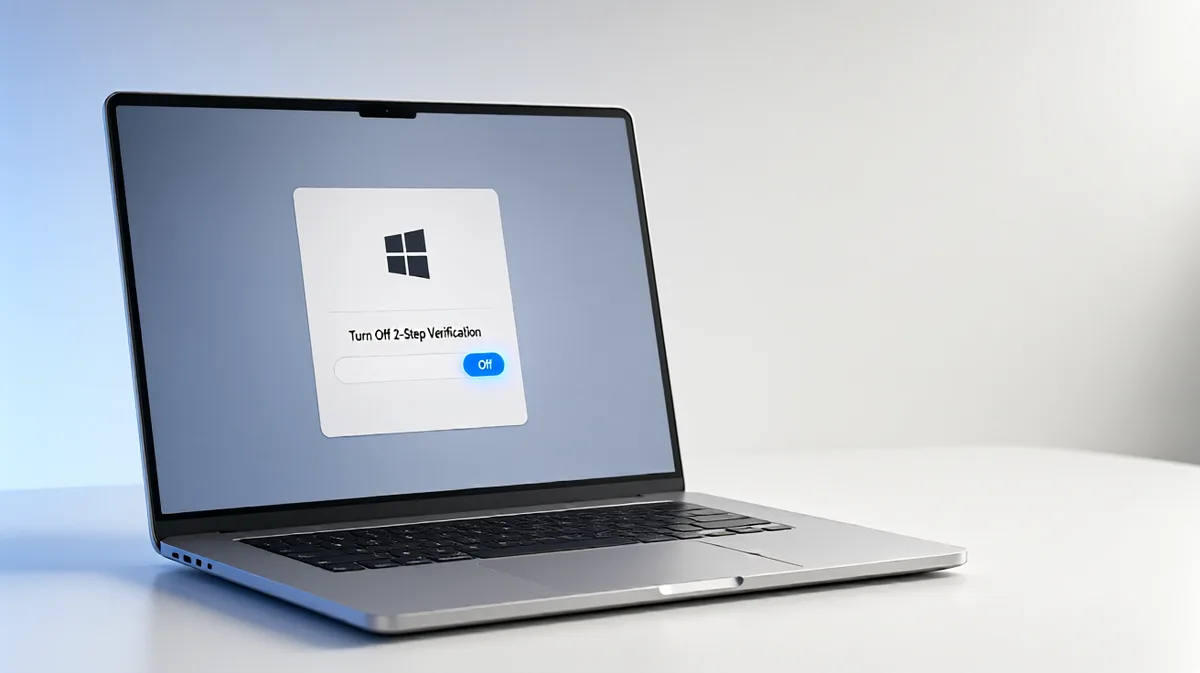
If your account shows the control, choose Turn off in the two-step verification area and confirm the change. Microsoft says you may need to verify your identity first, and some accounts will ask for a code by email or text message before the setting changes.
Microsoft also says turning it off means security codes are only occasional, not the main sign-in step. That does not mean every prompt disappears. The account can still ask for verification when you sign in on a device that is not trusted or when security settings change.
Picture a personal laptop that has been signed in for months. If the user changes the password or signs in from a new browser, Microsoft may ask for another code before letting the change go through. That is a Microsoft account check, not a Windows 11 system toggle.
How do I turn off 2 step verification on Windows 11?
Use your Microsoft account security page, not a Windows 11 settings page. If the option is not shown, the account may be managed differently or the setting may be hidden in the current interface.
How do I turn off 2-step verification?
Sign in to the Microsoft account first, then open the Security tab and check the sign-in methods area. If Turn off appears under two-step verification, choose it and confirm your identity. If the page asks for an email or text code, use the alternate verification method shown on your account.
How do I turn off 2 step authentication?
Microsoft uses the term two-step verification, but people often mean the same thing when they say two-step authentication. The change is made in Microsoft account security settings. If you want to keep the account protected, add more than one security info method before you disable the feature.
Why Windows 11 keeps asking for a code
Repeated prompts usually come from one of three places. The device may not be trusted yet, the account may have changed its security method recently, or the sign-in attempt may be coming from a browser, app, or PC that Microsoft treats as new. Windows 11 itself is often not the source.
Microsoft says verification codes are sent when you sign in on a device that is not trusted. If you keep seeing prompts on one PC but not another, the device-specific sign-in history is a likely clue. A changed password, removed security method, or new browser profile can also trigger extra checks.
Another common cause is a missing or outdated security info method. If the only verification method is a phone that is no longer available, Microsoft may keep asking for a code that cannot be received. In that case, fixing the account recovery setup matters more than changing Windows 11.
Can I disable two-step verification only on this PC?
Usually no, not as a Windows 11-only switch. Microsoft account two-step verification is tied to the account, so turning it off can affect that account across devices and apps. If the prompt appears only on one PC, the safer fix is often to review sign-in methods and device trust, not to disable the feature everywhere.
What happens if I turn off two-step verification?
Turning it off removes the extra verification step for that Microsoft account, which can make sign-in easier but less protected. Microsoft says you can turn it back on later, but identity verification is still required before changes like this. Any app or device using that account can be affected by the weaker protection.
Microsoft account verification decision table
| Symptom | Likely cause | Safest fix |
|---|---|---|
| Asks every sign-in | The account treats each sign-in as a new or untrusted session. | Check the Microsoft account security page, confirm your sign-in methods, and look for a way to reduce repeated prompts without turning off 2FA. |
| Asks only on this PC | This device may not be trusted, or its sign-in state changed recently. | Sign in to the same Microsoft account on the PC, review security info, and use the account page to verify the device before changing 2FA. |
| Lost authenticator phone | Your primary verification method is no longer available. | Use another security info method, such as email or text, to recover access before you change two-step verification. |
| Want to keep 2FA but stop constant prompts | The account needs better sign-in options or a more stable verification setup. | Add multiple security info methods, keep an alternative verification method ready, and confirm you are using the correct Microsoft account on the PC. |
| Forgot password with 2FA enabled | Microsoft needs more than one proof method to reset access safely. | Use the second contact method Microsoft asks for, because Microsoft warns you may need two contact methods if you forget your password. |
Keep 2FA on and reduce prompts
If the goal is fewer interruptions, the safer path is usually to keep two-step verification on and improve the sign-in setup. Microsoft warns that losing the contact method can prevent account recovery, so a better setup includes more than one security info method.
Add a second email address or phone number if your account allows it. Keep Microsoft Authenticator as one option if you use it, but do not make it your only way back in. Microsoft says security info can include an email address, phone number, or authenticator app.
Use an alternative verification method when the primary one is unavailable. That may be an email address or a text message. It is also worth checking whether the Windows 11 device is signed in with the intended Microsoft account, because the wrong account can look like a verification problem.
Suppose a home PC keeps asking for a code after a password change, while a tablet signed into the same account does not. That points to a device-specific prompt, not a broken account. The safest response is to verify the sign-in methods and confirm the PC is using the correct Microsoft account before disabling anything.
How do I remove authenticator prompts if I lost my phone?
Use another security info method first, such as email or text, to prove your identity on the Microsoft account security page. Microsoft says losing the contact method can prevent account recovery, so changing two-step verification should wait until access is restored. If no alternate method works, account recovery is the safer path.
Frequently asked questions
How do I turn off Microsoft account two-step verification?
If the option is not shown, the account may be managed differently or require another verification step first.
Why does Windows 11 keep asking for a verification code after I sign in?
That usually means Microsoft is asking for account verification, not Windows 11. A new device, a changed security method, or a sign-in on an untrusted PC can trigger it. Check whether the prompt comes from a browser, Microsoft account page, or app before changing Windows settings.