Games Lagging After Windows 11 Update
If games started lagging after a Windows 11 update, first rule out a driver or peripheral-utility conflict by testing one game in a clean boot; only roll back the update if the slowdown stays. Skip that order and you can remove the wrong update, lose settings, and keep the stutter. This guide shows how to separate update damage from GPU, audio, and mouse software conflicts before you change anything.
Root causes and diagnostic clues
Games usually lag after a Windows 11 update for one of three reasons: the update exposed a driver conflict, the update changed how a device or utility loads, or the system was already near its limits and the timing made the slowdown obvious. The fastest path is to confirm whether Microsoft has logged the issue, then test the parts most likely to interfere with games.
Update regression versus game-specific conflict
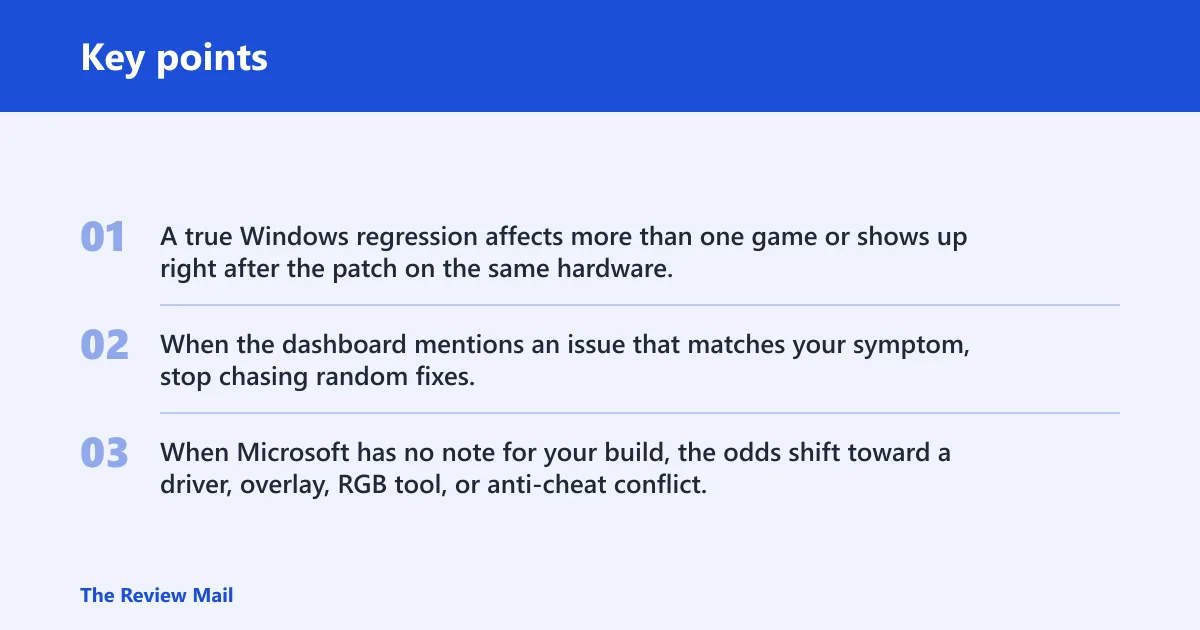
A true Windows regression affects more than one game or shows up right after the patch on the same hardware. A game-specific conflict usually appears only in one title, or only when a driver, overlay, RGB utility, or anti-cheat component loads. That distinction matters because rollback helps the first case more than the second.
What symptoms point to a system bottleneck
Stutter that worsens during map loads, alt-tab swaps, shader compilation, or large asset streaming often points to CPU, memory, or disk pressure rather than a bad Windows build. A frame drop that happens in every game, even at lower settings, is also a clue that the bottleneck is broader than one patch.
Windows gaming lag decision table
| Symptom | Likely culprit | Quick verification step | Reversible fix | When to roll back the update |
|---|---|---|---|---|
| Only one game freezes or closes after launch | Anti-cheat tool, overlay, or game-specific driver conflict | Run the game after disabling overlays and third-party game tools | Keep only the game client and required anti-cheat active | Roll back only if the same game still fails in a clean boot |
| Every game stutters after the patch | GPU driver, chipset driver, or Windows regression | Check Microsoft’s Windows 11 release health dashboard and compare driver versions | Install current GPU and chipset drivers from the manufacturer | Roll back if Microsoft lists the issue or the slowdown began immediately after the update |
| Disk spikes to 90 to 100 percent during lag | Storage bottleneck, background indexing, or low free space | Open Task Manager and watch the Performance tab during gameplay | Close background copy jobs and free space on the system drive | Rollback is low priority unless the lag began right after the patch and every other test fails |
| CPU or Memory stays pinned during the slowdown | Processor contention, too little RAM, or a background app | Check whether CPU or Memory holds near 90 to 100 percent while the game stutters | Close startup apps and test with fewer background services | Rollback only after the same bottleneck appears in a clean boot |
| Crashes mention Exception Access Violation | Known update issue, driver conflict, or anti-cheat interaction | Match the error with Microsoft’s notes and the affected game list | Test with minimal peripherals and no RGB utilities | Rollback is reasonable if the crash started on the exact update day |
Check the Windows 11 release health dashboard
Start with Microsoft’s Windows 11 release health dashboard to see whether Microsoft has already logged games becoming unresponsive, freezing, or crashing after the same update. Microsoft may place safeguard holds on devices with known compatibility issues, so this check tells you whether a rollback is the right next move or whether waiting is safer.
Microsoft says version 26H2 uses an enablement package for eligible devices, and the update is for eligible devices running Windows 11 versions 25H2 and 24H2. Microsoft also says many devices only need a small download and a quick restart for 26H2, and describes 26H2 as a controlled feature rollout. That matters because not every PC gets the same change at the same time.
When the dashboard mentions an issue that matches your symptom, stop chasing random fixes. When Microsoft has no note for your build, the odds shift toward a driver, overlay, RGB tool, or anti-cheat conflict.
How do I fix game stuttering after updating Windows 11?
Start with the safest checks first: verify the issue on Microsoft’s release health dashboard, then isolate third-party software and drivers before you remove the update. The most useful fixes are reversible, quick to test, and tied to a clear symptom. Rollback belongs near the end unless the lag began the same day as the patch.
Which drivers should you check first?
Check the GPU driver and chipset driver first. The GPU driver is the obvious place to start for stutter and crashes, but the chipset driver matters too because it controls communication between the CPU, RAM, and storage. Outdated chipset software can create system-wide lag that looks like a graphics problem.
Confirm both versions. Open the GPU control panel or manufacturer support app and note the installed driver version, then compare it with the vendor’s latest release. Do the same for the motherboard or laptop chipset package, because both can change game stability after a Windows update.
Install from the source. Use the GPU maker and system or motherboard maker, not random driver sites. That cuts the chance of pulling in the wrong package or a bundled utility that adds another conflict.
Test the same game again. Launch one affected game after the install and watch for the same lag pattern. If the problem changes, you have evidence that the driver path mattered. If nothing changes, keep going instead of repeating the same update.
RGB lighting drivers and components deserve the same attention. TechRadar reports Microsoft suspects RGB-lit peripherals and related drivers in the issue, and mentions code components with file names similar to inpoutx64. Those low-level hooks can interfere with games, especially when an update changes how they load.
Anti-cheat tools can also be part of the problem. Affected games reported in coverage included Arc Raiders, Marvel Tokon: Fighting Souls, and The Finals, and some crashes were described as Exception Access Violation errors. That pattern points to kernel-level software or overlays, not just one bad graphics package.
Suppose a game stutters only when a mouse utility, keyboard macro app, and RGB suite all load together. Disable only the RGB suite first, then test again. If the lag disappears, the Windows update was probably the trigger that exposed the conflict, not the sole cause.
Use a clean boot and minimal device stack
A clean boot helps separate Windows from third-party software. It loads the system with the fewest startup items and services, which makes it easier to see whether an overlay, RGB utility, or anti-cheat component is responsible. This is safer than removing updates first, because it preserves the evidence.
Disable nonessential startup items. Turn off RGB suites, game launchers you do not need for the test, overlays, macro tools, and peripheral control apps. Leave only the game, the display driver, and required input devices active.
Disconnect extra peripherals. Leave a basic keyboard, mouse, headset, and display connected. Remove extra adapters, dongles, capture devices, and specialty controllers so you can see whether a peripheral stack is the trigger.
Relaunch one affected game. Use the same map, menu path, or match type that showed the lag before. A clean comparison matters more than a new game session because you want the same workload under a simpler software stack.
A common first-timer mistake is testing three fixes at once. If you disable overlays, swap drivers, and roll back the update in one pass, you lose the trail that shows which change actually helped.
How do I tell if the problem is CPU, RAM, disk, or GPU?
Use Task Manager’s Performance tab while the game is lagging. Watch for sustained usage near 90 to 100 percent on CPU, Memory, Disk, or GPU during the slowdown. The component that stays pinned is often the bottleneck, and that points you away from the wrong driver or app.
Read the Performance tab correctly
Open the Performance view. Press Ctrl+Shift+Esc, then open the Performance tab while the game is running or right after a stutter. Check CPU, Memory, Disk, and GPU one by one instead of guessing from the game’s frame rate alone.
Watch for sustained saturation. A brief spike is normal. A reading that sits near 90 to 100 percent for several seconds during lag suggests a resource bottleneck, not a single bad frame.
Match the symptom to the device. CPU pressure often shows as general input delay and broad slowdown. Memory pressure tends to bring heavy swapping and long pauses. Disk pressure often appears during loading or texture streaming. GPU pressure usually tracks with high settings and dense scenes.
If Disk is pinned, the fix path changes. Free space, background transfers, and storage health matter more than a graphics rollback. If CPU or Memory is pinned across several games, the update may have exposed a service or startup load that was already too heavy.
When storage points away from graphics drivers
Disk spikes during every freeze usually mean the game is waiting on storage, not on the GPU. That is common in titles that stream large assets or compile shaders on demand. In that case, a graphics driver change may help only if it also changed how the storage path behaves, which is less common.
Is RGB software or an anti-cheat driver causing game lag after Windows 11 update?
Yes, either can be the source, especially when the lag appears only in a few games or only after a specific peripheral utility loads. RGB tools, overlays, and anti-cheat components operate low in the stack, so a Windows change can expose a conflict even when the game itself is fine.
Test these components one at a time. Disable RGB software first, then overlay tools, then unnecessary peripheral managers. If the game recovers after one change, you have found the conflict class and can leave the Windows update in place for now.
Genre matters too. Competitive shooters and other anti-cheat-heavy titles are more sensitive to low-level hooks than slower single-player games. If a title crashes during anti-cheat initialization, focus on the peripheral stack before you touch the Windows build.
When should you roll back the update?
Roll back a Windows update if the problem began right after a patch, a matching issue or safeguard hold is documented, and the same game still lags in a clean boot with minimal peripherals. That sequence makes rollback the fastest isolation step, not the first guess.
Windows Update rollback is most useful when the timing is sharp and the symptom is repeatable. If the lag started the same day, and no driver or utility change fixes it, the update has the strongest case.
Save your current settings. Note driver versions, game settings, and which utilities were disabled before you change anything else. That makes it easier to restore the working setup if rollback does not help.
Remove the most recent patch. Use the Windows recovery or update history path to uninstall the latest quality or feature update. Do this only after the clean-boot test, because rollback is more disruptive than driver checks.
Retest the same game. Use the same title, same scene, and same settings that showed the lag. If the problem disappears, the update was likely the trigger. If not, the conflict is still elsewhere.
Should you stop there? Yes, if Microsoft has already confirmed the issue and your symptoms match closely. If the dashboard stays clear and the lag survives rollback, the cause is more likely a driver, utility, or hardware bottleneck that still needs attention.
Frequently asked questions
Why are my games lagging after a Windows 11 update?
Usually because the update changed how a driver, overlay, RGB utility, or anti-cheat component loads. Start by checking Microsoft’s release health dashboard, then test the game in a clean boot. If the lag stays, the issue is less likely to be a simple Windows regression and more likely a conflict.
Can a Windows 11 update make games crash or freeze?
Yes. Microsoft may put safeguard holds on devices with known compatibility issues, and reports have described games becoming unresponsive after a Windows 11 update. If the crash started right after the patch, and the same title still fails in a clean boot, rollback is reasonable.
Should I roll back a Windows 11 update if games started lagging?
Only after you check Microsoft’s status page and test a clean boot with minimal peripherals. Rollback is the right move when the slowdown began immediately after the patch and the same symptom survives driver checks. If only one game is affected, look harder at its anti-cheat or overlay stack first.
Which drivers should I update when games lag after Windows 11 update?
Start with the GPU driver and the chipset driver. The GPU driver handles game rendering, while the chipset driver affects CPU, RAM, and storage communication. If either is old, system-wide lag can look like a Windows problem even when the update only exposed an existing weakness.
What Windows setting changes help gaming performance after an update?
Keep the changes simple: turn off unneeded startup apps, reduce background overlays, and free storage if the system drive is nearly full. Microsoft’s Windows help hub includes Improve PC performance and Free up some space on your PC, which are the right places to check after you separate a bottleneck from a driver conflict.