System Slow After Windows 11 Update
If Windows 11 is slow after an update, a common rule of thumb is to wait about 15 to 60 minutes for background tasks. If it is still slow after a restart and one full power cycle, treat it as a performance regression. Skipping that check can waste time on fixes you do not need, or leave a real driver problem in place. This guide gives a fast laptop-versus-desktop decision path for cumulative, optional, and driver updates.
What to check first
Start with the quickest checks that carry little risk. Restart once, open Windows Update for pending installs, then use Task Manager to see whether CPU, memory, disk, or network activity is still pegged. That order separates normal post-update work from a real slowdown before you change settings.
Restart, then recheck
Microsoft recommends restarting the PC as Solution 1 for blocked program installs or removals. After an update, a restart clears temporary update states and lets Windows finish pending changes. If the slowdown vanishes after the restart, the problem was likely temporary. (Microsoft Support)
Open Windows Update for pending installs
Check whether Windows is still applying cumulative updates, optional updates, driver updates, or pending installations. A system can feel slow while those are still pending, especially right after Patch Tuesday or a feature upgrade. If Windows still has items queued, let them finish before chasing deeper causes.
Use Task Manager before changing settings
Task Manager can show CPU load, memory usage, disk activity, and network usage. It can also terminate unresponsive programs and adjust startup applications. If one of those meters is stuck high, that clue tells you where to focus next instead of guessing. (Microsoft Support)
📊 System configuration tools in Windows applies to both Windows 11 and Windows 10. Source: Microsoft.
Why is Windows so slow after an update?
Windows is often slow after an update because it is still doing background work, not because the update failed. Search indexing, Defender scans, storage maintenance, and install finalization can all raise disk or CPU use for a while. If the lag stays after a restart and a full power cycle, start treating it as a regression.
Normal background work after patching
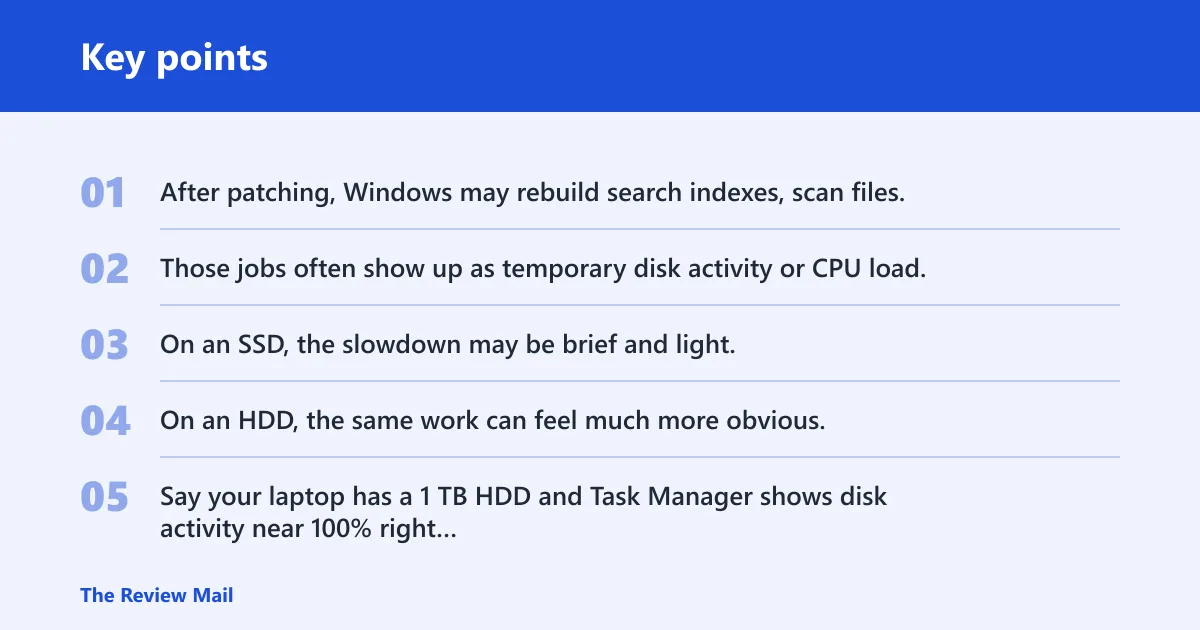
After patching, Windows may rebuild search indexes, scan files, and run maintenance tasks in the background. Those jobs often show up as temporary disk activity or CPU load. On an SSD, the slowdown may be brief and light. On an HDD, the same work can feel much more obvious.
Say your laptop has a 1 TB HDD and Task Manager shows disk activity near 100% right after login, while CPU stays modest. That pattern often fits background indexing or maintenance. Give it time before changing startup settings or blaming the update itself.
When the slowdown points to a regression
Look for a problem that persists after about 24 to 48 hours, survives a restart, and keeps returning on a clean boot. That is more consistent with a bad driver, incomplete install, corrupted system files, or a startup app that was re-enabled. The visible sign matters more than the timing alone.
Common red flags include a single process that keeps maxing CPU, disk saturation that never settles, apps that lag even when the desktop looks idle, or boot time that is slow only after shut down and not after restart. Those clues point to different fixes.
How HDDs, SSDs, and low-RAM PCs differ
Older laptops, HDD-based systems, and low-RAM PCs usually feel update load more sharply than SSD desktops. A background scan can sometimes monopolize a hard drive. A low-RAM machine may begin paging more often, which makes disk activity look like the main problem even when memory pressure started it.
On an SSD with 16 GB of RAM, the same update may only cause a short pause. On an older 8 GB laptop with a spinning drive, even routine indexing can feel severe. That difference is why hardware profile matters before you decide the update broke something.
Slowdown triage table
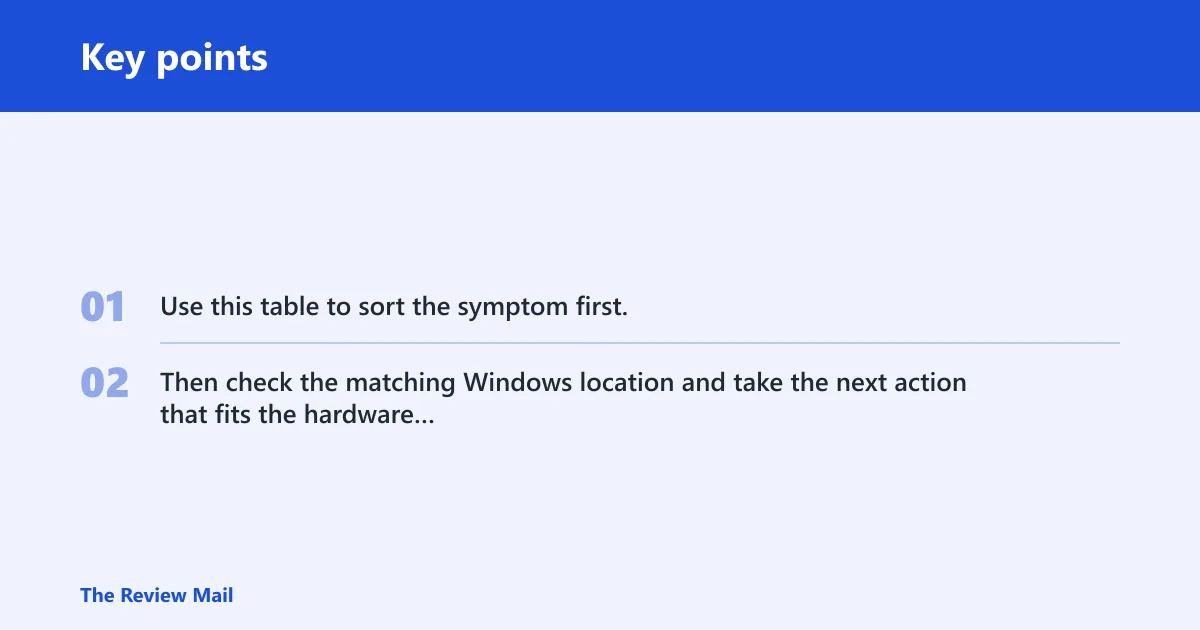
Use this table to sort the symptom first. Then check the matching Windows location and take the next action that fits the hardware and timing.
| Symptom | Likely cause | Where to check in Windows | Next action |
|---|---|---|---|
| High CPU | Defender scan, search indexing, app crash loop, bad driver process | Task Manager; Event Viewer for repeated errors | Wait for background work to finish if it is recent; if one process stays high after 24-48 hours, update or remove the related driver or app |
| High disk | Windows Search reindexing, storage maintenance, update unpacking, HDD bottleneck | Task Manager; Windows Update; Computer Management for disk status | Let the system sit plugged in and idle; on HDD systems, expect slower recovery. If disk stays saturated after a full day, check for driver issues or file corruption |
| Slow boot only | Startup apps, Fast Startup behavior, delayed services | Task Manager startup apps; Control Panel power options; System Configuration | Disable unneeded startup apps, compare restart versus shut down, and test Fast Startup off if shutdown boots are slow |
| App lag only | Corrupted app files, pending app repair, graphics driver mismatch | Settings > Installed apps > Advanced options; Task Manager | Repair or reset the affected app, then check optional driver updates for graphics or storage hardware |
| Persistent slowdown after 24-48 hours | Incomplete install, corrupted system files, bad update component, driver incompatibility | Windows Update; Event Viewer; Computer Management; System Configuration | Run built-in repair and diagnostic tools, review recent drivers, and only then consider rollback or repair options |
Why is my PC slow after Windows 11 update?
The usual causes are Windows Search indexing, Microsoft Defender scanning, and storage optimization. All three can create temporary CPU or disk load after an update. If the machine is still slow once those jobs should have finished, the cause is more likely startup load, a bad driver, or a failed update component.
Windows Search indexing and reindexing
Windows Search can reindex files after an update, especially when folders, app data, or search components changed. That process often spikes disk use more than CPU use. It is most noticeable on HDDs and on systems with many files. Let it run if the machine is otherwise stable.
Microsoft Defender scanning
Microsoft Defender may run background security scans after an update or after a large file change. Those scans can raise CPU and disk load temporarily. If Task Manager shows Defender activity and the machine settles later, that is a normal recovery path rather than a defect.
Storage optimization and other maintenance tasks
Storage optimization tasks can also run after an update. Windows may reorganize data, complete background maintenance, or tidy system files. That can slow the PC briefly, especially on older hardware. If the slowdown is confined to that window, the fix is usually patience, not a reset.
A common first-timer mistake is to disable a dozen settings when the real issue is one maintenance task still running in the background. If Task Manager shows disk pressure and the machine is only a few minutes past login, wait before making changes.
Check startup apps and boot behavior
If the PC is slow only at startup, look at startup apps before you touch drivers or repairs. Updates can re-enable items, add new startup hooks, or change timing enough to make an older laptop feel much slower. Task Manager is the quickest place to sort that out.
Review startup impact in Task Manager
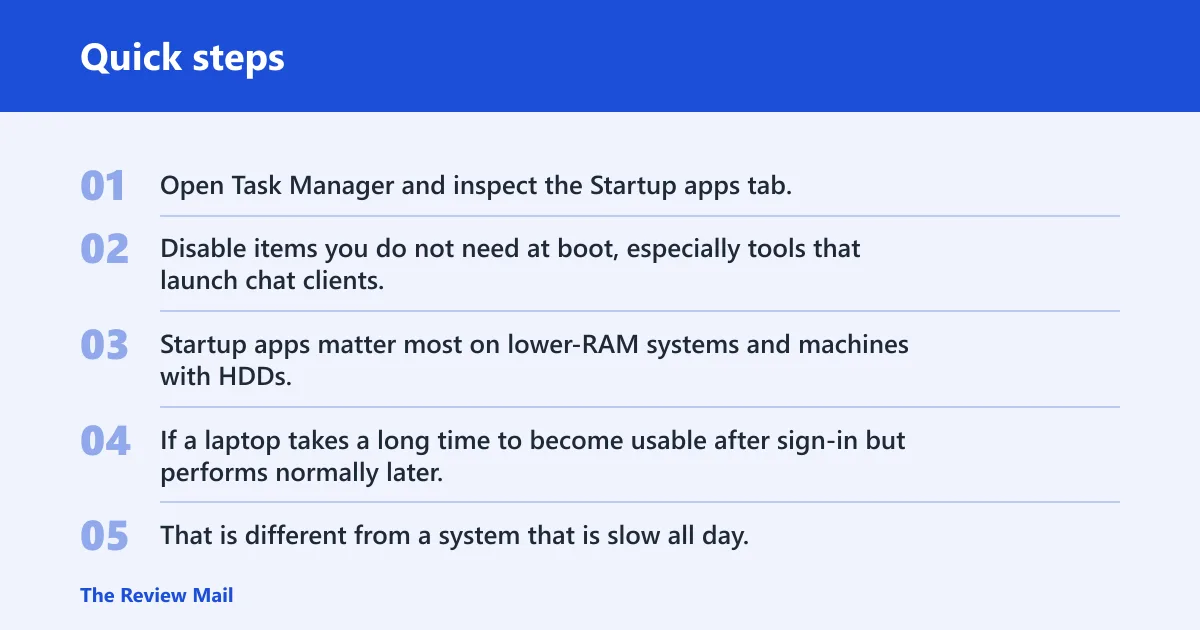
Open Task Manager and inspect the Startup apps tab. Disable items you do not need at boot, especially tools that launch chat clients, cloud sync, updaters, or tray utilities. Startup apps matter most on lower-RAM systems and machines with HDDs.
If a laptop takes a long time to become usable after sign-in but performs normally later, startup load is the first suspect. That is different from a system that is slow all day, which points more toward background work, drivers, or corruption.
See whether Fast Startup is masking a cold boot problem
Fast Startup can prevent a full reload on shut down. That means a shutdown boot and a restart do not behave the same way. If the PC is sluggish after shut down but fine after restart, test with Fast Startup disabled in power options to see whether the cold boot path is the issue.
Compare restart versus shut down
If restart is normal but shut down is slow, the problem may sit in startup services or Fast Startup behavior rather than core performance. If both paths are slow, keep looking at pending updates, background tasks, or drivers. That split saves time.
Do optional updates and drivers fix slow performance?
Sometimes, yes. Optional updates and driver updates can help when the slowdown follows a feature upgrade, a device stops responding smoothly, or Task Manager points to a hardware-related process. Do not install every optional item blindly; match the update to the symptom and the device.
Install optional Windows Update patches only when relevant
Optional updates can include fixes that are not required for every machine. If Windows Update shows an optional patch tied to your problem, it is worth a look. If the system is simply busy with background tasks, optional patches may not change anything yet.
Check graphics, storage, and network drivers
Driver issues are common after feature upgrades. Graphics drivers can affect UI lag, storage drivers can affect disk behavior, and network drivers can affect login or app responsiveness when cloud services keep retrying. Check optional driver updates in Windows Update when the symptom tracks one of those devices.
Watch for driver mismatch after a feature upgrade
A feature upgrade can leave older drivers in place even when the hardware still works. That mismatch can show up as stutter, long app launches, or repeated spikes in Task Manager. If the slowdown began right after a major update, driver compatibility deserves a close look.
Suppose a desktop with an SSD starts lagging only when opening the display settings, while everything else is fine. That pattern leans toward a graphics driver issue, not search indexing. A targeted driver check is better than broad cleanup.
When does post-update slowness mean a deeper problem?
Persistent slowdown after about 24 to 48 hours, or slowness that returns after each restart, usually points to a deeper issue. Look for incomplete installs, corrupted system files, or a bad update component before you jump to a reset. Built-in repair tools should come before any drastic step.
Incomplete installs and failed update components
If Windows Update shows pending items that never finish, or Event Viewer shows repeated update errors, the install may be incomplete. Check Windows Update history, then review Event Viewer for system, security, and application logs. Those logs give a cleaner signal than guessing from symptoms alone.
Corrupted system files
Corrupted system files can mimic ordinary lag. They can also make repairs fail or leave apps slow in ways that Task Manager alone will not explain. Use built-in repair and diagnostic tools before deciding the machine needs a full reinstall.
Use built-in repair and diagnostic tools
Windows provides several tools that help here. Settings is the main app for managing system options. Windows 11 app repair and reset are available from Installed apps > Advanced options. The troubleshooter can fix corrupt registry keys and incomplete uninstall data. Computer Management includes tools for disks, services, devices, shared folders, and users. System Configuration and Event Viewer are also useful for narrowing the fault.
- Open Windows Update and finish any pending cumulative, optional, or driver updates.
- Check Task Manager for CPU, memory, disk, and network usage.
- Review startup apps and disable items that are not needed at boot.
- Compare restart and shut down behavior, then test Fast Startup if shutdown boots are slow.
- Open Event Viewer and Computer Management if the slowdown persists after 24-48 hours.
- Use Settings repair options for the affected app, and only then move to broader repair paths.
Frequently asked questions
Why is my pc slow after windows 11 update: the most common reasons?
The most common reasons are pending update work, startup apps, or a driver mismatch. Task Manager can show whether CPU, memory, disk, or network use is high. If the machine is mostly idle but still laggy after a day or two, look for corrupted files or incomplete installs.
How do I tell if startup apps are slowing my PC after an update?
Open Task Manager and check the Startup apps tab, then compare boot time after disabling nonessential items. If sign-in is slow but the PC improves later, startup load is likely part of the problem. If everything stays slow, keep checking Windows Update and Task Manager.
Should I restart or shut down after a Windows 11 update?
Restart is the better first check because it clears temporary update states and lets Windows finish more cleanly. Shut down can be affected by Fast Startup, which may hide a cold boot issue. If restart is fine but shut down is slow, test with Fast Startup turned off.
What Windows tools help diagnose post-update slowness
A common troubleshooting order is to start with Task Manager, then move on to Windows Update, Event Viewer, Computer Management, Settings, and System Configuration. Task Manager shows the live load. Event Viewer gives logs. Computer Management helps with disks, services, and devices. Settings and System Configuration help you change the likely cause.
When does slow performance after a Windows update mean a deeper problem?
It is more likely a deeper problem when the slowdown lasts 24-48 hours, returns after a restart, or lines up with a specific driver or system error. At that point, incomplete installs, corrupted system files, or a bad driver move higher on the list than ordinary background work.