Win 11 Can T Access Network Drive
If Windows 11 can’t open a network drive, the problem can be in the mapped drive letter, saved credentials, name resolution, or server permissions. A UNC path such as \\server\share goes straight to the share target, which makes it useful for checking whether the share itself responds.
What the error means
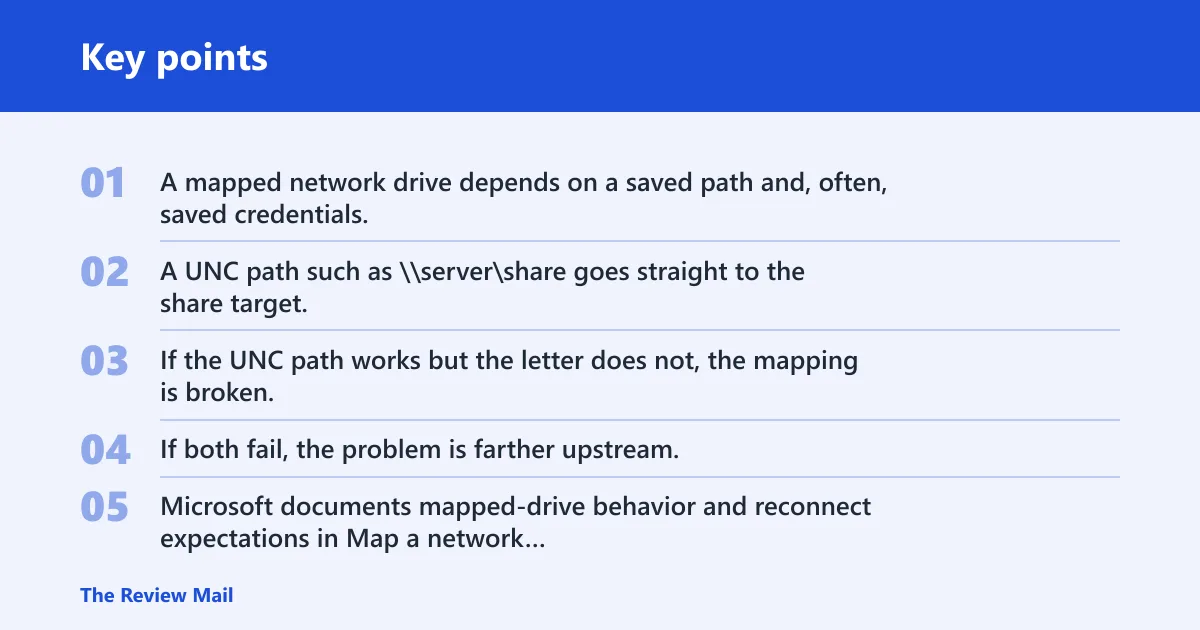
A mapped network drive depends on a saved path and, often, saved credentials. A UNC path such as \\server\share goes straight to the share target. If the UNC path works but the letter does not, the mapping is broken. If both fail, the problem is farther upstream. Microsoft documents mapped-drive behavior and reconnect expectations in Map a network drive in Windows.
Say your drive letter Z: opens yesterday and fails today after a reboot. That usually points to a reconnect or credential problem. Suppose \\NAS01\Projects also fails from the same PC. Then you are no longer dealing with the mapping alone. For saved sign-ins, Microsoft’s Credential Manager guidance explains where Windows stores and removes those entries.
Likely causes
A common order to check the causes is: stale credentials, a broken mapped drive, DNS or hostname lookup failure, share permissions, and firewall blocking. That order keeps you from changing unrelated settings before you know where the break is.
- Stale credentials: saved entries in Windows Credential Manager can override the password you type.
- Broken mapping: a mapped drive may fail after restart, sign-in, or an update.
- Name resolution: hostname access can fail while IP access still works.
- Permissions: the share may be online, but Windows may still be blocked from opening it.
- Firewall or profile changes: SMB traffic can be blocked after a rule reset or a network profile change.
Use the UNC path first
The UNC path is the fastest fault split. If \\server\share opens, the server is reachable and the mapping is the likely problem. If it does not open, the issue is usually credentials, DNS, permissions, or firewall rules.
- Open File Explorer.
- In the address bar, type \\server\share and press Enter.
- If that fails, try the IP form: \\192.168.1.50\share.
- If the IP works but the name fails, it is reasonable to focus on DNS or hostname lookup.
- If both fail, move to saved credentials and server-side permissions.
A common first-time mistake is to remap the drive before checking the UNC path. That can hide whether the share is healthy and make the same failure come back after the next sign-in. Direct UNC access is the fastest way to separate the share itself from the drive letter.
Why does Windows 11 ask for a password?
A repeated password prompt usually means Windows is using a stale saved credential, not the password you just typed. Remove the stored entry first, then reconnect with the exact server account that has access to the share. Credential Manager stores and removes those entries.
- Open Control Panel > User Accounts > Credential Manager.
- Select Windows Credentials.
- Remove entries that match the server name, IP address, or NAS name.
- Open the share again by UNC path: \\server\share.
- Enter the correct username in the form the server expects, such as SERVERNAME\username or a domain account.
- If another account already has a session to that server, sign out of that connection first.
Windows Credential Manager is often the first place to clean up because a saved bad password can keep winning over a correct one you type later.
Why does the network path not found appear?
That message usually means Windows cannot reach the host name, the share service, or the SMB path at all. Start by checking whether the shared PC, NAS, or file server is powered on and online, then confirm that sharing is allowed on the right network profile.
- On the host PC, open Settings > Network & internet and confirm the connection is not set to a public profile when file sharing is expected.
- Open Control Panel > Network and Sharing Center > Change advanced sharing settings.
- Turn on Network discovery and File and printer sharing for the active profile.
- On the host, check Windows Defender Firewall > Allow an app through firewall and confirm file sharing is allowed on the profile you use.
- If the host is a NAS, confirm SMB sharing is enabled there too.
Network discovery helps browsing, but direct UNC access still depends on the share being online and reachable. File and printer sharing must be allowed on the correct profile, or browsing may work while opening the share fails.
Why does it work by IP but not name?
If \\192.168.1.50\share works and \\fileserver\share fails, the share is reachable and DNS or hostname resolution is the weak point. That points away from permissions and toward name lookup, cached entries, or a wrong server name.
- Open Command Prompt.
- Run
ipconfig /flushdns. - Run ping fileserver and compare it with ping 192.168.1.50.
- Try the UNC path again using the hostname.
- If the hostname still fails, check the server name against the label used by the host or NAS admin panel.
DNS name resolution can fail even when the share itself still answers by IP. That is why the IP test is so useful: it separates naming from access control.
How do I reconnect a mapped drive after restarting Windows 11?
After a restart, a mapped drive may fail because the saved reconnect did not complete, the password changed, or the server was not ready when Windows signed in. The fix is to test the share directly, then remap it with the reconnect option only after the UNC path works.
- Open File Explorer and try the share by UNC path first.
- If the share opens, right-click the broken drive letter and choose Disconnect.
- Select This PC > Map network drive.
- Choose the same drive letter, enter \\server\share, and enable Reconnect at sign-in.
- If the prompt appears, enter the correct saved credentials after clearing stale entries.
If the mapping breaks only after a reboot, the drive letter problem is usually local. The server may be fine.
How do I fix a shared drive that disappeared after an update?
A drive that vanishes after a Windows update often points to credential changes, firewall rule changes, or a reset network profile. Treat it as a reconnect problem first, then check whether the update changed which network profile is active.
- Open Settings > Network & internet and confirm the network is on the expected profile.
- Open Credential Manager and remove saved entries for the server.
- Reconnect the share by UNC path before remapping the letter.
- Check Windows Defender Firewall rules for file sharing after the update.
- If access still fails, test from another PC on the same network to see whether the host or only this device is affected.
Windows updates can change how SMB traffic, saved sign-ins, or firewall profiles behave. That is why the same share may still work elsewhere while one PC loses it.
Network drive troubleshooting matrix
This matrix separates the symptom from the likely cause so you can test the right layer first.
| Symptom | Likely cause | Quickest test | Fix |
|---|---|---|---|
| Mapped drive letter opens nowhere | Broken reconnect after sign-in | Open \\server\share directly | Disconnect and remap with Reconnect at sign-in |
| Mapped drive works on one boot, fails after reboot | Saved reconnect or credential issue | Check Credential Manager for the server entry | Remove the saved entry and reconnect |
| UNC path fails, but the server is online | Credentials, permissions, or SMB blocking | Try \\192.168.1.50\share | Fix credentials, permissions, or firewall rules |
| Password prompt keeps returning | Stale saved credentials | Delete matching Windows Credentials | Re-add the correct server account |
| “Network path not found” | Name lookup or file sharing blocked | Ping the hostname and the IP | Fix DNS, discovery, or sharing settings |
| Works by IP, not by name | DNS hostname resolution failure | Open \\IP-address\share | Clear cached name data and correct the name |
| Share vanished after update | Profile, firewall, or SMB behavior changed | Check the active network profile | Restore file sharing and firewall access rules |
| Shared folder visible, but not openable | Share or NTFS permissions | Try another account with known access | Adjust share and NTFS permissions on the host |
| One PC fails, another PC works | Local credential, DNS, or firewall issue | Compare hostname and IP access on both PCs | Fix the failing PC first |
| Browsing shares fails on a public network | Discovery and sharing disabled on that profile | Check the network profile in Settings | Turn on discovery and file sharing on the right profile |
| SMB connection fails after a firewall reset | Windows Firewall blocked file sharing | Review allowed apps and inbound rules | Restore SMB-related firewall exceptions |
| Host is reachable by IP, but browser name fails after router change | Stale DNS cache or wrong name entry | Flush DNS and retry the hostname | Correct DNS or use the proper server name |
| Share opens on a second computer, but not on this one | Local credential or mapping problem | Compare saved credentials and drive mappings | Remove the broken mapping and stale credential |
Still not working?
If the UNC path, credentials, DNS, and firewall checks all fail, move to server-side permissions and SMB compatibility. The host may allow browsing but still deny the account at the share or NTFS level, or the server may not support the SMB settings the PC is using. Some NAS devices also require SMB sharing to be enabled before Windows clients can connect.
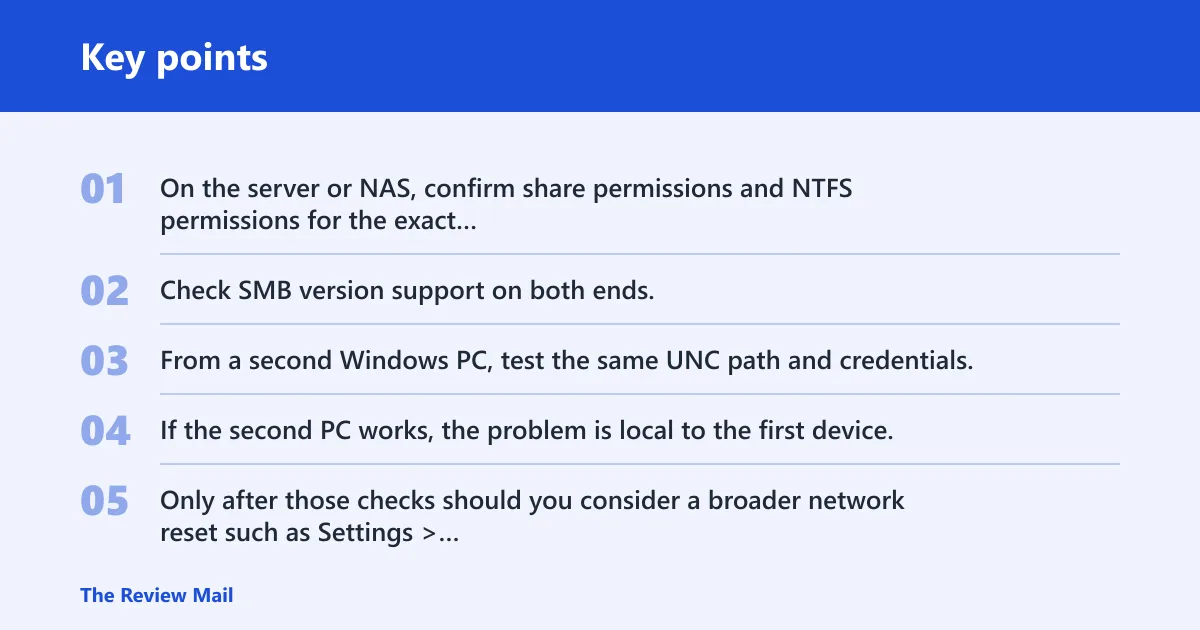
- On the server or NAS, confirm share permissions and NTFS permissions for the exact account being used.
- Check SMB version support on both ends. Older NAS devices may require SMB settings on the host to match what the client supports.
- From a second Windows PC, test the same UNC path and credentials.
- If the second PC works, the problem is local to the first device.
- Only after those checks should you consider a broader network reset such as Settings > Network & internet > Advanced network settings > Network reset.
ipconfig /release
ipconfig /flushdns
ipconfig /renew
netsh winsock reset
netsh int ip reset
For one-device failures, a network adapter reset can also help: open Device Manager > Network adapters, uninstall the adapter, then scan for hardware changes. Use that only after the share, name, and credential tests above.
Frequently asked questions
Why can’t I access my network drive on Windows 11?
Start with the UNC path, then credentials, then hostname resolution. If \\server\share works, remap the drive letter. If it does not, remove saved credentials in Credential Manager and test the share by IP to separate DNS problems from permission or SMB problems.
Why does Windows 11 say the network path was not found?
That usually means the host name, share service, or SMB path could not be reached. Test \\IP-address\share and ping the host name. If the IP works, fix DNS. If neither works, check that file sharing and firewall rules allow SMB traffic.
Why can I see the shared folder but not open it?
Browsing and opening are different checks. If you can see the folder but cannot open it, the share may still block your account at the share or NTFS level. Try a known-good account, then review the permissions on the host and the SMB settings on both ends.
How do I access a network drive without being asked for a password?
Save the correct server credentials in Credential Manager and make sure no stale entry conflicts with them. Then reconnect by UNC path and map the drive again. If the server requires a different account format, use the exact form it expects, such as SERVERNAME\user.
Sources
- Map a network drive in Windows
- Save and manage passwords in Microsoft Edge or Windows Credential Manager
- File sharing over a network in Windows
- How to flush and reset the DNS resolver cache in Windows
- Configure Windows Defender Firewall
- SMB file sharing troubleshooting
- Synology: How to enable SMB service