Cannot Load the Driver
Start by identifying the error type: if Windows says the driver was blocked for security reasons, fix the signature or blocklist issue first; if it appears after vendor software or a new device, try the vendor driver next; if Device Manager shows a code, use that code to guide the repair. Using the wrong fix can leave the device unusable or make Windows repeat the same load failure after every restart. This guide shows how to tell those cases apart and which low-risk fix to try first.
What the error usually means
Windows uses the same broad warning for a few different problems. In many cases, Memory Integrity is stopping a vulnerable driver from loading. In others, the problem sits with a vendor driver package or companion app, or Device Manager is reporting a status code such as code 31 or code 39.
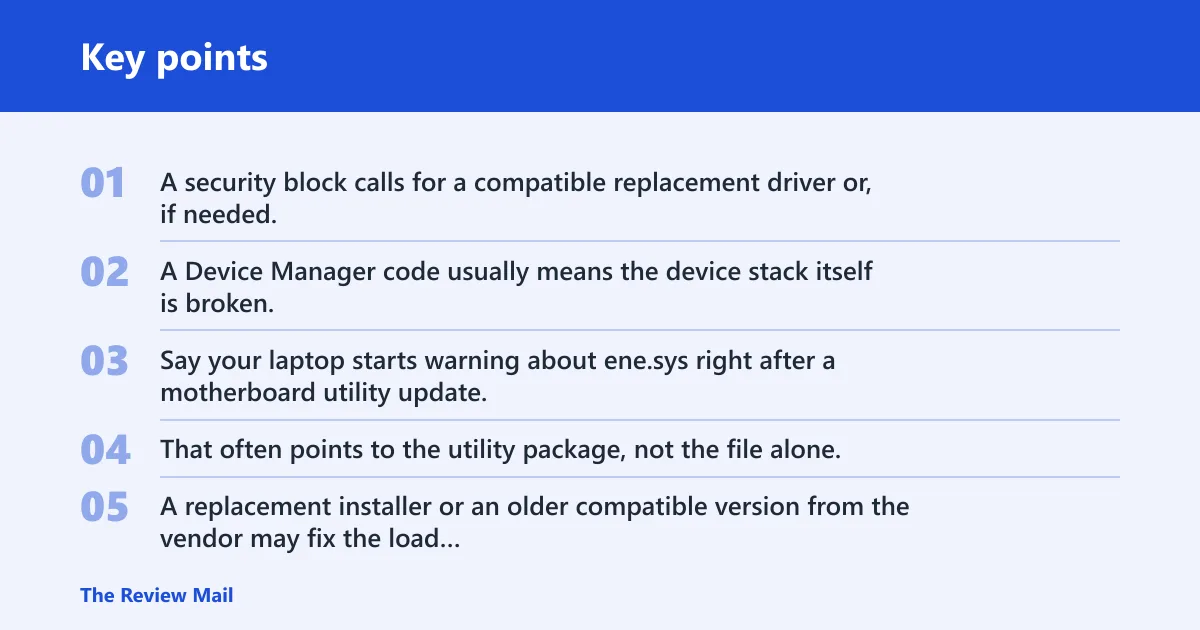
That distinction matters. A security block calls for a compatible replacement driver or, if needed, a change in Core isolation. A Device Manager code usually means the device stack itself is broken, so the fix may be reinstalling the correct package, not changing a security setting.
Driver error triage table
| Symptom | Where to verify it | Recommended action | Risk level |
|---|---|---|---|
| Windows says Memory Integrity is preventing a driver from loading | Windows Security > Device Security > Core isolation | Check Windows Update for an updated compatible driver, or get one from the manufacturer | Low |
| The warning names a file such as ene.sys | Windows Security notification text and the installed vendor software package | Check the motherboard or OEM control software that installed it, then update or remove that package | Low to medium |
| Device Manager shows code 31 | Device Manager > device properties > Device status | Repair the driver package, reinstall the device, or update the related software | Low to medium |
| Device Manager shows code 39 or a similar load failure | Device Manager > device properties > Device status | Look for a missing or mismatched driver package before changing security settings | Low to medium |
| No updated driver exists and the device still must work | Manufacturer support page and Windows Security | Contact the driver manufacturer; only then consider turning off Memory Integrity | Medium to high |
Say your laptop starts warning about ene.sys right after a motherboard utility update. That often points to the utility package, not the file alone. A replacement installer or an older compatible version from the vendor may fix the load failure without changing Windows security settings.
How do you find the blocked driver?
Start in Windows Security, then move to Device Manager if the notification does not name enough detail. Microsoft says the driver name and company name are the only reliable clues it can gather from the notification, so those fields matter more than guesswork. If the warning still looks vague, use Code Integrity diagnostic events for deeper diagnosis.
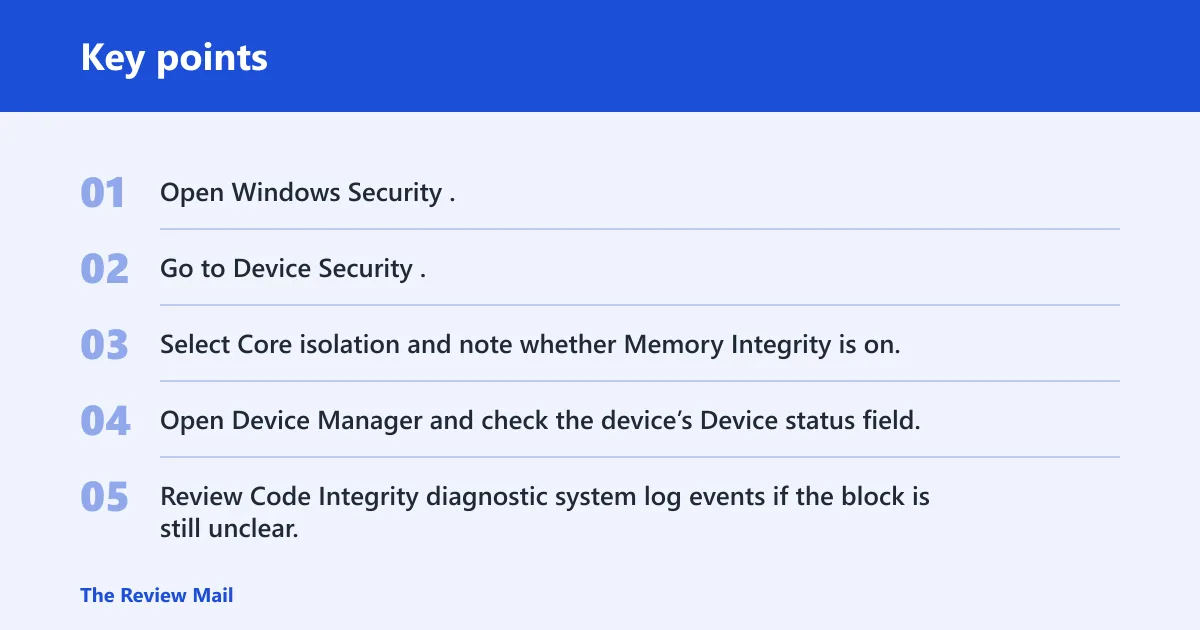
- Open Windows Security.
- Go to Device Security.
- Select Core isolation and note whether Memory Integrity is on.
- Open Device Manager and check the device’s Device status field.
- Review Code Integrity diagnostic system log events if the block is still unclear.
Check Core isolation first
The Memory Integrity setting is on the Core isolation page in Windows Security. If the warning says Memory Integrity is preventing a driver from loading, that is the direct place to confirm the block. This is the cleanest first check because it separates a security block from a plain device failure.
Use Device Manager for status codes
Device Manager shows whether the device loaded and whether Windows assigned a code. Code 31 means Windows could not load the device driver properly. Code 39 points to a driver load or registry problem. Either one is different from a Memory Integrity block, even if the warning appeared around the same time.
A common first-timer mistake is to see any load failure and immediately turn off Memory Integrity. That can hide the real issue. If Device Manager already shows code 31 or code 39, the safer path is to repair the device package first.
Use Code Integrity events when the UI is unclear
Code Integrity diagnostic system log events help when the notification does not clearly name the driver or when a signed driver is being blocked by policy. That is useful when the normal UI leaves you with a filename but not the full package name, or when a vendor tool installed more than one related component.
Can Windows Update fix it?
Yes, often it can. The same source recommends checking Windows Update or the manufacturer for an updated compatible driver, and Windows Update may deliver compatibility patches as well as driver updates. That is the least risky place to look before changing Core isolation settings.
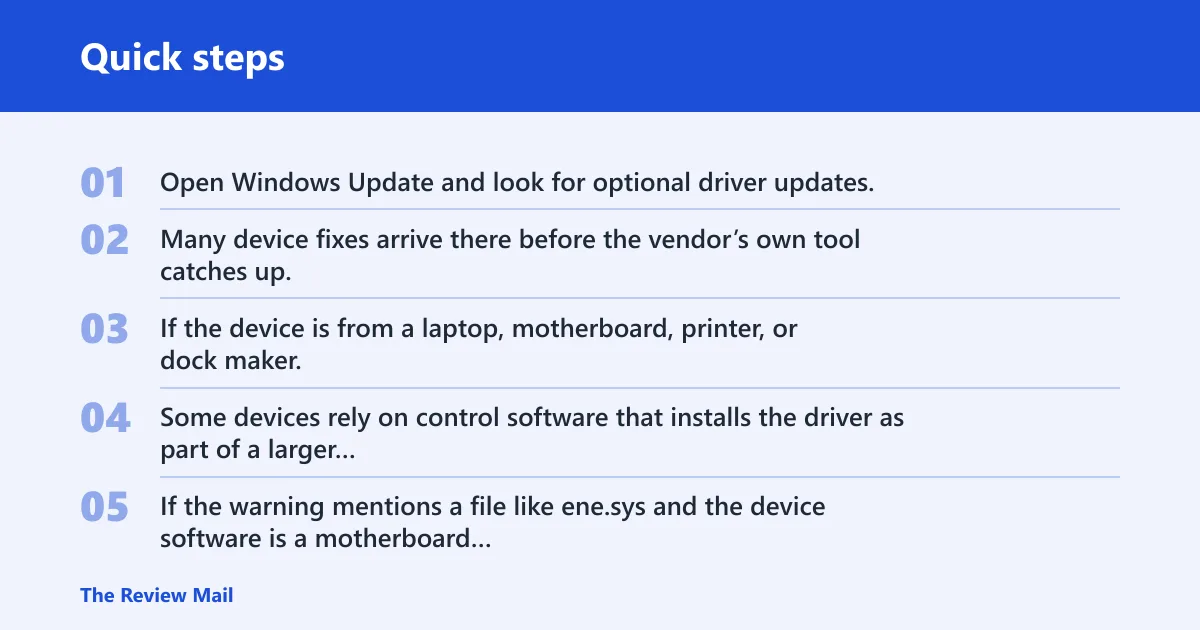
Check optional updates first
Open Windows Update and look for optional driver updates. Many device fixes arrive there before the vendor’s own tool catches up. If the device is from a laptop, motherboard, printer, or dock maker, also check the OEM support page because the needed fix may sit in a bundled package rather than a standalone driver.
When the companion app is the real fix
Some devices rely on control software that installs the driver as part of a larger package. If the warning mentions a file like ene.sys and the device software is a motherboard utility, RGB tool, or tuning app, the correct fix may be a newer version of that software. The driver itself can be only one piece of the install.
Suppose a desktop motherboard app installs fan and lighting controls, then Windows blocks a driver after a feature update. The most useful update may be the motherboard vendor’s full support package, not a random driver download. If Windows Update offers nothing, the manufacturer’s support page becomes the next stop.
Should you turn off Memory Integrity?
Only if updating does not work and you still need the device to function. Turning off Memory Integrity is an alternative fix, but it reduces security. Microsoft warns that disabling Memory Integrity on a Secured-core PC removes the device from that state. If the driver is still unavailable, this is a fallback, not the first move.
Use the Core isolation switch carefully
Go to Windows Security > Device Security > Core isolation, then turn off Memory Integrity. Windows typically requires a restart before the change takes effect. After reboot, recheck whether the device loads and whether the warning returns.
The same source says the driver is most likely not malicious. That lowers the chance of treating the warning as a malware incident, but it does not make the block harmless. The setting exists to stop vulnerable code from loading, so disabling it should be reserved for cases where you have already checked for a compatible update.
When not to disable it
Do not turn it off just because the device is inconvenient. If the system is a Secured-core PC, the security tradeoff is larger. If the device still works in a limited way, or if Windows Update and the manufacturer both still have active support paths, keep Memory Integrity on and try those first.
What ene.sys means
ene.sys usually points to a vendor control component, often from motherboard or system software. The ene.sys article frames the issue as a conflict with modern Windows defenses, says Armoury Crate was trying to load the driver, and ties the warning to HVCI being on by default. That makes the software package worth checking before the file itself.
Find the installed package first
Check which app or support package installed the file. Look at recently added vendor utilities, motherboard software, or hardware control tools. If the package has a repair or uninstall option, use the manufacturer’s support page to get the official version or removal tool rather than pulling random copies from the web.
When manual file changes are too risky
Manual renaming or deletion from C:\Windows\System32\drivers. That is a last-resort cleanup step, not the first response. Use it only when the vendor’s own removal tool or reinstall path is unavailable and you are sure the file belongs to the blocked package. Otherwise, you can leave the system in a worse state.
Microsoft’s guidance is simpler: if no updated driver exists, contact the driver manufacturer about a fix. That keeps the decision anchored to the actual vendor instead of forcing a file-level workaround too early.
When Device Manager shows code 31
Code 31 is not the same thing as a Memory Integrity block. It means Device Manager could not load the device driver correctly. That can happen with a bad package, a missing dependency, or a driver that no longer matches the device. Code 39 and similar errors point in the same general direction: the device stack needs repair.
What code 31 and code 39 suggest
If a device shows code 31 or code 39, check the exact vendor package before touching Core isolation. Reinstall the device driver, update the companion software, or remove stale vendor components that came with the old install. If Windows is also warning about Memory Integrity, treat the code and the security block as separate clues.
What to do if no compatible driver exists
If the manufacturer has no compatible driver and the device still matters, contact the manufacturer and ask whether a newer package, a firmware update, or a different companion app is available. Only after that should you consider disabling Memory Integrity. That order keeps the least risky fix first.
Frequently asked questions
Why does Windows say a driver can’t load on this device?
Windows uses that warning when a driver is blocked for security reasons, when a vendor package is outdated, or when Device Manager hits a status code such as 31 or 39. The fastest way to sort it out is to check Core isolation, then Device Manager, then the vendor’s update path.
How do I fix a driver can’t load on this device error?
Start with Windows Update, then check the manufacturer’s support page for a newer compatible driver or companion package. If those do not help, inspect Device Manager for code 31 or code 39. Turn off Memory Integrity only after you have exhausted update options and still need the device.
Should I turn off Memory Integrity to make the driver work?
Only as a fallback. The same source says turning off Memory Integrity can allow the driver to load, but it reduces security and removes a Secured-core PC from that state. If you can get a compatible update or vendor replacement package, that is the safer path.
How do I find which driver is being blocked?
Check the notification for the driver name and company name, then open Windows Security on the Core isolation page. If that is not enough, look in Device Manager for status codes and review Code Integrity diagnostic system log events for deeper diagnosis. Those sources are the most reliable clues Microsoft gives.
Can Windows Update install a compatible driver automatically?
Yes. The same source recommends Windows Update as one of the first places to look for an updated compatible driver, and it may also deliver compatibility patches. If Windows Update does not offer anything useful, go to the device or motherboard manufacturer next.
What does ene.sys mean in this error?
ene.sys usually points to vendor control software, especially motherboard-related utilities. The fix may be updating or removing the whole support package, not deleting the file alone. If the vendor offers an official removal tool or a newer install, use that before any manual cleanup.
Is this driver error the same as Device Manager code 31?
No. A Memory Integrity block means Windows Security is stopping a driver for policy or safety reasons. Code 31 means Device Manager could not load the driver correctly. They can happen on the same machine, but they call for different first steps.
What should I do if no updated driver is available?
Contact the driver manufacturer and ask for a fix, a newer package, or a companion software update. If the device still cannot work and you have already checked Windows Update and vendor support, turning off Memory Integrity becomes the fallback option. Keep the security tradeoff in view.
Will disabling Memory Integrity make the warning go away permanently?
Not always. It may stop the current block, but the warning can return after later updates or if the same driver package is installed again. If the underlying vendor software remains outdated, the same load failure can come back after a restart or future update.
Why can’t I receive my load?
If you mean Windows cannot load the driver, the usual reasons are a Memory Integrity block, an outdated vendor package, or a Device Manager error code. Check the exact warning text, then use Windows Update, the manufacturer’s support page, or the device status code to choose the safest fix.