How to Configure Static Ip Windows 11
To configure a static IP in Windows 11, pick an unused address outside your router’s DHCP range, then set the same subnet mask, gateway, and DNS values in Network settings. Pick the wrong address and you can create IP conflicts, break local access, or lose internet until you fix it. Some routers use the full subnet as the DHCP pool, so you may need to change the pool or use a router reservation before there is a safe manual range. This guide shows how to find the right address, enter it in Windows 11, and confirm it works.
How static IPs work and what you need
A static IPv4 address stays the same after reconnects. DHCP gives the device an address automatically from the router’s pool. That matters for printers, NAS boxes, and port forwarding, where a changing address can break access or rules after the lease changes. Microsoft’s Windows network settings let you switch an adapter from automatic to manual IP assignment and enter the IPv4 details yourself.
Keep the static address outside the DHCP pool. That is the main way to avoid duplicate-address conflicts. Match the subnet mask to the LAN, use the router’s IP as the default gateway, and enter at least one valid DNS server so names still resolve. A second DNS server is optional, but common for fallback. If you need a stable address for a portable device, a router-side DHCP reservation is often safer than a manual static IP.
What you’ll need
- The router’s current IP address, often the default gateway on the local LAN
- The router’s DHCP range, such as 192.168.1.100 to 192.168.1.199
- A chosen static IP outside that range
- The matching subnet mask, commonly 255.255.255.0 on home networks
- The gateway and DNS values you plan to use
- The correct adapter: Wi-Fi or Ethernet
| Field | Example value | What to check |
|---|---|---|
| Current router IP | 192.168.1.1 | Use the LAN router address as the gateway |
| DHCP range | 192.168.1.100–192.168.1.199 | Do not pick a static IP inside this pool |
| Chosen static IP | 192.168.1.50 | Must stay outside the DHCP range |
| Gateway and DNS | Gateway 192.168.1.1; DNS can be set to 1.1.1.1 and 8.8.8.8 as example values. | Gateway must match the router; DNS must be valid |
How do you set a static IP in Windows 11?
Use the adapter-specific page in Settings, then switch IP assignment from automatic to manual and enter the address, subnet mask, gateway, and DNS values. The path differs for Wi-Fi and Ethernet, so choose the adapter you actually use. In Windows 11, Microsoft places these controls under Network & internet, with the active adapter settings a few clicks apart from hardware details.
How do you set a static IP on Wi-Fi in Windows 11?
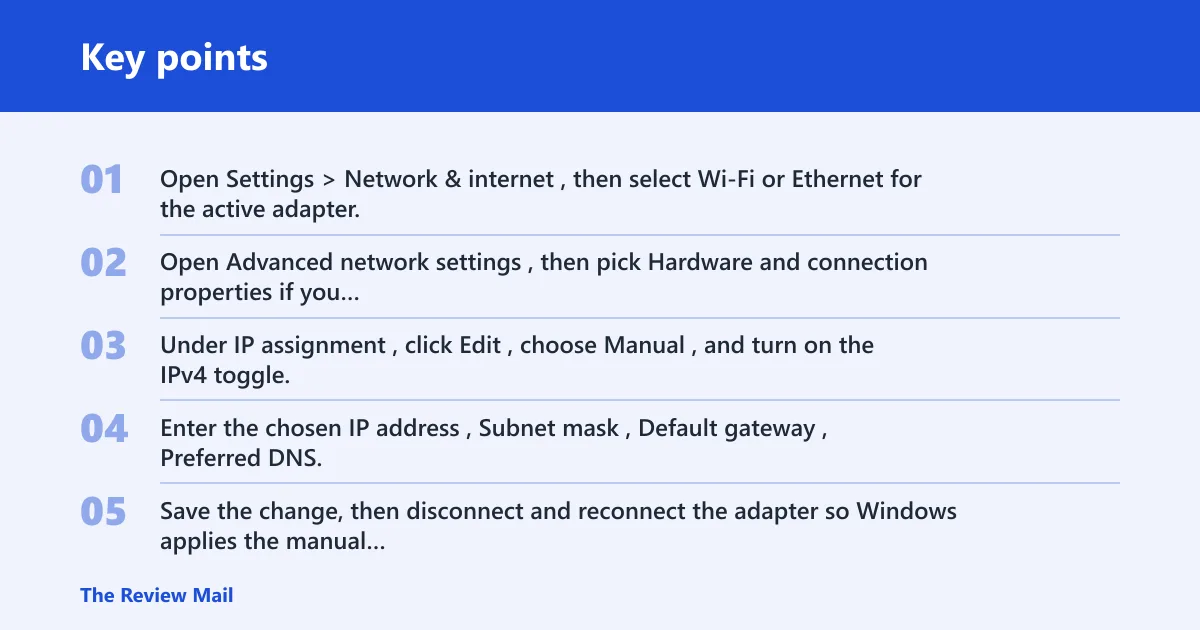
Open Settings > Network & internet > Wi-Fi, then select the connected network and open its properties. Under IP assignment, choose Edit, switch to Manual, and turn on IPv4. Enter the IP address, subnet mask, gateway, and DNS values, then save and reconnect the adapter. Microsoft documents this manual IPv4 workflow in Windows support articles for network settings.
How do you set a static IP on Ethernet in Windows 11?
Open Settings > Network & internet > Ethernet, then open the active adapter’s properties and find IP assignment. Choose Edit, set it to Manual, and enable IPv4. Enter the address, subnet mask, gateway, and DNS values that match your LAN. Save the change, then disconnect and reconnect if Windows does not apply the settings immediately.
- Open Settings > Network & internet, then select Wi-Fi or Ethernet for the active adapter.
- Open Advanced network settings, then pick Hardware and connection properties if you need to confirm the current adapter details first.
- Under IP assignment, click Edit, choose Manual, and turn on the IPv4 toggle.
- Enter the chosen IP address, Subnet mask, Default gateway, Preferred DNS, and Alternate DNS. The subnet mask must match the LAN, and the gateway must be the router IP.
- Save the change, then disconnect and reconnect the adapter so Windows applies the manual settings cleanly.
- Check the router DHCP range again. If the static IP sits inside that pool, pick another address before you assume the setup worked.
Say your home router uses 192.168.1.100 to 192.168.1.199 for DHCP. A Windows 11 laptop on Wi-Fi can use 192.168.1.50 if nothing else already uses it. A desktop on Ethernet may need a different address if the router gives that same address to another device.
How do you configure a static IP with PowerShell?
Use PowerShell or Command Prompt with administrator rights when you need repeatable setup on multiple machines. Microsoft documents the networking cmdlets used here: Get-NetAdapter to find the adapter name or ifIndex, New-NetIPAddress to set the IPv4 address, and Set-DnsClientServerAddress to set DNS servers. This is the practical choice for scripted deployment and exact, copyable configuration.
How do you find the InterfaceAlias or ifIndex?
Open PowerShell as administrator and run Get-NetAdapter. The output shows the adapter Name and ifIndex, which you can use in later commands. If you want the live IP details first, run Get-NetIPConfiguration or ipconfig /all to confirm which adapter is actually in use before changing anything.
How do you set a static IPv4 address with PowerShell?
Use New-NetIPAddress with the adapter’s InterfaceAlias or InterfaceIndex, the desired IP address, PrefixLength, and DefaultGateway. Example: New-NetIPAddress -InterfaceAlias "Wi-Fi" -IPAddress 192.168.1.50 -PrefixLength 24 -DefaultGateway 192.168.1.1. Microsoft’s cmdlet documentation uses the same parameters for manual IPv4 setup.
How do you set preferred and alternate DNS servers?
Run Set-DnsClientServerAddress after the address is set. Example: Set-DnsClientServerAddress -InterfaceAlias "Wi-Fi" -ServerAddresses 1.1.1.1,8.8.8.8. Replace the adapter name if needed. This keeps name resolution aligned with the manual IP setup and avoids relying on stale DHCP-provided DNS values.
How do you verify and revert the command-line setup?
Verify with Get-NetIPAddress -InterfaceAlias "Wi-Fi" -AddressFamily IPv4, Get-DnsClientServerAddress -InterfaceAlias "Wi-Fi", and ipconfig /all. To revert to DHCP, run Set-NetIPInterface -InterfaceAlias "Wi-Fi" -Dhcp Enabled, then reset DNS to automatic with Set-DnsClientServerAddress -InterfaceAlias "Wi-Fi" -ResetServerAddresses. If needed, remove the static address with Remove-NetIPAddress. If the adapter needs a lease refresh, use ipconfig /release and ipconfig /renew.
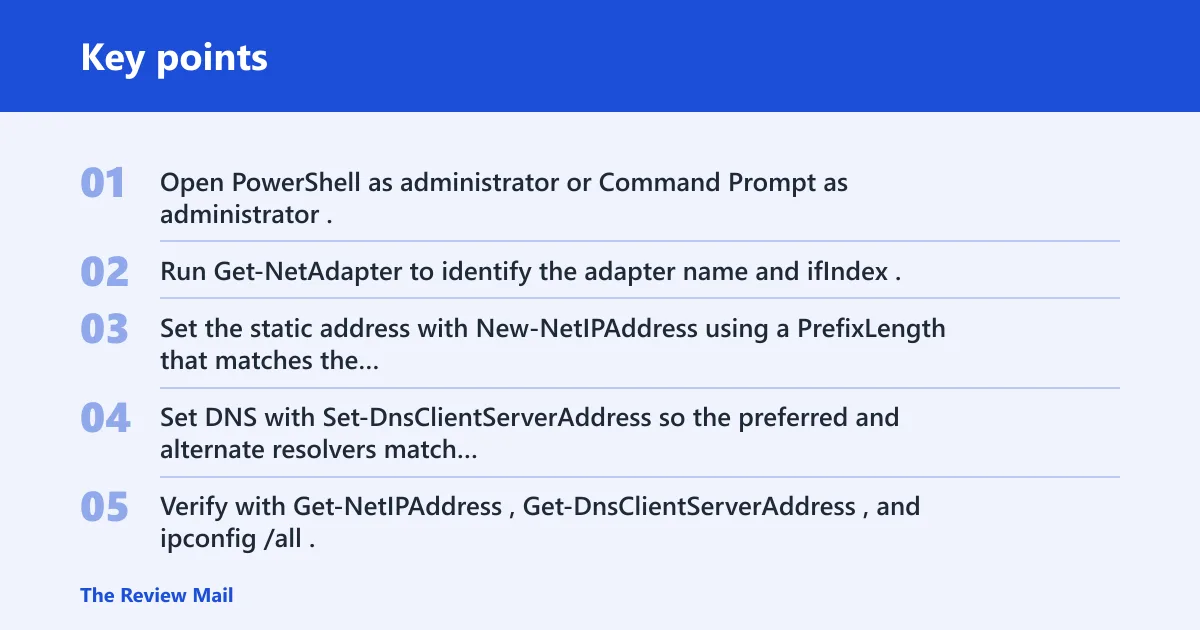
- Open PowerShell as administrator or Command Prompt as administrator.
- Run Get-NetAdapter to identify the adapter name and ifIndex.
- Set the static address with New-NetIPAddress using a PrefixLength that matches the subnet, plus the correct DefaultGateway.
- Set DNS with Set-DnsClientServerAddress so the preferred and alternate resolvers match your plan.
- Verify with Get-NetIPAddress, Get-DnsClientServerAddress, and
ipconfig /all. - To return to DHCP, use Set-NetIPInterface -Dhcp Enabled, then reset DNS to automatic and renew the lease if needed.
A common first-timer mistake is copying the Wi-Fi adapter values onto Ethernet. Those are separate adapters. If the laptop is docked and using the cable, the Wi-Fi profile does not control the live connection.
How do you choose a conflict-free static IP?
Start with the router’s IP and DHCP pool, then choose a number in the same subnet but outside the pool. The safest choice is an address that fits the LAN pattern, sits below or above the dynamic range, and is not already assigned to another device. If the router uses the full subnet as its DHCP pool, change the pool or use a DHCP reservation before setting a manual static IP. If the device is a laptop, a router-side DHCP reservation can be better than a manual static address because it keeps the address stable without changing Windows settings.
How do you find the router IP and DHCP pool?
Check the router label, the router admin page, or the current Windows network details to find the default gateway. Then open the router’s LAN or DHCP settings to see the DHCP pool, such as 192.168.1.100 to 192.168.1.199. The static IP should stay outside that range, but still share the same first three octets on a typical /24 home network.
How do you confirm the chosen IP is unused?
Before saving, check whether another device already uses the address. On many routers, the connected-devices list shows active leases and reservations. You can also ping the candidate address or temporarily reserve it on the router and see whether a conflict appears. DHCP references from networking vendors and RFC-based guides consistently warn that duplicate addresses cause intermittent failures.
How do you keep the IP in the same subnet?
Match the address pattern to the LAN. If the router is 192.168.1.1 and the mask is 255.255.255.0, then 192.168.1.50 fits the same subnet while 192.168.2.50 does not. The gateway, DNS, and host address should all make sense on that same network segment, or Windows may show a connection with no usable internet path.
When is DHCP reservation the better choice for laptops?
Use DHCP reservation when the device moves between rooms, docks, or networks and you still want a stable address. The reservation is stored on the router and tied to the device’s MAC address, so Windows can stay on automatic networking while the router always gives the same IP. That reduces manual mistakes and is often easier to support.
| Field | Your value | Check before saving |
|---|---|---|
| Current router IP | __________ | Use this as the default gateway |
| DHCP range | __________ | Choose a static IP outside this range |
| Chosen static IP | __________ | Confirm no other device already uses it |
| Gateway and DNS values | __________ | Gateway must match router; DNS must be valid |
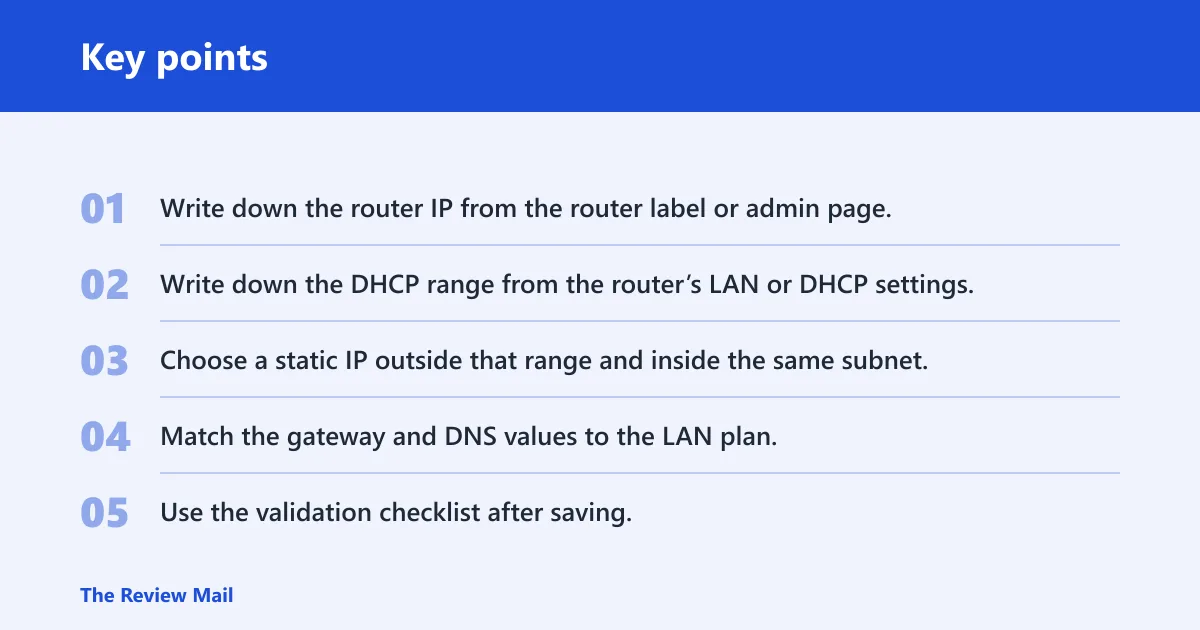
- Write down the router IP from the router label or admin page.
- Write down the DHCP range from the router’s LAN or DHCP settings.
- Choose a static IP outside that range and inside the same subnet.
- Match the gateway and DNS values to the LAN plan.
- Use the validation checklist after saving.
What should you check after saving?
After you save the change, verify the adapter shows the new IP, the gateway answers on the local network, DNS resolves a name, and internet access still works. If any one of those fails, do not assume the whole configuration is correct. Check the address, gateway, and DNS values one at a time, then compare them against the router’s LAN settings and your chosen subnet.
How do you verify the new IP address?
Open Settings > Network & internet and inspect the active adapter, then run ipconfig or ipconfig /all in Command Prompt. Confirm the IPv4 address, subnet mask, default gateway, and DNS server entries match the values you entered. If the adapter still shows an old lease, disconnect and reconnect or reboot the adapter.
How do you test the gateway and DNS?
Run ping against the gateway IP, such as ping 192.168.1.1, to confirm local reachability. Then run nslookup example.com or another domain name to verify DNS resolution. If the gateway responds but names do not resolve, the IP settings are likely correct and the DNS server values need adjustment.
How do you fix “connected but no internet” after IP changes?
Recheck the subnet mask, gateway, and DNS entries first. A wrong gateway or mismatched mask can leave the adapter connected but unable to route traffic. If the address is correct and the internet still fails, release and renew the lease, then compare the chosen IP against the router’s DHCP pool to rule out a conflict.
- Open Settings > Network & internet > Wi-Fi/Ethernet and confirm the adapter shows the new IPv4 address.
- Open Command Prompt and run
ipconfigto verify the IP, subnet mask, default gateway, and DNS server values. - Run ping against the gateway IP, such as ping 192.168.1.1, to confirm local reachability.
- Run nslookup example.com or another domain name to confirm DNS resolution.
- Open a site or local resource that depends on internet access, then confirm it loads without fallback to old settings.
Suppose the new address is 192.168.1.50, but the gateway is entered as 192.168.0.1. The device may keep the link up and still fail to reach the internet because the gateway is outside the LAN the subnet mask defines. Fixing that one value often restores access.
How do you troubleshoot static IP problems?
Start with the basics: the adapter, the subnet mask, the gateway, and DNS. Most failures come from a wrong address, a duplicate address, or settings entered on the wrong adapter. If the device keeps losing access after reconnects, switch to a router-side DHCP reservation or restore the adapter to DHCP, then try again with a new address.
What if the address is duplicated?
Pick another static IP outside the DHCP pool and confirm it is not already in the router’s lease list. Duplicate addresses can cause random disconnects and local network failures even when Windows shows the adapter as connected. If the conflict keeps returning, reserve the address on the router instead of setting it manually in Windows.
What if the gateway is wrong?
Change the default gateway to the router’s LAN IP. If the gateway does not match the local subnet, the device may reach some local resources but fail on the wider network. Recheck the router IP on the admin page or by using ipconfig /all on another working device before saving again.
What if DNS is the only problem?
Leave the static IP and gateway alone, then change DNS to a valid resolver such as the one your router provides or another trusted DNS server. If websites open by IP address but not by name, DNS is usually the issue. After changing it, run nslookup again to confirm resolution works.
If that did not work, try DHCP reservation on the router instead of a manual static address. A reservation binds one IP to one device MAC address, which lowers conflict risk and keeps the address stable without changing Windows settings. That is often safer for laptops that move between networks.
Sources
- Microsoft Support: Change TCP/IP settings and Windows 11 Settings guidance for Network > Wi-Fi/Ethernet > IP assignment
- Microsoft Support: Set the IP address on Windows 11 and related manual IPv4 configuration instructions
- Microsoft Learn / documentation: Get-NetAdapter, New-NetIPAddress, Set-DnsClientServerAddress, Get-NetIPAddress, and Set-NetIPInterface
- RFC 2131: Dynamic Host Configuration Protocol (DHCP)
- RFC 1918: Address Allocation for Private Internets