Proxy Server Error Windows 11
A proxy server error in Windows 11 usually means one of four things: the Windows proxy toggle, WinHTTP proxy state, browser-specific proxy settings, or a required corporate PAC file. Fixing the wrong layer can break access to work apps, websites, or the whole network, so this guide checks each proxy path in the right order before you change anything.
What the error means
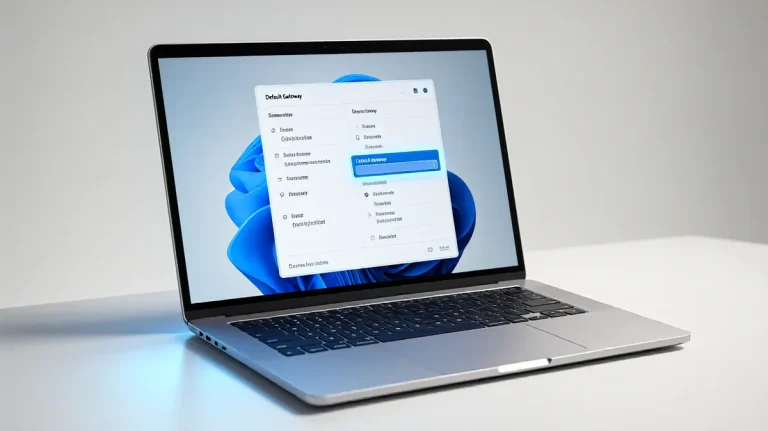
The fastest first check is the Windows 11 proxy page: Settings > Network & Internet > Proxy. This page controls the manual proxy setting, automatic proxy detection, and script-based proxy setup, so it is the best place to start when the browser cannot reach the internet. For the official Windows instructions, see Microsoft Support.
A proxy server sits between your device and the site or service you want to reach. When its address, script, or authentication state is wrong, Windows can still show Wi-Fi as connected while websites, downloads, and online services fail.
Suppose a laptop opens the Start menu and local apps normally, but every browser tab shows ERR_PROXY_CONNECTION_FAILED. That points away from raw internet access and toward proxy routing, browser overrides, or a blocked PAC script.
Likely causes, from most common to least
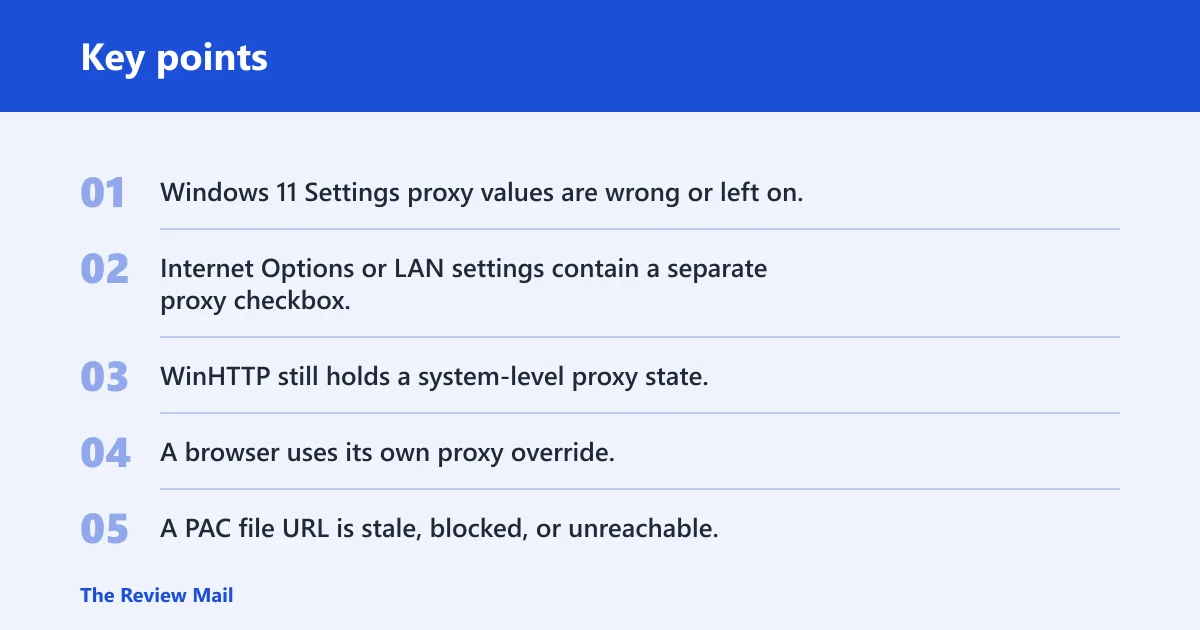
- Windows 11 Settings proxy values are wrong or left on.
- Internet Options or LAN settings contain a separate proxy checkbox.
- WinHTTP still holds a system-level proxy state.
- A browser uses its own proxy override.
- A PAC file URL is stale, blocked, or unreachable.
- VPN software changed the proxy state or left it behind after disconnecting.
- Malware or adware rewrote proxy values.
- A work or school policy is enforcing the proxy.
Windows 11 proxy settings
If the proxy value is wrong in Settings, turn it off first. Windows 11 stores this path under Settings > Network & Internet > Proxy, and that page controls the manual proxy toggle plus the automatic detection option. Automatic detection uses Web Proxy Auto-Discovery behavior, while a script-based setup uses a PAC file URL if one is set.
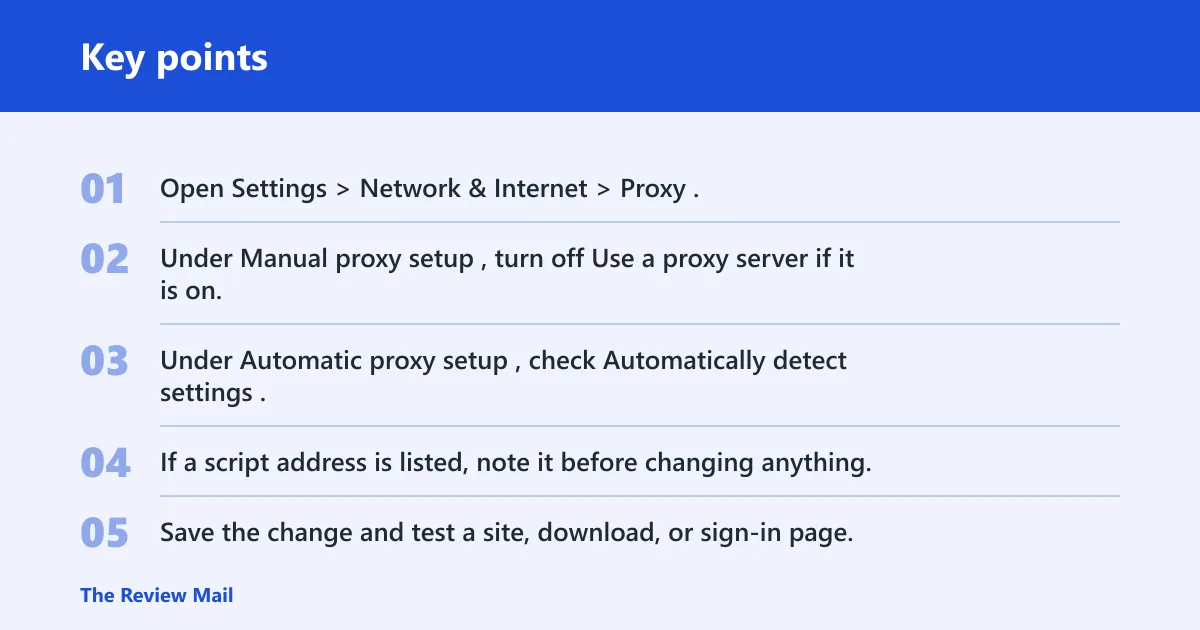
- Open Settings > Network & Internet > Proxy.
- Under Manual proxy setup, turn off Use a proxy server if it is on.
- Under Automatic proxy setup, check Automatically detect settings.
- If a script address is listed, note it before changing anything.
- Save the change and test a site, download, or sign-in page.
If the connection works after this step, the issue was limited to the Windows Settings proxy layer. If it does not, move to the older Internet Options path before you reset anything broader.
Internet Options and LAN settings
The older system path still matters because some apps and browser flows can follow it. Open inetcpl.cpl, go to the Connections tab, and check LAN settings. That dialog can hold a proxy checkbox separate from the Windows Settings app.
- Press Win + R, type inetcpl.cpl, then press Enter.
- Open the Connections tab.
- Select LAN settings.
- If Use a proxy server for your LAN is checked, clear it unless your network requires it.
- Keep Automatically detect settings enabled if your network uses direct detection.
- Open the browser again and check whether it still follows the same system proxy.
A common first-timer mistake is changing the Settings app and skipping this older dialog. A browser may still fail if the LAN checkbox remains set, even after the Windows 11 page looks clean.
WinHTTP proxy reset
WinHTTP is a separate system-level proxy state, and it can differ from the Settings app. A visible change in Windows Settings does not always clear the system layer used by some apps and services. That difference is why the error sometimes remains after the visible toggle is turned off. If one machine still fails across apps, check and reset WinHTTP next.
- Open Command Prompt as administrator.
- Run
netsh winhttp show proxy. - If a proxy is listed and should not be there, run
netsh winhttp reset proxy. - Then run these commands in the same elevated window:
ipconfig /flushdnsnetsh winsock resetnetsh int ip reset
- Restart the PC and test again.
After a successful reset, netsh winhttp show proxy should report no proxy or a clean state that matches the network you expect. If Windows still says the proxy is not responding, the next question is whether a PAC file, browser override, or VPN is rewriting it.
Browser override: Edge and Chrome vs. Firefox
Edge and Chrome typically follow the Windows system proxy, so the first check is the Windows 11 proxy page, not a separate in-browser proxy server field. Firefox can use its own proxy settings, which means a browser-only override can still block access even when the Windows settings look correct.
- For Edge and Chrome: first confirm the Windows system proxy is correct in Settings > Network & Internet > Proxy.
- Then open the browser and check whether it is still inheriting the system proxy or a policy-set configuration.
- For Firefox: first open Firefox Settings, go to Network Settings, and verify whether it is set to use system proxy settings or a manual proxy.
- If Firefox is using a manual proxy, compare it with the Windows proxy values before changing anything.
- Only change the browser override after you confirm the network does not require a corporate proxy or PAC file.
That browser split matters because a single browser can fail while everything else works. If Edge and Chrome break together, the system proxy is the better suspect. If only Firefox fails, start with Firefox’s own proxy setting first.
PAC files and VPNs
A PAC file can be required on work and school networks, so do not remove it blindly. If a proxy auto-config URL is set, that URL has to resolve to a live server. If the file is stale, blocked, or unreachable, browsing can fail in bursts or only on certain networks.
- Check whether a proxy auto-config URL is present in Settings > Network & Internet > Proxy or in your browser’s proxy page.
- Confirm the PAC address still points to a live server and returns the file.
- If you use a VPN, turn it off briefly and retest.
- Reconnect the VPN and check whether the proxy values changed after the disconnect.
- Look for browser-only proxy settings if the system proxy looks normal.
If you need a broader check on tunnel-related connectivity problems, see VPN client troubleshooting on Windows 11 for the related connection path that can leave proxy settings in an unexpected state after a disconnect.
Proxy error decision table
| Symptom | Most likely proxy layer | First check to run | What to avoid changing first |
|---|---|---|---|
| Only one browser fails, but other apps work | Browser-only proxy override | Check that browser’s proxy settings and reset them if they differ from Windows | Do not clear the Windows system proxy before confirming the browser is not using its own manual setting |
| All browsers fail after a recent Windows change | Windows 11 Settings proxy | Open Settings > Network & Internet > Proxy and clear Use a proxy server | Do not reset Winsock or the network stack before checking the visible Windows proxy toggle |
| Browsers fail even after the Windows toggle is off | WinHTTP proxy | Run netsh winhttp show proxy in elevated Command Prompt | Do not assume the Settings app cleared the system proxy used by other components |
| Work sites fail, but home sites load | PAC file | Verify the proxy auto-config URL still reaches a live server | Do not delete the PAC entry if the device is expected to use a corporate network profile |
| The problem starts right after a VPN disconnect | VPN software | Turn the VPN off briefly and compare the proxy values before and after | Do not hard-reset browser settings before checking whether the VPN client changed the proxy |
| The proxy turns itself back on after reboot | Policy-enforced proxy | Check whether the device is managed by work or school policy | Do not keep overriding the value locally if a policy is likely to reapply it |
| Proxy values look unfamiliar or keep changing | Malware or adware | Run a Defender Offline scan or a similar offline scan | Do not keep editing proxy fields repeatedly before checking for unwanted software |
| Sites fail with authentication prompts or 407 Proxy Authentication Required | Required corporate proxy or wrong credentials | Confirm the network requires the proxy and verify the sign-in details | Do not disable a required corporate proxy until you confirm whether the network expects authentication |
Policy-managed proxy scenarios
When a device is managed by work or school policy, proxy settings can be re-applied automatically after reboot, sign-in, or a policy refresh. A local change may not stick on a managed device. In that case, the right fix is often an IT or policy update rather than another manual toggle.
- Check whether the device is joined to a work or school domain that enforces proxy settings.
- Review whether the same proxy value returns after sign-out, reboot, or reconnect.
- Do not remove a PAC file or proxy value that is required by policy.
- If the proxy is policy-managed, contact IT or the network administrator for the correct value.
Still not working?
If the proxy keeps coming back, the device may be managed or altered by unwanted software. Start with an offline malware scan, then check whether a company policy or school profile is setting the proxy again. On a managed device, the right fix may be an IT change, not another local toggle.
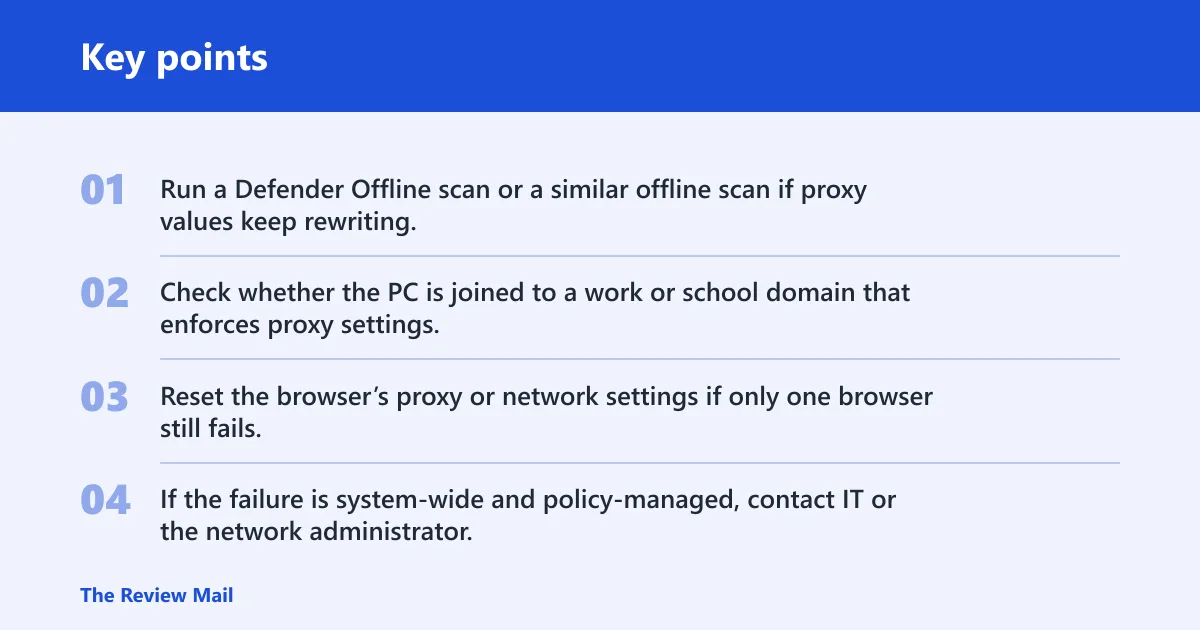
- Run a Defender Offline scan or a similar offline scan if proxy values keep rewriting.
- Check whether the PC is joined to a work or school domain that enforces proxy settings.
- Reset the browser’s proxy or network settings if only one browser still fails.
- If the failure is system-wide and policy-managed, contact IT or the network administrator.
Picture a school laptop that shows internet access in the taskbar, but every site redirects to a proxy sign-in page after each restart. That pattern usually points to policy, not a broken home-router setting.
Prevention: Before changing proxy values on a managed device, note any PAC URL, VPN client, or browser override that was already set. That record makes it easier to restore the required configuration later.
Frequently asked questions
How do I turn off proxy server Windows 11?
Open Settings > Network & Internet > Proxy, then turn off Use a proxy server. If the browser still fails, open inetcpl.cpl, go to Connections, then LAN settings, and clear Use a proxy server for your LAN there too.
What is a proxy server Windows 11?
It is a server that handles requests for your device before the request reaches a website or online service. On Windows 11, the key settings are in Settings > Network & Internet > Proxy, with older controls still available through inetcpl.cpl.
What are proxy settings Windows 11?
They are the values that tell Windows whether to use a proxy, whether to detect settings automatically, and whether to load a PAC file. The main page is Settings > Network & Internet > Proxy, and the older LAN controls remain in Internet Options.
Why does proxy server keep turning on in Windows 11?
A VPN, malware, or a managed work or school policy can reapply the proxy after you change it. Check the value after a reboot, then run netsh winhttp show proxy and compare it with the Settings app to see which layer is rewriting it.
How do I fix ERR_PROXY_CONNECTION_FAILED Windows 11?
Start with Settings > Network & Internet > Proxy, then check inetcpl.cpl > Connections > LAN settings. If the error remains, run netsh winhttp show proxy and, if needed, netsh winhttp reset proxy in an elevated Command Prompt.
Why does Windows 11 say proxy server is not responding?
That message usually means the proxy address, credentials, or PAC file cannot answer requests. Verify the PAC URL reaches a live server, confirm VPN software is not changing the setting, and check whether the device is supposed to use a corporate proxy on that network.