Device Descriptor Failure USB Windows 10 Fix
Start by isolating the fault: if the same USB device fails on two Windows 10 PCs, the device is bad; if only one port or cable fails, the path is bad; if every device fails, Windows or power management is the likely cause. Skip that split, and you can burn hours on the wrong fix, then risk data loss on storage devices. This guide gives a symptom-based device descriptor failure USB Windows 10 fix for Unknown USB Device (Device Descriptor Request Failed) and Code 43.
What the error means
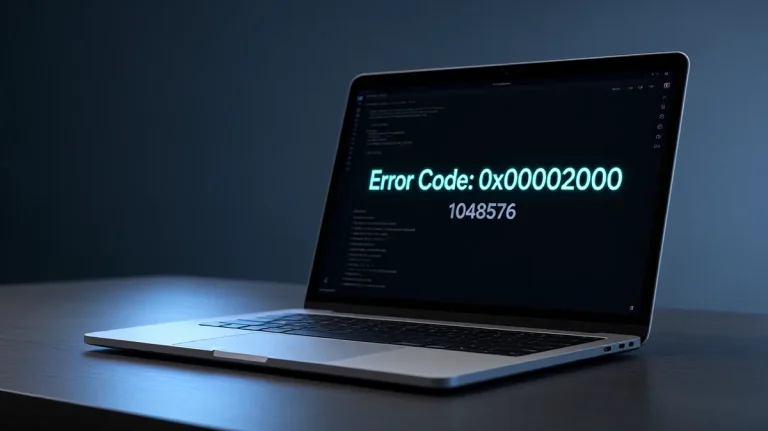
The warning usually appears in Device Manager under Universal Serial Bus controllers with a yellow exclamation icon, and it often maps to Code 43. In plain terms, Windows stopped the device because it reported a problem during enumeration, so the next step is to decide whether the fault is the device, the cable or port, the power path, or Windows itself.
If Hardware Ids is blank or only shows a generic placeholder, Windows did not complete enumeration, so that field may not help yet. In that case, test the hardware path first, then move on to drivers or Windows settings.
First 3 checks:
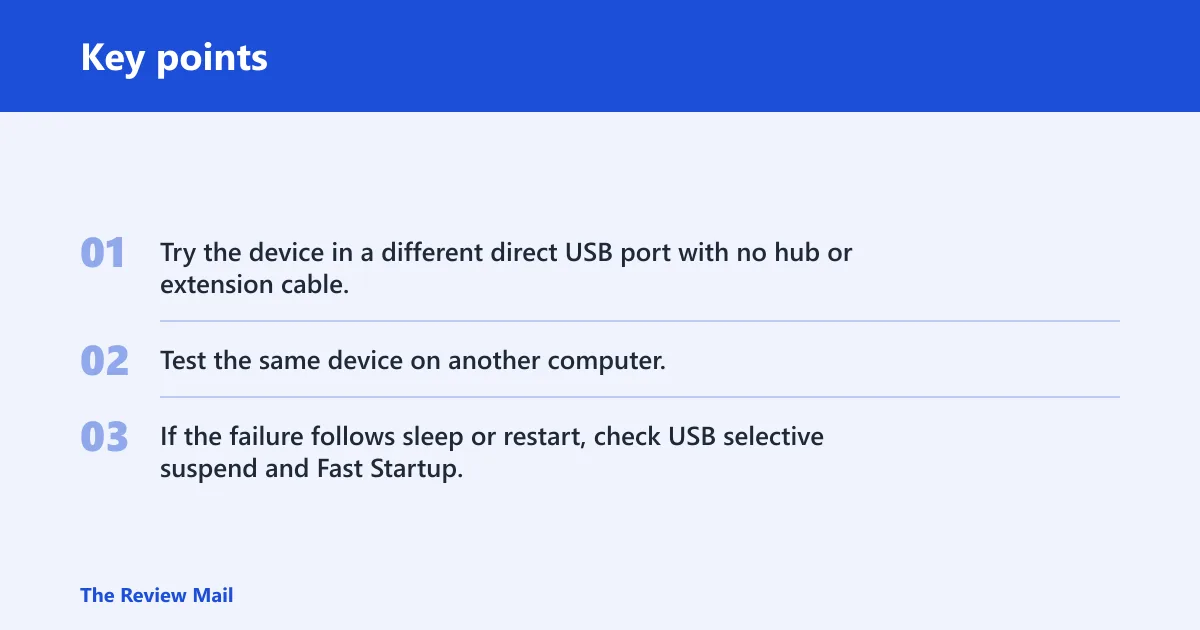
- Try the device in a different direct USB port with no hub or extension cable.
- Test the same device on another computer.
- If the failure follows sleep or restart, check USB selective suspend and Fast Startup.
USB descriptor decision table
| Symptom pattern | Likely fault domain | First fix to try | When to stop troubleshooting |
|---|---|---|---|
| One flash drive, phone, camera, or hub fails; other USB devices work | Device or device-side cable | Try the device on a different direct USB port, then on another PC | Stop if it fails on two computers; replace the device or cable |
| Several USB devices fail on the same machine | Windows, controller, or shared power path | Restart, then check Windows Update and USB power settings | Stop if all ports and devices fail after software checks; suspect controller or motherboard |
| Failure appears after sleep or idle | Power management | Disable USB selective suspend and Fast Startup | Stop if the device still fails after a full cold boot and a second wake cycle |
| Failure happens on front-panel ports or through a hub only | Port, hub, or power delivery | Move to a rear motherboard port and remove the hub or extension cable | Stop if direct rear ports fail too; the device or host controller is next |
| Device works on another computer | Local Windows install, port, or power settings | Treat the device as good and fix the local PC path first | Stop if the same port group fails repeatedly after driver and power checks |
What should you check first?
Start with the physical path. A direct rear port is the best first test on a desktop, because hubs, extension cables, and weak front-panel wiring can break enumeration before Windows gets useful device data. If the device has its own power supply, check that next; drives and scanners often need it.
- Unplug the device.
- Reconnect it to a different direct USB port on the PC, not a hub.
- If the device has a cable, replace it with a known-good cable of the same type.
- If it uses an external power supply, reconnect that supply and confirm it is switched on.
- Test the device on another computer.
- Stop here if it fails on another PC too; that points to faulty hardware.
Say your 128 GB flash drive fails only through a front-panel port but opens normally in a rear port. That points to the port path, not the drive. A common first-timer mistake is to change Windows settings before removing the hub or extension cable that caused the failure in the first place.
Unknown USB Device (Device Descriptor Request Failed) / Code 43
Code 43 is Windows’ way of saying the device reported a problem and the operating system stopped it. For USB, that often means enumeration failed before Windows could identify the peripheral. Enumeration is the identification handshake where the host asks the device for descriptors such as its vendor, product, and configuration data. If that handshake fails, Hardware Ids may stay blank or generic.
It is usually safe to uninstall the entry in Device Manager when the device is not storing critical data and you are troubleshooting a one-device failure. Uninstalling does not erase the hardware; it removes the current device instance so Windows can detect it again. That is different from a storage or file-system issue, where the disk may still enumerate but the volume or files are damaged.
If the device is a flash drive, external SSD, or other storage device, separate “not recognized” from file corruption. A storage problem can still allow the device to appear in Windows, while a descriptor failure prevents the device from being identified at all. That is why cable, port, and power checks come before file repair tools.
Fix a single-device failure
If only one device fails and other USB devices still work, focus on that device entry in Device Manager. Use Device Manager to view, uninstall, and rescan hardware when Windows needs to rediscover a device. That makes this the fastest software repair for a one-device failure.
- Open Device Manager.
- Expand Universal Serial Bus controllers.
- Right-click Unknown USB Device (Device Descriptor Request Failed).
- Select Uninstall device.
- In the menu bar, choose Action > Scan for hardware changes.
- Open the device again and check Properties > Details > Hardware Ids.
If Hardware Ids now fills in, Windows at least recognized the device identity. If it stays blank, or the field only shows a generic string, the device may still be failing before enumeration finishes, which shifts attention back to cable, power, or the device itself.
What if the device works on another computer but not mine?
That pattern usually points away from the device and toward the local PC path. Move the device to a rear port, remove any hub, then repeat the Device Manager uninstall and rescan. If the same device works on a different computer but never on yours, Windows, chipset drivers, or power settings are the more likely local causes.
Fix sleep and power issues
If the failure starts after sleep, idle time, or a wake event, power management jumps higher on the list. USB selective suspend can cut power to USB devices during idle periods. Fast Startup can also leave the USB stack in a bad state after shutdown. That makes cold-boot failure and wake failure worth separating, especially when you are adjusting power settings that affect sleep and wake behavior.
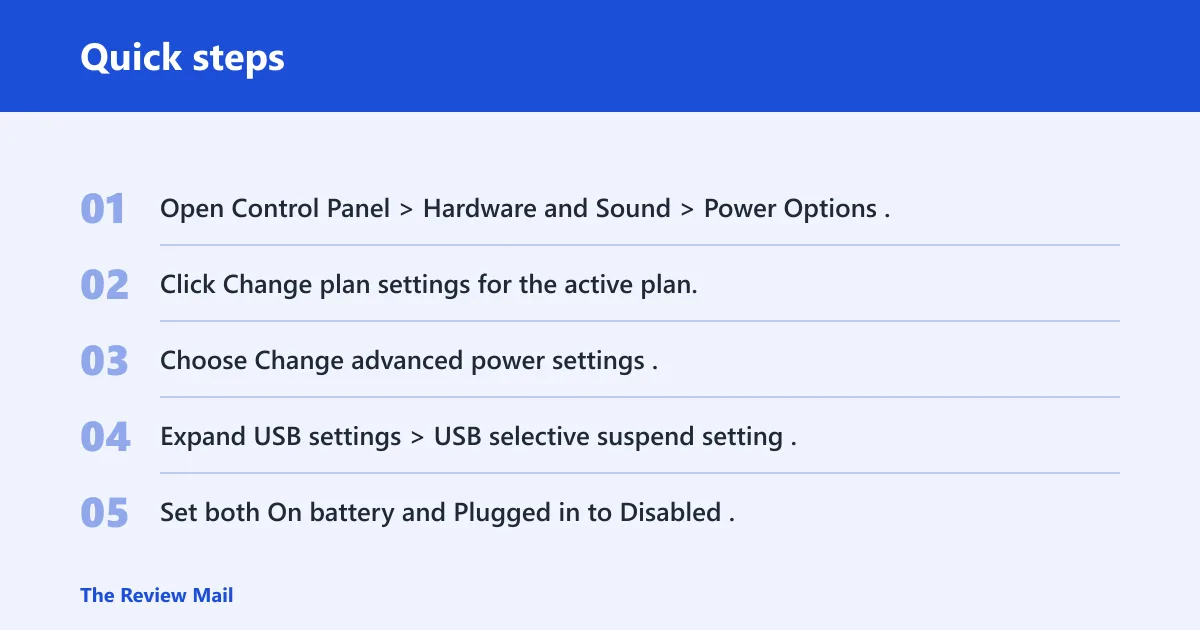
- Open Control Panel > Hardware and Sound > Power Options.
- Click Change plan settings for the active plan.
- Choose Change advanced power settings.
- Expand USB settings > USB selective suspend setting.
- Set both On battery and Plugged in to Disabled.
- Open Control Panel > Power Options > Choose what the power buttons do.
- Select Change settings that are currently unavailable, then clear Turn on fast startup.
After that, shut the PC down fully and start it again. If the device only failed after sleep before, test that same wake path again instead of judging the fix from one cold boot.
How do you turn off USB selective suspend in Windows 10?
Go to Control Panel > Hardware and Sound > Power Options > Change plan settings > Change advanced power settings, then open USB settings and set USB selective suspend setting to Disabled for both On battery and Plugged in. That is the setting most often tied to idle or wake failures.
Does Fast Startup cause USB device descriptor failure?
It can contribute, especially when the device fails after shutdown and restart rather than after a full power cycle. Turn it off in Control Panel > Power Options > Choose what the power buttons do, then uncheck Turn on fast startup. If the symptom only happens after sleep or quick restart, try this early.
Fix controller and hub issues
If multiple USB devices fail, or if the problem began after a Windows update or hardware change, move to controller-side repairs. This is where Generic USB Hub, chipset drivers, and Windows Update matter. Update the USB-related drivers from Device Manager to update drivers, and Windows Update can also install device and platform fixes.
- Open Device Manager.
- Expand Universal Serial Bus controllers.
- Right-click each Generic USB Hub entry and choose Update driver.
- Choose Search automatically for drivers.
- Restart the PC.
- Open Settings > Update & Security > Windows Update and install pending updates.
If a rear port still fails after driver updates, the host controller or motherboard side becomes more suspect. That is the point where the issue has moved beyond a single bad device and into the shared USB path.
Will updating Generic USB Hub fix the error?
It can help when the failure sits in the controller path rather than the device itself. Update it from Device Manager > Universal Serial Bus controllers. If the same error appears across several ports, a Generic USB Hub update is a reasonable step, but it is not the final answer if the physical hardware is failing.
What does USB device descriptor request failed mean?
It means Windows could not complete the device handshake needed to identify the peripheral. The message typically appears when the device fails enumeration, which is why port, cable, power, and controller checks come before deeper software fixes. It is usually not a file-system problem.
Hardware and Devices troubleshooter
On Windows 10, this troubleshooter is not normally available from Settings > Other troubleshooters or Additional troubleshooters. If you want to try it, open the classic troubleshooter directly from a Run box or Command Prompt with msdt.exe -id DeviceDiagnostic. If it appears, run it and then reconnect the USB device after any recommended fix.
- Press Windows key + R, type msdt.exe -id DeviceDiagnostic, and press Enter.
- If prompted, allow the troubleshooter to run.
- Apply any recommended fix, then reconnect the USB device.
If the troubleshooter does not start, continue with port, cable, power, and Device Manager checks instead of stopping there.
Still not working?
If direct ports, cable swaps, power settings, and device reinstalls do not help, stop treating it as a routine USB glitch. The next step is to separate a bad device from a bad host controller. If the same device fails on another PC, replace the device. If multiple devices fail on one PC, suspect the motherboard, chipset path, or USB controller.
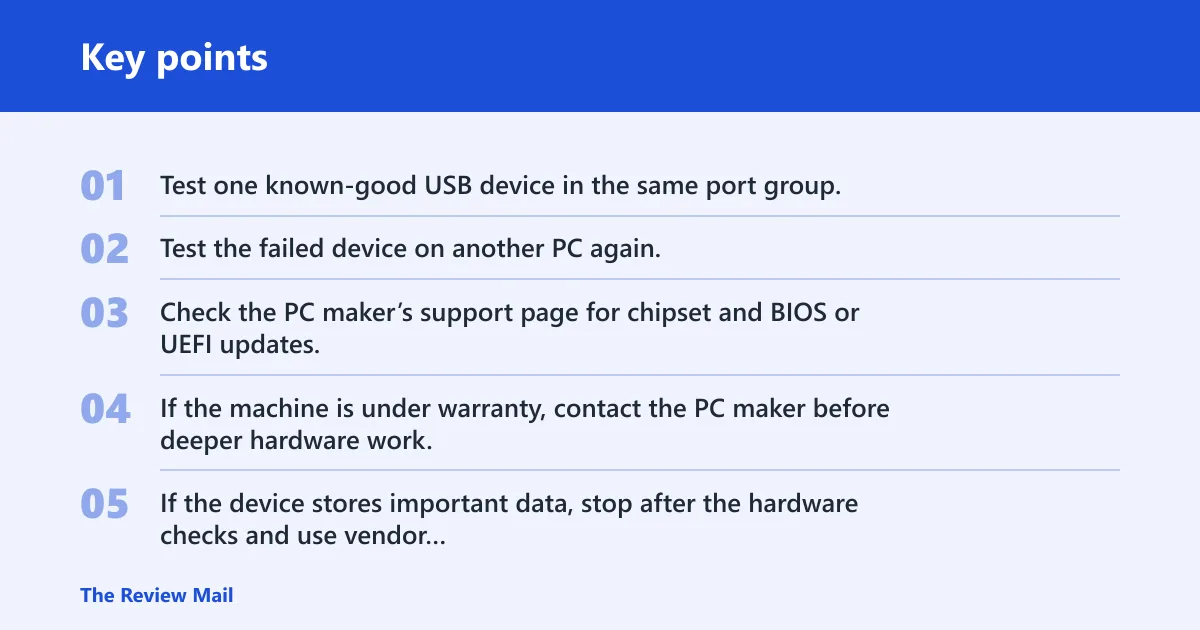
- Test one known-good USB device in the same port group.
- Test the failed device on another PC again.
- Check the PC maker’s support page for chipset and BIOS or UEFI updates.
- If the machine is under warranty, contact the PC maker before deeper hardware work.
- If the device stores important data, stop after the hardware checks and use vendor recovery tools or professional help.
A common first-timer mistake is to keep reinstalling drivers after a drive has failed on two computers. If the device itself fails everywhere, more Windows changes will not bring it back.
Frequently asked questions
How do I fix device descriptor failure USB on Windows 10?
Use the fastest path first: try a different direct port, remove any hub, uninstall Unknown USB Device (Device Descriptor Request Failed) in Device Manager, then choose Action > Scan for hardware changes. If the device fails after sleep, also disable USB selective suspend and Fast Startup.
Why does my USB device say Code 43 in Device Manager?
Code 43 is the stop code shown for a USB device that Windows could not finish initializing. That is why the next step is to decide whether the problem follows the device, a port, a cable, or the PC’s USB power path.
Should I uninstall unknown USB device (Device descriptor request failed)?
Yes, that is one of the first software repairs to try. In Device Manager, right-click the entry under Universal Serial Bus controllers, choose Uninstall device, then use Action > Scan for hardware changes. If it keeps returning on the same port, the deeper cause is still there.
How do I check Hardware Ids for a failed USB device?
Open Device Manager, right-click the failed USB entry, choose Properties, then open Details and select Hardware Ids from the Property menu. If the field is blank or generic, Windows likely failed enumeration before it could identify the device properly.
Can a bad cable or hub cause USB descriptor failure?
Yes. A bad cable, hub, adapter, or front-panel port can break the device handshake before Windows finishes identifying the hardware. The quickest test is a direct rear USB port with no hub or extension cable. If the device works there, the hardware path was the problem.
What if the USB device works on another computer but not mine?
Then the device is less likely to be the problem and the local PC path moves up the list. Check rear ports first, then USB selective suspend, Fast Startup, and Windows Update. If the same device still works elsewhere and fails only on your PC, look at controller-side drivers or the motherboard.