My Pin Does Not Work Windows 11
If your Windows 11 PIN stopped working, treat it as a Windows Hello trust failure: first try password sign-in, then reset the PIN. If that fails, clear Hello, check TPM, or inspect work or school policy. A bad fix can lock you out further or break sign-in for other users on the device. This guide shows the quickest checks, the recovery path, and the policy clues that tell you where the credential path is failing.
Windows 11 PIN decision checklist
| Branch | What you see | Safest first fix | Next escalation | Evidence that confirms the branch | Stop and escalate when |
|---|---|---|---|---|---|
| PIN incorrect | The PIN box accepts input, then rejects a code you know is right. | Use Sign-in options and switch to your Microsoft account password. | Remove the old PIN, restart, and create a new PIN from the same menu. | The PIN field works, but the credential is rejected on the lock screen. | The account is managed, password sign-in is blocked, or the PIN still fails after re-creation. |
| PIN not available / setup PIN missing | Windows says your PIN is not available, or the setup option is missing or greyed out. | Check work or school policy, then verify startup is not in diagnostic mode. | Review TPM state and Hello credential storage before rebuilding the PIN path. | The PIN option is absent, disabled, or replaced by a message about availability. | The device is domain-joined, Entra ID joined, or policy-controlled and the option remains blocked. |
| Set up my PIN does nothing | You click the button and nothing opens, or the dialog flashes and closes. | Check TPM in tpm.msc and confirm Windows is in Normal Startup. | Repair the NGC folder only if you have local admin rights and the device is not managed. | The button is inert, the PIN UI never appears, and Hello controls do not load. | The device belongs to an organization, or clearing TPM would affect other protected keys. |
The key distinction is trust, not typing. A Windows Hello PIN is a local sign-in credential, separate from your Microsoft account password, and Windows can invalidate it after a credential store problem, TPM change, policy change, or update. That is why the right fix depends on which failure branch you are actually seeing.
Why your PIN stopped working
Windows Hello PIN failures often point to one of three things: the local PIN record is corrupted, the TPM-backed trust path changed, or a policy may now block creation or use of the PIN. On business devices, Azure AD or Microsoft Entra ID can also make the behavior depend on connectivity and device state.
Windows Hello PIN versus account password
Your Microsoft account password is the fallback sign-in method. The PIN is only the local Windows Hello credential used on that device, and it can fail even when the password still works. That separation is useful here, because password sign-in tells you whether the account is still healthy before you touch the PIN record.
Recent update, BIOS change, or TPM state change
Microsoft’s own guidance ties the “your pin is not available” failure to recent Windows Update activity and sometimes a latest BIOS update. That points at the TPM, which stores Windows Hello PIN secrets. If BIOS settings, firmware, or update state changed, Windows may no longer trust the old PIN path. (Microsoft Learn)
Picture a laptop that reboots after a BIOS update and suddenly shows “your PIN is not available.” The password still works, but the PIN prompt refuses to load. That pattern fits a trust break, not a mistyped code.
Policy, domain, or Entra ID checks
On enterprise or domain-joined devices, Group Policy and Windows Hello for Business can require specific PIN rules or block convenience PIN creation entirely. Azure AD and Microsoft Entra ID can also affect offline sign-in behavior. If the device works on the office network but not away from VPN, you are likely looking at policy or validation timing, not a broken number.
PIN incorrect: start here
If the PIN is accepted as a format but rejected as wrong, start with password sign-in from Sign-in options. That is the safest move because it avoids changing Hello data before you know the account itself is still valid. If the password works, remove the old PIN and create a fresh one.
Use password sign-in from the lock screen
- On the lock screen, choose Sign-in options.
- Select the password option, not the PIN tile.
- Sign in with the Microsoft account password.
- Open Settings and go to the PIN management area for Windows Hello.
If you do not see Sign-in options at all, that points away from a simple PIN typo and toward policy, startup mode, or a broken credential path. Do not keep guessing numbers if the menu itself is missing.
Remove the old PIN and create a new one
Once you are in, remove the old PIN and add a new one from the same Sign-in options area. Microsoft and repair guides commonly describe this as the standard fix for a local Windows Hello problem. It rebuilds the sign-in credential without changing the account password.
After you recreate it, test the lock screen immediately. A working fix should let you sign out and sign back in with the new PIN on the first try. If the replacement PIN also fails, stop treating it as a simple bad credential.
Confirm the fix on the lock screen
The verification step matters. Sign out, return to the lock screen, and try the new PIN once. If Windows accepts it, the trust path is repaired. If the old error comes back, move to TPM and Hello storage checks rather than repeating the same reset.
PIN not available or setup PIN missing
When Windows says your PIN is not available, or the setup option is missing, the problem is usually higher than the PIN itself. Check policy first, then startup mode, then the device’s Hello trust state. On managed devices, stop before deleting anything that could break other sign-in or encryption keys.
Check group policy and Windows Hello for Business
Enterprise policy can block convenience PIN creation, require a specific Hello setup, or hide the normal add-PIN path. That is common on domain-joined devices and on machines governed by Windows Hello for Business. If the setup button is missing only on a work device, policy is a stronger suspect than corruption.
Suppose a managed notebook shows no PIN setup option after a remote policy refresh. The password still signs in, but the PIN controls are gone. That points to administration rules, not a damaged keyboard input or a bad code.
Look for diagnostic startup or service changes
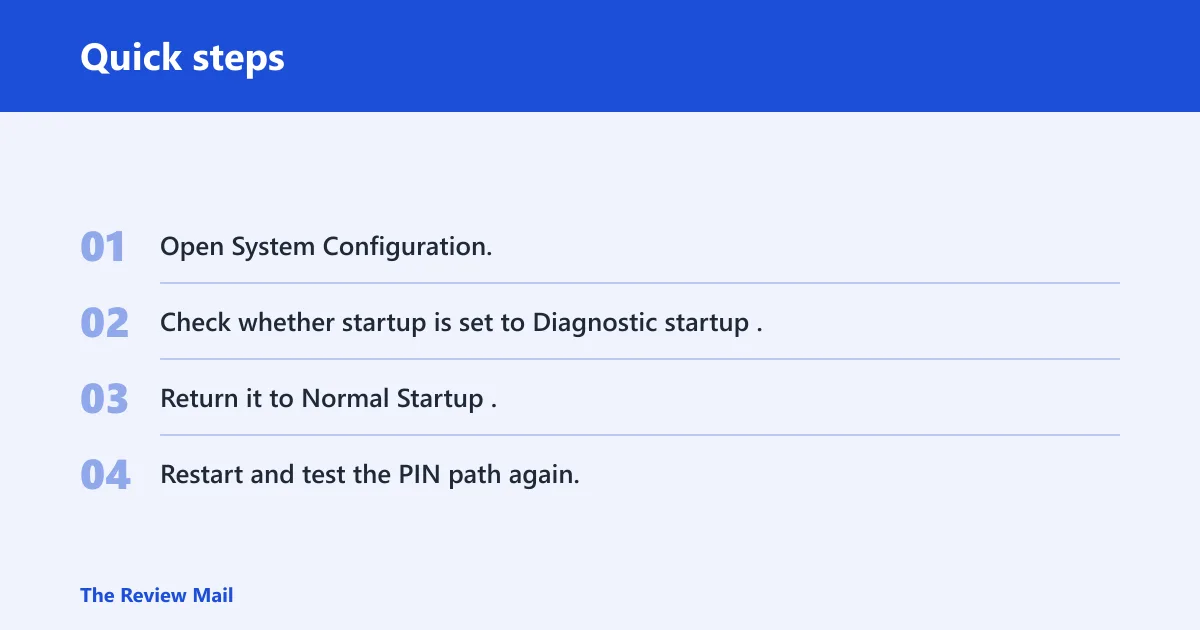
Microsoft notes that diagnostic startup can disable needed Windows services. If the system is not in Normal Startup, Windows Hello may fail before the PIN screen can load properly. Undoing diagnostic startup is a safer early step than repairing credential files.
- Open System Configuration.
- Check whether startup is set to Diagnostic startup.
- Return it to Normal Startup.
- Restart and test the PIN path again.
Rebuild the credential path only after policy checks
If policy and startup mode are clean, then the local Windows Hello store becomes the next target. The NGC folder is the hidden credential store at C:\Windows\ServiceProfiles\LocalService\AppData\Local\Microsoft\Ngc. Deleting or rebuilding it may require taking ownership first, and it should not be your first move on a managed device.
The NGC folder rebuilds when a new PIN is created. That is useful, but it is also why you should only touch it after you know the device is not being held back by policy or startup state.
Set up my PIN does nothing
If the button does nothing, the issue is usually deeper than the PIN dialog. Check the TPM first with tpm.msc, then look at the local Hello storage path, and only then consider repair steps. If the machine belongs to an organization, stop before making destructive changes that could affect other keys.
Check the TPM in tpm.msc
TPM problems can break Windows Hello because the TPM stores the PIN-related secrets. Open tpm.msc and confirm the TPM is present and functioning. Microsoft’s guidance also points to BIOS entries such as TPM 2.0 Security or Intel PTT when the PIN path breaks after firmware or Windows changes.
A common first-timer mistake is to clear the TPM before checking whether the machine is managed. That can affect other TPM-protected keys, so treat TPM clearing as a last resort, not a cleanup step.
Repair the NGC folder on a local admin account
If the machine is a local admin system and not tied to organizational policy, the NGC store is the next repair target. The folder lives under the service profile path above and holds Windows Hello PIN credentials. Rebuilding it may fix a dead setup button, but it can require ownership changes before deletion.
Use caution here. If the machine is joined to a company tenant, clearing local Hello data may not restore the button if policy is still enforcing the block. In that case, the right fix is policy or network validation, not folder deletion.
Stop and escalate if the device is managed
Do not clear TPM on a business device unless your IT team tells you to. If the machine uses Azure AD or Microsoft Entra ID, the PIN path may need network connectivity to validate sign-in or complete a reset. If the button remains inert after policy and startup checks, hand it to IT or use the recovery account process they provide.
What if this started after an update?
Windows Update and BIOS update changes are common triggers for PIN invalidation. They can alter TPM state, change Hello credentials, or leave the device in a startup mode that does not load the right services. If the failure started right after an update, review the update and firmware changes before deleting local Hello data.
Windows Update and BIOS update checks
Microsoft’s guidance ties this failure pattern to Windows Update and a latest BIOS update. That is why a recent patch, firmware flash, or motherboard setting change belongs near the top of the list. If the PIN broke immediately after one of those events, the device trust path changed first.
TPM and Hello invalidation clues
Signs of invalidation include a PIN that used to work, a password that still works, and a Windows Hello prompt that now says the PIN is not available. That combination usually means the local secret changed or no longer matches the TPM record. In that case, a PIN reset may work only after the device is back in a trusted state.
When to undo recent startup or firmware changes
Return startup to Normal Startup before deeper repair work. If a BIOS option or TPM setting changed during the update, restore the previous trusted setting if your organization allows it. On a personal PC, that can mean re-enabling the TPM feature Windows expects before you try to rebuild Hello.
Frequently asked questions
Why does my pin not work windows 11?
On Windows 11, a failing PIN usually means the local Windows Hello trust path broke. The password may still work because it is separate. Start with password sign-in, then reset the PIN. If the message says the PIN is unavailable, check TPM, startup mode, and policy before forcing a rebuild.
Why did my microsoft pin stop working?
A Microsoft account password and a Windows Hello PIN are different credentials. The PIN can stop working after a Windows Update, BIOS change, TPM issue, or policy refresh even when the account itself is fine. If password sign-in works, the account is probably healthy and the local PIN store needs repair.
What do I do if my pin is not available on windows 11?
First, sign in with the password from Sign-in options. Then check whether the device is managed, in diagnostic startup, or recently updated. If those are clear, review the TPM and the NGC credential store. Do not clear TPM first on a work device unless IT directs it.
How do I sign in if my windows hello pin stopped working?
Use the password option on the lock screen. That is the safest fallback when Hello fails. Once you are in, remove the broken PIN and create a new one. If password sign-in is blocked too, you are beyond a PIN problem and should move to account recovery or IT escalation.
How do I fix setup my pin not working windows 11?
Start with TPM status in tpm.msc, then check for diagnostic startup and policy blocks. If the device is personal and local-admin controlled, the NGC folder may need to be rebuilt. If the machine is managed, stop and ask IT before deleting Hello data or clearing the TPM.
Can a tpm problem break my windows 11 pin?
Yes. TPM stores Windows Hello PIN secrets, so a TPM change, firmware update, or clearing action can break the PIN path. If the PIN fails right after BIOS or Windows updates, TPM is a strong suspect. Use TPM checks and policy checks before removing local Hello data.