Windows 11 Hello Setup Not Working
If Windows 11 Hello setup fails, sort it by symptom: face usually points to camera or infrared support, fingerprint to sensor or driver, and PIN to account or TPM issues; the quickest fix depends on which step breaks. If you chase the wrong fix, you waste time and can leave sign-in stuck on password only. This guide maps each Hello setup failure to the fastest check, reset, or driver repair. (Microsoft Support)
Check Windows Hello sign-in options
The error usually means Windows Hello cannot finish enrollment, not that every sign-in method is broken. Start with the method that fails: face, fingerprint, or PIN. If setup fails before enrollment ends, check hardware support, account limits, and recent updates before you repeat the same reset path.
Likely causes
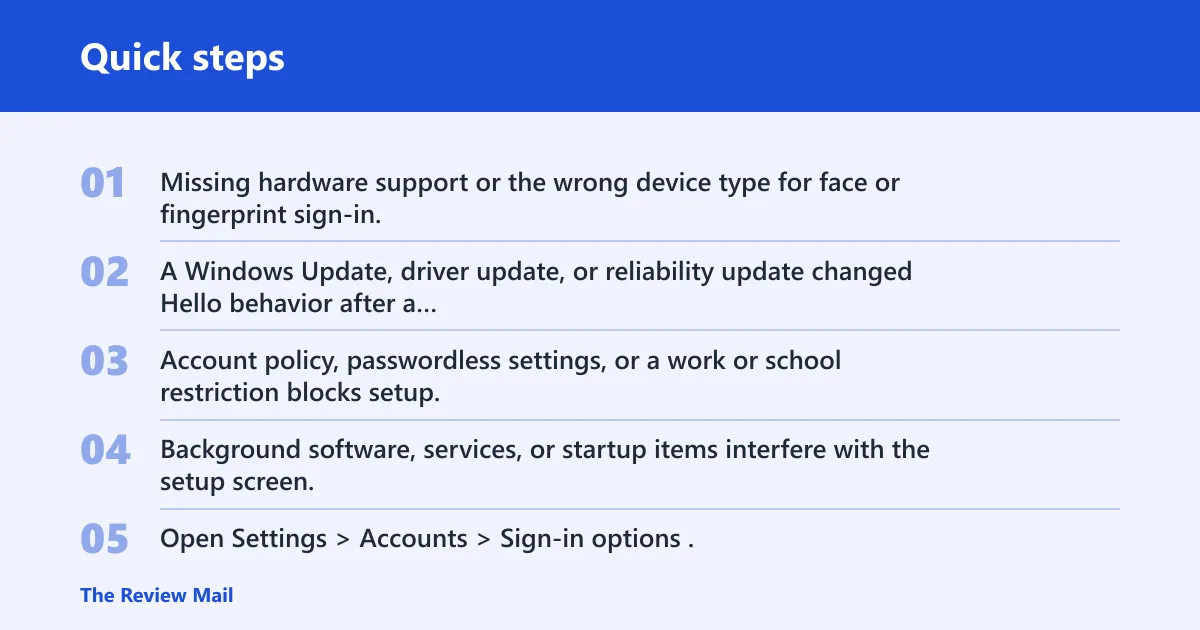
- Missing hardware support or the wrong device type for face or fingerprint sign-in.
- A Windows Update, driver update, or reliability update changed Hello behavior after a reboot.
- Account policy, passwordless settings, or a work or school restriction blocks setup.
- Background software, services, or startup items interfere with the setup screen.
Say your laptop shows Face in Sign-in options, but the camera never finishes enrollment. That usually points to the camera path, not the PIN path. Suppose fingerprint setup fails only after a recent update; that shifts attention to drivers or a post-update regression before any full reset.
Start here in Settings
- Open Settings > Accounts > Sign-in options.
- Check whether Face recognition, Fingerprint recognition, and PIN are listed.
- Look for passwordless Microsoft account toggles or work and school restrictions that can hide setup choices.
- If the method is listed but unavailable, move to the matching cause section below.
📊 Microsoft places Windows Hello guidance under Windows 11 and Windows 10 support. Source: Microsoft.
Why are Windows Hello buttons missing?
Missing or greyed-out Hello buttons usually point to policy, account, or hardware support problems rather than a bad scan. Check Sign-in options first, because Windows 11 can hide Face, Fingerprint, or PIN entries when the device, account, or organization policy does not permit them.
Check account and policy blockers
- Open Settings > Accounts > Sign-in options.
- Look for a Passwordless account toggle or similar Microsoft account setting that changes Hello availability.
- If the PC is managed, open Settings > Accounts > Access work or school and review any connected organization account.
- If a work or school policy controls sign-in, use the device owner’s policy path or ask the administrator to allow Hello.
Confirm the device still supports the method
- For face sign-in, confirm the PC has an IR camera or compatible camera.
- For fingerprint sign-in, confirm the reader appears in Device Manager under Biometric devices.
- For camera issues, check Device Manager > Cameras for warnings or missing devices.
- If the method is absent after those checks, move to update and driver repair.
Why is Windows Hello face setup failing?
Face setup usually fails because the camera cannot get a clean infrared scan, not because Hello is broken everywhere. Check camera support, lighting, and camera access first. If setup still fails, use Improve recognition, then remove the face data and scan again.
Check the camera and the room
- Open Settings > Accounts > Sign-in options.
- Under Face recognition, confirm the device has an IR camera or compatible camera.
- Clean the camera lens and make sure nothing blocks the lens or IR window.
- Move away from harsh side lighting or bright light striking one side of the face; low light can also make recognition harder.
Rescan the face data
- Go to Settings > Accounts > Sign-in options.
- Open Face recognition and choose Improve recognition if it appears.
- If that does not fix enrollment, choose Remove for face data.
- Set up face recognition again and complete the latest scan only.
Update the camera driver if enrollment still fails
- Right-click Start and open Device Manager.
- Expand Cameras.
- Right-click the camera and choose Update driver.
- If the manufacturer provides a newer driver package, install that version and reboot.
Why is Windows Hello fingerprint setup failing?
Fingerprint setup usually fails because the reader cannot get a clean print or the biometric driver is stale. Start with a clean, dry finger and reader. If enrollment still fails, re-register the fingerprint and try a second finger before you replace hardware or wipe the profile.
Clean and re-enroll the fingerprint
- Open Settings > Accounts > Sign-in options.
- Clean the fingerprint reader and dry your finger.
- Remove the current fingerprint entry, then choose Set up again.
- When the reader rejects one finger, try a different finger and add more than one fingerprint if Windows offers the option.
Check the biometric driver
- Right-click Start and open Device Manager.
- Expand Biometric devices.
- Right-click the reader and choose Update driver.
- If enrollment still fails, uninstall the device only if the manufacturer recommends it, then reinstall the latest driver package from the device maker.
How do you fix Windows Hello PIN setup errors?
PIN setup errors usually point to account sign-in state, security processor issues, or a post-update reset problem. Open the PIN flow from Sign-in options first. If the PIN is unavailable after an update, sign out of your Microsoft account and sign back in, then check TPM or security processor warnings.
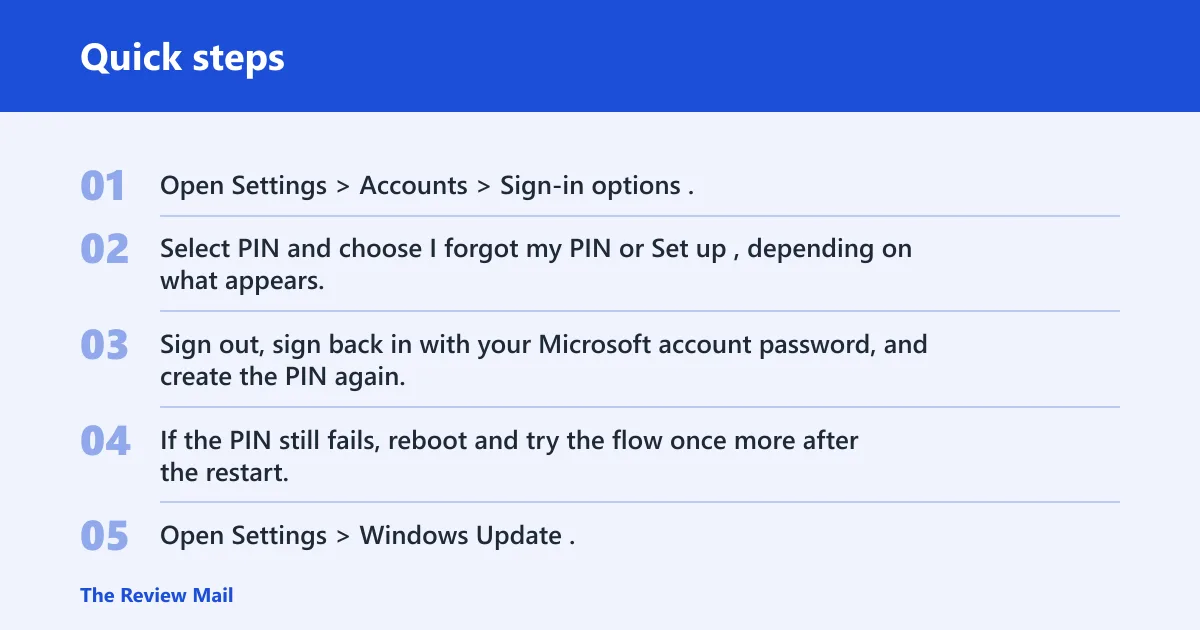
Reset the PIN from Sign-in options
- Open Settings > Accounts > Sign-in options.
- Sign out, sign back in with your Microsoft account password, and create the PIN again.
- If the PIN still fails, reboot and try the flow once more after the restart.
Check for update-related PIN blocks
- Open Settings > Windows Update.
- Select Check for updates and install any pending security update or driver update.
- If the PIN became unavailable after an update, restart the PC after the install completes.
- Return to Settings > Accounts > Sign-in options and retry the PIN flow.
Review TPM or security processor issues
- Open Windows Security.
- Check Security processor or Security processor troubleshooting if it is available on the device.
- If the security processor or TPM appears to be the blocker, follow the vendor’s recovery path before clearing TPM.
- Use clear TPM only as a recovery step when you understand the impact on protected data and the device’s recovery process.
What to do when Windows Hello setup screen has no OK button?
A missing OK button usually points to a broken setup dialog, a policy conflict, or corrupt system files rather than a simple scan problem. Try Windows repair tools first, then clean boot. If the screen still lacks the button, a new local user profile is the next escalation step.
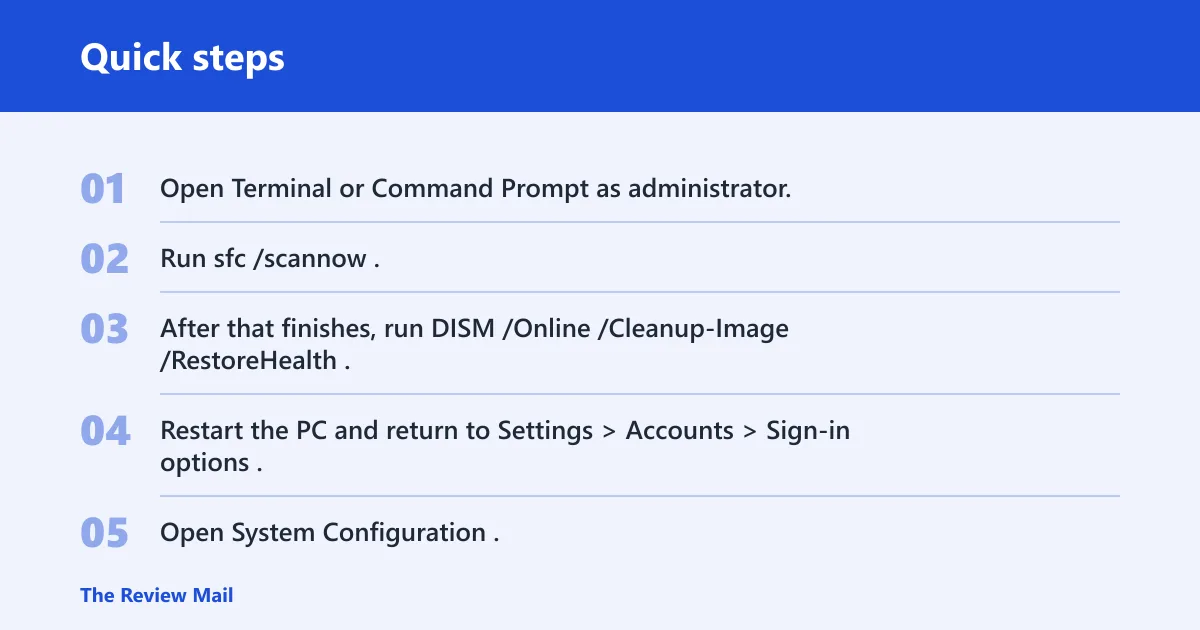
Repair Windows files, then retest
- Open Terminal or Command Prompt as administrator.
- Run
sfc /scannow. - After that finishes, run
DISM /Online /Cleanup-Image /RestoreHealth. - Restart the PC and return to Settings > Accounts > Sign-in options.
Use clean boot to isolate interference
- Open System Configuration.
- Disable non-Microsoft services and startup items.
- Reboot the PC and open the Hello setup screen again.
- If the button appears after a clean boot, re-enable items in small groups to find the conflict.
Escalate to a new local profile
- Create a new local user profile from Settings > Accounts > Other users.
- Sign in with the new profile.
- Open Settings > Accounts > Sign-in options and retry Hello setup.
- If the new profile works, the original profile likely has a local corruption problem.
Windows Hello fix decision matrix
This table puts the shortest first move next to each symptom. Use it before you start removing everything in sight.
| Symptom | Likely cause | First action | Escalation path |
|---|---|---|---|
| Face-recognition failure | IR camera issue, blocked view, or poor lighting | Clean the camera and fix lighting | Use Improve recognition, then remove and rescan |
| Fingerprint enrollment failure | Dirty reader, dry skin issue, or driver problem | Clean the reader and try a different finger | Re-register the print and update the biometric driver |
| PIN setup error | Account, security processor, or post-update problem | Reset the PIN from Sign-in options | Sign out and in, then check TPM or security processor warnings |
| Greyed-out PIN | Passwordless setting, policy, or account restriction | Check passwordless Microsoft account toggles | Review work or school policy, then test after updates |
| Setup screen missing an OK button | Corrupt system files or background interference | Run SFC and DISM | Use clean boot, then create a new local profile |
Frequently asked questions
Why is Windows Hello not working?
Open Settings > Accounts > Sign-in options and match the failed method to the right fix. Face errors usually point to camera or lighting issues, fingerprint errors to the reader or driver, and PIN errors to account or TPM problems. That path is faster than retrying every setup option.
Why isn’t Windows Hello working?
If Hello stopped after an update, start with Settings > Windows Update and install pending updates and drivers. Then reopen Settings > Accounts > Sign-in options and retry the exact method that failed. Post-update regressions are common enough that this check belongs near the top.
How do I fix Windows Hello face recognition after an update?
First clean the camera and check lighting, especially if one side of the face is in bright side light. Then open Settings > Accounts > Sign-in options, choose Face recognition, and use Improve recognition. If that fails, remove the face data and set it up again.
How do I fix Windows Hello fingerprint setup not working?
Clean the reader and dry your finger, then return to Settings > Accounts > Sign-in options. Remove the fingerprint, set it up again, and add a second fingerprint if Windows allows it. If setup still fails, update the device under Device Manager > Biometric devices.
Why does Windows Hello say something went wrong when setting up my PIN?
That error often appears after security updates or system changes. Go to Settings > Accounts > Sign-in options, reset the PIN, sign out, sign back in with your Microsoft account password, and create the PIN again. If the problem remains, check TPM or security processor troubleshooting next.
What do I do when Windows Hello setup screen has no OK button?
Run sfc /scannow and DISM /Online /Cleanup-Image /RestoreHealth from an elevated terminal, then reboot. If the setup screen still lacks an OK button, use a clean boot to rule out background software. A new local user profile is the next step if that still fails.