Disk Indexing Windows 11
Fix disk indexing in Windows 11 by matching the symptom: restart or rebuild the index for general slowness, reset Search if results are missing, and exclude problematic folders before you rebuild on large libraries. Choose the wrong fix, and Search can rebuild for hours, miss Outlook mail, or keep using CPU on SSDs. This guide shows how to diagnose each failure mode and pick the least disruptive repair.
What Windows Search indexing does
Windows Search indexing builds a local catalog of file names, metadata, and locations so search can skip full-disk scans. Microsoft says the index stays on the device. A healthy index returns results in a fraction of a second. A broken one can look slow, empty, or stuck even when the files are present.
What gets indexed in Windows 11
Windows 11 search indexing has two modes: Classic and Enhanced. Classic mode indexes Documents, Pictures, Music, and Desktop by default, and it lets you add custom locations. Microsoft also says you can choose properties only or properties plus contents, which changes how much data Search has to catalog.
Enhanced mode indexes all files on the PC. That wider scope can help if you search outside the default folders, but it can also grow the index and raise resource use. Microsoft notes that many small files under 4 kB can increase index size.
Why search is faster with an index
Search is faster because Windows reads the catalog instead of scanning the disk each time. Microsoft has said that a fully built index can return results very quickly. That speed comes with background work: indexing uses CPU, RAM, and disk while it updates.
When indexing can go wrong
Indexing can slow after upgrades, stall during a rebuild, or stop updating after a reinstall. It can also go wrong when a folder contains many files, when the index database becomes corrupted, or when filter drivers from security software interfere with file reads. SSD storage does not prevent these problems.
How can you tell which indexing problem you have?
The fix depends on the failure mode. A slow rebuild after an update points to a busy but working index. Missing files or stale results point to scope, corruption, or a stopped Search service. High disk use often means Search is rebuilding too much, while Outlook problems may mean the mail index is out of sync or blocked by another app.
Slow rebuild after an update or reinstall
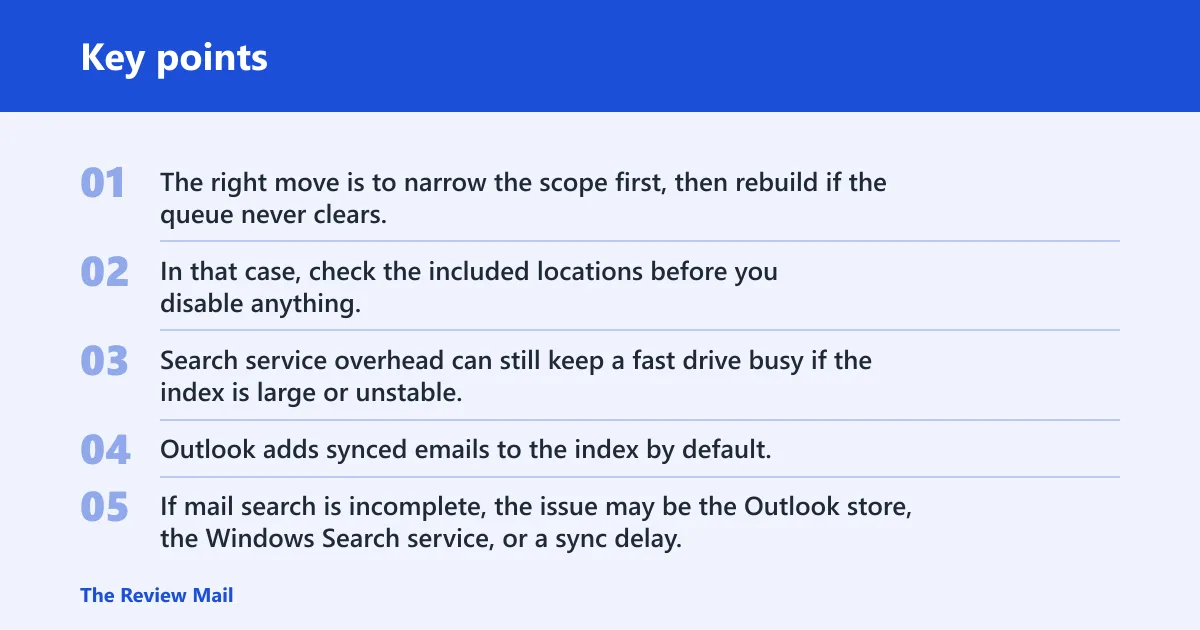
Suppose a laptop with a large SSD shows Search indexing for hours after a Windows update, but results still appear for common folders. That usually means Search is rebuilding, not dead. The right move is to narrow the scope first, then rebuild if the queue never clears.
Missing files or stale results
If a new document does not appear, or Search keeps showing deleted files, the index may not include the folder or may hold stale entries. That points to Indexing Options, not to a full Windows reset. In that case, check the included locations before you disable anything.
High disk use or constant indexing activity
When Search keeps hammering the disk, the problem is often a large index, a rebuild stuck on a big library, or a third-party filter driver. SSD storage does not rule that out. Search service overhead can still keep a fast drive busy if the index is large or unstable.
Outlook search problems
Outlook adds synced emails to the index by default. If mail search is incomplete, the issue may be the Outlook store, the Windows Search service, or a sync delay. Do not assume Windows Search is the only cause until you confirm that mail is actually indexed.
Disk indexing matrix
Use this table to match the symptom to the least disruptive fix first. The goal is to repair the index, not to shut off Windows Search before you know why it failed.
| Symptom | Likely cause | Quickest safe fix | Deeper repair | When to disable indexing |
|---|---|---|---|---|
| Slow rebuild after update or reinstall | Large library, many small files, or a rebuild still running | Wait, then trim Indexing Options to the folders you actually search | Rebuild the index from Advanced Options if progress stalls for hours | Only if the machine is low-end and Search keeps saturating the disk for routine use |
| Missing files | Folder not included, or the service is stopped | Open Indexing Options and confirm the folder is selected | Restart Windows Search, then rebuild if the folder is included but still missing | Rarely. Missing files usually mean scope or service trouble, not a reason to turn indexing off |
| Stale results | Corrupted entries or Search not refreshing | Restart the Windows Search service | Rebuild the index and check whether third-party antivirus is filtering files | Only if stale results keep returning after rebuilds and the device is too constrained to keep Search running |
| High disk use | Indexing too many folders, too many tiny files, or a broken queue | Reduce indexed locations, especially external or rarely used folders | Rebuild the index and test without third-party antivirus installed | Reasonable on low-end systems where the search benefit does not justify the constant activity |
| Outlook search issues | Mail store not fully indexed, sync delay, or service interference | Confirm Outlook is in the indexed set and let sync complete | Restart Search, then rebuild if mail remains incomplete after sync | Usually not the first answer, because Outlook relies on the index for mail search |
How do you tell which indexing problem you have?
Start by matching the symptom to the failure mode. If Search is merely slow after an upgrade, give it time and narrow the indexed folders. If results are missing or stale, check scope and service state first. If the disk stays busy, test for a large index or a software conflict before you turn indexing off.
Check the symptom first. Look for one clear pattern: slow rebuild, missing files, stale results, high disk use, or Outlook search trouble. Each pattern points to a different fix, and the wrong one can waste time or make the queue longer.
Open Indexing Options. Use Start search to open the system utility, or open it from Control Panel if you prefer. This is where you confirm what Windows is actually indexing, instead of guessing from the search box.
Check the indexed locations. Compare the listed folders with the files you expect to find. If a folder is missing, add it before you rebuild. If a huge folder is included by accident, remove it first so the rebuild stays smaller.
Decide whether to rebuild. Rebuild only when Search is broken, stuck, or clearly out of sync. Microsoft includes rebuild in Advanced Options, and that is the right deeper repair when a restart does not clear the issue.
How to open Indexing Options in Windows 11
Indexing Options is the control panel entry for managing indexed locations. You can open it from Start search as a system utility. From there, you can confirm which folders are included, choose what Search should watch, and decide whether Classic mode is enough for your workflow.
Open Start search. Type Indexing Options and open the system utility. This takes you directly to the location list instead of forcing you through unrelated settings pages.
Review the location list. Check which folders are indexed, then compare that list with where your missing files live. Add only the folders you search often, because every extra location increases the work Search has to do.
Adjust the scope. Remove folders that do not need fast search, especially large archives or rarely used external drives. A smaller index is easier to keep current and can reduce rebuild time.
Say your photo archive sits on an external drive, but you only search Documents and Desktop every day. Keep the default folders in Classic mode and leave the archive out until you actually need it indexed. That avoids making every search pay for a library you rarely touch.
Classic vs enhanced search mode
Classic and Enhanced are not the same setting with different labels. Classic limits indexing to common user folders by default, while Enhanced extends indexing across all files on the PC. Classic usually suits lighter search needs; Enhanced suits broader search patterns at the cost of more background work.
Classic search mode
Classic mode indexes Documents, Pictures, Music, and Desktop by default. It is the lower-resource choice for people who mostly search common user folders. You can also add custom locations if you need one extra folder without indexing the whole machine.
Enhanced search mode
Enhanced mode scans all files on the PC, which can help if your data lives outside the default folders. It can also increase resource usage and index size, especially on systems with many small files. Microsoft notes the index is usually smaller than 10 percent of indexed files, but many tiny files can push that higher.
Which mode fits your search pattern?
Choose Classic if you mostly search local user folders and want lower background activity. Choose Enhanced if you regularly search across the whole PC and accept the larger maintenance cost. If you are already seeing high disk use or long rebuilds, Classic is often the safer place to stay.
How do you fix a stuck or broken index?
Fix a stuck or broken index by rebuilding only after you confirm the scope and service state. If that does not help, test for third-party antivirus interference and handle the PluginResourceData registry case with care. Do not jump straight to disabling Windows Search unless the machine is too constrained for indexing to be worth it.
Rebuild the index
Rebuilding is the main repair when search is broken or stuck. Microsoft includes this in Advanced Options. Use it when results are missing across folders you know are selected, when Search is frozen, or when the queue has been stalled long enough that a restart did not help.
Open advanced settings. Go back to Indexing Options and open Advanced Options. This is where Windows places the rebuild command, so you do not need a separate tool.
Start the rebuild. Choose the rebuild option and let Windows recatalog the indexed locations. Microsoft says initial indexing can take up to several hours, so do not interrupt it too early unless the process is clearly stuck.
Check the result later. Test the same missing or stale search terms after the rebuild has had time to finish. If the problem returns quickly, the index may be corrupted again or something else may be blocking it.
Check for third-party antivirus interference
Third-party antivirus software can slow indexing. In a Microsoft Q&A thread, AVG was discussed as a possible factor. If Search remains slow or keeps rebuilding, fully uninstall the antivirus for testing rather than only pausing it, because filter drivers can stay active until the product is removed.
Handle the PluginResourceData registry case carefully
In one slow-rebuild troubleshooting case, removing the PluginResourceData registry key reportedly restarted indexing. Treat that as a narrow recovery step, not a routine fix. Back up the registry first, change only the exact key you intend to remove, and avoid broad edits that can create a larger problem than the stalled index.
How do you disable disk indexing in Windows 11?
To actually disable disk indexing in Windows 11, stop or disable the Windows Search service. Removing indexed folders does not fully disable indexing, because the service may still run and monitor whatever remains in scope. Use this only when Search is causing more trouble than it solves, or when you need a temporary test.
Open Services or Command Prompt. Microsoft’s tutorial says Search can be controlled from either place. Find the service named Windows Search, which is the service that performs the indexing work.
Stop the service. Stop Windows Search first if you want an immediate halt. This stops background indexing right away and is the cleanest way to see whether Search is driving the disk activity.
Disable startup. Set the service to disabled if you want indexing to stay off after a reboot. That prevents Windows Search from starting again and keeps the index from updating until you reverse the change.
Confirm the tradeoff. Search will lose speed and Outlook search may be affected if it depends on the index. Use this only when the background cost is more harmful than the search benefit.
A common first-timer mistake is to remove every folder from Indexing Options and expect Search to stop indexing altogether. That only shrinks the catalog. It does not shut off the service. If the goal is a true stop, the Windows Search service is the direct control.
Frequently asked questions
What is Windows indexing?
Windows indexing is the local catalog that stores file names, metadata, and location data so Search can avoid scanning the whole disk each time. Microsoft says the index is stored locally on the device. With a healthy index, results can appear in a fraction of a second.
Is Windows indexing necessary?
It is not required for the PC to boot or open apps, but it is useful if you search often. Without it, Search has to do more work and can feel much slower. If you rarely search, or if background activity matters more than fast results, disabling it can make sense.
How long does Windows indexing take?
Microsoft says initial indexing can take up to several hours. The exact time depends on library size, file count, and whether the machine is rebuilding after an update or reinstall. A smaller Classic setup usually finishes sooner than an Enhanced setup with many files.
How long does indexing take on Windows 11?
The timing on Windows 11 is the same kind of variable range. Microsoft still says initial indexing can take up to several hours, and large file collections can take longer to settle after changes. If Search keeps running long after that, suspect a stuck queue or corruption.
How do I reduce indexing on an SSD in Windows 11?
Use Classic mode, remove folders you do not search often, and keep large archives out of the index. SSD storage does not stop indexing issues, so the best way to cut background work is to reduce what Search has to catalog. If the disk still stays busy, test for antivirus interference.
Should I disable indexing on Windows 10 or 11?
Only disable indexing when search speed is not worth the resource cost, or when the service is clearly causing trouble on a low-end system. On Windows 11, first try narrowing scope, rebuilding, and checking third-party software. Turning it off is a later step, not the default fix.