Driver Not Loading Error
A driver not loading error usually points to one of a few things: the driver may not fit your Windows version or hardware, Windows security may block it, the files may be damaged, or a service or startup issue may stop it from starting. Left alone, it can break a device, slow boot, or trigger repeated error pop-ups. This guide maps each cause to the fastest fix, from checking the driver package to repairing files and service settings.
What does it mean when a driver will not load?
Start by separating a missing driver from a present driver that will not load. If Device Manager shows the device with a warning icon and a status message, the package is present but the load step failed. If the device is missing entirely, Windows may not have the right package at all.
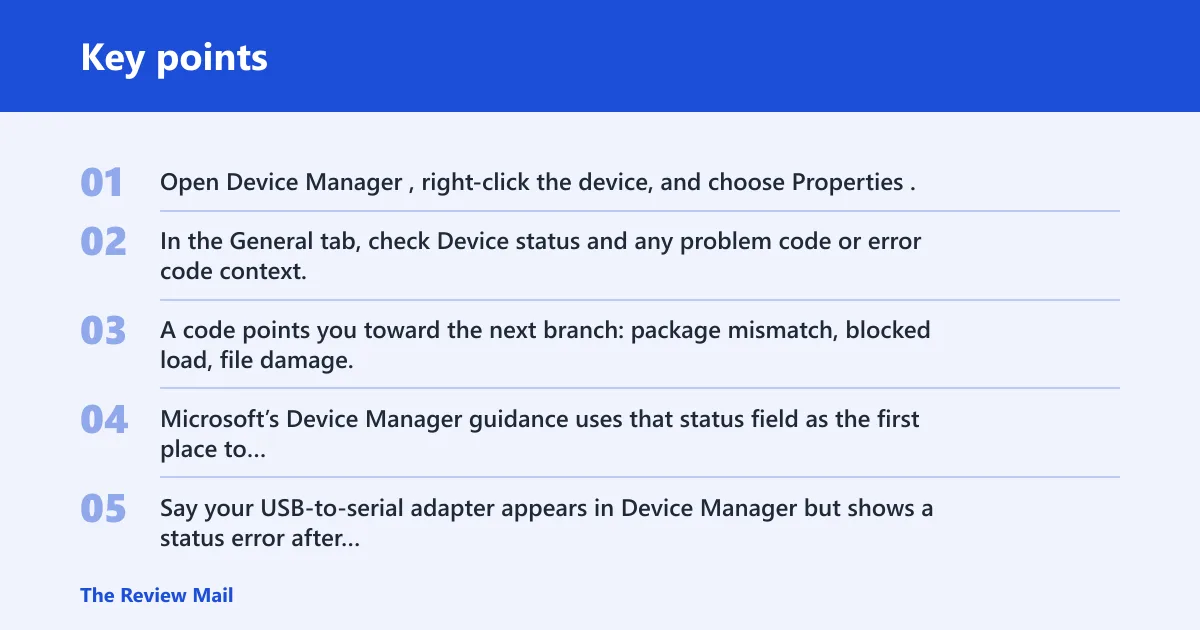
Open Device Manager, right-click the device, and choose Properties. In the General tab, check Device status and any problem code or error code context. A code points you toward the next branch: package mismatch, blocked load, file damage, or startup failure. Microsoft’s Device Manager guidance uses that status field as the first place to identify the problem code and state.
Say your USB-to-serial adapter appears in Device Manager but shows a status error after reboot. That points away from missing hardware detection and toward a how to fix driver cannot load errors in Windows problem. A different package, a blocked load, or a broken service entry is more likely.
What usually causes a driver loading failure in Windows?
Often, the wrong driver package is installed. In other cases, Windows may block a valid package, the files may be damaged, or a startup entry may prevent the kernel-mode driver from loading at boot or device start.
- Wrong package: wrong version, wrong architecture, wrong OEM package, or a generic Microsoft replacement that fits poorly.
- Blocked load: Secure Boot, driver signature enforcement, or Memory integrity rejects the driver. Microsoft documents these checks in Windows Security and boot-policy guidance.
- Corruption: driver files, system components, or update leftovers are damaged. Microsoft recommends SFC and DISM when system files may be involved.
- Startup/service failure: the service entry exists, but the driver is not started at the right time.
If the failure started after a reboot or Windows Update, place blocked load and package replacement near the top of the list. If it started during installation, package mismatch and signature checks move up fast. Microsoft’s Windows Update guidance also supports checking whether a recent driver update coincides with the failure.
How do you tell if the wrong driver is installed?
If Windows installed the wrong driver, the device can look present while still failing to load. Check the package name, provider, version, architecture, and device match before you reinstall anything. This is the fastest fork to rule out.
- Open Device Manager > right-click the device > Properties > Driver.
- Compare Driver Provider, Driver Date, and Driver Version with the vendor package for your exact model.
- Open Details > Hardware Ids and confirm the device path matches the vendor’s supported hardware.
- Look for a generic Microsoft driver name in Driver Provider or Driver Details.
- If the package is wrong, uninstall the device with Delete the driver software for this device, then install the OEM package for your model and Windows version.
A common first-timer mistake is installing a 64-bit package on a 32-bit system or mixing a laptop OEM package with a desktop part number. Both can leave the driver installed but not loaded. On Windows, the practical recovery is a clean reinstall of the correct package after confirming the hardware IDs and supported OS version.
How do you check whether Windows security is blocking the driver?
Modern Windows systems can block kernel-mode drivers even when the package is otherwise valid. Secure Boot, driver signature enforcement, and Memory integrity are the first places to check, especially if the failure started after a BIOS change, security setting change, or a fresh install. Microsoft documents these protections as part of Windows security and boot-policy behavior.
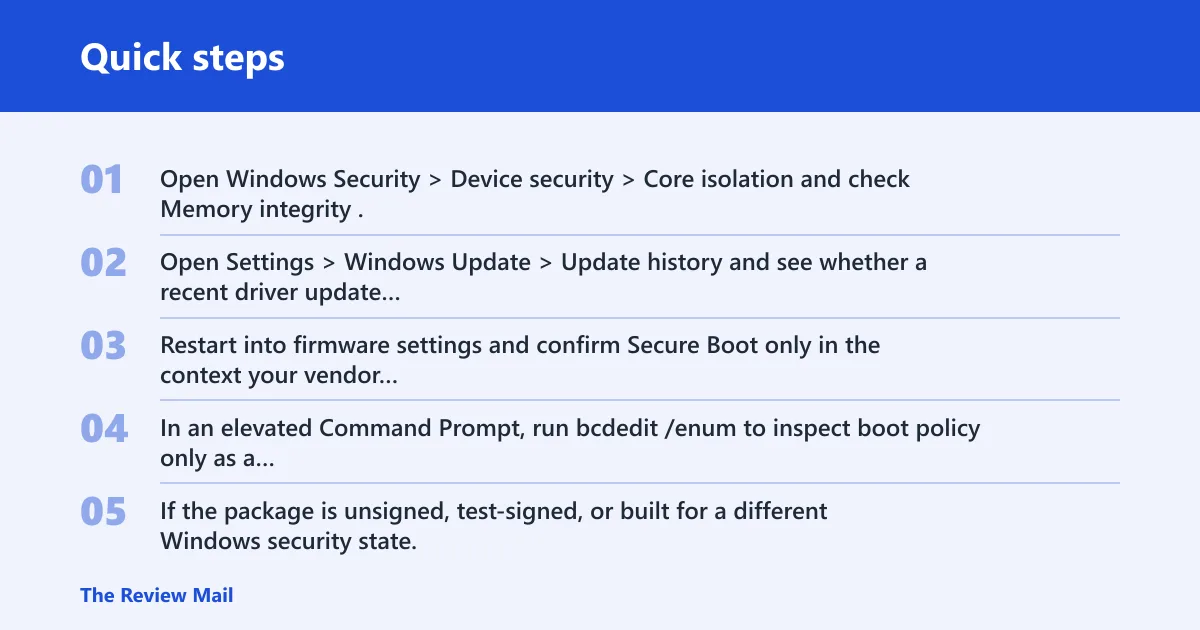
- Open Windows Security > Device security > Core isolation and check Memory integrity.
- Open Settings > Windows Update > Update history and see whether a recent driver update landed before the failure.
- Restart into firmware settings and confirm Secure Boot only in the context your vendor requires; do not change it casually as a first fix.
- In an elevated Command Prompt, run bcdedit /enum to inspect boot policy only as a diagnostic step. It helps identify test-signing or other options that change signature behavior, but it is not a routine repair.
- If the package is unsigned, test-signed, or built for a different Windows security state, install a production-signed vendor package instead.
Kernel-mode drivers load at boot or when the device starts, so a security block can look like a service failure. Microsoft’s driver-signing and Memory integrity guidance are the right references when a driver loads on one machine but is blocked on another with the same hardware family.
How do you fix corrupted driver files?
If the right package is installed and Windows is not blocking it, repair the files. Corruption can hit the driver package itself, the service entry, or the Windows components the driver needs to load.
- Open Device Manager > device Properties > Driver and choose Uninstall Device.
- Restart, then install the newest vendor package from the hardware maker, not the copy from Windows Update.
- Open an elevated Command Prompt and run
sfc /scannow. Microsoft documents SFC as the first-line repair for protected system files. - When that finishes, run
DISM /Online /Cleanup-Image /RestoreHealth. Microsoft recommends DISM to repair the component store when SFC cannot fully restore files. - Restart again and check Device Manager status.
If the failure followed a patch or power loss, SFC and DISM help when system files are part of the chain. Keep the scope narrow: fix the driver package first, then repair Windows components if the same load failure repeats.
Why does a driver fail after reboot?
A post-reboot failure often points to startup order, service registration, or Windows Update replacing the package. That is a different problem from a one-time install miss. The driver can be present at shutdown and gone at the next boot, or present but no longer the active version.
- Open Task Manager > Startup and disable unrelated third-party startup items.
- Run msconfig and choose Selective startup, then restart to test a clean boot.
- Boot into Safe Mode and check whether the device loads there. Microsoft’s Safe Mode guidance is useful because it loads a limited set of drivers and services.
- Open Settings > Windows Update > Update history and roll back the most recent driver update if the timing matches. Microsoft documents driver rollback from Device Manager and update-history review after a bad update.
- In Services, confirm any vendor service is set to the expected startup type and is not stopped.
Suppose a Wi-Fi adapter loads before an update, then fails after reboot with a generic Microsoft driver in Device Manager. That points to Windows Update replacement. Roll back the driver first, then block the bad update through the vendor package or update settings if the replacement returns.
Driver error matrix
Use this table when the symptom is clear but the cause is not. Match the pattern you see in Windows, then take the fastest next step.
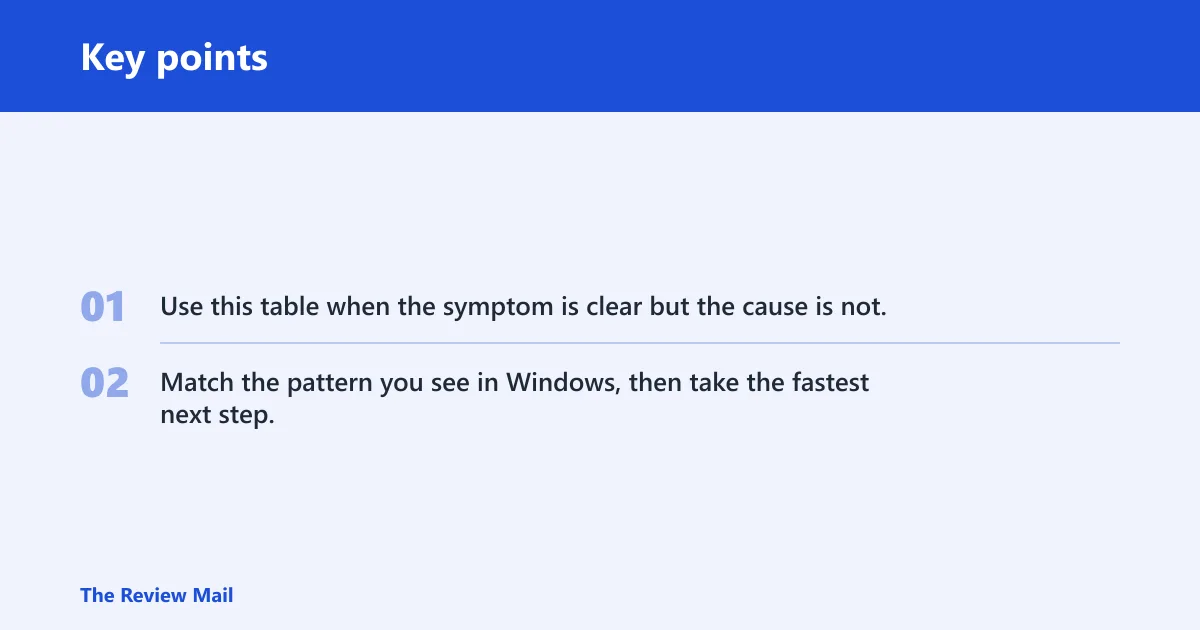
| Symptom seen | Probable cause | How to confirm in Windows | Best fix |
|---|---|---|---|
| Device appears after install, fails after reboot | Startup/service registration failure | Device Manager status changes only after restart; Service entry exists but is stopped | Check Services, then reinstall the vendor package |
| Device Manager shows Code 10 | Device cannot start, often from blocked load or bad package | Properties > General > Device status shows Code 10 or cannot start | Verify the vendor package, check signature status, and confirm the hardware ID |
| Device Manager shows Code 31 | Windows cannot load the drivers for this device | Device status shows Code 31 after install or reboot | Reinstall the correct OEM driver and check for a generic Microsoft substitute |
| Device Manager shows Code 39 | Driver or registry entry is corrupted | Device status shows Code 39, often after uninstall or update | Remove the device, delete the driver software, then reinstall the vendor package |
| Device Manager shows Code 52 | Windows blocked the driver because it cannot verify the digital signature | Device status shows Code 52, and Windows Security or boot policy reflects signature enforcement | Use a production-signed vendor package that matches the Windows security state |
| Windows installs a Microsoft generic driver | Windows Update replacement | Driver tab shows Microsoft as provider after update | Roll back the driver and install the vendor package |
| Driver is present but no hardware action occurs | Wrong driver package | Driver Provider or Hardware Ids do not match the device | Uninstall the wrong package and install the OEM one |
| Unsigned or test-signed package will not load | Signature enforcement | Device status, Windows Security, or boot options show signature restrictions | Use a production-signed package |
| Fails only with Secure Boot on | Secure Boot block | Firmware shows Secure Boot enabled; device fails only in normal boot | Update to a Secure Boot-compatible package rather than changing Secure Boot casually |
| Memory integrity is enabled and the driver stops loading | Core isolation incompatibility | Windows Security > Device security > Core isolation shows Memory integrity on | Install a compatible signed package or a newer vendor release |
| Fails after a Windows update | Update regression or replacement | Update history shows a recent driver or quality update | Roll back the update or the driver |
| Driver loads in Safe Mode but not normal boot | Startup conflict | Safe Mode works; normal boot fails | Use clean boot to isolate the conflicting app or service |
| Install completes, but device remains disabled | Service entry or device state issue | Device status says disabled or not started; Services shows the related service is stopped | Enable the device and verify the service startup type |
| Service is present but stopped at startup | Service configuration problem | Services.msc shows the service set incorrectly or not running | Set the correct startup type, then restart and recheck Device Manager |
| Driver loads after replacement, then breaks again on the next boot | Post-reboot replacement or policy reset | Device Manager shows a version change after reboot | Rollback the replacement and install the supported vendor package again |
What should you do if the driver still will not load?
If the problem survives reinstall, rollback, and file repair, move to a more invasive path. Remove the device in Device Manager, delete the driver software, install the exact vendor package, and then check firmware and chipset drivers if the device depends on them.
- Open Device Manager and remove the device, including its driver software.
- Install the OEM package from the device or system maker, not a random mirror.
- Check whether the device depends on chipset, storage, virtualization, or platform drivers.
- If the package still fails, test in Safe Mode and then a clean boot to rule out third-party interference.
- When hardware IDs, firmware state, or vendor logs still point to a block, contact the hardware maker for the exact package or service path.
For kernel-mode components, stop and escalate when the service exists but the device still cannot start, especially on OEM-only hardware, virtualization drivers, or devices that depend on a specific bus type. The Windows pattern is usually a package mismatch, a signature block, or a service configuration issue, not a dead device.
Frequently asked questions
Why does my driver not load after reboot?
That usually points to a startup service problem, a Windows Update replacement, or a security block that appears only on a full boot. Check Update history, then review the service entry in Services. If the driver version changed after reboot, roll it back first.
How do I tell if Windows has the wrong driver installed?
Open the device’s Properties in Device Manager and compare the Driver Provider, Driver Version, and Hardware Ids with the vendor’s support list. If Microsoft is the provider and the device is hardware-specific, Windows may have substituted a generic package.
What does driver cannot load on this device mean?
It means the package is installed, but Windows stopped it from starting on that hardware. The cause can be a wrong package, a signature block, a corrupted service entry, or a compatibility issue with Windows security settings. The fastest check is the device status field in Device Manager, followed by the driver tab and update history.