How to Find Default Gateway Windows 11
In Windows 11, open the active adapter’s details in Settings or run ipconfig; the gateway is the IPv4 Default Gateway for that connection. Pick the wrong adapter, and you will copy the wrong router address. This guide shows how to find the gateway on Wi‑Fi, Ethernet, or VPN, then confirm which adapter is routing your traffic.
What the default gateway
The default gateway is the local router or access-point IP that sends traffic beyond your local network. On a home LAN, Windows 11 devices on Wi‑Fi or Ethernet use that address when they need to reach the internet or another network. It is usually shown as an IPv4 address, and common home-router values include 192.168.0.1 and 192.168.1.1.
What it does on a LAN
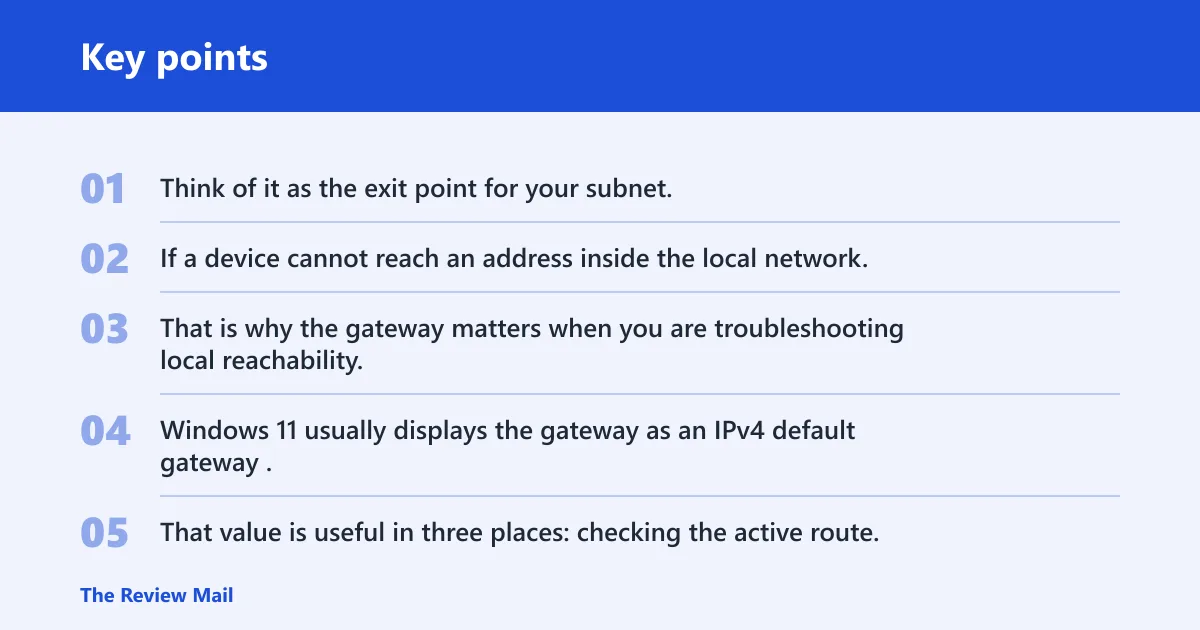
Think of it as the exit point for your subnet. If a device cannot reach an address inside the local network, it sends the packet to the gateway, which then forwards it onward. That is why the gateway matters when you are troubleshooting local reachability, router access, or a connection that works on one adapter but not another.
Why the IPv4 address matters
Windows 11 usually displays the gateway as an IPv4 default gateway. That value is useful in three places: checking the active route, pinging the router to test local reachability, and opening the router admin page in a browser. If the gateway changes after connecting a VPN, or if one adapter is static while another uses DHCP, the displayed value can differ by adapter.
What you’ll need
- A Windows 11 PC with Wi‑Fi, Ethernet, or both.
- Access to Settings or Command Prompt.
- Optional: a browser for the router admin page.
- Optional: access to your VPN client, if one is installed.
How do you find the default gateway in Settings?
Use Settings for a fast check of the active adapter. Open Settings > Network & internet > Advanced network settings, then open More settings > Hardware and connection properties. Windows 11 shows the IPv4 default gateway there, along with other connection details for the adapter in use.
- Open Settings > Network & internet > Advanced network settings.
- Select More settings > Hardware and connection properties.
- Find the active adapter and read the IPv4 default gateway value.
- Match that adapter to Wi‑Fi or Ethernet before you use the address anywhere else.
If both Wi‑Fi and Ethernet are connected, check each one separately for its gateway. The page can show more than one adapter, and the gateway beside the active link is the one that matters for that path. A common mistake is copying the Wi‑Fi gateway while the PC is routing traffic over Ethernet.
How do you find default gateway in cmd on Windows 11?
Command Prompt is the quickest command-line option when you need adapter-level detail. Open Command Prompt and run ipconfig. That command shows the default gateway for each adapter that has one, and it is commonly available on Windows systems. If you need more detail, ipconfig /all adds extra interface data, including subnet mask.
- Open Command Prompt.
- Run
ipconfig. - Find the adapter name, such as Wi‑Fi or Ethernet.
- Read the Default Gateway line under that adapter.
- Run
ipconfig /allif you also need the subnet mask or extra adapter fields.
Suppose your laptop is connected to a café network, but only the Wi‑Fi adapter lists 10.0.0.1 as the default gateway while the VPN adapter shows none. That usually means the wireless adapter is carrying traffic, while the wired connection is idle, disconnected, or not receiving a gateway from DHCP. In that case, the Wi‑Fi entry is the one to verify first.
Gateway decision table
Which gateway should you trust?
| Connection type | Where to check it | What the result should look like | What it means if the values differ |
|---|---|---|---|
| Wi‑Fi | Settings, ipconfig, route print | One IPv4 default gateway beside the Wi‑Fi adapter; often 192.168.0.1 or 192.168.1.1 | The PC may be on a different adapter, the Wi‑Fi lease may have changed, or a VPN may have added another route |
| Ethernet | Settings, ipconfig, route print | One gateway beside the Ethernet adapter when the cable link is active | Ethernet may be disconnected, on a static IP without a gateway, or losing traffic to Wi‑Fi |
| VPN | ipconfig, route print | A VPN adapter may show a gateway or a route that changes after the tunnel connects | The VPN may be taking traffic away from the local adapter, so the router address in Settings may not be the path your packets use |
How do you verify the active gateway?
Verify the active gateway by matching the address to the adapter that is carrying traffic, then test reachability. Use the adapter that has the live link, ping the gateway, and, if needed, open the same IP in a browser. That confirms both the address and the router interface behind it.
- Check whether Wi‑Fi or Ethernet is the active connection in Settings > Network & internet.
- Compare that adapter with the gateway shown in Settings or
ipconfig. - Run
ping <gateway IP>in Command Prompt. - If the ping replies, type the same address into your browser to open the router admin page.
Picture a laptop on Ethernet with a dock attached, plus Wi‑Fi still enabled. If Wi‑Fi shows 192.168.1.1 and Ethernet shows 192.168.0.1, the browser test tells you which router page answers on the path you care about. That matters before changing Wi‑Fi settings or firmware updates in the admin page.
Why is the gateway blank or unreachable?
A blank gateway field or a failed ping usually points first to a local connection problem rather than a router setting. Check whether the adapter has a link, whether DHCP assigned an address, and whether a VPN changed the route. If the gateway is missing or changed after VPN use, the tunnel may be steering traffic through a different adapter.
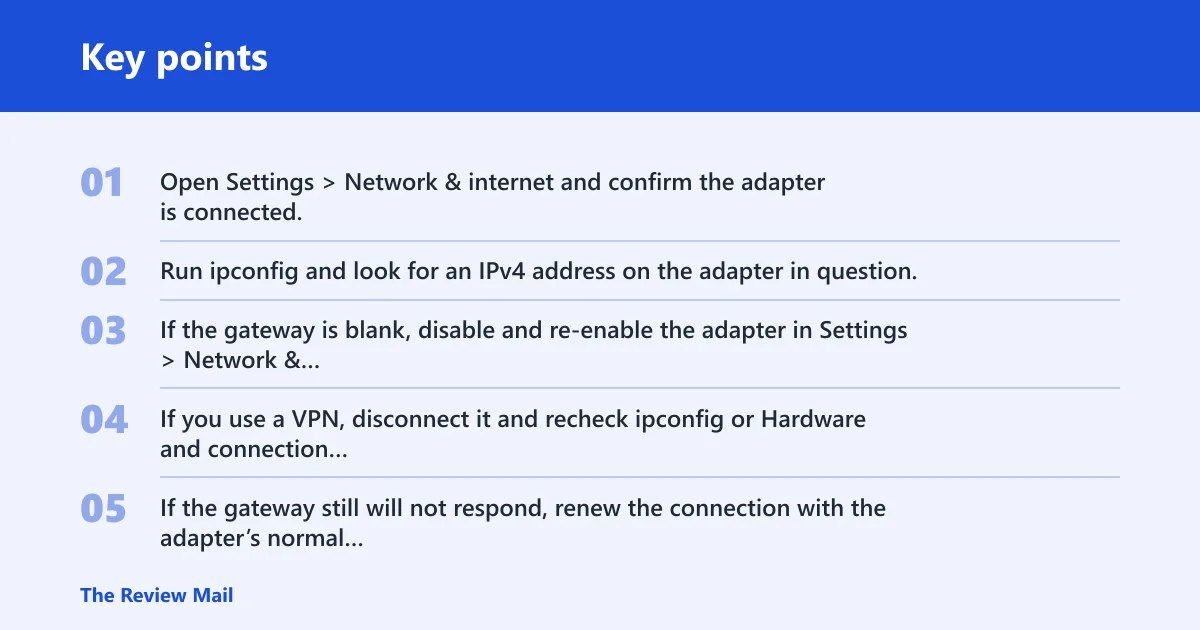
- Open Settings > Network & internet and confirm the adapter is connected.
- Run
ipconfigand look for an IPv4 address on the adapter in question. - If the gateway is blank, disable and re-enable the adapter in Settings > Network & internet > Advanced network settings.
- If you use a VPN, disconnect it and recheck
ipconfigor Hardware and connection properties. - If the gateway still will not respond, renew the connection with the adapter’s normal Windows network controls before changing router settings.
Say your Ethernet adapter shows an IPv4 address but no gateway after a dock reconnect. A simple disable and re-enable can restore the lease without touching the router. If that does not work, check whether the network expects a static IP with a manually entered gateway.
Common mistakes
The biggest mistake is reading the wrong adapter. The second is treating a gateway shown in one place as proof that it is the route your traffic is using. Multi-adapter systems, VPNs, and static IP setups can all make the displayed gateway differ from the active path.
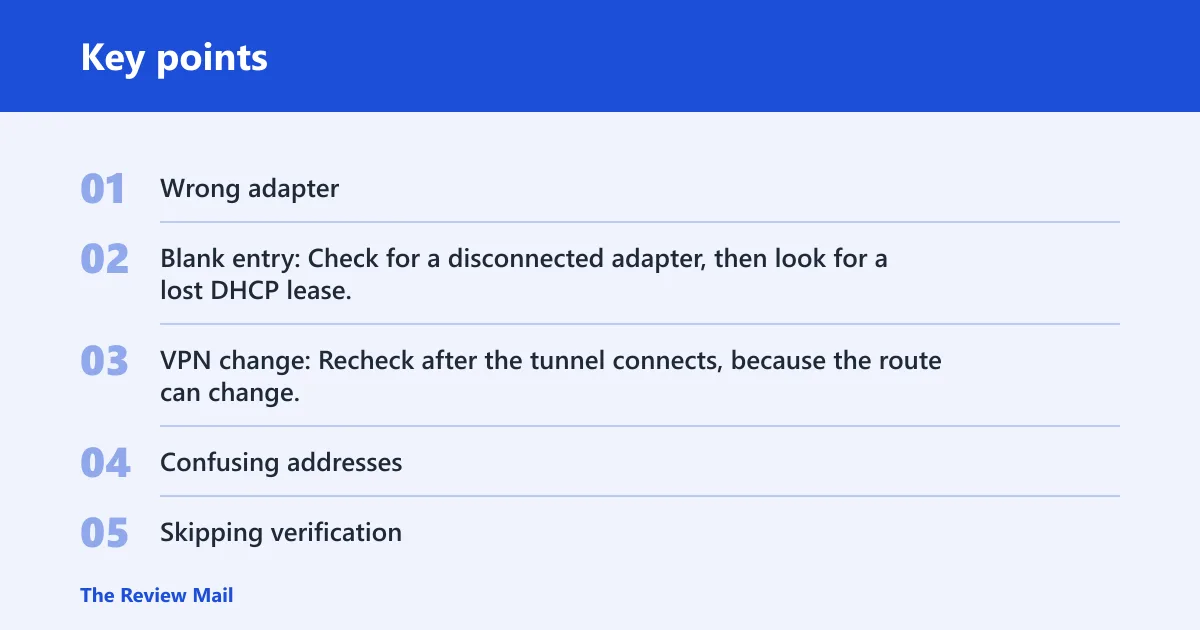
- Wrong adapter: Match the gateway to the active Wi‑Fi or Ethernet link before using it.
- Blank entry: Check for a disconnected adapter, then look for a lost DHCP lease.
- VPN change: Recheck after the tunnel connects, because the route can change.
- Confusing addresses: The gateway is the local router IP, not the public IP seen on the internet.
- Skipping verification: Ping the gateway before you log into the router admin page.
If you need to enter the gateway in a browser, start with the address shown for the active adapter. If that page does not load, confirm with route print in Command Prompt so you can see which interface owns the active route. Command Prompt is the better choice when you need adapter detail, while Settings is enough for a quick lookup.
Frequently asked questions
Where is the default gateway in windows 11 settings?
Open Settings > Network & internet > Advanced network settings, then open More settings > Hardware and connection properties. Windows 11 shows the IPv4 default gateway there for the adapter that is currently listed. If Wi‑Fi and Ethernet are both available, compare both adapters before you copy the value.
What does default gateway mean in windows 11?
It is the local router or access-point address that sends traffic beyond your local network. On a home setup, that is usually the LAN-side router IP. Windows uses it when packets need to leave the subnet and reach the wider network.
Can I see the default gateway in ipconfig /all?
Yes. Run ipconfig /all in Command Prompt, and look under each adapter section for Default Gateway. That command also shows more information than ipconfig alone, including the subnet mask and other interface details that help with troubleshooting.
How do I ping the default gateway in windows 11?
Open Command Prompt and run ping <gateway IP>, such as ping 192.168.1.1. If you get replies, the router or access point is reachable on the local network. If you get timeouts, check the adapter link, DHCP lease, and VPN state before changing router settings.
How do I find my router ip address on windows 11?
Use the default gateway shown in Settings or ipconfig. That IP is the router address most home users need for Wi‑Fi settings or firmware updates. Common examples include 192.168.0.1 and 192.168.1.1, although the exact value depends on the local network.
Why is my windows 11 saying default gateway not available?
That message usually points to a local network problem on the active adapter. Check whether the connection is up, whether the adapter has an IPv4 address, and whether the gateway can respond to ping. If a VPN is active, disconnect it and compare the gateway again in ipconfig.
Can t reach default gateway windows 11 ethernet?
Start with the Ethernet link itself: confirm the cable, dock, or port is connected, then run ipconfig and look for the Ethernet adapter’s IPv4 address and gateway. If the gateway still does not reply to ping, disable and re-enable the Ethernet adapter, then check whether Wi‑Fi is taking over the route.