Windows 10 Duplicate Display
To get Windows 10 duplicate display working, press Win+P, then choose Duplicate. If it is missing, confirm the second screen is connected, powered on, and on the correct input, then check that your GPU supports the display count you want. Skip those checks, and you can lose time on a blank TV, a sleeping projector, or a third monitor that Windows will not mirror. This guide covers the fastest fixes for one monitor, TV, and third-screen setups, plus the failure points that block Duplicate mode.
Duplicate display basics
Duplicate mode shows the same image on both screens. It fits presentations, classrooms, meetings, and TVs, but it differs from Extend, which gives each screen its own desktop.
Windows 10 exposes four display modes through the Project menu: PC screen only, Duplicate, Extend, and Second screen only. Press Windows + P to open that menu. From there, Duplicate mirrors the primary screen to another available display, depending on the setup.
When duplication is the right choice
Use duplicate display when the audience needs to see exactly what is on the laptop or desktop screen. That includes slide decks, videos, and short demos where matching content matters more than extra desktop space.
Do not use it when you need separate windows on each monitor. Extend is the better fit for that. If the second screen is a TV or projector, duplicate mode is usually the fastest path, but only after the cable, input, and detection checks pass.
Why duplicate screen is not available?
If Duplicate is missing or greyed out, Windows usually has a detection problem, a connection problem, or a display driver problem. The shortcut can still open the Project menu, but the available modes depend on what Windows can see at that moment.
The mode is hidden or greyed out
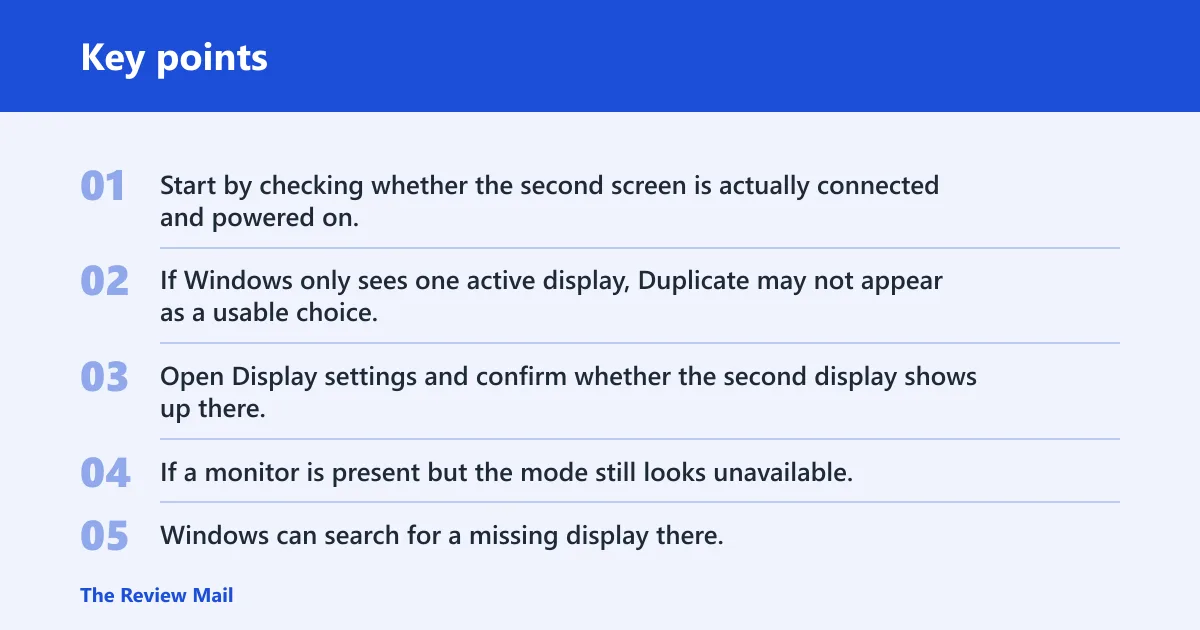
Start by checking whether the second screen is actually connected and powered on. If Windows only sees one active display, Duplicate may not appear as a usable choice. Open Display settings and confirm whether the second display shows up there.
If a monitor is present but the mode still looks unavailable, use Detect in Display settings. Windows can search for a missing display there. For extended layouts, Display settings also lets you drag and drop displays to match their physical order.
The cable or port is not carrying video
A dead or wrong-path connection can make Windows think there is no second display. HDMI, DisplayPort, USB-C, VGA, and wireless display or Miracast all work differently, so the fix depends on the signal path you are using.
For wired setups, reseat the cable at both ends. If the cable is in the wrong port, Duplicate will not help until the signal is restored.
A driver issue blocks detection
Graphics or display drivers can stop a second screen from being detected at all. When the shortcut and cable checks do not solve it, updating the display driver is a sensible next step. This is especially worth doing when Windows sees one monitor but not the other.
Suppose a laptop connects to a conference-room projector through HDMI, but Duplicate never appears. If the projector is on the right input and the cable is seated, a driver issue is a stronger suspect than the Project menu itself.
Windows 10 duplicate display matrix
Use this matrix to match the symptom to the fastest fix. It separates the point of failure, so you can choose between Windows + P, Display settings, Detect, cable and input checks, or a driver update without guessing.
| Setup | Symptom | Likely cause | Fastest fix | Use this control |
|---|---|---|---|---|
| Single monitor plus TV or projector | Duplicate is missing or blank screen appears | Wrong input, loose cable, or inactive external display | Match the TV or projector input, then reconnect the cable | Cable/input checks, then Windows + P |
| Single monitor plus TV or projector | Windows sees the screen, but the image is blurry | Resolution mismatch or scaling conflict | Open Display settings and choose a better resolution or scaling | Display settings |
| Two-monitor wired setup | Duplicate is available, but the image cuts off or looks wrong | One screen is running a lower supported mode | Lower the output to a shared recommended resolution | Display settings |
| Two-monitor wired setup | Second display does not appear at all | Port, cable, or driver issue | Use Detect, then update the graphics driver if needed | Detect, then driver updates |
| Three-display setup | Duplicate mode is missing or limited | Windows is handling the display count differently | Disconnect one screen, set the duplicate pair first, then reconnect the third | Windows + P, then Display settings |
| Three-display setup | Main display changes after switching modes | Windows reassigns the primary screen during mode changes | Reset the primary display in Display settings after duplication | Display settings |
How do you turn on duplicate display?
The fastest path is Windows + P, then Duplicate. If the mode is present, that shortcut changes the active display arrangement immediately. If the screen still does not mirror correctly, move to Display settings and confirm that the second display is detected there.
Use Windows + P
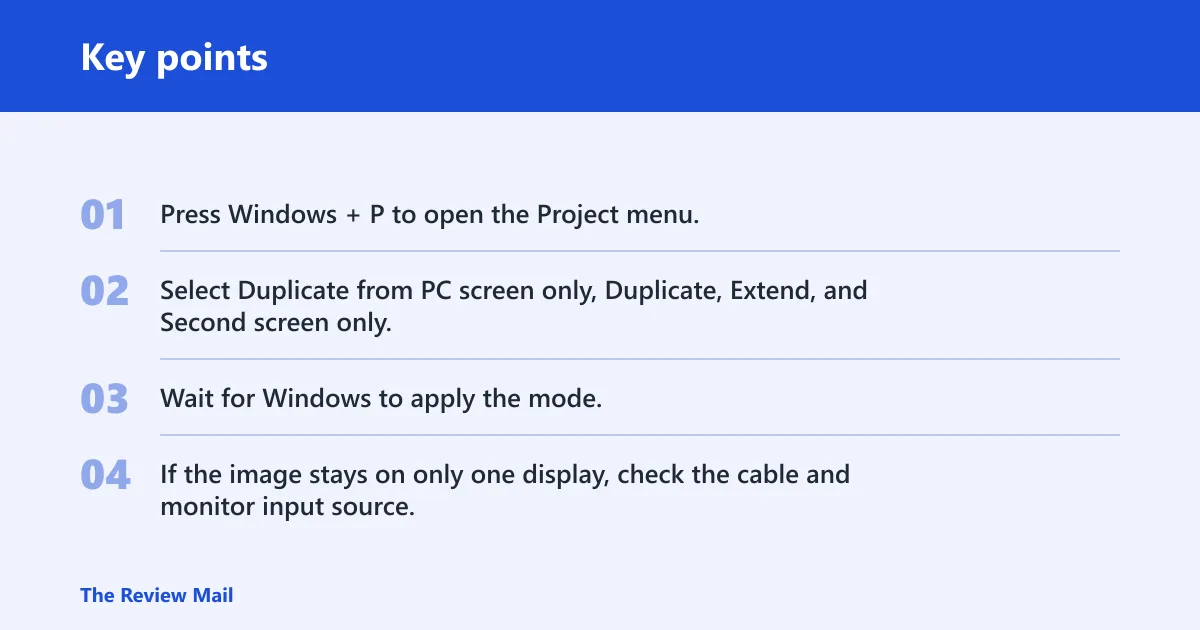
- Press Windows + P to open the Project menu.
- Select Duplicate from PC screen only, Duplicate, Extend, and Second screen only.
- Wait for Windows to apply the mode.
- If the image stays on only one display, check the cable and monitor input source.
Use Display settings > Multiple displays
If the shortcut does not give you the result you want, open Display settings. Under Multiple displays, choose Duplicate these displays after Windows detects more than one display. That path is useful when you need to confirm which monitor Windows sees before you switch modes, but it may not let you choose arbitrary mirror pairs in every setup.
Use Detect if the external screen is missing. If the layout is extended, you can also drag and drop the displays in settings so the on-screen order matches the physical arrangement on the desk.
Switch back to Extend or PC screen only
Switch back when duplication is no longer the right mode. Extend gives each monitor its own space, while PC screen only turns off the external display and keeps the local screen active. Those two choices are the fastest recovery steps after a presentation.
A common first-timer mistake is leaving the room with a TV still set to Duplicate while the laptop is closed. If the external screen suddenly becomes the primary display, return to Windows + P and pick PC screen only or Extend, then confirm the primary monitor in Display settings.
Why does the TV or projector show no signal?
No signal usually means the display is not on the right input or the connection path is wrong, not that Duplicate itself failed. For TVs and projectors, the fix starts at the screen, not at Windows. Match the input source first, then check the Windows mode.
Match the monitor input source
The input on the TV or projector must match the connected cable. Common sources include HDMI and DisplayPort, but VGA, USB-C, and wireless inputs also appear on some models. If the screen is on the wrong source, Windows can duplicate all day and the display will still stay blank.
Check HDMI, displayPort, USB-C, VGA, or miracast
Use the connection type that matches the hardware on both ends. Wired duplication is not the same as wireless casting. Miracast-compatible wireless displays can work for duplicate display, but they follow a different connection path and usually need a separate pairing step.
For projectors, a direct HDMI or VGA path is often the cleanest check. For TVs, HDMI is common. If you are using USB-C, verify that the port carries video and not just power or data.
Use Detect when Windows misses the display
If the cable and input are correct but Windows still does not list the screen, use Detect in Display settings. That is the fastest way to force a search for a missing monitor before you start changing deeper settings.
Duplicate display resolution fixes
Windows may reduce the output in Duplicate mode so both displays can show the same image. That is why a 4K TV can look softer than expected, or why a high-refresh monitor may lose some of its available options when it is mirrored with a lower-capability screen.
Find the recommended resolution
Open Display settings and look for the recommended resolution on each screen. When duplicated displays do not match cleanly, Windows often chooses a shared setting that both screens can accept. That shared mode may not be the highest one on either display, but it is usually the one that stays stable.
Adjust scaling when text looks off
If the picture looks sharp but text is too small or too large, change scaling in Display settings. Scaling affects how readable the duplicate image feels, especially when a laptop panel and a larger TV have very different sizes and pixel density.
Do not expect duplicate mode to preserve every resolution or refresh rate from the original display. If one screen cannot support the other screen’s preferred mode, Windows may hide those choices or drop to a safer shared option.
Driver and three-display fixes
Three connected displays change the rules. Windows may hide some duplicate choices, reassign the primary screen, or treat one display as the active target while the others wait. That is why three-screen problems often need a different sequence than a simple two-screen setup.
When to update the graphics driver
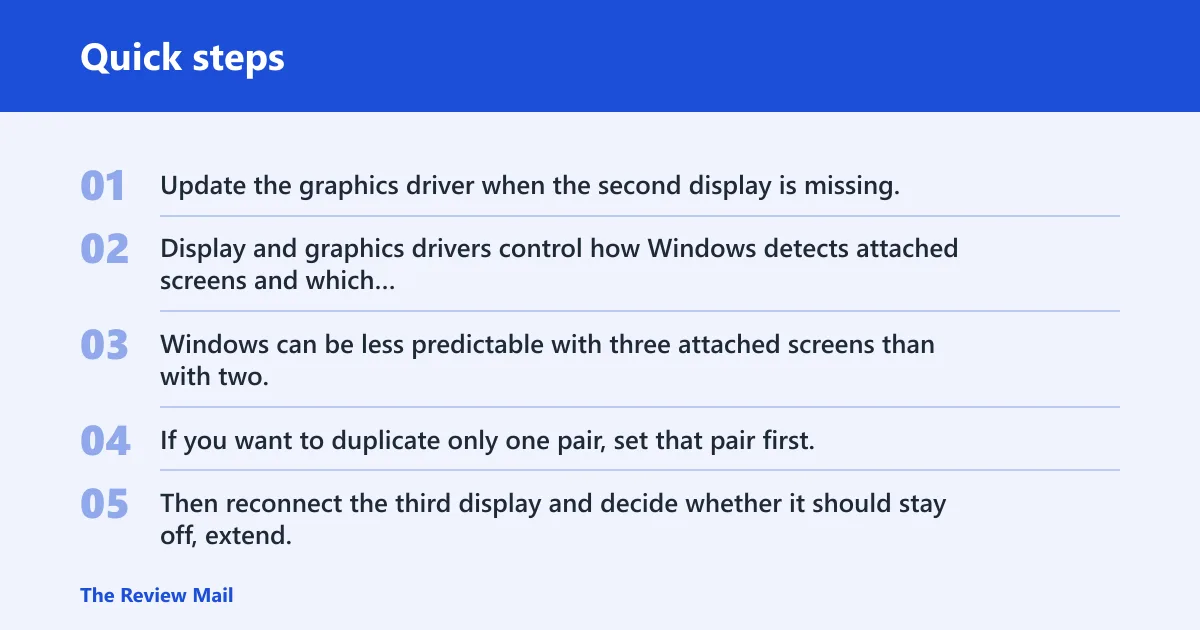
Update the graphics driver when the second display is missing, the mode list looks incomplete, or duplicate selection fails after the cable and input checks. Display and graphics drivers control how Windows detects attached screens and which modes it offers.
What changes with three connected displays
Windows can be less predictable with three attached screens than with two. If you want to duplicate only one pair, set that pair first. Then reconnect the third display and decide whether it should stay off, extend, or sit alongside the mirrored pair.
How to duplicate 3 displays in Windows 10 comes down to pairing the two screens that should match, then managing the third separately. Many Windows 10 systems cannot mirror all three displays natively, even if the graphics hardware supports three outputs, so check the GPU and setup before spending time on mode switching.
Recover after Windows moves the main display
When Windows flips the main display after duplication, open Display settings and set the correct screen as primary again. That recovery step matters most after a projector or third monitor is added, because the visible cursor and taskbar may land on the wrong screen.
Frequently asked questions
How do I use duplicate display on Windows 10?
Press Windows + P and select Duplicate. That is the fastest way to mirror the same image on both screens. If it does not work, open Display settings, confirm the second display is detected, and check the cable and input source before trying again.
What is the keyboard shortcut for duplicate screen in Windows 10?
Windows + P opens the Project menu, which contains PC screen only, Duplicate, Extend, and Second screen only. Choose Duplicate from that list. The same shortcut works in Windows 10 and Windows 11, so it is the quickest mode switch to remember.
Why is duplicate screen not working in Windows 10?
The usual causes are a missing display, the wrong monitor input, a bad cable path, or a graphics driver problem. Start with the physical connection, then use Detect in Display settings. If the screen still does not appear, update the driver next.
How do I duplicate a Windows 10 screen to a TV?
Connect the TV with the correct cable, set the TV to the matching input, then press Windows + P and choose Duplicate. If the image is blurry or missing, open Display settings to adjust resolution or scaling, and verify the TV input again.
How do I duplicate 3 displays in Windows 10?
Start by pairing the two displays that should mirror each other, then connect the third screen separately. Windows may not offer the same duplicate choices when three screens are attached, so use Display settings, check the driver, and confirm the GPU can support the display count.
Can I force duplicate display in Windows 10?
You can force the attempt through Windows + P or Display settings, but Windows cannot mirror a display path that is not detected or not supported. If Duplicate is greyed out, the strongest fixes are Detect, a cable and input check, or a driver update.