Proxy Server Isn’t Responding
If Windows says proxy server isn’t responding, the bad setting is usually in Windows, the browser, a VPN, or malware. Check those four places in that order. Ignoring the wrong layer can leave you offline or send you chasing fixes that never touch the blocked connection. This guide shows a fast isolation workflow, then the exact fixes for each source.
Proxy source isolation table
| Symptom | Where to check first | What result means | Next step |
|---|---|---|---|
| Windows-wide error in multiple apps | Windows proxy settings and Internet Properties | The system proxy is set, dead, or being rewritten | Turn off manual proxy, enable automatic detection, then verify WinHTTP |
| Error only in one browser | That browser’s proxy or extension settings | The browser is using its own proxy path, not Windows-wide settings | Reset browser proxy-related settings and remove suspicious extensions |
| Error appears after a VPN app crash or uninstall | VPN client remnants and Windows proxy settings | A leftover proxy entry or helper tool is rewriting traffic settings | Remove the VPN leftovers, then recheck the proxy and WinHTTP state |
| Error on a managed work device | Enterprise policy or device management controls | A policy is forcing the proxy back on after you change it | Contact IT before repeated manual changes are made |
That table is the shortest path to the right fix. If the error shows in every app, treat it as system-wide. If Firefox works while a different app fails, the problem may be limited to that app or to a browser-specific proxy path.
Say your browser opens but Outlook, TurboTax, and the Microsoft Store all fail with the same proxy message. That pattern points to a Windows-wide proxy problem, not a single bad site. Suppose only Chrome fails while Firefox still loads pages; that points away from Windows and toward the browser itself or one of its extensions.
Is Windows or the browser using the proxy?
Check the Windows proxy path first because it can affect every app on the PC. If the host and port are set wrong, dead, or unreachable, traffic gets sent to a server that cannot answer. Windows 11 guidance uses Settings > Network & Internet > Proxy, and older systems may hide the same controls in Internet Properties.
Check Windows proxy settings
Open Settings > Network & Internet > Proxy. Look at the Manual proxy setup toggle and Automatically detect settings. If manual proxy is on, note the host and port. A wrong endpoint can block everything, while auto-detection may recover a configuration that was meant to be managed automatically.
On older interfaces, open inetcpl.cpl to reach Internet Properties. Then go to Connections > LAN settings. The LAN Settings checkbox can be turned off there, which is useful when a stale setting is forcing a proxy that no longer exists. Internet Properties can expose hidden proxy settings that the modern page does not make obvious.
Check whether the proxy is manual or auto-detected
A manual proxy points to a specific host and port. An auto-detected proxy relies on discovery rules instead. If the machine was moved from a home network to an office network, or from a VPN to a direct connection, the old manual entry may now be wrong even though the fields still look valid.
One useful clue is whether the error appears only after one particular change, such as a new VPN app or a work profile. That usually means the source is not random. It is either a stored proxy entry, a policy setting, or a helper tool that rewrites the address behind the scenes.
How do you fix Windows proxy settings?
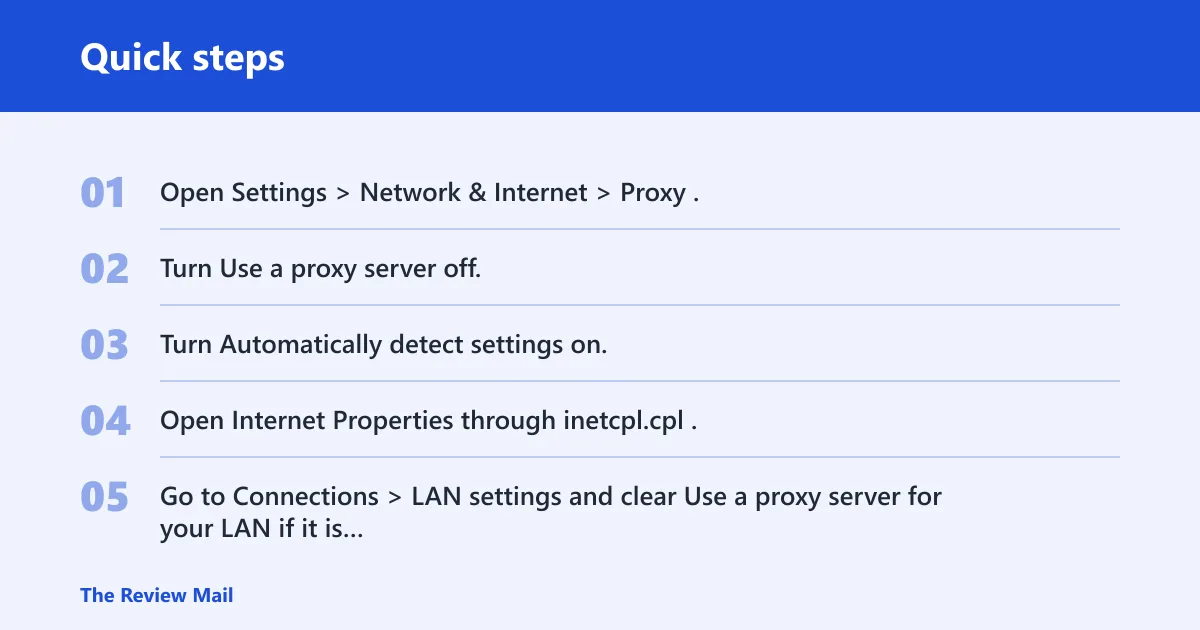
Start by turning off any manual proxy and turning on automatic detection. That is the cleanest fix when Windows itself is holding a dead proxy endpoint. Then verify the system-wide proxy state with WinHTTP, because some apps use that path even if the visible Windows toggle looks correct.
Turn off a manual proxy and enable automatic detection
- Open Settings > Network & Internet > Proxy.
- Turn Use a proxy server off.
- Turn Automatically detect settings on.
- Open Internet Properties through inetcpl.cpl.
- Go to Connections > LAN settings and clear Use a proxy server for your LAN if it is checked.
- Save the changes and close the windows.
That path matters because some settings live in one place and some in another. Windows 11 guidance includes turning Use a proxy server off in Settings and turning automatic detection on. If the proxy was entered by hand, this usually clears the bad route fast.
Verify WinHTTP proxy state
Some system services use WinHTTP rather than the visible browser-style proxy settings. A system-wide proxy state can sometimes persist there even after the main toggle is changed. Use netsh winhttp reset proxy to clear it, then check the result with a show-proxy style verification command before you assume the fix worked.
That step is important when one app still fails after the visible proxy is cleared. It is also useful after a VPN uninstall, because the VPN may have set a WinHTTP proxy for services and background agents. If the proxy state is still present there, apps can keep failing even though the browser looks fine.
Restart and retest
Restart the browser first, then the PC if needed. If the router or modem was also changed recently, restart that equipment too. This does not replace the proxy fix. It just forces the system to reread the new settings.
If the error clears after restart and comes back later, a background tool is probably rewriting the setting. That shifts the case toward VPN leftovers, enterprise policy, or malware rather than a one-time mistake in the settings page.
Why does a VPN or policy keep turning the proxy on?
A VPN client or a managed-device policy can reapply proxy settings after reboot, sign-in, or reconnect. That is why the setting may look fixed and then return. If the proxy keeps turning on again, treat it as a persistence problem, not a simple checkbox problem.
Remove VPN leftovers
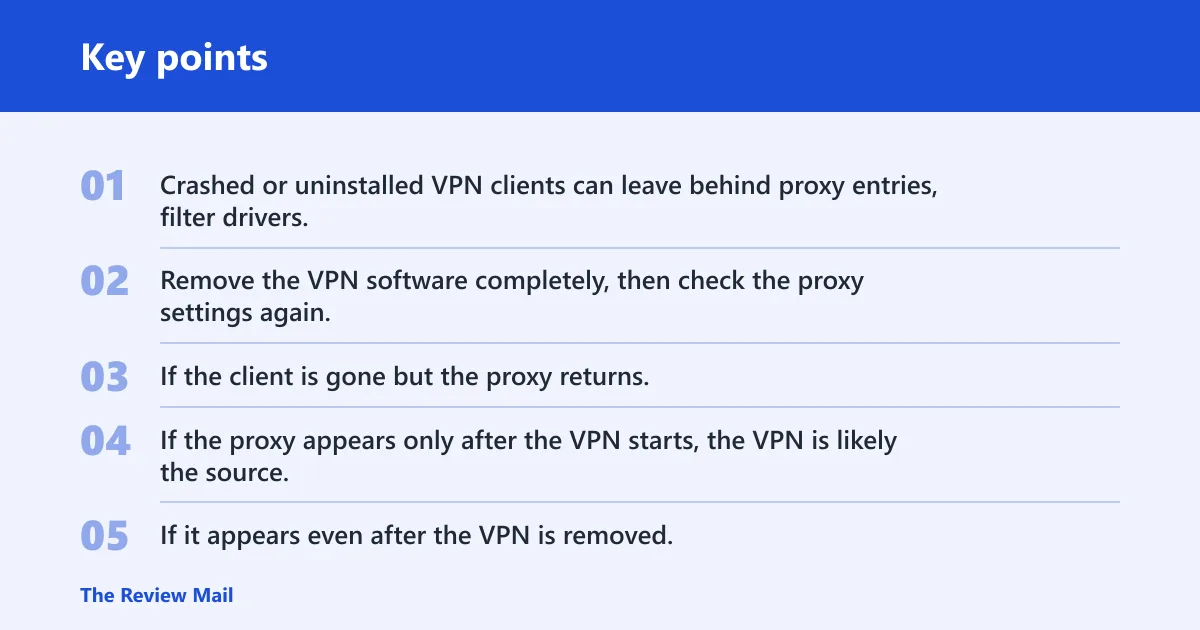
Crashed or uninstalled VPN clients can leave behind proxy entries, filter drivers, or helper tools that keep rewriting the network stack. Remove the VPN software completely, then check the proxy settings again. If the client is gone but the proxy returns, the leftover component is probably still active.
Look for the timing. If the proxy appears only after the VPN starts, the VPN is likely the source. If it appears even after the VPN is removed, then the leftover settings or helper service need attention. This is common after a partial uninstall.
Check for enterprise policy or management
On a work device, policy may force the proxy back on after every reboot. That is a different case from a home PC with a bad setting. If the machine is managed, repeated manual changes can fail because the policy wins each time the device checks in.
Do not keep fighting the setting if it returns immediately. In a managed environment, the right next step is to ask IT whether a proxy profile, security agent, or device policy is enforcing it. A local change can be overwritten in minutes.
Watch for helper tools or filter drivers
Some VPNs and security tools install filter drivers or helper processes that alter proxy behavior. If the proxy keeps reappearing after reboot, inspect the installed network tools and recent security software. A leftover helper can act like a ghost setting and keep pushing traffic through the wrong route.
Can DNS, firewall, or a browser reset help?
Yes, but only after you know the proxy source. DNS problems can look like proxy failures because both can stop pages from loading. Firewall rules can block proxy ports or trusted apps. A browser reset helps only when the failure is limited to one browser, not when Windows itself is misconfigured.
Flush DNS cache
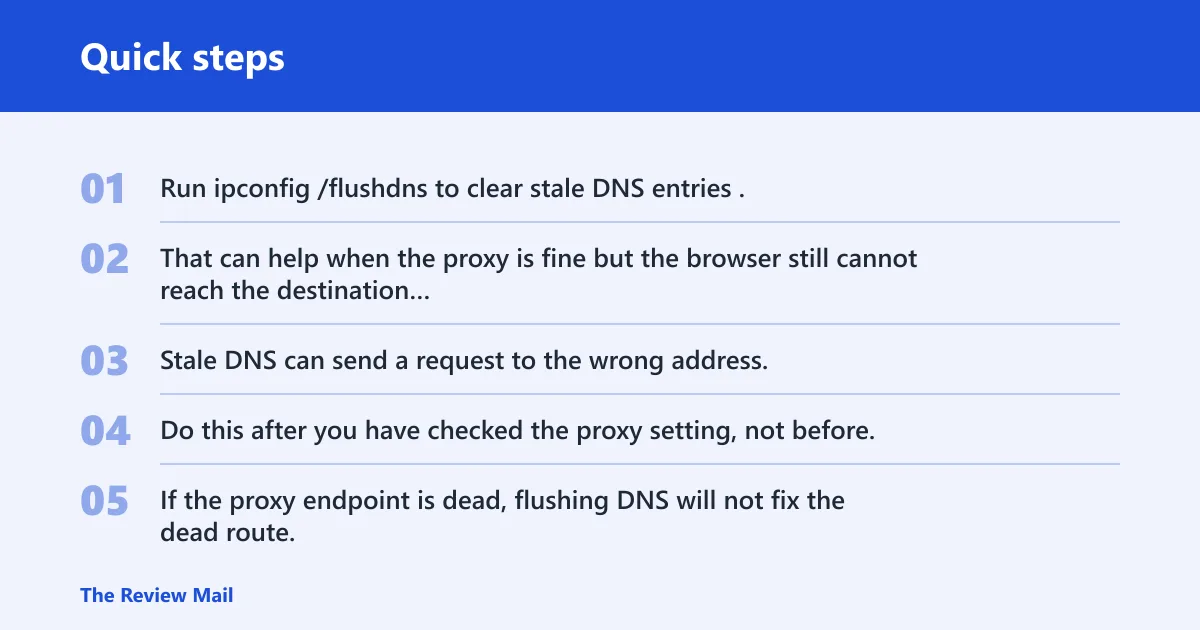
Run ipconfig /flushdns to clear stale DNS entries. That can help when the proxy is fine but the browser still cannot reach the destination host. Stale DNS can send a request to the wrong address, which looks a lot like a proxy problem from the user’s side.
Do this after you have checked the proxy setting, not before. If the proxy endpoint is dead, flushing DNS will not fix the dead route. If the proxy is healthy but the page still fails, DNS becomes a sensible next check.
Check firewall rules and allowed apps
Firewall rules can block inbound or outbound traffic, including access to the proxy port itself. Check whether the proxy server’s port is allowed, and confirm that the browser or app is on the allowed apps list if your security setup uses one. A blocked port can look identical to a dead proxy endpoint.
If a port scan or connection test fails only on one port, the firewall may be the barrier. If every app using that endpoint fails, compare the proxy port against the firewall’s outbound rules. The fix may be a rule change rather than a proxy change.
Reset the browser only when the error is browser-only
If Firefox works but Chrome or Edge does not, reset the affected browser’s settings and remove suspicious extensions. Browser-only errors often point to a browser proxy setting, a hijacking extension, or a cached network configuration inside that browser profile. A full Windows reset is not needed for that case.
A common first-timer mistake is resetting the whole PC when only one browser is broken. That wastes time and can hide the real source. Keep the fix scoped to the layer that is actually failing.
Malware cleanup after a proxy hijack
Run a full system scan if the proxy settings change without permission or if a browser starts sending traffic through an unfamiliar endpoint. Rogue proxy settings, browser hijackers, and adware can all alter the network path. Treat malware as a branch of the workflow, not as the default explanation.
Remove suspicious extensions, apps, or startup items
Check browser extensions, recently installed apps, and startup items for anything unfamiliar. A hijacker may add its own proxy entry or send traffic through a local service. Remove the suspicious item, then check the proxy settings again, because cleanup alone may not clear the saved network value.
If the problem appeared after opening an app such as Internet Explorer or TurboTax, that is a useful clue. It may be a bad app install, or it may be a proxy entry left behind by another tool. Either way, the next step is to inspect the current setting, not guess.
Recheck Windows proxy settings after cleanup
After the scan and cleanup, return to Settings > Network & Internet > Proxy and Internet Properties. Make sure manual proxy is still off and automatic detection is on. Malware cleanup is not complete until the proxy setting stays put after a restart.
If the setting flips back on, suspect policy, a VPN helper, or another installed network tool. If it stays off and the browser still fails, the problem is more likely DNS, firewall, or browser-specific corruption.
Frequently asked questions
Why is my proxy not working?
Most proxy failures come from a dead host and port, a stale Windows setting, or a browser using its own proxy path. Check Windows first, then the browser, then any VPN or policy that could be rewriting the setting. The fastest fix depends on which layer is actually sending traffic to the wrong place.
How do you fix proxy server issues?
Start by turning off any manual proxy in Windows, then enable automatic detection and verify the system-wide state with WinHTTP. If the problem is only in one browser, reset that browser instead. If a VPN or work policy keeps restoring the proxy, remove leftovers or contact IT.
Why does proxy server keep turning on?
A proxy that keeps returning is usually being enforced by a VPN client, a helper tool, malware, or enterprise policy. Changing the checkbox once is not enough if another component rewrites it. Watch for the setting to return after reboot, reconnect, or sign-in.
What is a proxy server error?
It is a failure that happens when your traffic is sent through a proxy that cannot answer or cannot be reached. That can happen because the server is dead, the port is blocked, the setting is wrong, or a browser is using a separate proxy configuration from Windows.
Should proxy server be on or off?
On a home PC, it is usually off unless you were told to use one by work, school, or a specific network setup. If Windows was set to use a proxy by mistake, turn it off and enable automatic detection. On a managed device, follow IT policy rather than changing it yourself.
Web server vs proxy server?
A web server hosts content directly. A proxy server sits between your device and the destination, sending requests on your behalf. When the proxy fails, your browser may never reach the web server at all, so the error can appear before the page even has a chance to load.