Device Manager Error 43: Causes and Fixes for Windows
Device Manager error 43 usually means Windows stopped a device after it reported a problem. The fastest first move is to open Device Manager and try a driver update, then sort out whether the fault sits with software, firmware, or hardware. Ignoring it can leave graphics cards, USB devices, and adapters unusable, or send you down the wrong repair path. This guide walks through a diagnosis tree for Windows 10 and 11 so you can separate driver faults from hardware failure fast.
This guide is part of our Windows driver errors: full list and fixes series.
What Device Manager error 43 means
Error code 43 is a Device Manager status code that tells you the device is not working properly. In Microsoft’s graphics-device article, that status can point to a hardware problem, or to driver software failure, so the number alone does not prove a dead device. Use the status line as a branch point, not a verdict. (per Microsoft support)
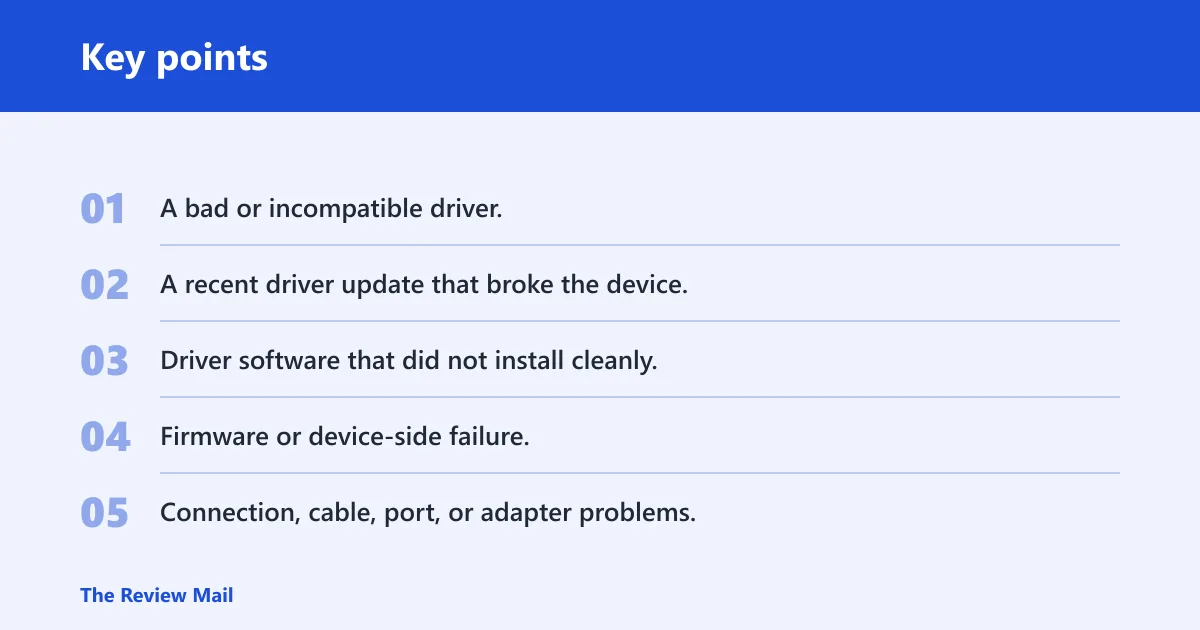
Likely causes, from most to least common
- A bad or incompatible driver.
- A recent driver update that broke the device.
- Driver software that did not install cleanly.
- Firmware or device-side failure.
- Connection, cable, port, or adapter problems.
Graphics devices are the classic case, but USB peripherals and adapters can land on the same code. A laptop with custom graphics packages is especially likely to need the OEM’s driver rather than a generic package from Windows Update.
What causes error code 43?
The main causes are a bad driver, a driver update that conflicts with the device, or a device-side fault such as firmware or hardware failure. On USB devices and adapters, the same status can also come from a bad port, cable, dock, or pass-through adapter, so the branch you take matters.
Check the physical path first for USB devices and adapters
- Unplug the device.
- Try a different USB port, ideally on the computer itself rather than a hub.
- If the device uses a cable, try swapping it.
- Reconnect the device and open Device Manager again.
- If the status still says Code 43, move to driver steps.
Suppose a USB headset shows the warning after being moved to a docking station. If it works on a direct port but not through the dock, the dock or cable is the likely branch, not the headset driver.
How do you open Device Manager and check the status?
Open Device Manager from Start search, find the device with the yellow warning icon, and read the Device status line before changing anything. That line tells you whether Windows still sees the device as unhealthy after the current driver loads. (per Microsoft support)
- Open Start and search for Device Manager.
- Press and hold, or right-click, Device Manager and open it.
- Find the device with the yellow exclamation point.
- Open Properties.
- Check the Device status box on the General tab.
| Device type | What to check first | What to do if status does not change |
|---|---|---|
| GPU | Driver branch, recent updates, OEM package | Move to rollback, then OEM driver, then hardware suspicion |
| USB device | Port, cable, hub, power | Try another port or cable before more driver steps |
| Adapter | Network or peripheral adapter package | Uninstall and rescan, then test another system if possible |
How do I fix Device Manager error 43 on Windows 11?
On Windows 11, a common troubleshooting order is to start with Device Manager and try Update Driver, Roll Back Driver, and then uninstall-rescan if the status does not improve. If Windows finds nothing, switch to the OEM or device-maker package. Windows Update is often the first place to look for drivers, but some laptops with custom graphics setups may still need the vendor package.
- Open Device Manager from Start search.
- Right-click the device, select Properties, then the Driver tab.
- Select Update Driver and choose Search automatically for updated driver software.
- If a driver is found, let it install and close the dialog.
- If no driver is found, get the driver from the manufacturer or OEM site and install it.
For NVIDIA, Intel, and AMD graphics on laptops, the OEM package can matter more than a generic package because the laptop vendor may bundle display switching, power management, or hotkey support with the graphics driver.
Win+X > Device Manager > device > right-click > Properties > Driver tab
Actions: Update driver, Roll Back Driver, Uninstall device
After uninstalling: Device Manager > View > Show hidden devices
Then: Action > Scan for hardware changes
How do I fix Device Manager error 43 on Windows 10?
Windows 10 uses the same Device Manager flow: update the driver, roll back if a recent change caused the problem, then uninstall and rescan if needed. Microsoft’s graphics-device article applies to Windows 10, and Microsoft warns that Windows 10 support ended on October 14, 2025, so driver availability may now depend more on the device maker. (Microsoft Support)
- Open Device Manager from Start search.
- Open the device’s Properties and select the Driver tab.
- Choose Update Driver first.
- If that fails and the issue began after an update, choose Roll Back Driver.
- If rollback is unavailable or fails, choose Uninstall device, then Scan for hardware changes.
Windows Update can still supply drivers, but if it has nothing newer, the manufacturer site is the next branch. That is especially true for older desktops, custom graphics cards, and laptops that no longer receive fresh inbox driver packages.
What if the problem started after an update?
If error 43 appears right after a driver or Windows update, Roll Back Driver is often a better next step than another reinstall. Rollback restores the earlier driver package, which is useful when the new one introduced the fault. If rollback is missing, use the previous OEM package or reinstall from the manufacturer site.
- Open Device Manager and the device’s Properties.
- Open the Driver tab.
- Select Roll Back Driver if it is available.
- Restart if Windows asks for it.
- Recheck Device status; if it still shows a problem, move to uninstall and rescan.
A common first-timer mistake is unplugging and reconnecting the same faulty USB adapter repeatedly when Device Manager reports error 43. If the update started the issue, rollback tells you whether the newer package is the branch to abandon.
Can uninstalling the device driver fix code 43?
Yes, uninstalling the device can fix Code 43 when the driver install is corrupted or the hardware needs a clean rediscovery. The key follow-up step is Scan for hardware changes, which asks Windows to rebuild the device entry and reload the driver. If status does not change after that, the issue is less likely to be software.
- Open Device Manager.
- Right-click the problem device and select Uninstall device.
- If prompted, check Delete the driver software for this device when you are replacing a corrupted driver.
- At the top of Device Manager, select the PC name.
- Choose Action > Scan for hardware changes.
Decision tree by device type
Use the device class to choose the next branch. Graphics devices usually point to driver package choice first. USB devices need cable, port, and power checks before you blame software. Adapters sit between those two: driver reinstall is useful, but hardware and connection checks still matter.
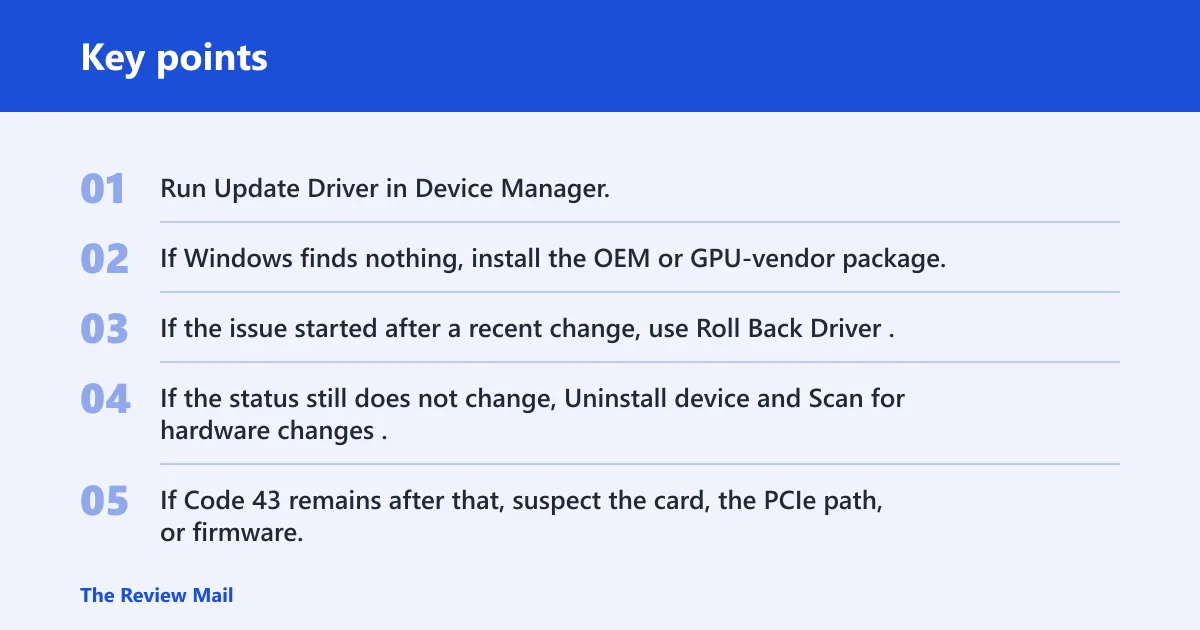
Graphics device branch
- Run Update Driver in Device Manager.
- If Windows finds nothing, install the OEM or GPU-vendor package.
- If the issue started after a recent change, use Roll Back Driver.
- If the status still does not change, Uninstall device and Scan for hardware changes.
- If Code 43 remains after that, suspect the card, the PCIe path, or firmware.
USB device branch
- Try a different port and cable.
- Remove hubs and docks from the path.
- Check whether the device needs external power.
- Then use Update Driver or the vendor package.
- If status stays unchanged after reinstall, treat the device or path as the likely fault.
Adapter branch
- Open the adapter’s Properties in Device Manager.
- Try Update Driver first.
- Use Roll Back Driver if the issue started after an update.
- Run Uninstall device, then Scan for hardware changes.
- If the adapter still reports Code 43, test it in another PC or with another slot if the form factor allows it.
Still not working?
If update, rollback, and reinstall all fail, stop treating Code 43 as a driver-only issue. Move to another port, another cable, another system, or the device maker’s diagnostics. If the device still reports the same status after those checks, repair or replacement is the practical next step.
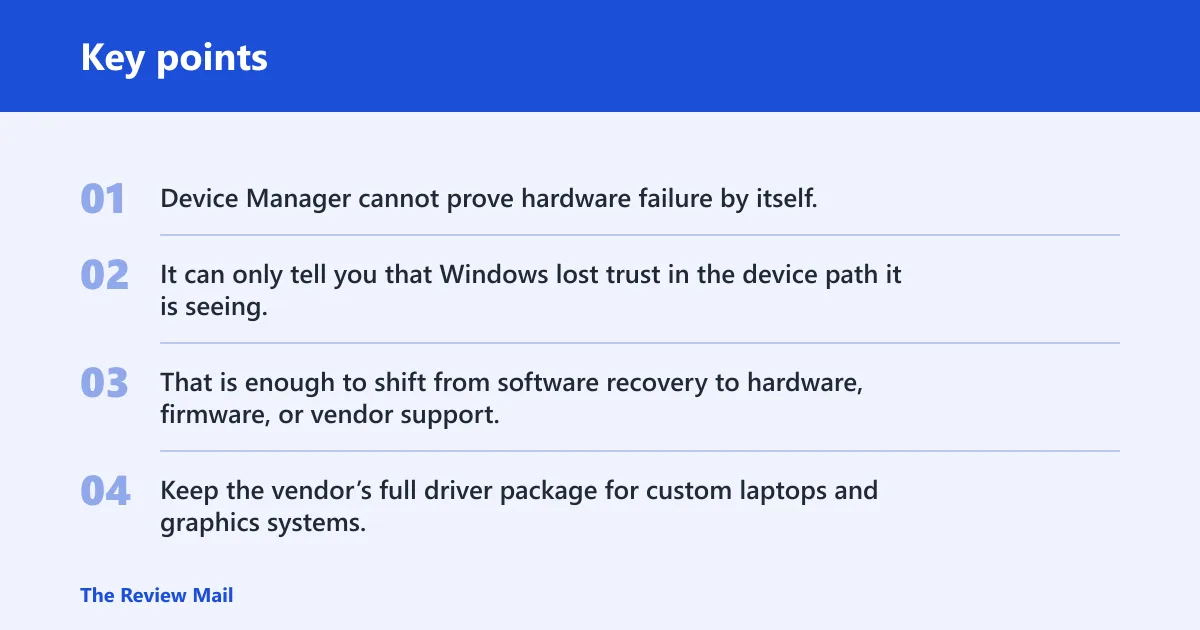
Device Manager cannot prove hardware failure by itself. It can only tell you that Windows lost trust in the device path it is seeing. That is enough to shift from software recovery to hardware, firmware, or vendor support.
Prevention
Keep the vendor’s full driver package for custom laptops and graphics systems, and avoid stacking multiple driver sources for the same device unless you are deliberately replacing a broken package.
Frequently asked questions
What is error code 43?
Error code 43 is a Device Manager status that means Windows stopped the device because it reported a problem. The quickest check is Properties > Device status, then compare that result with Update Driver, Roll Back Driver, or Uninstall device.
Why does Device Manager show error 43?
Device Manager shows Code 43 when the driver reports a failure or when Windows suspects a device-side problem. Start with Update Driver; if that does not help, use the manufacturer package, then retry with Roll Back Driver if a recent update triggered the issue.
Is error code 43 a driver problem or hardware failure?
It can be either. The branch to try first is software: update the driver, then roll back or reinstall it. If the status stays the same after those steps, move toward cable, port, firmware, or hardware checks instead of repeating the same driver action.
How do I open Device Manager to troubleshoot code 43?
Press Start, type Device Manager, then open it from search. Find the device with the yellow warning icon, open Properties, and read the Device status line before you make changes. That gives you the baseline for each branch.
Why does my GPU show device manager error code 43?
GPUs commonly hit Code 43 because their driver package is wrong, outdated, or conflicted with a newer update. Start with Update Driver, then use the GPU vendor or laptop OEM package if Windows finds nothing. If that fails, treat the card or PCIe path as the next suspect.