Microsoft license not working: what to check first
A Microsoft license can fail for a few common reasons, such as a digital license issue, product key issue, account mismatch, edition mismatch, or KMS; it helps to identify the likely failure type first, because the wrong fix may leave activation unchanged. Skip that check and you can keep seeing activation errors, lose Microsoft 365 access, or buy a second license you did not need. This guide shows how to identify each failure type and the correct fix for Windows and Microsoft 365 on personal or work devices.
What “Microsoft license not working” usually means
The fastest first check is where the error appears: Settings > System > Activation for Windows, or the Office or Microsoft 365 sign-in and subscription screen for apps and cloud services. If Windows shows “not activated,” treat it as a Windows activation issue first. If Word, Excel, or Microsoft 365 says the subscription is unavailable, treat it as an account or plan problem.
Windows help groups this work under Explore, install, & activate, and Microsoft’s help pages include both Activate Windows and Reinstall Windows topics. The device info page applies to Windows 11 and Windows 10, and Microsoft says edition and version appear under Windows specifications; device specs can also show 32-bit or 64-bit Windows.
📊 Microsoft says it will no longer provide free software updates from Windows Update for Windows 10. Source: Microsoft.
Likely causes, ranked by what to check first
Most often, the issue is account mismatch or no sign-in with the account that owns the license. Next most common are edition mismatch, an expired or unassigned Microsoft 365 plan, and product key problems. Less commonly, the device is on a managed licensing path, such as KMS, or it needs reactivation after a hardware change.
Microsoft account mismatch or not signed in
If the license is tied to another account, Windows or Microsoft 365 will not activate for the current sign-in. This is common after changing passwords, adding MFA, moving to a new PC, or signing in with a personal account on a device licensed by a work or family account.
- Open Settings > Accounts > Your info and confirm the signed-in Microsoft account.
- Open Settings > System > Activation and record the exact activation message or error code.
- If Office or Microsoft 365 shows a sign-in prompt, sign out, then sign in again with the account that owns the license.
- Check the account’s password and MFA prompts in a browser sign-in page before trying again.
- If the device was set up by someone else, confirm whether that person’s account owns the license.
Windows edition mismatch
Home, Pro, and enterprise licenses do not interchange cleanly. A product key for one edition will not activate a different edition, and a digital license may fail after a reinstall changes the installed edition. This is a common cause when a PC was reset or repaired.
- Open Settings > System > About.
- Under Windows specifications, confirm the edition and version.
- Compare that edition with the key or license you are trying to use.
- If the edition is wrong, go to Settings > System > Activation and use the edition change option shown there, if available.
- If the device came with a different edition preinstalled, use the matching edition instead of forcing the current one.
Expired Microsoft 365 subscription or missing assignment
For Microsoft 365, the problem may be a plan that expired, a family seat that was never assigned, or a business license that was removed from the user. Device sign-in limits can also block activation on an extra PC or Mac. Family and business plans follow different assignment rules.
- Open the Microsoft account or Microsoft 365 subscription page in a browser.
- Check whether the plan shows active, expired, or pending renewal.
- If this is a family plan, verify the license has actually been shared with this account.
- If this is a business plan, confirm the license is assigned to this user or device in the admin portal.
- Remove one sign-in if the plan has hit a device limit, then sign in again.
Invalid or reused product key
A valid product key is 25 characters long and usually follows the format XXXXX-XXXXX-XXXXX-XXXXX-XXXXX. A reused, blocked, or region-mismatched key may fail activation even if it looks correct. Retail keys and volume keys are not interchangeable.
- Open Settings > System > Activation.
- Select Change product key and re-enter the 25-character key carefully.
- Check that the key matches the same edition and sales region as the installed Windows edition.
- If the device is on a company network, confirm whether the key is retail or volume licensed.
- Try again with internet access on and the system date and time set correctly.
Hardware change, KMS, or managed licensing
After a motherboard replacement or a major hardware change, a digital license may need to be reactivated. Work devices can also use KMS or another volume method, which depends on organization policy and network access. In those cases, a local retry may not be enough.
- Open Settings > System > Activation and look for the hardware-change or organization message.
- Run the activation path or troubleshooter offered on that page.
- If the PC is managed, connect to the company network or VPN if policy requires it.
- Check whether you are signed in with the organization account used for activation.
- If the PC uses KMS or another volume method, contact the organization’s admin.
Is this a Windows activation problem or an Office problem?
If the failure appears in Settings > System > Activation, it is a Windows activation problem. If Word, Excel, Outlook, or Microsoft 365 asks for sign-in or shows a subscription notice, it is an Office or Microsoft 365 licensing problem. Those paths use different checks and different recovery steps.
- Open Settings > System > Activation and record the exact status line.
- Open any Microsoft 365 app and look for the account or subscription notice.
- Use the sign-in prompt to identify which account the app expects.
- Match that account to the one listed on the subscription or license page.
How to activate Microsoft license
The direct path depends on whether you have a digital license or a product key. A digital license is usually tied to a Microsoft account or device hardware. A product key needs to be accepted by the activation system and should match the installed edition and region.
- Go to Settings > System > Activation.
- If you have a digital license, sign in with the account that owns it.
- If you have a product key, choose Change product key and enter the 25-character code.
- Check internet access and the system date and time before trying again.
- Run the activation troubleshooter if Windows still shows not activated.
What if the Microsoft 365 subscription or assignment is the problem?
For Microsoft 365, activation depends on a current plan and the right account assignment. A family subscription can be active but still not cover the signed-in account. A business subscription can be active but not assigned to the user who is trying to open the app.
- Sign in to the Microsoft account or admin portal that manages the plan.
- Check renewal state for expired personal, family, or business plans.
- Verify that the license is assigned to this user or device.
- Review sign-in limits and remove an older device if the plan allows only a set number.
- Open the app again and sign in with the same account.
Printable activation triage table
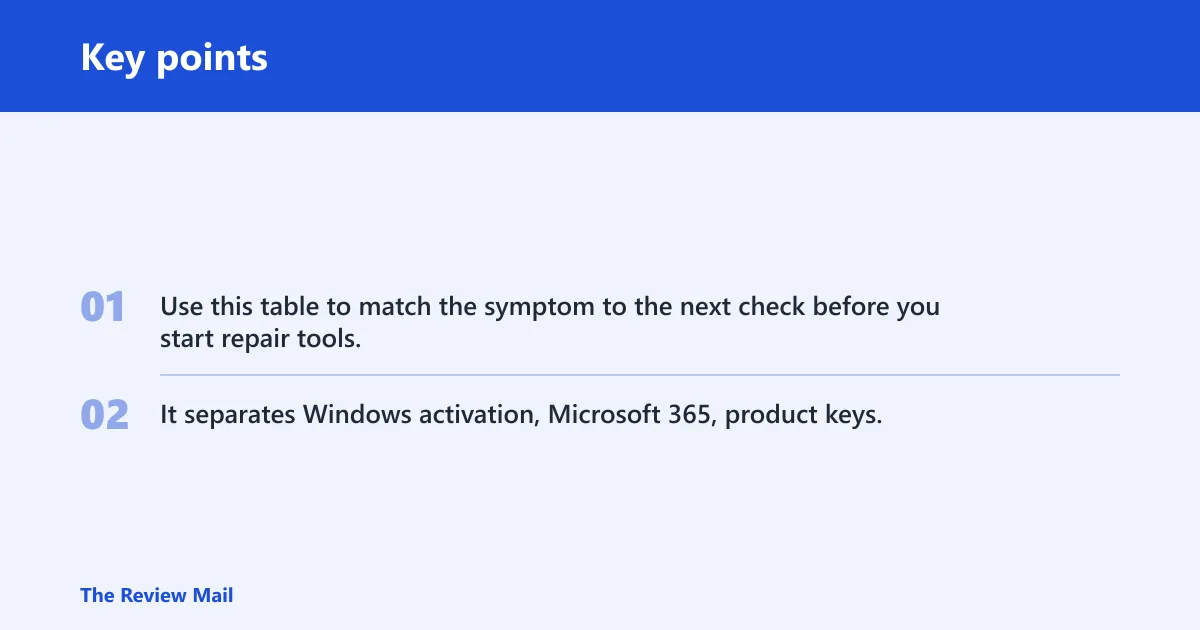
Use this table to match the symptom to the next check before you start repair tools. It separates Windows activation, Microsoft 365, product keys, and managed licensing so you can avoid the wrong fix.
| Symptom | Likely cause | What to check in Settings or account pages | Needed recovery path |
|---|---|---|---|
| Windows says not activated after sign-in | Account mismatch or no sign-in | Settings > Accounts > Your info, then Settings > System > Activation | Microsoft account |
| Activation fails after reinstall | Edition mismatch | Settings > System > About, then Windows specifications | Edition change or matching key |
| Office asks for a subscription | Expired or unassigned Microsoft 365 plan | Microsoft 365 subscription page and app sign-in status | Account renewal or license assignment |
| Key is rejected | Invalid, reused, or wrong-region product key | Settings > System > Activation and key format | Product key |
| It broke after a motherboard swap | Hardware-change reactivation needed | Settings > System > Activation and troubleshooter result | Microsoft account or support case |
| Work PC says it cannot activate | KMS or volume licensing policy | Organization sign-in, network, and activation message | Admin or KMS support |
Still not working?
Start with the built-in Activation troubleshooter from Settings > System > Activation. It can repair some sign-in binding issues, rebind a digital license in supported cases, and flag edition checks. It cannot fix a bad product key, an expired subscription, or a corporate KMS policy problem.
- Open Settings > System > Activation and run the troubleshooter.
- Recheck internet access and the system date and time.
- On Windows 10, remember Microsoft says support ended on October 14, 2025, and it will no longer provide free software updates from Windows Update for Windows 10. (Microsoft Support)
- Microsoft says Windows 10 users should move to Windows 11.
- If the device is personal, contact Microsoft Support or the device manufacturer. If it is managed, contact the organization admin.
Suppose a 13-inch laptop shows “Windows is not activated” after a drive replacement. Check the edition in Settings > System > About first, then run the activation troubleshooter. If the same message appears on an office PC connected to a domain, ask the admin whether it uses KMS or another volume method before trying more repairs.
A common first-timer mistake is entering a Home key on a Pro installation, then retrying the same key three more times. That usually wastes time. Verify the installed edition, match the key to that edition and region, and only then try activation again.
Frequently asked questions
why is my microsoft license not working
It usually means the device is on the wrong account, the wrong Windows edition, an expired Microsoft 365 plan, or a bad key. Check Settings > System > Activation for Windows, or the app’s sign-in and subscription page for Microsoft 365. That separates the problem quickly.
is microsoft not working
Usually the Microsoft service is not the problem. Check whether the failure is in Windows activation, Microsoft 365 sign-in, or a single app like Word or Excel. The quickest test is to open Settings > System > Activation and compare that with the account status inside the app.
why is my windows license not working
Common causes are a missing sign-in, edition mismatch, hardware change, or a key that does not match the installed edition. Go to Settings > System > About for the edition, then Settings > System > Activation for the status. If needed, run the Activation troubleshooter next.
why is my microsoft 365 license not working
Check whether the subscription is expired, whether the license is assigned to this user, and whether the account is the one that owns the plan. Family and business plans follow different rules. The fix is usually in the account or admin portal, not in Windows activation.
how do i fix microsoft license not activated
Open Settings > System > Activation, confirm the edition, sign in with the owning Microsoft account, then run the Activation troubleshooter. If the device uses a product key, re-enter the 25-character key. If the PC is managed, ask the organization admin to check KMS or volume licensing.