Windows Has Stopped This Device: Windows 10 Fix
If Windows 10 shows “Windows has stopped this device because it has reported problems” in Device Manager, a common first step is to restart the PC, then remove the device in Device Manager, reinstall the current driver, and test a different port or cable; if it still fails on multiple ports after a clean driver reinstall, firmware or hardware may be involved. Skipping that order wastes time on random fixes and can hide a failing device until audio, display, or data transfer drops again. This guide shows how to isolate driver, port, power, firmware, and hardware faults with quick checks in the right order.
This guide is part of our Windows driver errors: full list and fixes series.
What does this error mean?
The message appears in Device Manager, usually in the device’s Device status field. It often lines up with Code 43 or a similar Device Manager fault, which means Windows stopped the device because the device, driver, or connection did not report correctly.
It does not point to one single cause. A bad driver is commonly reported, but a loose cable, a failing USB root hub, a dock problem, a sleep-state glitch, firmware trouble, or true hardware failure can produce the same result. Use the location of the failure to sort those out first.
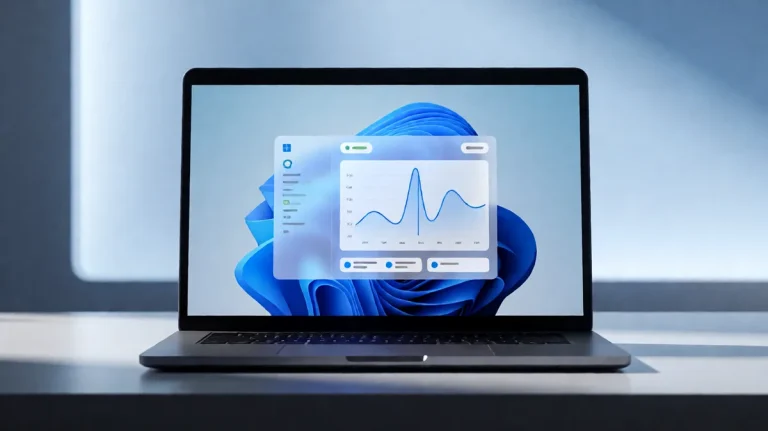
📊 Windows 11 is marketed with built-in security and Microsoft protection. Source: Microsoft.
Likely causes, ranked
Start with the cause most likely to change after a recent event. If the error began right after an update, driver change, sleep cycle, or dock swap, that detail is more useful than the code itself.
Bad or changed driver
- Open Device Manager.
- Right-click the affected device.
- Select Properties, then check Device status for the wording and any code.
- If the problem began after a driver change, choose Driver > Roll Back Driver if the button is available.
- If rollback is unavailable or failed, choose Uninstall device, then restart the PC.
Use rollback after a recent change. Use uninstall when the driver stack looks stuck or Windows keeps loading the same broken state.
USB port, cable, hub, or dock fault
- Move the device to a different direct USB port.
- Remove any hub or dock and connect it straight to the PC.
- Swap the cable if the device uses one.
- In Device Manager, check Universal Serial Bus controllers and scan for a yellow warning icon on a USB Root Hub entry.
Say your external drive fails only on the front port but works on the rear port. That pattern points to the port or chassis wiring, not the drive itself. If all devices on one hub fail, treat the hub or dock as the likely fault before you touch the driver.
Sleep, power, or Fast Startup state issue
- Unplug the device, wait a few seconds, then reconnect it after wake or restart.
- Open Control Panel > Power Options > Choose what the power buttons do.
- Select Change settings that are currently unavailable.
- Clear Turn on fast startup, then save and reboot.
A common first-time mistake is to assume a sleep-related fault is random. If the device fails only after standby or overnight resume, the power state is part of the diagnosis.
Firmware, BIOS, or hardware failure
- If multiple devices fail across different ports, open the PC or motherboard vendor’s support page.
- Check for a BIOS or firmware update that matches the exact model.
- Apply only the update intended for that model.
- Test again after a full restart.
If the same device fails on another PC, and it fails after a clean reinstall on this PC too, hardware moves near the top of the list. At that point, more driver changes rarely help.
Should you roll back, update, or reinstall the driver?
Choose the action that matches the timeline. Roll back after a recent driver or Windows change. Update when Windows is holding an older or clearly incompatible driver. Reinstall when the device entry looks stuck or the error returns after you change settings. The order matters.
- Open Device Manager and find the device.
- For a recent regression, select Driver > Roll Back Driver.
- For an older device or one that needs a newer package, select Update driver > Search automatically for drivers.
- For a stuck device, select Uninstall device, then reboot or choose Action > Scan for hardware changes.
If the error returns after reinstall, do not keep repeating the same step. Move to the port, cable, hub, or firmware checks next.
Can Windows Update cause this problem?
Yes. Windows Update can deliver feature and quality updates, and it can also trigger compatibility problems with a device driver. Check Settings > Update & Security first, then look for optional driver updates if the device appeared after a recent update.
- Open Settings > Update & Security > Windows Update.
- Select Check for updates.
- Open View optional updates if it appears, then review driver updates.
- Install the relevant update, restart, and recheck Device Manager.
Suppose a Bluetooth adapter worked before Patch Tuesday and disappeared afterward. That timing strongly favors a driver regression or update conflict over a dead adapter. If the problem began with Windows Update, rollback is often the cleaner first move.
Device error troubleshooting matrix
Use this table to match the symptom pattern to the next best step. It keeps you from jumping straight to replacement when the fault is still in the driver or connection path.
| Symptom pattern | Likely cause | First fix | Escalation step |
|---|---|---|---|
| Error started after a Windows update | Driver regression or compatibility issue | Roll back the driver | Check optional driver updates in Windows Update |
| Only one USB device is affected | Device driver, cable, or the device itself | Try another port and cable | Test the device on another PC |
| All devices on one hub fail | Hub or dock fault | Remove the hub or dock | Replace the hub or test a direct port |
| Device works on another PC | Port, controller, or driver problem on this PC | Reinstall the device driver | Check the USB root hub and chipset drivers |
| Device fails after sleep or wake | Power-state or Fast Startup issue | Disable Fast Startup | Review power management for the device |
| Error returns after reinstall | Stuck driver state or hardware fault | Scan for hardware changes | Move to BIOS or firmware checks |
| Bluetooth adapter drops out | Driver, USB interface, or internal radio fault | Update or roll back the adapter driver | Test after a cold reboot, then replace if it persists |
| Dock loses multiple peripherals | Dock firmware or upstream port problem | Bypass the dock | Update dock firmware or replace the dock |
Still not working?
If software fixes fail, move to the vendor’s BIOS or firmware update path for the PC or motherboard. That step matters when several devices fail, when enumeration is broken at boot, or when the same symptom spreads across ports. After that, suspect a controller or board issue rather than another driver.
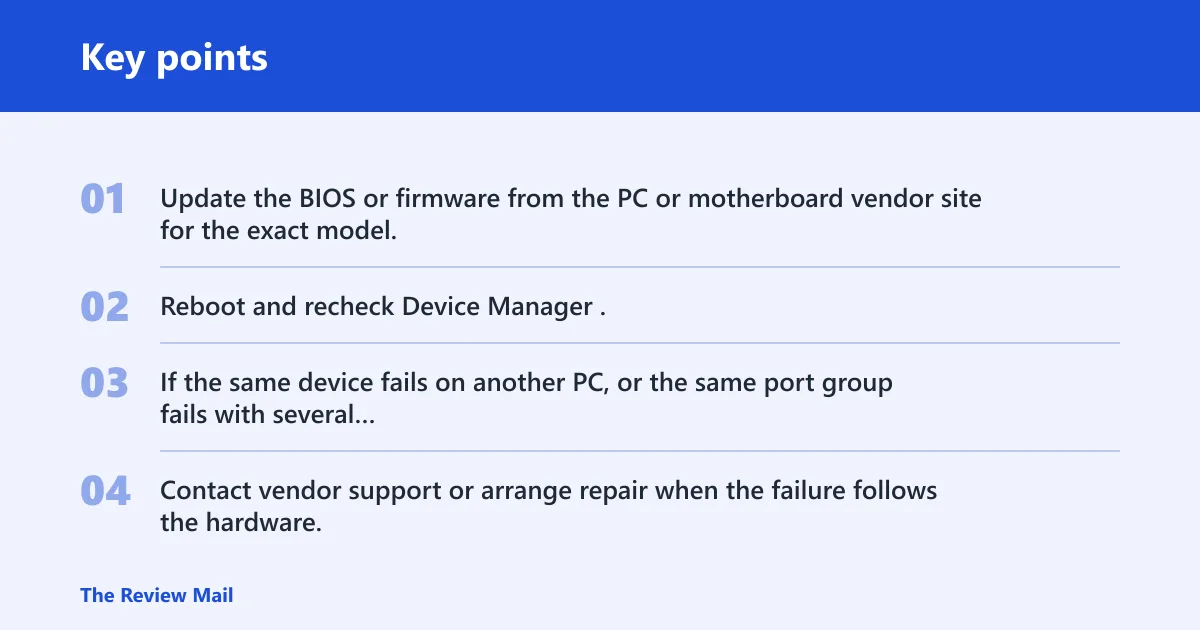
- Update the BIOS or firmware from the PC or motherboard vendor site for the exact model.
- Reboot and recheck Device Manager.
- If the same device fails on another PC, or the same port group fails with several devices, stop chasing drivers.
- Contact vendor support or arrange repair when the failure follows the hardware, not the Windows install.
Prevention: when the device is stable again, avoid stacking driver changes on top of Windows Update changes the same day. Change one variable at a time so the next failure is easier to trace.
Frequently asked questions
What does Windows has stopped this device because it has reported problems mean?
It means Device Manager detected a device that did not respond correctly and stopped loading it. Check the Device status field first, then try Driver > Roll Back Driver or Uninstall device. If the device fails on another port too, the fault is less likely to be simple connection trouble.
How do I fix this device error in Windows 10?
Open Device Manager, inspect the device status, and work in this order: restart, roll back the driver if available, uninstall the device, scan for hardware changes, and test another port or cable. If the problem began after an update, check Settings > Update & Security for optional driver updates.
Why did my USB device suddenly stop working in Device Manager?
A sudden failure usually points to a recent change: a driver update, a bad port, a loose cable, a hub, or a sleep-state issue. Move the device to a direct port first. If it works elsewhere, the device is probably fine and the original port, hub, or dock deserves attention.
Should I roll back, update, or uninstall the driver first?
Roll back first if the error started right after a change and the previous driver is still stored. Update first if Windows has an older package and the device never worked correctly on this build. Uninstall first when Device Manager keeps showing the same fault after a reboot or the stack seems stuck.
Can a Windows update cause this device problem?
Yes. A Windows update can change driver behavior or expose a compatibility issue. Go to Settings > Update & Security > Windows Update, install pending items, and check optional driver updates if they appear. If the device failed right after the update, rollback is the better first test.
How do I know if the hardware is failing or it is just a driver issue?
Test the device on another PC, then test another port and cable on the original PC. If it fails everywhere, hardware is the stronger suspect. If it works on another machine but not here, the problem is more likely driver, port, controller, or firmware related.
What if the error comes back after rebooting?
If the error returns after reboot, the fix has not changed the underlying cause. Reopen Device Manager, uninstall the device, scan for hardware changes, and then test Fast Startup and the port or hub path. Repeated returns after that point point toward firmware or hardware.
Can this happen after upgrading to Windows 11?
Yes. Windows 11 version 26H2 is delivered as an enablement package for eligible devices, and Microsoft uses a controlled feature rollout with safeguard holds for known compatibility issues. If a device fault appears after an upgrade, check Settings > Windows Update and review the device driver before assuming hardware failure.