Wi‑Fi Says Limited Connection: How to Fix It
“Wi‑Fi says limited connection” usually means the device joined the router but is failing at the radio link, IP address, DNS, or internet service level; a common approach is to check the first likely failure point, starting with a router or device restart, then DHCP and DNS checks. Ignore the warning or chase the wrong layer, and you can waste time resetting gear that is already working while the real outage stays hidden. This guide shows how to identify the failure point on Windows, TVs, and similar devices, then stop after the cheapest fix that matches it.
What limited connection means
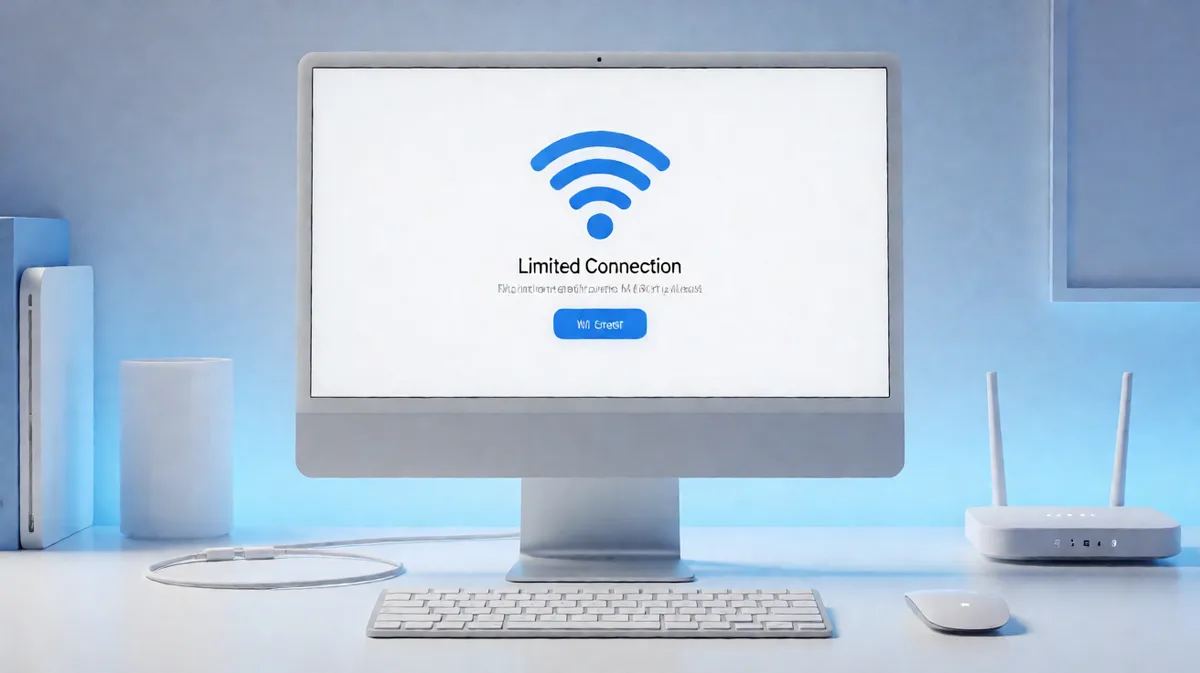
On Windows, this warning usually means the Wi‑Fi link is up but the computer cannot finish network setup. The device can see the access point, yet it may not get an IP address, cannot reach DNS, or cannot reach the wider internet. That is different from a slow connection.
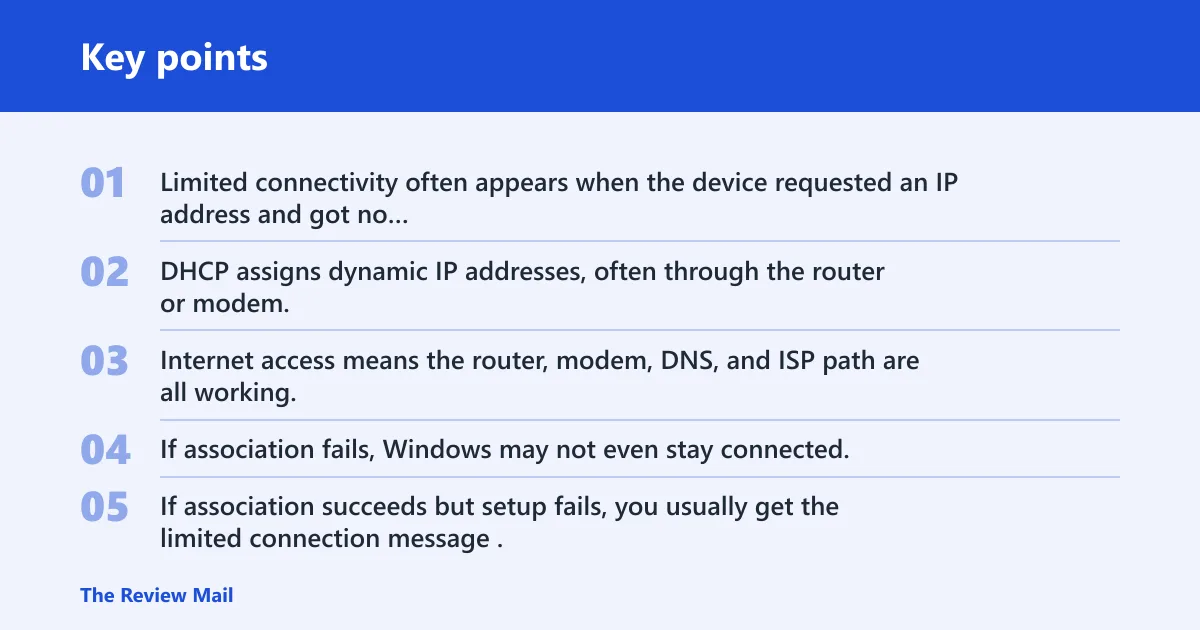
Limited connectivity often appears when the device requested an IP address and got no response. In many cases, DHCP is the missing step. DHCP assigns dynamic IP addresses, often through the router or modem, and a failed lease can trigger the warning.
Wi‑Fi link vs internet access
Separate association from reachability. Association means the radio link is alive. Internet access means the router, modem, DNS, and ISP path are all working. If association fails, Windows may not even stay connected. If association succeeds but setup fails, you usually get the limited connection message.
Check which device is actually failing
Before you change settings, check whether the fault is on the PC, the router, or the ISP. If other devices also fail, the problem is unlikely to be only on one Windows PC. If only one device fails, the router and ISP may be fine, and the adapter or IP settings deserve attention first.
Look for router-light clues
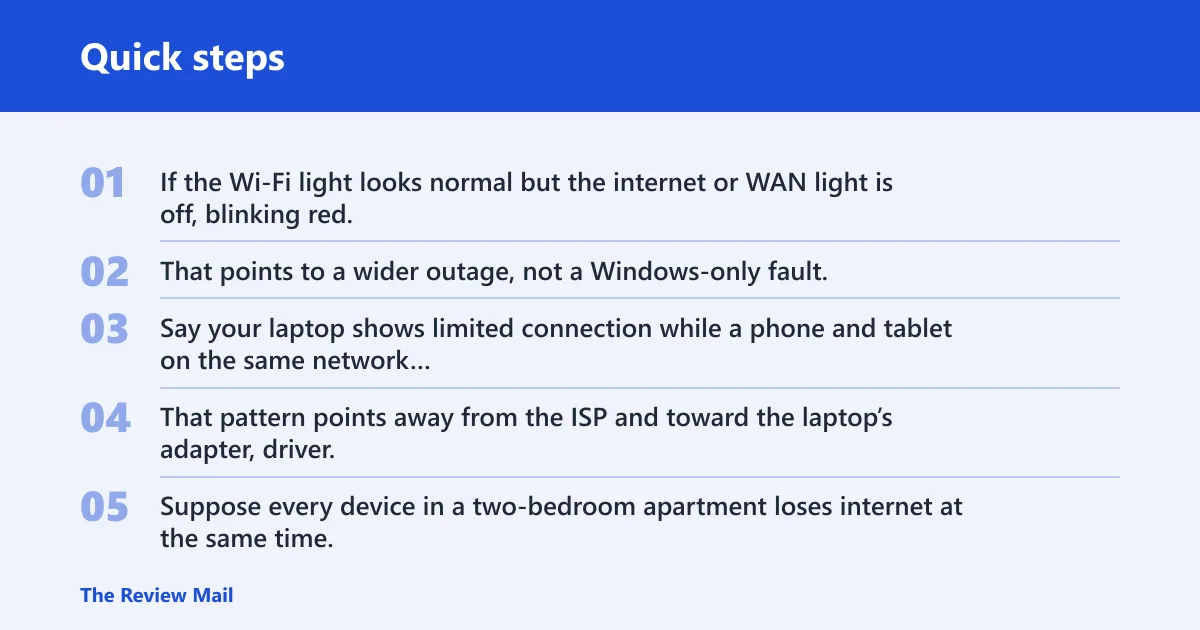
Router lights can save time. If the Wi‑Fi light looks normal but the internet or WAN light is off, blinking red, or missing, the router may not be reaching the ISP. That points to a wider outage, not a Windows-only fault.
Say your laptop shows limited connection while a phone and tablet on the same network still open websites. That pattern points away from the ISP and toward the laptop’s adapter, driver, or IP settings. The cheapest fix is on the device first.
Suppose every device in a two-bedroom apartment loses internet at the same time, and the router’s internet light stays abnormal after a restart. In that case, repeated Windows resets will not help. The fault is more likely at the modem, WAN link, or ISP line.
Limited connection decision table
| Symptom pattern | Likely cause | Fastest safe fix | When to escalate |
|---|---|---|---|
| Windows says limited connection | DHCP did not hand out an IP address, or the adapter stalled after association | Restart the device, then turn the Wi‑Fi adapter off and back on | Escalate if the warning repeats after a router power cycle |
| Other devices also fail | Router, modem, or ISP problem | Power-cycle the router and modem | Call the ISP if the whole home still fails or the WAN light stays abnormal |
| Only one device fails | Adapter, driver, power management, or local IP config issue | Forget the network, reconnect, and check the adapter settings | Escalate to driver updates or TCP/IP reset if the device still fails |
| Connected but no internet | DNS failure, router gateway issue, or ISP outage | Test other devices, then clear the DNS cache | Escalate if DNS changes do not help and the router still lacks internet |
| 169.x.x.x address | Fallback self-assigned IP after DHCP failure | Renew the IP and restart the router if needed | Escalate if the router never answers DHCP requests |
| Router lights abnormal | WAN failure, modem fault, or ISP outage | Restart modem and router once | Stop here and contact the ISP if lights stay wrong |
Why does Wi‑Fi say limited connection?
The warning appears when Windows can see Wi‑Fi but cannot finish setup. The usual breakpoints are DHCP, IP assignment, DNS, or the route to the internet. If the device gets a fallback address starting with 169, that usually points to failed DHCP or a bad static-versus-dynamic setting.
A 169.x.x.x address matters because it is a fallback self-assigned address, not a normal lease from the router. That often means the device asked for an IP address and no DHCP response came back. Fix the lease path before chasing DNS.
Why DHCP matters here
DHCP is the service that hands out dynamic IP addresses. The device sends a request, and the router or modem should answer with an address, gateway, DNS servers, and lease details. When that exchange fails, Windows may keep the Wi‑Fi link but lose internet access.
If the network uses a static IP on one device, a bad manual entry can also trigger limited connectivity. That is why the dynamic-versus-static choice matters. Do not switch to a static address unless the failure points there.
Fix the Windows side first
If only one Windows device fails, start with the adapter and local settings. Turn the Wi‑Fi adapter off and back on, check power management, run the built-in troubleshooter, and look at the metered connection setting. These are cheap checks and they fit a single-device failure pattern.
Safe Windows checks in order
- Turn Wi‑Fi off and on, then disconnect and reconnect to the network.
- Turn the wireless adapter off and back on in Device Manager.
- Run Windows Network Troubleshooter and follow the network adapter path if offered.
- Open the adapter properties and turn off power-saving for the wireless adapter.
- Check whether the network is set as metered, because that can limit downloads and make connectivity look broken.
The built-in troubleshooter is worth trying before command-line work. It can catch adapter-level problems, stale settings, and some network stack faults without changing anything else.
Power management matters more than many users expect. If Windows is allowed to turn off the adapter to save power, the connection can drop or return in a limited state after sleep or wake.
Use DHCP, DNS, and TCP/IP resets in order
A common rule of thumb is to move to command-line repair only after the quick Windows checks fail. The safe order is IP renewal, DNS flush, then TCP/IP reset. That sequence changes less first and more later. After netsh changes, reboot the system so the new stack state loads cleanly.
What each command changes
ipconfig /releasedrops the current lease.ipconfig /renewasks DHCP for a fresh address.ipconfig /flushdnsclears cached DNS records.netsh int ip resetresets TCP/IP settings.netsh winsock resetresets Winsock catalog entries tied to networking.
These commands do different jobs. DHCP fixes address assignment. DNS clears stale name lookups. TCP/IP reset repairs deeper stack state. A reboot is commonly needed after the netsh commands, because Windows loads the repaired network state on startup.
DNS is only worth fixing once the device has a valid IP path. If DHCP never assigns an address, changing DNS alone will not restore internet access. When DNS is the real fault, switching to Google DNS 8.8.8.8 and 8.8.4.4 is a common fallback.
Should you restart the router or the device first?
Restart the device first when only one device fails. Restart the router first when all devices fail. If router lights point to a wider outage, stop after one modem-and-router power cycle and contact the ISP. That is the cheapest point to stop when the whole home is offline.
Router checks that matter
Rebooting the router is the most common fix because it can restore DHCP responses, refresh the WAN session, and clear temporary firmware glitches. If the modem and router are separate, restart both in sequence. If the same fault returns often, the router firmware or WAN line may be unstable.
Do not keep power cycling for hours. One clean restart is a check. Repeated restarts without a change in lights or device behavior usually mean the problem is upstream.
Why does limited connection keep coming back?
Recurring limited connection usually means the underlying cause was not removed. Common repeat causes include stale DHCP leases, router firmware problems, adapter power-saving settings, or a bad WAN or ISP line. If the same device fails after sleep, power management or a driver issue is a stronger suspect.
Recurring faults to watch
Stale DHCP leases can happen when the router stops answering requests correctly. Router firmware instability can make that happen again after a short delay. A driver issue can do the same on Windows if the adapter drops after waking from sleep or after a network switch.
Why does wifi say limited connection on tv? On many TVs, the wording differs, but the fault path is similar: the TV joined Wi‑Fi but failed to finish internet setup. Check whether other devices fail first, then restart the router, then review the TV’s network settings only if the problem stays on the TV alone.
Frequently asked questions
When Wi‑Fi says limited connection what does it mean?
It means the device can join the Wi‑Fi network but cannot finish internet setup. On Windows, that often points to a failed IP lease, a DNS issue, or an upstream outage. The first question is whether the problem affects one device or the entire network.
Why is my Wi‑Fi showing limited connection?
The warning appears when Wi‑Fi association succeeds but network configuration fails. The device may not receive an IP address, may fall back to 169.x.x.x, or may have a DNS or router path problem. Check other devices first so you do not fix the wrong layer.
Why is my Wi‑Fi connected but no internet?
That pattern usually means the radio link is fine but something after it failed. Common causes are DHCP failure, a dead WAN link, DNS trouble, or an ISP outage. If all devices fail and the router lights look wrong, stop at the router and call the ISP.
Can DNS or TCP/IP reset fix limited connection?
Yes, but only when the fault is in the local network stack or name resolution. DNS flush helps when addresses resolve badly. TCP/IP reset helps when Windows networking is stale or damaged. If the router never hands out an IP address, those fixes are too late.