Fix Network Connection Issues in Windows 11
Fix network connection issues in Windows 11 by checking the symptom first: if Wi‑Fi drops, inspect the adapter; if Ethernet fails on its own, inspect the cable or port; if one site will not load, the network is probably fine. Guessing and resetting too early can waste time and hide whether the fault is in Windows, the router, or the ISP. This guide walks you through a symptom-first decision tree for Wi‑Fi, Ethernet, “connected but no internet,” and single-site failures before any reset.
What the connection error means
If you cannot open email, browse the web, or stream music, the device is usually not reaching the Internet, even if it still shows a Wi‑Fi or Ethernet link. The fastest first step is the built-in Windows 11 Network and Internet troubleshooter in Get Help. Microsoft recommends it for this version of Windows. (Microsoft Support)
Read the taskbar icon first
A Wi‑Fi Connected icon means the device is connected to Wi‑Fi and the Internet. A moving signal bar means Windows is still connecting. If the icon says No Internet, the link exists but the path beyond the PC is broken somewhere. A VPN Connected badge changes the route too, so one-site failures can happen even while the network itself is working.
Likely causes, from most common to least common
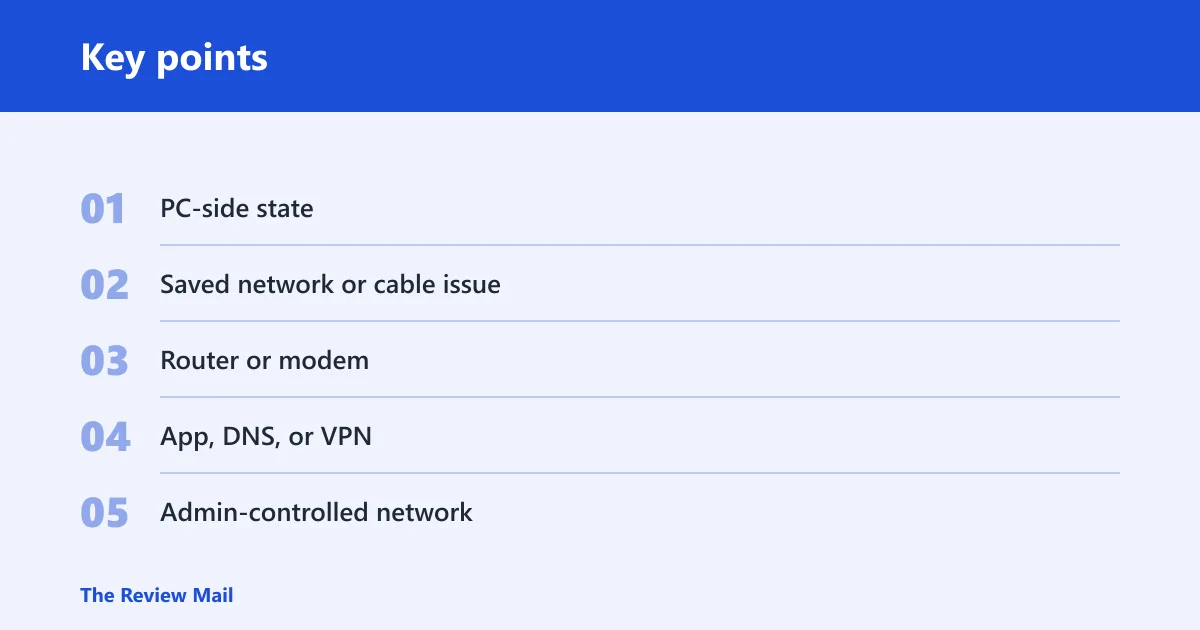
- PC-side state: Airplane mode, the Wi‑Fi adapter, or WLAN AutoConfig.
- Saved network or cable issue: a bad Wi‑Fi profile, cable, or router port.
- Router or modem: link is up, but upstream access is down.
- App, DNS, or VPN: one site fails while the rest of the network works.
- Admin-controlled network: workplace or school policy blocks access.
Say your laptop shows No Internet right after sleep, but your phone on the same Wi‑Fi works. That points first to the PC, not the whole household network. Suppose Ethernet fails only on a docked desktop while Wi‑Fi still works; the cable path or adapter comes before any router reset.
📊 Microsoft says the guide applies to both Windows 10 and Windows 11. Source: Microsoft.
Could Windows 11 fix it automatically?
Yes. Start with the automated Network and Internet troubleshooter in the Get Help app. Microsoft says it runs diagnostics and attempts to fix most problems, and the built-in Network troubleshooter is also available from Settings > Network and Internet > Status. Use the automated path first, then move down the list only if the result still shows no connection.
Run the Windows 11 troubleshooter
- Open Start > Settings > Network and Internet > Status.
- Select Network troubleshooter or open Get Help and start the Network and Internet troubleshooter.
- Follow the prompts in the window titled Troubleshoot Problems.
- Retry the same site or app before making any other change.
If the troubleshooter says nothing is wrong
That usually means Windows can see a path to the network, but the break is outside the generic checks. Move to the symptom that matches what you see next: missing Wi‑Fi, Ethernet-only failure, or one-site-only failure.
Is the Wi‑Fi adapter turned off?
If Wi‑Fi disappears, the adapter is disabled, or the device shows no wireless networks after sleep or a BIOS update, check the radio state before anything else. Microsoft specifically says to ensure Airplane mode is turned off, and a disabled adapter or stopped wireless service can make Wi‑Fi look absent even when the router is fine.
Check Airplane mode and Wi‑Fi
- Open Settings > Network & Internet.
- Make sure Airplane mode is Off.
- Turn Wi‑Fi On.
- Select the correct SSID and reconnect if needed.
Find the adapter in Device Manager
- Right-click Start and open Device Manager.
- Expand Network adapters.
- Look for the Wi‑Fi adapter.
- If it is disabled, choose Enable device.
- If it is missing or has a warning symbol, use Device Manager driver repair steps: update, rollback, or uninstall the device and scan for hardware changes.
Check WLAN AutoConfig
- Open Services.
- Find WLAN AutoConfig.
- Set Startup type to Automatic.
- Start the service if it is stopped.
How do I fix Wi‑Fi reconnect problems?
Use this path when Wi‑Fi sees the network but keeps failing to join, asks for the password again, or connects and drops soon after. The saved profile may be stale. Removing it forces Windows to rebuild the connection from scratch without a full network reset.
Forget the saved network and reconnect
- Open Settings > Network & Internet > Wi‑Fi.
- Select Manage known networks.
- Choose the network, then select Forget.
- Reconnect from the Wi‑Fi list and re-enter the password.
Restart the wireless service if Wi‑Fi is absent
- Open Services.
- Find WLAN AutoConfig.
- Choose Restart.
- Try connecting again after the service restarts.
How do I fix Ethernet connection issues in Windows 11?
Ethernet-only failures point away from Wi‑Fi settings and toward the cable, port, adapter, or router port. A wired connection should provide a fast internet connection, so if Wi‑Fi works and Ethernet does not, treat the wired path as the problem until proven otherwise.
Check the cable and port first
- Make sure the Ethernet cable is securely plugged into both the PC and the router.
- Move the cable to a different router port.
- Try a different Ethernet cable if one is available.
- Check for link lights on the PC port and router port.
Confirm the adapter is enabled
- Open Device Manager.
- Expand Network adapters.
- Select the Ethernet adapter.
- If it is disabled, choose Enable device.
- If Windows shows a fault on the adapter, use Uninstall device and then scan for hardware changes.
Network connection fix table
| Symptom | Likely layer | Fastest check | Next fix | When to stop and escalate |
|---|---|---|---|---|
| Connected but no internet | Router, modem, ISP, or VPN | Check whether the taskbar shows Wi‑Fi Connected, No Internet, or VPN Connected | Run the troubleshooter, then power cycle modem and router in the correct order | Escalate if every device on the same network loses access |
| Wi‑Fi missing | PC | Check Airplane mode and Device Manager > Network adapters | Enable the adapter or restart WLAN AutoConfig | Escalate if the adapter stays missing after a reboot |
| Ethernet only fails | Cable, port, adapter, or router port | Swap the cable and router port | Check Device Manager and reinstall or update the adapter | Escalate if another cable and port still fail |
| One site fails | App, DNS, firewall, or VPN | Open a second site and compare results | Turn off VPN, then flush DNS | Escalate if only a work or school site remains blocked |
| VPN on | VPN or profile policy | Disconnect the VPN and retry | Reconnect after checking the site outside the VPN tunnel | Escalate to the VPN or network admin if access still fails |
Still not working?
If the simple checks fail, power cycle the modem and router in the correct order. Unplug both, wait at least 30 seconds, plug the modem back in first, then the router, and give the router a few minutes to finish starting up. This is the next step when the PC looks fine but the network path still shows No Internet (per Microsoft support).
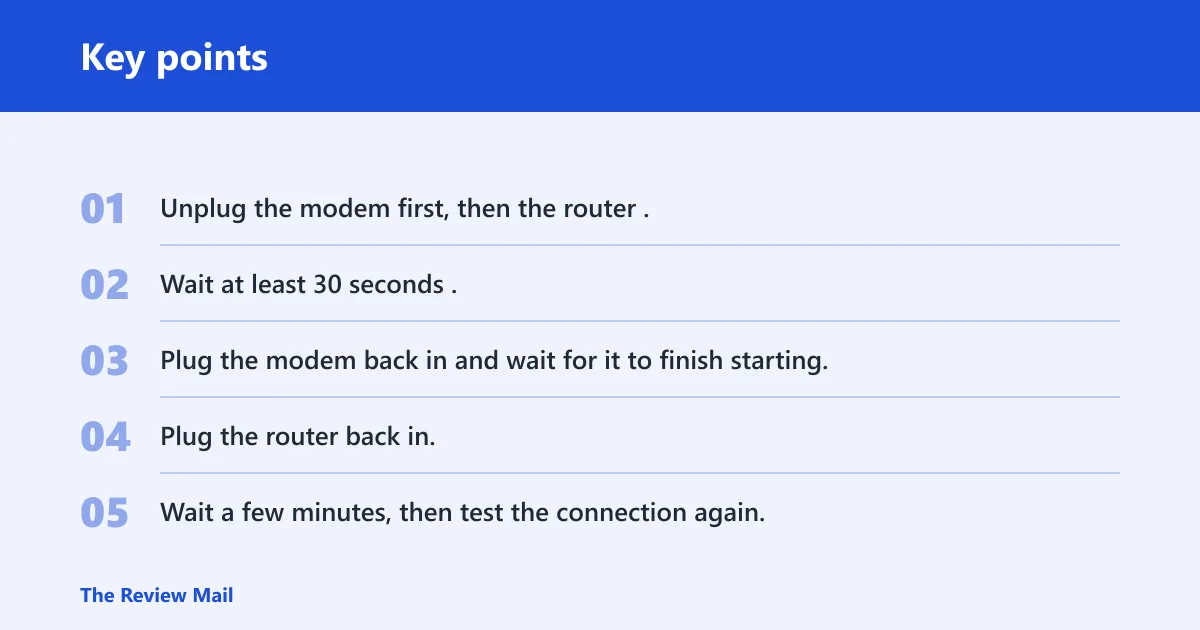
Power cycle the modem and router
- Unplug the modem first, then the router.
- Wait at least 30 seconds.
- Plug the modem back in and wait for it to finish starting.
- Plug the router back in.
- Wait a few minutes, then test the connection again.
Check DNS, VPN, and one-site failures
- If only one site fails, disconnect the VPN and test again.
- Run
ipconfig /flushdnsfrom Command Prompt. - Reopen the site in a different browser or app.
- If the rest of the network works, the issue is likely with that app, site, firewall, or VPN path.
When to contact support
Contact your ISP if every device on the network fails after the modem and router restart. Contact the router vendor if the modem is online but the router will not finish starting or drops the wireless network. Contact a workplace or school network admin if the failure appears only on a managed profile, VPN, or restricted site.
Prevention: after a BIOS update or sleep-wake cycle, check Airplane mode and Wi‑Fi first before removing saved networks or resetting the adapter.
Frequently asked questions
How do I fix ethernet connection issues in windows 11: check the cable?
Check the cable on both ends, move it to another router port, and confirm the adapter is enabled in Device Manager > Network adapters. If the link still fails, use Device Manager to uninstall the adapter and scan for hardware changes, then test again before replacing hardware or calling your ISP.
How to fix internet connection problem windows 11
First confirm whether the taskbar says Connected, No Internet, or VPN Connected. Then run the troubleshooter from Settings > Network and Internet > Status or from Get Help. If only one site fails, flush DNS with ipconfig /flushdns and disconnect any VPN before escalating.
How to fix network printer connection issues in windows 11 22h2
For a network printer, first confirm the PC has working network access, because printer discovery depends on the same connection path. If the printer is on Wi‑Fi, reconnect the PC to the same SSID and clear any VPN. If the network is up but the printer still vanishes, restart the printer and check the router port or wireless band it uses.