Hp Printer Driver Error Windows 11
Start by checking which of three faults you have: a missing HP driver, a blocked Windows 11 driver, or a wrong printer path. If the printer shows “Driver unavailable,” “Offline,” or prints partly, treat it as a diagnostic problem before reinstalling anything. Skip that step and you can waste time, break scanning or duplex features, or keep reinstalling the wrong package. This guide shows how to tell those cases apart and what to check next.
What the error means on Windows 11
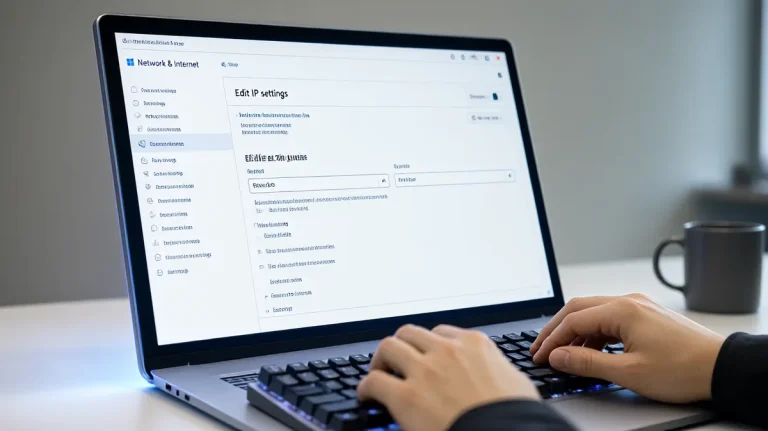
The fastest first move is to open Settings > Bluetooth & devices > Printers & scanners and see whether the HP device is listed, offline, or missing features. That tells you if Windows is missing the package, blocking it, or pointing the queue at the wrong entry.
Most often, the problem is not the printer itself. It is the Windows driver binding, the queue entry, or a failed update that left printing and scanning on different paths. Microsoft Support also recommends checking printer connections first, then restarting the Print Spooler service if jobs are stuck. (Microsoft Support)
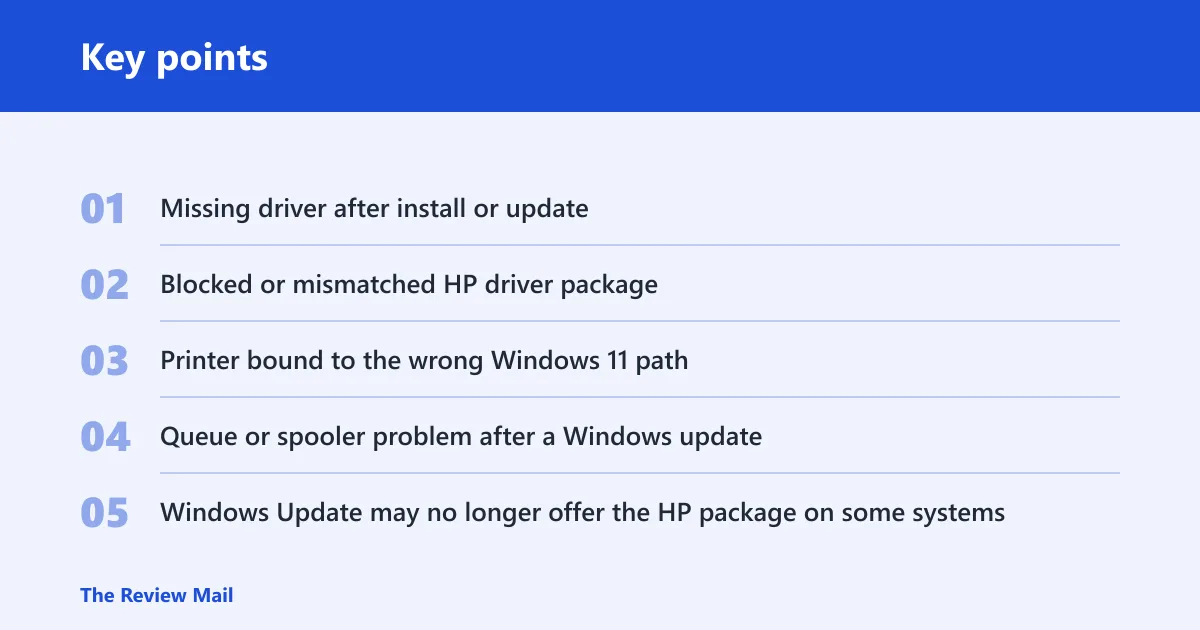
Likely causes, ranked
- Missing driver after install or update. Windows can see the printer but not load the correct HP package.
- Blocked or mismatched HP driver package. The package may be the wrong model, wrong branch, or wrong architecture for this Windows 11 build.
- Printer bound to the wrong Windows 11 path. The queue exists, but Windows points to a stale or generic entry.
- Queue or spooler problem after a Windows update. A stuck job can make the printer look healthy while nothing prints.
- Windows Update may no longer offer the HP package on some systems. That happens on some systems, so the driver must come from HP’s support page instead.
Say your HP all-in-one prints a test page but the scanner button in Windows says the device is unavailable. That is not the same failure as a dead print queue. Printing and scanning can split, so the fix path should start with the device entry and package, not with the cable.
Is the HP driver missing or blocked?
If Windows 11 cannot load the correct driver, start with Windows Update and the printer entry in Device Manager before you reinstall HP software. DriverAgentPlus recommends Windows Update and Optional driver updates first, then the manufacturer’s support package when Windows has nothing useful. That order avoids reinstalling the same bad package.
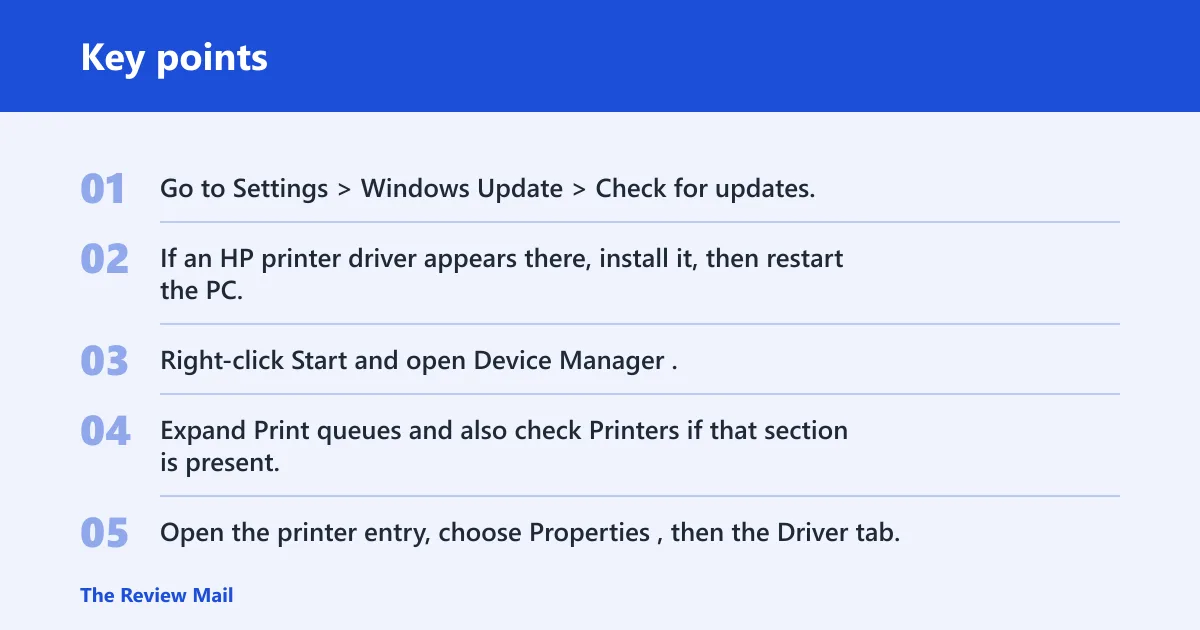
- Go to Settings > Windows Update > Check for updates, then open Advanced options > Optional updates > Driver updates.
- If an HP printer driver appears there, install it, then restart the PC.
- Right-click Start and open Device Manager.
- Expand Print queues and also check Printers if that section is present.
- Open the printer entry, choose Properties, then the Driver tab. Use Update driver or Uninstall device if Windows is holding a broken copy.
- If Windows Update has no HP package, install the current package from HP’s official support page for the exact model.
Do not install a close-match package and hope it binds correctly. A model mismatch can leave printing working while scan buttons, duplex options, or status utilities fail.
Win+X > Device Manager > (printer device) > right-click > Properties > Driver tab
Actions: Update driver; Roll Back Driver; Uninstall device
If reinstalling a corrupted driver: check "Delete the driver software for this device"
View > Show hidden devices
Is Windows using the wrong HP printer path?
If the printer appears in Windows but keeps dropping offline, Windows may be pointing to the wrong queue or a generic path instead of the HP entry. Use Settings > Bluetooth & devices > Printers & scanners to remove the stale entry, then add the printer again so Windows rebuilds the binding.
- Open Settings > Bluetooth & devices > Printers & scanners.
- Select the HP printer, then choose Remove.
- Restart the PC and the printer.
- Return to Printers & scanners, choose Add device, and let Windows search again.
- If Windows offers a Microsoft generic printer driver, use it as a temporary fallback when the HP package will not bind cleanly.
- After it adds, print a one-page test document before restoring any extra HP features.
Can Windows 11 use a generic printer driver instead of the HP driver? Yes, as a fallback. It is limited compared with the HP package, so it is best used to confirm that the queue and connection work while you sort out the full OEM driver.
Is the queue or Print Spooler stuck?
When the printer works after a restart but fails again later, the queue or Print Spooler is a common next suspect. Microsoft Support says restarting Print Spooler helps with stuck jobs, and that is especially useful after updates that leave old jobs waiting in the queue. (Microsoft Support)
- Press Win+R, type
services.msc, and press Enter. - Find Print Spooler.
- Right-click it and choose Restart.
- Go back to Settings > Bluetooth & devices > Printers & scanners, open the HP printer, and clear any paused or stuck jobs.
- Restart both the printer and the PC after the queue is clear.
- Send one small print job first, such as a plain text page.
Suppose a two-tray office MFP prints one page after a reboot, then shows the same warning again after the next job queues up. That pattern often points to a stale queue or spooler issue, not a dead printer driver.
HP printer driver decision table
Use the symptom to choose the next step before you reinstall anything.
| Symptom | Likely cause | Best next step | What not to do |
|---|---|---|---|
| Driver unavailable at install time | Missing driver or wrong model package | Check Windows Update, then install the HP official support package for the exact model | Do not reinstall the same package without checking the model name |
| Printer prints but scanner fails | Partial driver binding or a feature-limited generic driver | Replace the generic package with the HP full-feature package | Do not assume the print driver proves the whole package is correct |
| Printer is visible but offline | Wrong queue path, blocked communication, or stale device entry | Remove the printer in Settings and add it again | Do not keep toggling the same offline queue |
| Queue stuck after update | Print Spooler or queued-job problem | Restart Print Spooler and clear the queue | Do not keep resubmitting the same job |
| Windows Update no longer offers the HP package | Windows has stopped supplying that driver branch | Install the current package from HP’s official support page | Do not wait for Windows Update to restore a package that is not there |
Still not working?
If the driver, path, and queue checks do not fix it, run the built-in Printer troubleshooter from Settings or from Get Help. Guiding Tech recommends that as the first pass, and it is still worth using once the obvious driver mismatch is ruled out. It can reset common print settings without you hunting every menu by hand.
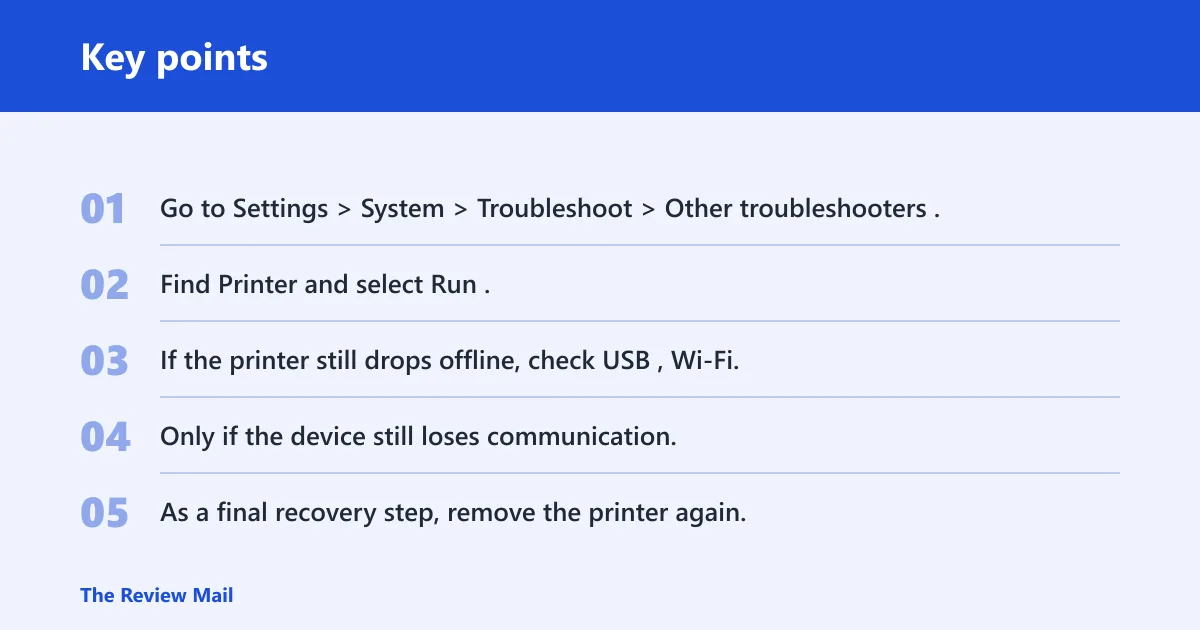
- Go to Settings > System > Troubleshoot > Other troubleshooters.
- Find Printer and select Run.
- If the printer still drops offline, check USB, Wi‑Fi, or Bluetooth status in the same session.
- Only if the device still loses communication, review Windows Defender Firewall and any restore-defaults option that some guides use as a last resort.
- As a final recovery step, remove the printer again, uninstall the device from Device Manager, and reinstall only the exact HP package or the Microsoft generic driver for testing.
Prevention: after a working setup is restored, avoid mixing old HP software with a newer Windows-inbox queue entry. If Windows Update later offers a driver update, compare the model name before installing it.
Frequently asked questions
Why does my HP printer say driver unavailable on Windows 11?
That usually means Windows cannot bind the printer queue to a usable driver package. Check Settings > Bluetooth & devices > Printers & scanners first, then look in Device Manager under Print queues or Printers. If the entry is present but broken, reinstall only the exact HP model package.
How do I fix printer driver is unavailable on Windows 11?
Start with Settings > Windows Update > Optional updates > Driver updates, then run the Printer troubleshooter from Settings or Get Help. If that fails, remove the printer from Printers & scanners, restart, and add it again. Only then move to the HP support package.
Should I reinstall the HP printer driver or use Windows Update?
Try Windows Update first if the driver is missing, because it may offer an available optional package. If it does not, install the current HP support package for the exact model. Reinstalling the same broken package without checking Windows Update often recreates the same queue problem.
Why does the printer work after restart but the error comes back?
That pattern usually points to a queue or Print Spooler problem, not a fully dead printer. Restart the Print Spooler service from services.msc, clear queued jobs, and then restart both the printer and the PC. If it recurs, check whether Windows added a different driver path after an update.
How do I remove and add my HP printer again in Windows 11?
Open Settings > Bluetooth & devices > Printers & scanners, select the HP printer, and choose Remove. Restart the PC, return to the same page, and choose Add device. If Windows still binds the wrong driver, install the HP package after the device is removed.
What if the printer says driver unavailable but scanning still works?
That often suggests only the print side is affected. The scanner may still use a separate path, while the print queue points to a missing or generic driver. Check the HP full-feature package for the exact model, not just a print-only driver, and confirm the queue in Printers & scanners.
How do I check whether the problem is the printer driver or the connection?
First, check whether the printer appears in Settings > Bluetooth & devices > Printers & scanners and whether it shows offline. Then check the cable, Wi‑Fi, or Bluetooth link, and look in Device Manager for the printer entry. If communication is stable but printing still fails, the driver path is a strong suspect.