0xc000034 Windows 10 Recovery: How to Fix Boot Errors
For 0xc0000034 on Windows 10, the system cannot find the boot configuration data it needs to start normally. Before making changes, back up any files you can still reach from recovery tools or another bootable environment. Then use Windows recovery options to check the firmware boot mode, the system partition, and the boot entries in a controlled order.
Likely causes
Start with Startup Repair from Windows recovery media. If that does not help, use the symptom pattern to decide whether the issue is likely a damaged boot store, a boot mode mismatch, or a failed partition change.
If your PC stops on a recovery screen right after a disk cleanup or partition edit, the problem may involve boot data, disk layout, or firmware settings. If the same drive booted yesterday and now fails after a BIOS change, check the boot mode before making deeper repairs.
Decision matrix
| Symptom pattern | Most likely cause | Safest next action |
|---|---|---|
| Recovery screen appears before Windows logo; no normal startup | Boot Configuration Data entry is missing or damaged | Boot from Windows media, run Startup Repair, then open Command Prompt and check BCD entries |
| Startup Repair runs but says it could not repair the PC | BCD problem that needs manual repair | Use Command Prompt in WinRE and run bootrec /scanos and bootrec /rebuildbcd |
| bootrec /fixboot returns Access is denied | Boot record or firmware mismatch | Check whether the machine should boot in UEFI or legacy/CSM mode before retrying |
| PC changed from legacy BIOS to UEFI, or the reverse, and then stopped booting | Firmware mode mismatch | Restore the matching mode in BIOS and retry Startup Repair |
| Error appeared after MBR2GPT or a partition-table edit | Failed conversion or boot entry mismatch | Verify disk style, match the firmware mode, then rebuild boot entries only after the disk and mode agree |
| bootrec /rebuildbcd finds Windows but will not add it | BCD store is damaged or the active partition is wrong | Confirm the system partition and then rerun the repair from WinRE on the correct partition |
| No access to files because Windows never loads | Recovery is needed before normal access returns | Use WinRE or a bootable USB, then copy files to external storage before deeper repair |
| Error appeared after an update or restart | BCD damage or boot files no longer match the current setup | Run Startup Repair first, then inspect boot entries with bootrec /scanos |
What does error code 0xc0000034 mean on Windows 10?
This code points to a boot start failure tied to the Boot Configuration Data store, so Windows cannot find the entries it needs to load normally. It often appears before the desktop loads and may follow boot-file or partition changes.
A typo variant such as 0xc000034 is sometimes seen in searches, but the recovery path is the same: get into WinRE, then check the boot data first.
What you should not do first
- Do not run random partition tools before you know whether the disk uses UEFI or legacy boot.
- Do not rebuild BCD entries on the wrong system partition.
- Do not reinstall Windows before you try to copy important files out.
Can Startup Repair fix a missing BCD file?
Yes, sometimes. Startup Repair is a good first step when Windows cannot start because the boot store is missing, partially damaged, or no longer matches the current boot path. If it succeeds, you can avoid manual command-line work.
Use Windows installation media or a recovery USB
- Boot from Windows installation media or a recovery USB you created on another PC.
- On the Windows Setup screen, select Next, then choose Repair your computer.
- Open Troubleshoot > Advanced options > Startup Repair.
- Select the Windows installation that appears, if prompted.
If Startup Repair finishes and the PC still will not boot, move to manual repair instead of repeating the same step several times.
Which bootrec commands should I run for 0xc0000034?
Use the standard bootrec sequence from Command Prompt in WinRE: bootrec /scanos, bootrec /rebuildbcd, bootrec /fixmbr, and bootrec /fixboot. Run them only after Startup Repair fails or when WinRE shows that Windows exists but is not registered in boot data. (Microsoft Learn)
Run the commands in a sensible order
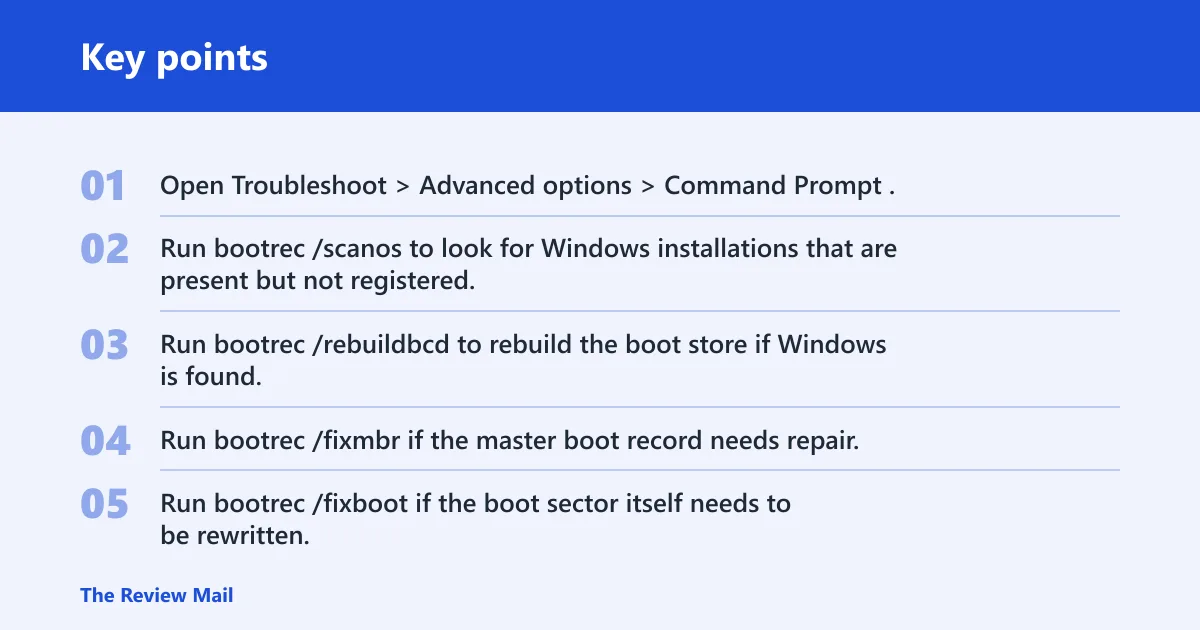
- Open Troubleshoot > Advanced options > Command Prompt.
- Run bootrec /scanos to look for Windows installations that are present but not registered.
- Run bootrec /rebuildbcd to rebuild the boot store if Windows is found.
- Run bootrec /fixmbr if the master boot record needs repair.
- Run bootrec /fixboot if the boot sector itself needs to be rewritten.
- If the disk seems unstable, also run
CHKDSKC: /F /R from the same Command Prompt.
What if bootrec /fixboot or /rebuildbcd fails?
When /fixboot fails, check the firmware boot mode first, then retry from the correct mode. When /rebuildbcd fails, confirm that the right partition is active and that Windows is on the disk you expect. If commands still fail, stop and back up data before making more changes.
Do BIOS and UEFI settings matter for this error?
Yes. A boot mode mismatch can block startup after partition edits, a BIOS reset, secure boot changes, or a move from MBR to GPT. If the firmware mode does not match the disk layout, BCD repair may not stick.
Check the mode before rebuilding boot entries
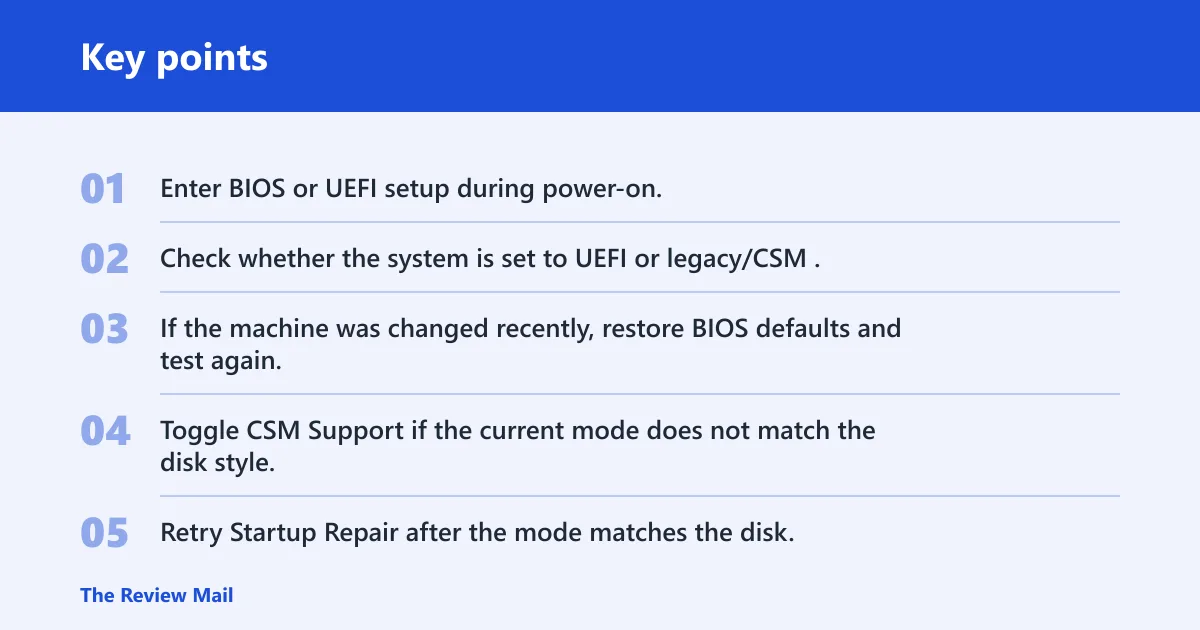
- Enter BIOS or UEFI setup during power-on.
- Check whether the system is set to UEFI or legacy/CSM.
- If the machine was changed recently, restore BIOS defaults and test again.
- Toggle CSM Support if the current mode does not match the disk style.
- Retry Startup Repair after the mode matches the disk.
If the install is MBR, legacy or CSM support may need to stay enabled. If the install is GPT, UEFI usually has to be the active boot path.
What if I was converting MBR to GPT before the error appeared?
A failed MBR2GPT conversion is a separate trigger to consider, especially after partition changes or a firmware switch. In that case, verify the disk style first, then correct the firmware mode before you rebuild boot entries.
Recover after a failed conversion
- Confirm whether the disk is still MBR or already GPT in Disk Management or from WinRE tools.
- Match BIOS/UEFI mode to the disk style before another repair attempt.
- Run bootrec /scanos to confirm Windows is still present.
- Run bootrec /rebuildbcd only after the mode and disk style agree.
- If the conversion partially changed partitions, copy files off the drive before more changes.
Still not working after Startup Repair and bootrec?
If Startup Repair, bootrec, and firmware checks fail, stop changing settings at random. Copy files to an external drive if you can still reach them from WinRE or another bootable environment, then choose the least destructive next step.
Escalation ladder
- Back up files from recovery tools or a bootable USB if the data is still readable.
- Retry the repair only after you have identified the cause as a boot store problem, a mode mismatch, or a partition conversion issue.
- Use a bootable USB to clean install Windows if the boot store and partition state cannot be made consistent.
Prevent this by avoiding changes to boot mode and partition style in the same pass unless you can reverse the change. That keeps the failure path easier to read when Windows will not start.
Frequently asked questions
How do I fix this error using Windows recovery tools?
Boot from Windows installation media or a recovery USB, choose Repair your computer, then open Troubleshoot > Advanced options. Start with Startup Repair. If that fails, open Command Prompt and run bootrec /scanos followed by bootrec /rebuildbcd.
Which bootrec commands should I run for this startup error?
Run bootrec /scanos, bootrec /rebuildbcd, bootrec /fixmbr, and bootrec /fixboot from WinRE. A common sequence is scan first, rebuild second, then repair the boot record and boot sector if the system still does not start.
Can I use a Windows 10 USB to repair a PC that will not boot?
Yes. A bootable USB can start the recovery environment even when Windows will not load. On another PC, create the media with an empty 8GB USB flash drive, boot the broken PC, press F12 repeatedly for the boot menu if that key applies, then choose Repair your computer.