0xC0000142 Error Code: How to Fix It
If the code on screen is not 0xc0000142, stop here and follow the exact code shown by the dialog box. If it is 0xc0000142, the app failed to start correctly, and the fastest first check is whether the failure is limited to one app or appears across several programs.
0xc0000142 triage table
| Symptom pattern | Most likely cause | First fix |
|---|---|---|
| One app only | App files, shortcut target, or local settings | Open the installed .exe from its install folder, then repair the app through Settings or reinstall it from the original installer |
| All apps | Shared runtime or system file problem | Repair each Microsoft Visual C++ Redistributable in Programs and Features, then run sfc /scannow |
| Office only | Office installation or add-in issue | Run Online Repair for Microsoft Office, then check add-ins if one app still fails |
| After copying an EXE | Wrong path or missing dependency files | Launch the program from the installed folder, not from a copied desktop file |
| After Windows Update | System file or Windows image damage | Run sfc /scannow, then DISM /Online /Cleanup-Image /RestoreHealth |
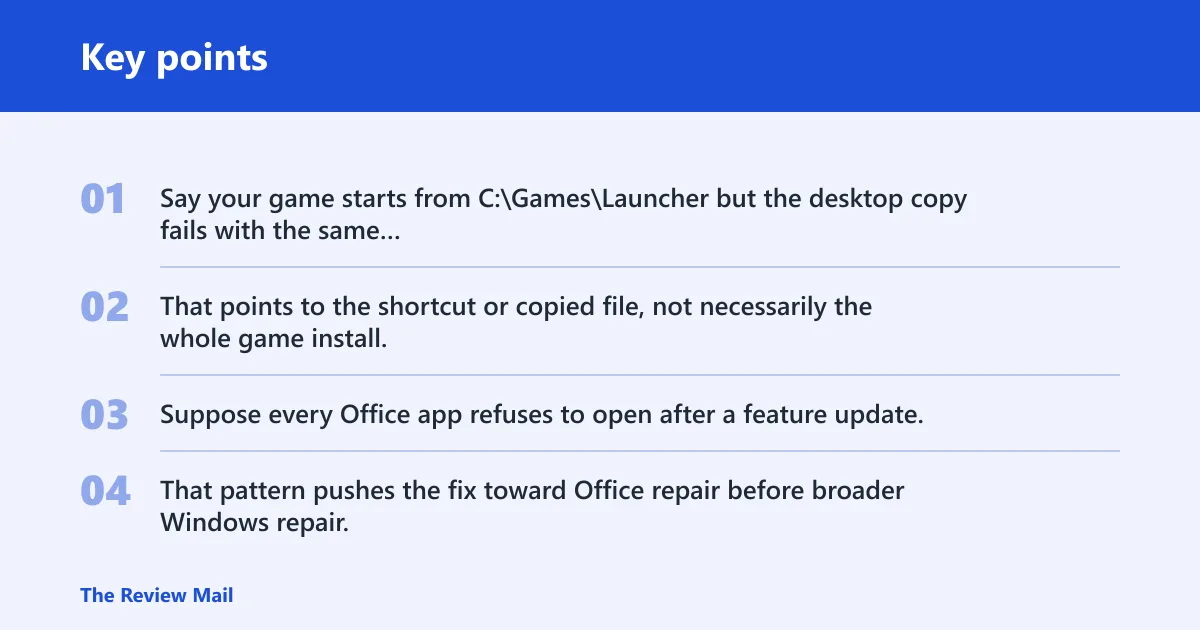
Say your game starts from C:\Games\Launcher but the desktop copy fails with the same dialog. That points to the shortcut or copied file, not necessarily the whole game install. Suppose every Office app refuses to open after a feature update, while a browser and mail client still start. That pattern pushes the fix toward Office repair before broader Windows repair.
Likely causes
A common set of causes is a broken app install, a copied or mispointed shortcut, a Microsoft Visual C++ Redistributable problem, a Windows file or image issue, or Office-specific damage. Less commonly, compatibility settings or a bad add-in are the trigger.
One app only: check the shortcut and the app itself
If only one program fails, start with the executable you are launching. A copied desktop file or a shortcut that points somewhere else can trigger startup failure even when the installed program still works.
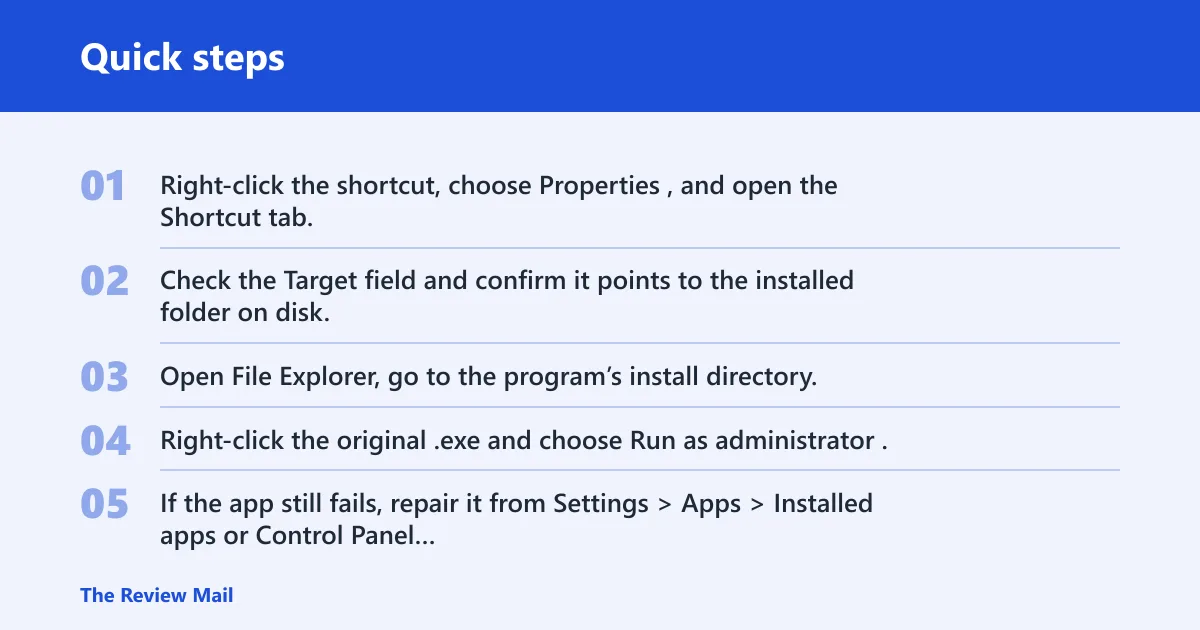
- Right-click the shortcut, choose Properties, and open the Shortcut tab.
- Check the Target field and confirm it points to the installed folder on disk, not to a copied .exe on the desktop or in Downloads.
- Open File Explorer, go to the program’s install directory, and launch the original .exe from there.
- Right-click the original .exe and choose Run as administrator.
- If the app still fails, repair it from Settings > Apps > Installed apps or Control Panel > Programs and Features, then reinstall it from the original setup package or vendor installer if repair is unavailable.
Compatibility mode can help older software on newer Windows versions, but only when the app needs it. Open Properties > Compatibility, try the nearest older Windows version that fits the app, such as Windows 8 or Windows 7, then test again. If it still fails, clear the setting.
Shared runtime issue: repair Visual C++ Redistributables
If several unrelated apps fail, the shared runtime is a better starting point than reinstalling each program one by one. Microsoft Visual C++ Redistributables often install in multiple versions, and one broken entry can block launch.
- Open Control Panel > Programs and Features or Settings > Apps > Installed apps.
- Find each Microsoft Visual C++ Redistributable entry.
- Select an entry, choose Change if available, then choose Repair.
- Repeat for each installed version.
- Retest the problem app after each repair so you can see which version mattered.
- If Repair is missing or fails, uninstall the broken redistributable entry and reinstall the matching package from Microsoft.
If the same app still refuses to open after the redistributables are repaired, move on. The next likely layer is Windows itself.
Windows repair: run SFC, then DISM
If the problem started after an update, or if multiple apps fail after the runtime repair, check protected system files first and then the Windows image. Run these from an elevated prompt, not a normal one.
- Open Start, type cmd, right-click Command Prompt, and choose Run as administrator.
- Run
sfc /scannowand let the command finish. - If SFC reports problems it cannot fix, open another administrator Command Prompt.
- Run
DISM /Online /Cleanup-Image /RestoreHealth. - Restart the PC and test the app again.
If Windows still reports corruption after DISM, back up your files and move to an in-place repair install or a clean reinstall. That is the escalation point, not the next routine tweak.
Office only: use Office repair and add-in checks
If the failure appears only when opening Office apps, handle Office directly before broader Windows repair. Microsoft support commonly routes this kind of startup issue to Office-specific troubleshooting, and the right next step depends on whether one Office app fails or all of them do.
- Open Settings > Apps > Installed apps or Control Panel > Programs and Features.
- Select Microsoft Office, choose Modify or Change, then run Online Repair.
- If only one Office app still fails, open that app in safe mode if available and remove or reset add-ins before repeating repair.
- If every Office app still fails after Online Repair, check activation, then reinstall Office from your Microsoft account or original Office setup source.
After copying an EXE: use the installed folder
A copied executable can launch with the wrong path, missing DLLs, or a shortcut that no longer matches the installed location. That is common when a user drags the program file to the desktop and runs it from there.
- Open the program’s original install folder in File Explorer.
- Launch the application from the installed .exe, not the copied desktop file.
- If the shortcut is wrong, right-click it, choose Properties, and correct the Target field to the installed path.
- If the app still fails, repair or reinstall it from the original installer package.
Still not working?
If the problem survives app repair, redistributable repair, SFC, DISM, and Office-specific repair, the next escalation is a Windows repair install. That is the point where you stop guessing at small fixes and move to a broader repair of the operating system.
Before that, check one more simple point: if the error appears only for one old app, the compatibility setting may still be wrong. If it appears for everything after a recent update, the Windows image path is more likely than the app itself.
Frequently asked questions
What is error code 0xc0000142?
It is a startup failure that appears when an application cannot initialize correctly. The immediate checks are the app’s install path, its repair status, Microsoft Visual C++ Redistributables, and then Windows file repair if the failure affects more than one program.
How do I fix error code 0xc0000142?
Start with the exact app that fails, then repair Microsoft Visual C++ Redistributables, run sfc /scannow, and follow with DISM /Online /Cleanup-Image /RestoreHealth if needed. If only Office fails, use Online Repair from Apps > Installed apps.
How do I fix error 0xc0000142 when opening Office?
Open Settings > Apps > Installed apps, select Microsoft Office, and run Online Repair. If one Office app still fails, remove or reset add-ins for that app, then test again. If all Office apps still fail, check activation and reinstall Office.
Should I repair Visual C++ Redistributables for 0xc0000142?
Yes, if more than one app fails or if several unrelated programs started breaking at once. Use Control Panel > Programs and Features, select each Microsoft Visual C++ Redistributable entry, and choose Repair. If Repair is unavailable, uninstall and reinstall the matching package.
Do SFC and DISM fix 0xc0000142?
They can, especially when the failure follows an update or shows up in multiple apps. Run sfc /scannow first from an elevated Command Prompt, then run DISM /Online /Cleanup-Image /RestoreHealth from an administrator Command Prompt if SFC cannot complete the repair.
Can compatibility mode cause 0xc0000142?
Yes. A bad compatibility setting can keep an older app from starting on newer Windows versions. Open Properties > Compatibility, try the nearest older mode such as Windows 8 or Windows 7, then clear the setting if it does not help.