Wifi Network Adapter Missing Windows 10
If your Wi‑Fi adapter is missing in Windows 10, check Device Manager in this order: hidden device, disabled adapter, driver failure, power-saving shutoff, then BIOS or hardware fault. Skipping the wrong branch can burn time and keep you offline. This guide gives a decision tree for finding, re-enabling, reinstalling, or ruling out the adapter.
Wi-Fi adapter triage table
| Symptom pattern | Likely cause | Next best fix |
|---|---|---|
| Wi‑Fi icon missing | Wireless service stopped, adapter disabled, or driver problem | Check WLAN AutoConfig, then open Device Manager and look for the adapter |
| Adapter absent from Device Manager | Driver corruption, firmware disablement, or hardware fault | Use Show hidden devices, then Scan for hardware changes |
| Adapter hidden | Windows is not surfacing the device in the normal view | Enable Show hidden devices and inspect Network adapters |
| Adapter disabled | Device is present but turned off, sometimes by power settings | Enable the adapter, then review power management settings |
| Adapter returns after reboot only | Driver instability, fast startup behavior, or power-saving shutdown | Update the driver from the OEM, then disable device power saving |
| No change after driver reinstall | Possible BIOS/UEFI block, bad Wi‑Fi card, or internal connection fault | Check firmware settings and treat repeated failure as hardware until proven otherwise |
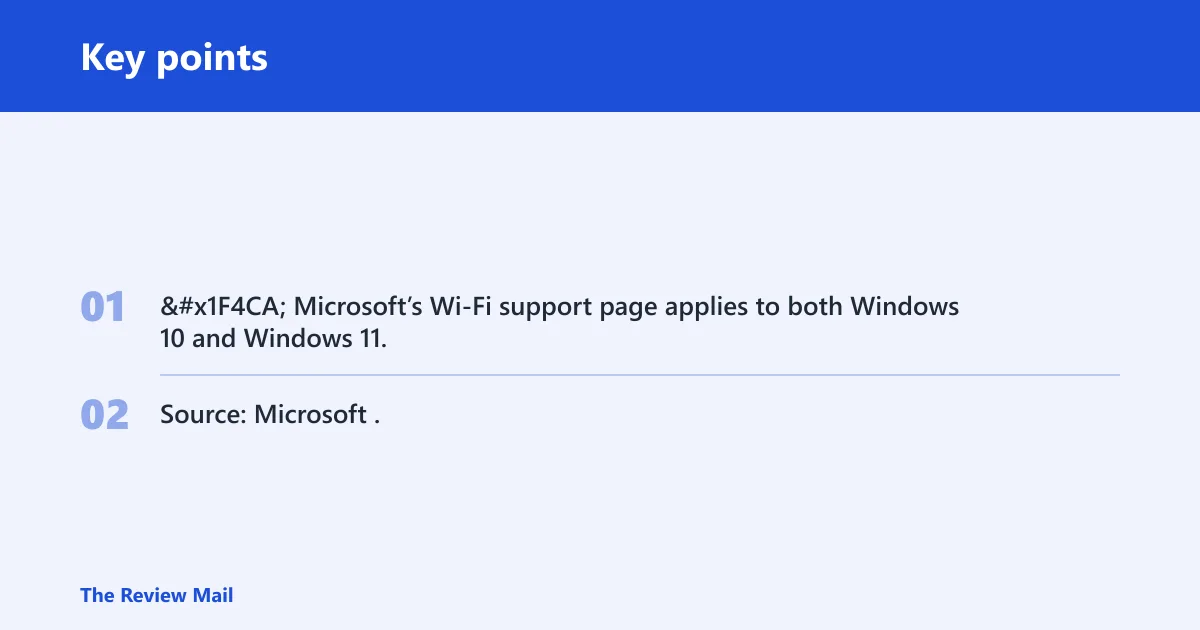
📊 Microsoft’s Wi‑Fi support page applies to both Windows 10 and Windows 11. Source: Microsoft.
Is the adapter hidden or just disabled?
Open Device Manager first, expand Network adapters, and turn on Show hidden devices. If the adapter appears faded, disabled, or marked with a warning symbol, the fix is still in software. If it stays absent after a scan, move to the service and driver checks.
Use Device Manager in the right order
- Right-click Start and open Device Manager.
- Expand Network adapters.
- Select View and enable Show hidden devices.
- Look for a wireless adapter with a down-arrow icon, a faded entry, or an error symbol.
- Choose Action and run Scan for hardware changes.
One common mistake is stopping at the first empty view. That blurs the line between a missing device and a hidden one, so you may pick the wrong repair.
Check the wireless service
The WLAN AutoConfig service, also called wlansvc, must be running for Wi‑Fi discovery in Windows. If it is stopped or disabled, the taskbar can lose the Wi‑Fi icon even when the adapter itself is still present. Restarting the service is a targeted fix, not a blanket reset.
Restart WLAN AutoConfig in services.msc
Open services.msc, find WLAN AutoConfig, and check whether the status is Running and the startup type is Automatic. If it is stopped, start it. If it is running but Wi‑Fi is still missing, restart it once and check the taskbar and Network Connections again.
Microsoft’s Wi‑Fi support page applies to both Windows 10 and Windows 11, and it says you can refresh the network list manually if a network does not appear. That matters when the adapter is present but discovery lags.
How do I fix a missing wireless network adapter in Windows 10?
Start with the smallest fix that matches the symptom. If the adapter is hidden, fix Device Manager first. If it is visible but Wi‑Fi is still absent, check WLAN AutoConfig, then the driver. If the adapter still does not return, move to power settings, a network reset, and finally BIOS/UEFI or hardware checks.
Reinstall the Wi-Fi driver
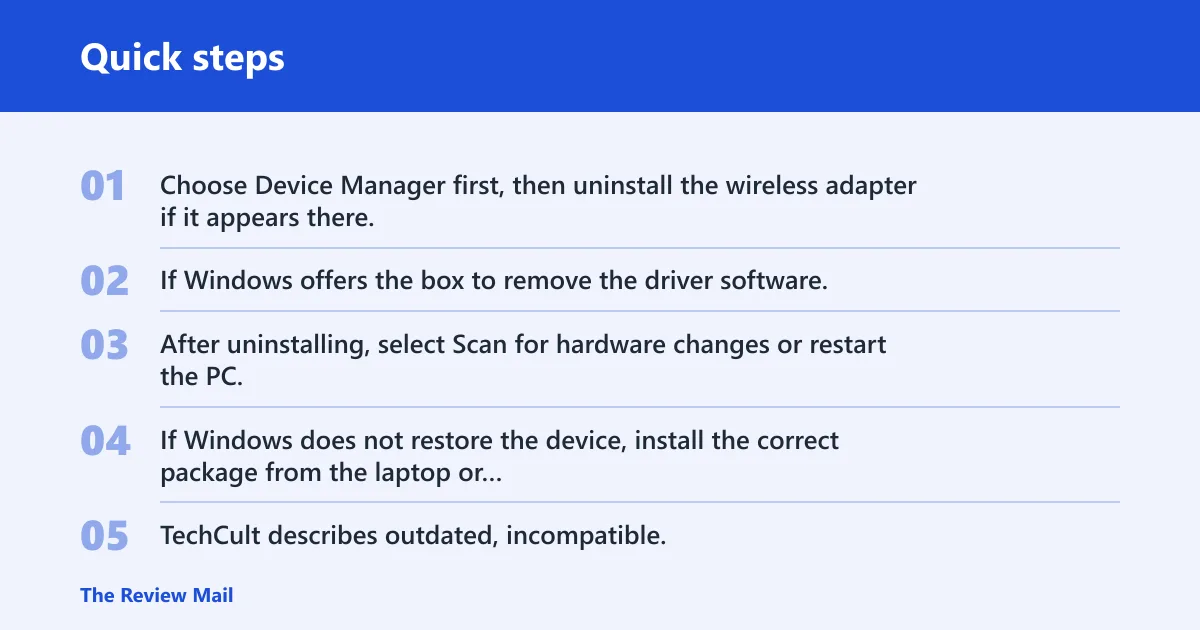
Choose Device Manager first, then uninstall the wireless adapter if it appears there. If Windows offers the box to remove the driver software, use it when the driver is clearly corrupted or incompatible; leave it in place when you want Windows to retry the same package on the next scan.
After uninstalling, select Scan for hardware changes or restart the PC. If Windows does not restore the device, install the correct package from the laptop or motherboard maker rather than trusting Windows Update as the first choice.
Pick the right driver source
TechCult describes outdated, incompatible, or corrupted drivers as a main cause of this problem. That fits the common case where the adapter disappears after an update or wakes up with no Wi‑Fi icon. Driver Easy also notes the symptom on both Windows 10 and Windows 11, so the operating system alone does not rule out a driver issue.
For laptops and systems with custom Wi‑Fi modules, use the OEM driver page first. Windows Update is a fallback when the vendor package is unavailable or the adapter only needs a standard inbox driver. Also check Windows 10 and Windows 11 compatibility before installing a package built for a different release.
Wi-Fi adapter triage table
Use this table to stop after the first fix that matches your case. If the symptom already points to one layer, do not run every repair in order.
| Symptom pattern | Likely cause | Next best fix |
|---|---|---|
| Wi‑Fi icon missing | Service stopped, adapter disabled, or driver failed to load | Check WLAN AutoConfig, then Device Manager |
| Adapter absent from Device Manager | Driver not loading, BIOS/UEFI disablement, or hardware fault | Show hidden devices, then scan for hardware changes |
| Adapter hidden | Windows is hiding the device from the normal view | Enable Show hidden devices and inspect Network adapters |
| Adapter disabled | Manual disable, power saving, or a wake issue | Enable the adapter and review power management |
| Adapter returns after reboot only | Fast startup, battery saving, or unstable driver | Update the driver and disable device power saving |
| No change after driver reinstall | Firmware block or failed Wi‑Fi card | Check BIOS/UEFI and treat repeated failure as hardware |
Say your laptop shows a Wi‑Fi icon after a restart but loses it again after sleep. That pattern points more toward power management or fast startup than a dead card. A different branch applies if the adapter never appears in Device Manager at all.
Should you reset network settings?
Use a reset only after targeted repairs fail. netsh winsock reset can clear socket-layer corruption from an elevated Command Prompt, but it does not fix a missing adapter by itself. Network reset is broader and restores network settings to default, which can remove VPNs, stored Wi‑Fi profiles, and some custom settings.
Use Winsock reset first when the adapter still exists
Open Command Prompt as administrator and run netsh winsock reset. Some repair guides also pair it with netsh int ip reset, and TechCult lists ipconfig /release followed by ipconfig /renew as part of its repair sequence. Restart afterward, because the change does not fully take effect until Windows reloads the network stack.
Use Network reset when several network parts are broken
freeCodeCamp notes that Windows 10 includes a built-in network reset tool. Use it when Wi‑Fi, Ethernet, VPN, or name resolution all behave badly together, not when only the adapter is missing. Reinstall VPN apps and re-enter Wi‑Fi passwords after the reset, because saved profiles are removed.
Check firmware and power settings
If the adapter still does not appear after software repairs, move to firmware and power. A wireless card can be disabled in BIOS/UEFI, and Windows cannot bring it back if the firmware has turned it off. On laptops, battery-saving behavior can also shut the device down too aggressively.
Confirm the adapter is enabled in BIOS or UEFI
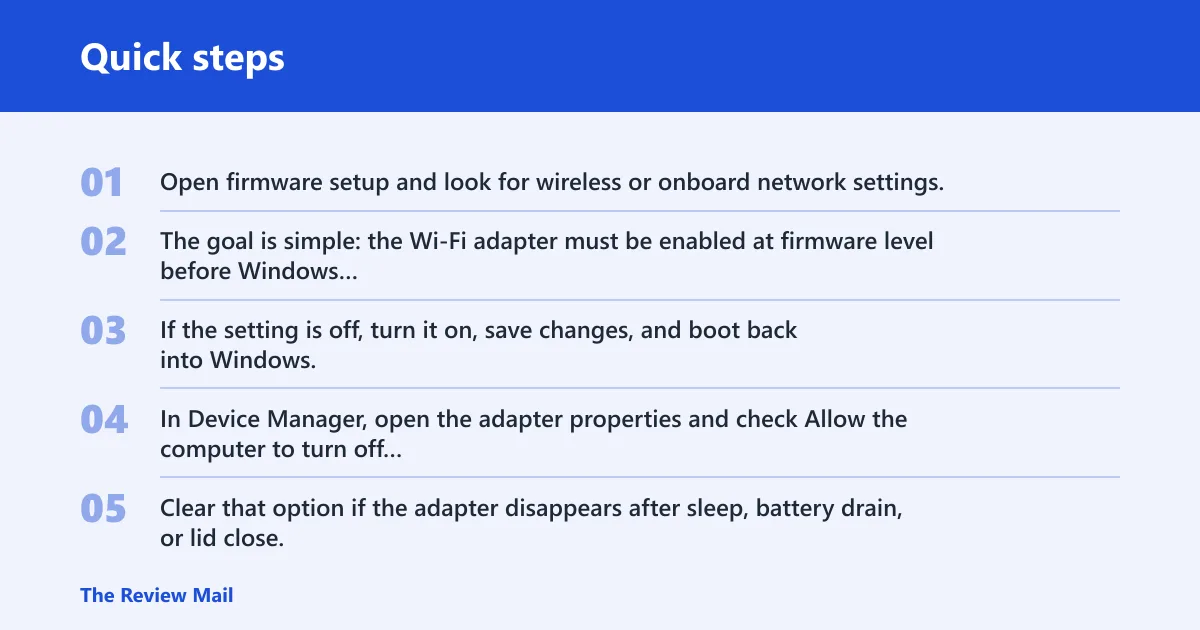
Open firmware setup and look for wireless or onboard network settings. The goal is simple: the Wi‑Fi adapter must be enabled at firmware level before Windows can detect it. If the setting is off, turn it on, save changes, and boot back into Windows.
Review power management on the adapter
In Device Manager, open the adapter properties and check Allow the computer to turn off this device to save power. Clear that option if the adapter disappears after sleep, battery drain, or lid close, since power management can sometimes cause that behavior. Also review fast startup, because it can preserve a broken device state across a restart.
Use a hard power reset when the device seems stuck
Driver Easy recommends a hard power reset lasting 30 to 60 seconds. That can clear a stuck embedded controller or radio state, especially on laptops. For desktops, a full power-off and unplug cycle can help separate a Windows problem from a stuck motherboard or add-in card state.
Suppose a desktop with a PCIe Wi‑Fi card loses the adapter after a thunderstorm but the Ethernet port still works. If Device Manager never shows the wireless card again, the odds move away from Windows settings and toward the card, slot, or internal connection. At that point, more software resets are low-value.
How do I tell if the problem is software or hardware?
Use the same symptom twice before you call it hardware. If the adapter appears after a driver reinstall, service restart, or power reset, the problem was software. If it still does not appear after hidden devices, hardware scans, firmware checks, and a correct OEM driver, treat the Wi‑Fi card or internal link as the likely fault.
Read the failure pattern carefully
- Software more likely: adapter appears after restart, driver reinstall, or WLAN AutoConfig restart.
- Hardware more likely: no adapter in Device Manager, no change after driver reinstall, and no effect from BIOS/UEFI checks.
- Firmware more likely: the adapter vanishes until a BIOS/UEFI setting is corrected.
TechCult’s command sequence includes wireless stack repairs, but those only help if Windows can still talk to the device. If the adapter never shows up again after reinstalling the driver and scanning for hardware changes, the hardware branch wins.
Frequently asked questions
Why did my Wi-Fi adapter disappear from Device Manager?
Outdated, incompatible, or corrupted drivers are a common cause, but power management and firmware settings can also hide the device. If the adapter is absent even after a scan, Windows may not be loading it at all, which is why driver and BIOS checks come next.
How do I reinstall a wireless network adapter on Windows 10?
Open Device Manager, find the wireless adapter, and uninstall it. If the driver looks damaged, remove the driver software too. Restart or scan for hardware changes, then install the latest OEM package or a compatible Windows 10 driver if the vendor provides one.
What if there is no Wi-Fi option in Windows 10 settings?
That usually means Windows is not discovering the adapter or WLAN AutoConfig is stopped. Check Device Manager first, then restart the service in services.msc. If the adapter still does not appear, move to driver recovery and firmware settings instead of searching the Settings app.
Should I use network reset or Device Manager first?
Use Device Manager first, because it tells you whether the adapter is hidden, disabled, or missing. Network reset is broader and more destructive; it can remove VPNs and stored Wi‑Fi profiles. Save it for when targeted fixes fail or several network components are broken.
Can a driver update make a Wi-Fi adapter reappear?
Yes. A correct driver can restore the adapter if the current package is corrupted, outdated, or incompatible with Windows 10. Use the manufacturer’s driver page first on laptops and systems with custom modules. If the adapter still does not return, the problem may be firmware or hardware.