Wifi Connected but No Internet Problem
Check the failure layer in this order: router, ISP, DNS, DHCP, then Wi‑Fi adapter. Only reset Windows after you find the broken layer. Skipping that order wastes time and can wipe useful settings before you fix the real fault. This guide covers Windows 10 and 11 with a decision tree of checks and fixes for each layer.
Connected but no internet: 6-minute decision matrix is the to use first: one quick split between “one device only” and “every device,” then the shortest fix that matches the fault. If the matrix points upstream, stop troubleshooting the PC and move to the router, modem, or ISP.
Why Wi‑Fi can connect with no internet
A Windows PC can show full signal bars and still fail to reach websites because the local Wi‑Fi link and the internet path are different layers. The device may be connected to the router, yet the router’s WAN path, DNS, DHCP lease, or adapter settings can still be broken.
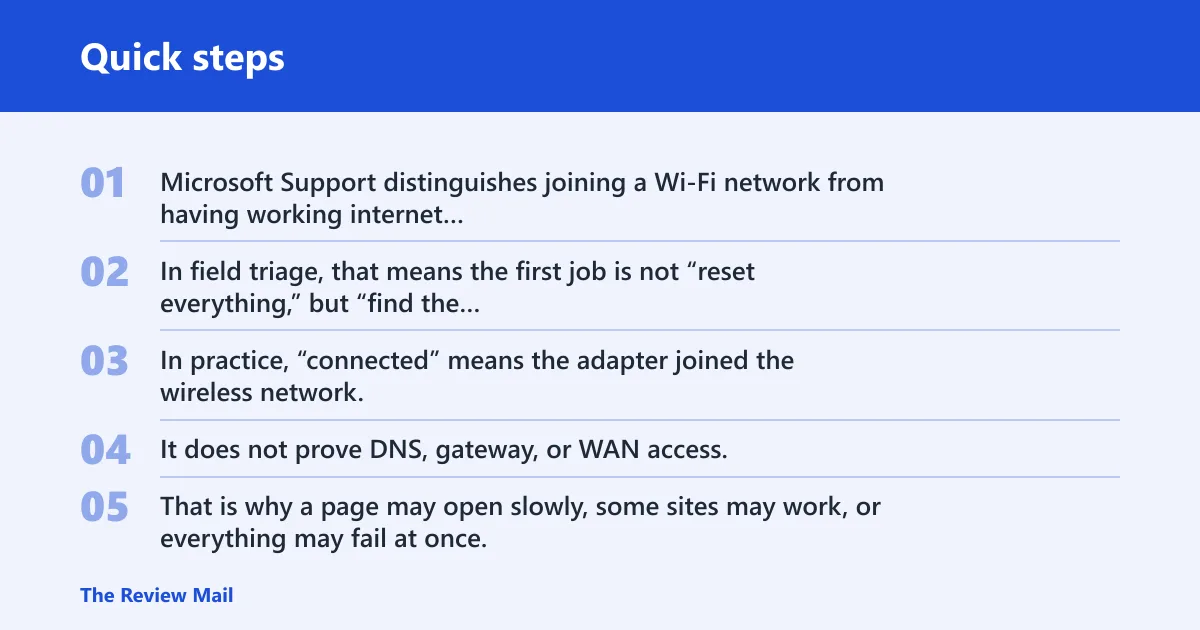
Microsoft Support distinguishes joining a Wi‑Fi network from having working internet access, and Windows command behavior also reflects that split: a network adapter can be connected even when name resolution or the gateway path is not healthy. In field triage, that means the first job is not “reset everything,” but “find the broken layer.”
What “connected” means in Windows
Windows 10 and Windows 11 let you connect from the taskbar quick settings, so the system may report a valid wireless connection even when the internet side is down. In practice, “connected” means the adapter joined the wireless network. It does not prove DNS, gateway, or WAN access.
That is why a page may open slowly, some sites may work, or everything may fail at once. Those symptoms point to different layers. If one site loads and another times out, DNS is often the better suspect than Wi‑Fi itself.
Windows 10 and Windows 11 support connecting to Wi‑Fi from the taskbar quick settings, and Microsoft’s support guidance also treats refreshing the available network list as a normal step before deeper repairs. Source: Microsoft Support.
Is it one device or every device?
Check whether the failure affects only one Windows PC or every device on the same network. One device only points first to Windows settings, the saved Wi‑Fi profile, the adapter, VPN software, or private MAC randomization. Every device offline points first to the router, modem or ONT, or the ISP.
The fastest split is simple: test another phone, tablet, or laptop on the same Wi‑Fi. That one check prevents wasted resets on the wrong device. If all devices fail, stop chasing the PC.
One device only points to Windows, profile, or adapter issues
Suppose a desktop connects to Wi‑Fi but no browser loads, while a nearby phone opens pages normally. That points away from the ISP and toward the desktop itself. Focus on the saved profile, VPN kill-switch settings, adapter properties, and DNS or DHCP on that machine.
Every device points to router, modem, or ISP failure
If every device on the network loses internet at the same time, the problem is usually upstream of Windows. Check the modem, ONT, or cable box first, then the router WAN light. Light colors vary by manufacturer, so do not treat white, green, amber, orange, red, or blinking patterns as universal; use the router or modem vendor’s own LED legend for that model.
What to check on a phone, laptop, or tablet
Use a second device on the same Wi‑Fi, with mobile data turned off on the phone. Open a webpage on that device without switching networks. If it also fails, the problem is not limited to Windows, and you can rule out the PC as the only fault.
Router and modem lights
Router and modem lights tell you whether the failure is local or upstream. A solid white or green WAN light is usually the sign you want, but manufacturers do not standardize colors. Check the vendor manual for the exact meaning of each LED on that router or modem model.
Do not ignore the modem side. Many modems and ONTs have their own online, PON, or cable indicators. If those lights are off, blinking in an error pattern, or red, the ISP path may be broken before the router even gets a chance.
- Router WAN or Internet light solid white or green: the upstream link is usually up.
- Amber, orange, red, or dark WAN light: the router is likely not reaching the modem, ONT, or ISP.
- Modem online, PON, or cable light off or red: stop and escalate to the ISP.
- Multiple devices offline at once: treat it as a network-wide failure, not a Windows-only fault.
Check cables before anything else here. The Ethernet cable between modem and router should be seated firmly. If the modem has a coax or fiber handoff, make sure that side is intact too. A loose upstream cable can look exactly like an ISP outage.
Connected devices decision matrix
| Symptom | Most likely layer | One verification step | Least-destructive fix | Stop and escalate |
|---|---|---|---|---|
| Only one Windows PC fails; other devices work | Adapter, profile, VPN, DNS, DHCP | Try another device on the same Wi‑Fi | Forget the Wi‑Fi profile, reconnect, then flush DNS | No |
| Every device on the Wi‑Fi fails at once | Router, modem, ISP | Check the WAN or Internet light | Power-cycle modem and router in order | Yes, if the WAN light stays amber, red, or dark |
| Connected but only some websites fail | DNS | Open two unrelated sites, then test by name and by IP if possible | Change IPv4 DNS to 8.8.8.8 and 8.8.4.4 | No |
| Connected, no browser traffic, and address starts with 169.254 | DHCP | Check the adapter’s IPv4 details for a default gateway | Reconnect to Wi‑Fi and renew the lease | No |
| Wi‑Fi connects after reset but fails again after reboot | Adapter or VPN | Disable VPN and check randomized hardware address | Turn off the VPN kill-switch and test again | No |
| All devices offline and modem lights are red or dark | ISP or modem/ONT | Check whether the modem shows online or PON status | Call the ISP | Yes |
Windows checks before you reset
Work through Windows-specific checks before you wipe network settings. The saved Wi‑Fi profile can be corrupted, VPN software can block traffic, and captive portal sign-in can stall on hotel, office, or apartment networks. Those are small fixes compared with a full network reset.
- Forget the Wi‑Fi profile. Open Wi‑Fi settings, choose the network, select Forget, then join it again and re-enter the password.
- Refresh the list. Microsoft says you can refresh the Wi‑Fi list by selecting Refresh network list.
- Run Windows Network Troubleshooter. Use the built-in diagnostics path in Settings to check for adapter and connection faults.
- Turn off VPN software. Some VPNs include a kill-switch that blocks traffic when the tunnel drops.
- Check captive portal sign-in. Some networks connect at layer 2 but still need a web sign-in before traffic flows.
- Review private MAC or randomized hardware address settings. A changed hardware address can confuse some networks, especially those using device reservations.
Windows can also show saved Wi‑Fi passwords under Network & internet > Properties, which helps if the key was changed elsewhere and the profile did not update cleanly. If the profile itself is the problem, forgetting it is safer than changing deeper settings first.
DNS and DHCP fixes in Windows
DNS and DHCP often get mixed together, but they fail in different ways. DNS turns names into addresses. DHCP hands out the IP address, gateway, and related network settings. If the PC has no valid gateway or gets a self-assigned address, DNS alone will not fix it.

Use DNS only when the PC is connected and the problem looks like site lookup rather than total network failure. Microsoft’s command-line troubleshooting guidance supports clearing the resolver cache with ipconfig /flushdns when stale name data is suspected, while changing DNS servers is a standard network property change rather than a repair for a dead gateway.
Flush the DNS cache first
Open Command Prompt as an administrator and run:
ipconfig /flushdns
This clears stale name records. If browser errors shift from “site cannot be reached” to normal loading, DNS was the likely bottleneck.
Switch to manual DNS in IPv4 or IPv6
Open the adapter’s properties, then edit TCP/IPv4 or TCP/IPv6 settings. For IPv4, set the DNS servers manually to 8.8.8.8 and 8.8.4.4. Leave the default gateway and IP assignment alone unless you know the DHCP lease is broken.
If only some sites fail, manual DNS is a reasonable test. If nothing on the network works and the PC has no valid gateway, skip DNS changes and go straight to DHCP and router checks.
Confirm the default gateway and DHCP lease
Open the Wi‑Fi adapter status and review the IPv4 details. A valid network should show an IP address, subnet, gateway, and DNS values. If the gateway is missing or the address looks self-assigned, the lease is the problem, not DNS.
Restarting the router can renew leases for multiple devices at once. On Windows, disconnecting and reconnecting the Wi‑Fi profile may be enough to pull a clean lease again.
Should you reset network settings yet?
Use Windows reset tools only after you have checked the router, modem, DNS, DHCP, VPN, and the saved Wi‑Fi profile. A reset can help when the TCP/IP stack or Winsock catalog is damaged, but it is not the right first move for every “connected but no internet” case.
Use netsh only after earlier checks
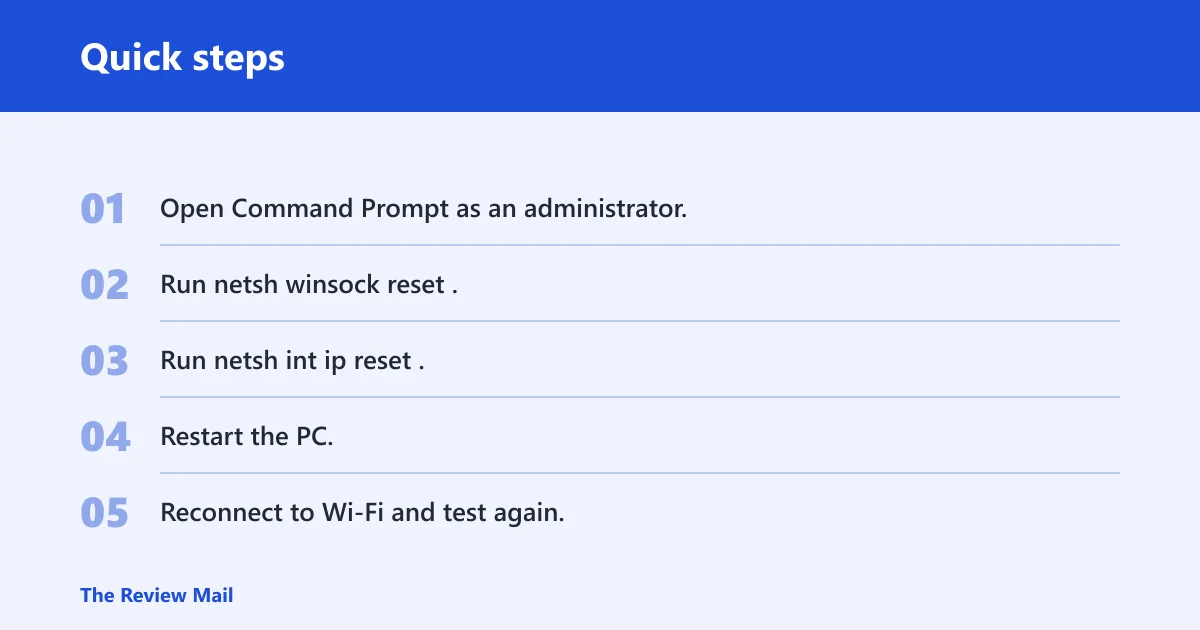
The Windows command-line network repair commands netsh winsock reset and netsh int ip reset are appropriate when Winsock or IP stack corruption is more likely than a bad password or dead WAN link. They require a restart. Use them after the simpler checks fail.
- Open Command Prompt as an administrator.
- Run
netsh winsock reset. - Run
netsh int ip reset. - Restart the PC.
- Reconnect to Wi‑Fi and test again.
When Windows network reset is worth it
Windows 10 and Windows 11 commonly include Network reset in Settings. Use it when the adapter behaves strangely across multiple networks, or when the system keeps losing a valid lease after the simpler repairs. It is heavier than flushing DNS or forgetting the profile.
If the issue is only one bad network, do not jump straight to Network reset. That can wipe useful saved settings and still leave the real problem untouched if the router, modem, or ISP is the fault.
What to do after the restart
After the restart, reconnect to the Wi‑Fi network and test two different sites. If the PC still cannot reach the internet while other devices work, the adapter or Windows network settings remain the likely fault. If every device still fails, return to the modem and ISP path.
Picture a laptop on a home network where the Wi‑Fi icon shows connected, the signal bars are full, and only one browser tab fails. In that case, changing DNS or checking the VPN makes sense. A full network reset would be a later step, not the first one.
Frequently asked questions
How to fix wifi connected but no internet access on windows 11
Start with the layer check: see whether other devices can reach the internet, then inspect the router WAN light and modem status. If only the Windows 11 PC fails, forget the Wi‑Fi profile, disable VPN software, flush DNS, and check TCP/IPv4 settings before using Network reset.
How do I know if the problem is my router, modem, isp, or my pc?
Use the device split. If all devices on the same Wi‑Fi are offline, look at the router, modem, or ISP. If only one Windows PC fails, focus on that device’s profile, adapter, VPN, DNS, or DHCP. Router lights and modem indicators usually settle the question quickly.
Should I reset network settings or flush dns for this problem?
Flush DNS first if the connection exists but some sites will not load. Reset network settings later, after you have checked the router, modem, DHCP lease, VPN, and saved Wi‑Fi profile. DNS is a naming fix. Network reset is a broader repair and should not be the first move.
How do I fix wifi connected but no internet on one device only?
When one device fails and others work, forget the Wi‑Fi network, reconnect, and check for VPN kill-switch behavior or private MAC randomization. Then flush DNS and review TCP/IPv4 properties. If the adapter still cannot obtain a valid gateway, use the Windows troubleshooter or reset the TCP/IP stack.
Why wifi shows connected but no internet access
Because the local wireless link can be healthy while the internet path is broken. The PC may be joined to the router, but the router may have no WAN access, bad DNS, a failed DHCP lease, or a blocked adapter. Full signal bars only prove the local radio link.