Fix Wi-Fi Speed Issues in Windows 11: What to Check
Fix Wi‑Fi speed issues in Windows 11 by matching the symptom to the cause: if only one PC is slow, fix the adapter or Windows setting; if every device is slow, check the router or ISP first. Picking the wrong layer wastes time and leaves the real fault untouched. This guide shows how to isolate the problem and apply the smallest fix that fits.
What your Wi-Fi symptom means
If you can open some sites but pages load slowly, the problem is usually throughput. If browsing works but calls, gaming, or remote desktop feel laggy, that points to high ping. If the connection vanishes and returns, think adapter behavior, saved profile corruption, or router handoff. If nothing reaches the internet at all, start with Airplane mode and connection status.
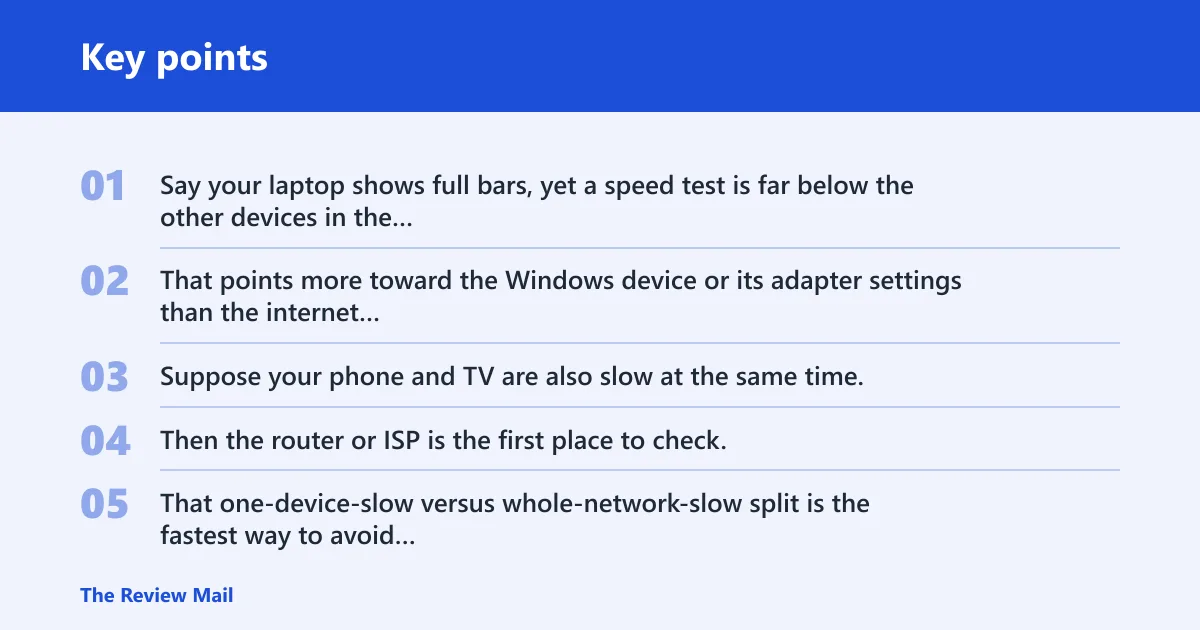
Say your laptop shows full bars, yet a speed test is far below the other devices in the house. That points more toward the Windows device or its adapter settings than the internet line itself. Suppose your phone and TV are also slow at the same time. Then the router or ISP is the first place to check. That one-device-slow versus whole-network-slow split is the fastest way to avoid changing the wrong setting.
Microsoft’s built-in network troubleshooting and recovery steps apply to both Windows 10 and Windows 11. See Microsoft’s Wi‑Fi connection issues guide and the related Network and Internet troubleshooter.
Wi-Fi speed decision table
Use the symptom first. Then test the right layer before you change settings that do nothing for the real fault.
| Symptom | Most likely layer | First test to run | First Windows 11 setting to check |
|---|---|---|---|
| Slow speed | Windows setting, adapter, or background bandwidth use | Run a speed test on this PC and compare it with another device on the same Wi‑Fi | Metered connection, then Delivery Optimization |
| High ping | Wi‑Fi link quality or DNS delay | Open a site and note whether pages load slowly after the connection is established | DNS server settings |
| Frequent drops | Adapter power saving, roaming behavior, or saved profile corruption | Watch whether the SSID disappears or reconnects by itself | Wi‑Fi adapter power management |
| No internet | Airplane mode, bad handshake, or router/modem issue | Check whether Wi‑Fi is on and whether the network shows connected without internet | Airplane mode |
Why is Windows 11 Wi-Fi slow?
slow Wi‑Fi on one Windows 11 PC usually comes from a local setting, a driver issue, or background traffic on the device, not from the internet line itself. Start with the Network and Internet troubleshooter, then check Metered connection and Delivery Optimization, and only after that change DNS if pages still feel sluggish. Microsoft’s guidance covers the built-in repair flow and the Windows network settings that are most likely to affect one device more than the rest of the network.
Run the Network and Internet troubleshooter first
- Open Settings > System > Troubleshoot > Other troubleshooters.
- Select Network and Internet and run it.
- Or open the Get Help app and start the Network and Internet troubleshooter.
- Follow the prompts and retry the same site or speed test after it finishes.
Microsoft says this built-in diagnostic runs tests and tries common repairs automatically, so it belongs at the top of the Windows 11 Wi‑Fi checklist. It is especially useful when the issue appeared after a sleep cycle, a Windows update, or a router reboot because those events often change the connection state without changing the ISP line itself.
Check metered connection and Delivery Optimization
- Open Settings > Network & internet > Wi‑Fi.
- Select your connected network.
- Turn Metered connection off if it is on.
- Go to Settings > Windows Update > Advanced options > Delivery Optimization.
- Turn off downloads from other PCs if background sharing is using bandwidth.
A metered connection can make traffic feel capped, and Delivery Optimization can use bandwidth in the background while you are trying to browse or stream. Those changes matter most when speed is poor on one PC but not on the rest of the network.
Change DNS server settings if pages still load slowly
- Open Settings > Network & internet > Wi‑Fi > Hardware properties.
- Choose DNS server assignment and edit it.
- Set IPv4 manually.
- Enter 8.8.8.8 as preferred DNS and 8.8.4.4 as alternate DNS.
- Save, then reload a few pages.
DNS can reduce name-resolution delay, so it may help when pages pause before they begin loading, but it does not increase raw throughput on a weak Wi‑Fi link or a congested ISP line. Before changing it, record the original DNS settings so you can restore them if the new values do not improve anything. If the slowdown is mostly page-start delay, test DNS as a follow-up rather than as the default first fix.
Is your adapter causing the slowdown?
If only one Windows 11 device is slow, the Wi‑Fi adapter keeps disconnecting pattern is a strong suspect. Driver problems can affect speed, stability, and roaming, and a generic Windows driver may not behave as well as the manufacturer’s driver for that chipset. Intel and Realtek adapters are especially likely to expose extra roaming, power, or band-preference options in the vendor package, while Windows’ generic driver may hide those controls. Power settings can also throttle the radio before the connection ever leaves the laptop.
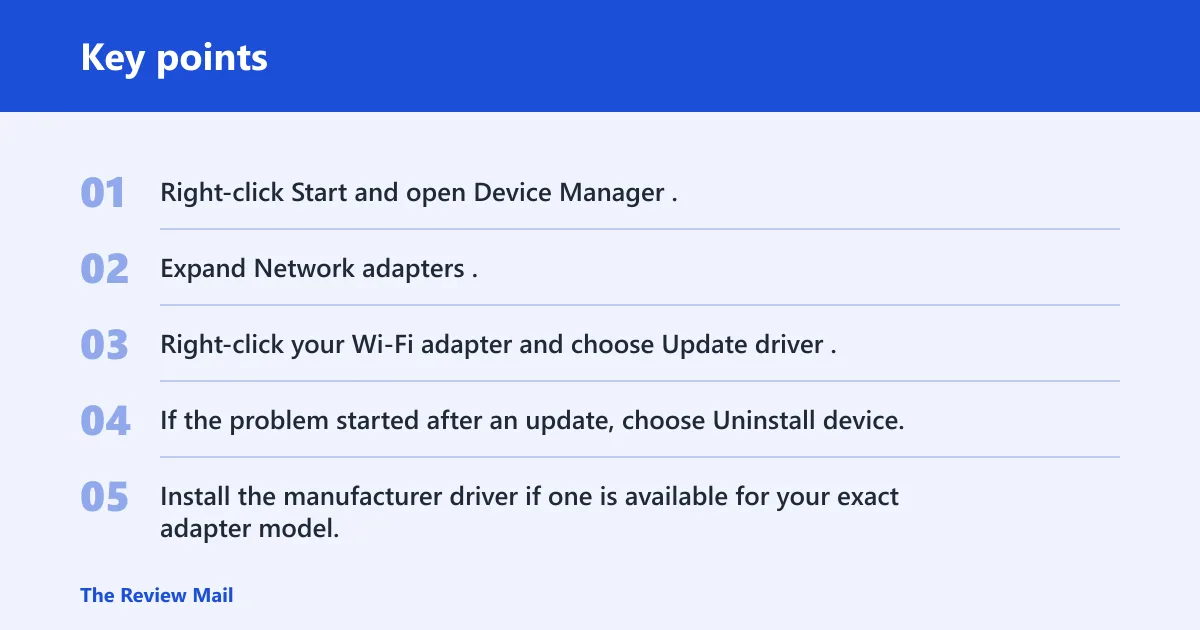
Update or reinstall the Wi-Fi adapter driver
- Right-click Start and open Device Manager.
- Expand Network adapters.
- Right-click your Wi‑Fi adapter and choose Update driver.
- If the problem started after an update, choose Uninstall device, then scan for hardware changes.
- Install the manufacturer driver if one is available for your exact adapter model.
Windows links slow Wi‑Fi after updates to driver faults and temporary glitches, which is why a reinstall is worth trying before deeper changes. Use the manufacturer package when it exists, especially if Windows installed a basic generic driver from Microsoft instead of the adapter maker’s tuned package. For adapter-specific behavior, Microsoft’s Wi‑Fi troubleshooting guidance and the vendor’s own driver notes are the most useful references.
Check adapter power management settings
- In Device Manager, open the Wi‑Fi adapter Properties.
- On the Power Management tab, clear Allow the computer to turn off this device to save power.
- Open Control Panel > Power Options > Change plan settings > Change advanced power settings.
- Expand Wireless Adapter Settings > Power Saving Mode.
- Set it to Maximum Performance.
That combination matters when the connection slows after sleep, battery changes, or a few minutes of idle time. It also helps when roaming between access points becomes sluggish or unstable.
Why does Wi-Fi keep dropping?
frequent Wi‑Fi disconnects usually point to a bad saved profile, adapter power saving, or a router that needs a restart. If the link keeps dropping on one device but other devices stay connected, forget the network, reconnect, and then review the adapter’s roaming and power settings before you touch anything else. That order matches the usual Windows pattern: profile first, adapter second, router third.
Forget the saved network and reconnect
- Open Settings > Network & internet > Wi‑Fi > Manage known networks.
- Select the problem network.
- Choose Forget.
- Reconnect from the Wi‑Fi list and enter the password again.
Microsoft recommends forgetting the network and reconnecting when the profile may be corrupted. This can clear a saved authentication problem without changing the router or the adapter.
Restart the PC and router
- Shut down the PC, then turn off the modem and router.
- Wait at least 30 seconds.
- Power on the modem first, then the router.
- Start the PC again and retest the connection.
This clears local handshake problems and some ISP-side session faults. It is the right next step when multiple devices drop or when the PC reconnects but keeps losing the link a few minutes later.
Check roaming and band selection
- Open Device Manager > Network adapters > your Wi‑Fi adapter > Properties.
- Look for adapter options such as roaming aggressiveness or preferred band, if available from the driver.
- Reduce aggressive roaming if the device keeps switching access points too often.
- Try the other Wi‑Fi band if your router offers both 2.4 GHz and 5 GHz.
Microsoft suggests trying a different Wi‑Fi frequency band. A crowded 2.4 GHz channel or a mesh handoff problem will not be fixed by DNS or Delivery Optimization, so do not spend time there first.
No internet in Windows 11
No internet usually means the device is not actually reaching the network, even if the Wi‑Fi icon looks connected. Start with Airplane mode, then check the connection status and the router or modem. Microsoft includes Airplane mode as a general troubleshooting step, and it is the fastest no-internet check on Windows 11.
Turn off Airplane mode
- Open Settings > Network & internet.
- Confirm Airplane mode is off.
- Turn Wi‑Fi off and back on if needed.
- Reconnect to the network and reload a site.
This sounds basic, but it is still one of the most common reasons a PC shows no internet at all. If Airplane mode is on, nothing else in the Wi‑Fi stack matters yet.
Confirm the router and modem are back online
- Check whether the router and modem lights show normal internet status.
- Restart both devices if the status light is abnormal.
- Try a second device on the same network.
- If other devices also fail, contact the ISP.
If every device is offline, Windows settings will not fix an upstream outage or an ISP cap. The fault is outside the laptop at that point.
Network reset when nothing else works
Use Network reset only after the faster fixes fail. It rebuilds the Windows networking stack, but it also removes saved Wi‑Fi networks and paired Bluetooth devices, so plan to reconnect both afterward. Before you reset, note your current Wi‑Fi profile details and any custom DNS entries so you can roll back if the reset does not help.
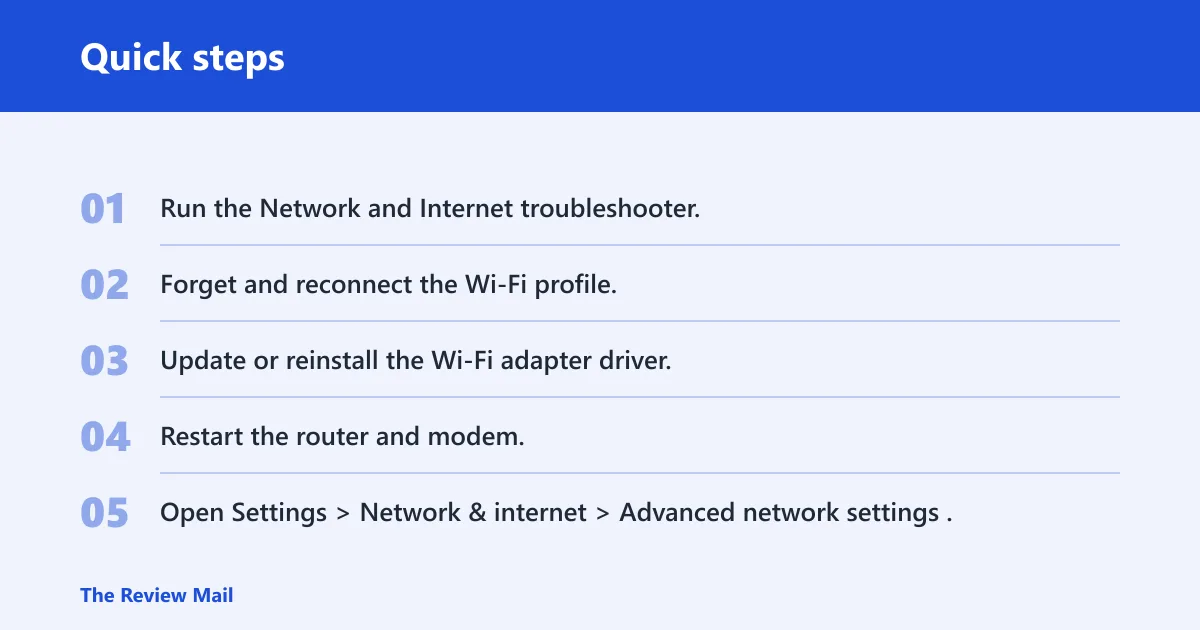
What to try before you reset
- Run the Network and Internet troubleshooter.
- Forget and reconnect the Wi‑Fi profile.
- Update or reinstall the Wi‑Fi adapter driver.
- Restart the router and modem.
Run Network reset
- Open Settings > Network & internet > Advanced network settings.
- Select Network reset.
- Confirm the reset and let Windows restart the network components.
- Reconnect to Wi‑Fi, then pair Bluetooth devices again if needed.
If you want a command-line cleanup in the same troubleshooting lane, use it only after Network reset or when Microsoft support asks for it. Expected outcome: the Windows networking stack and DNS cache are refreshed, and the adapter gets a clean handshake after reboot. Rollback note: record original DNS settings before changing them, and be ready to restore them if the page-load delay does not improve.
ipconfig /releaseipconfig /flushdnsipconfig /renewnetsh winsock resetnetsh int ip reset
If that didn’t work, try this next
If the problem survives Network reset, the bottleneck is likely outside Windows. Test the same network band on another device, check whether the router firmware or ISP line is the source, and contact the router maker or ISP if the issue appears on more than one device.
A common first-timer mistake is resetting Windows before checking the router. Suppose a desktop on Wi‑Fi keeps dropping while a phone stays connected and fast. In that case, the adapter or saved profile is the stronger lead. If both devices fail at the same time, the router or ISP moves to the top of the list. A quick post-sleep/update/router-reboot checklist is: confirm Airplane mode is off, retest the same SSID, compare one-device vs whole-network behavior, and note whether the issue returns only after the PC wakes, after Windows updates, or after the router has been online for a while.
Frequently asked questions
Why is my wifi so slow on windows 11?
Slow Wi‑Fi on one Windows 11 PC usually points to a local cause such as the driver, Metered connection, Delivery Optimization, or DNS. Slow Wi‑Fi on every device usually points to the router, the mesh setup, crowded channels, or an ISP limit instead.
Why does wifi keep disconnecting on windows 11?
Keep-disconnecting problems often come from adapter power saving, a corrupted saved profile, or a router handshake issue. Forget the network in Manage known networks, turn off adapter power saving, and restart the modem and router with a 30-second wait if the drops continue.