Internet Blocking and Firewall: Fixes That Actually Work
Start with one check: if every site fails, the firewall or network profile is the likely problem; if only one app fails, allow that app; if only one website fails, fix the browser, DNS, or a site-specific block. Guessing wrong can leave Windows offline, expose a managed PC to risky changes, or waste time on the wrong setting. This guide walks you through the decision tree and the least risky fix for each case.
What firewall blocking looks like
Windows Defender Firewall filters network traffic and can allow or restrict connections by IP address, port, or application path. That means the symptom matters. A full loss of internet access points to a different path than a single browser failure, and a single site failure often points away from the firewall entirely. Microsoft documents these controls in Firewall & network protection.
Whole-device blockage
If every app fails at once, the issue is broader than one rule. Start with the network profile, then run the Internet Connections troubleshooter before you change firewall settings. A simple allow-app exception usually does not restore full browsing for the whole device.
One app or one browser
If only one browser or desktop app fails, check whether Windows has an exception for that specific executable path. The problem may also sit outside Windows Firewall, such as proxy settings, certificate filtering, browser privacy controls, or a third-party security product.
One website only
If only one site fails, do not assume Windows Defender Firewall is the cause. DNS, proxy settings, browser privacy settings, certificate checks, or the site itself are often more likely. Firewall rules can block specific destinations, but that is not the first explanation for a single-site failure.
How to confirm the cause safely
The safest order is simple: open the firewall page, read the active profile, run the Internet Connections troubleshooter, then use a brief on/off test only if you still need a quick confirmation. That order avoids changing rules before you know whether the failure is device-wide, app-specific, or site-specific. Microsoft’s Windows Security page shows where to find these controls, including Firewall & network protection and profile-specific settings. (Microsoft Support)
Open Firewall & network protection
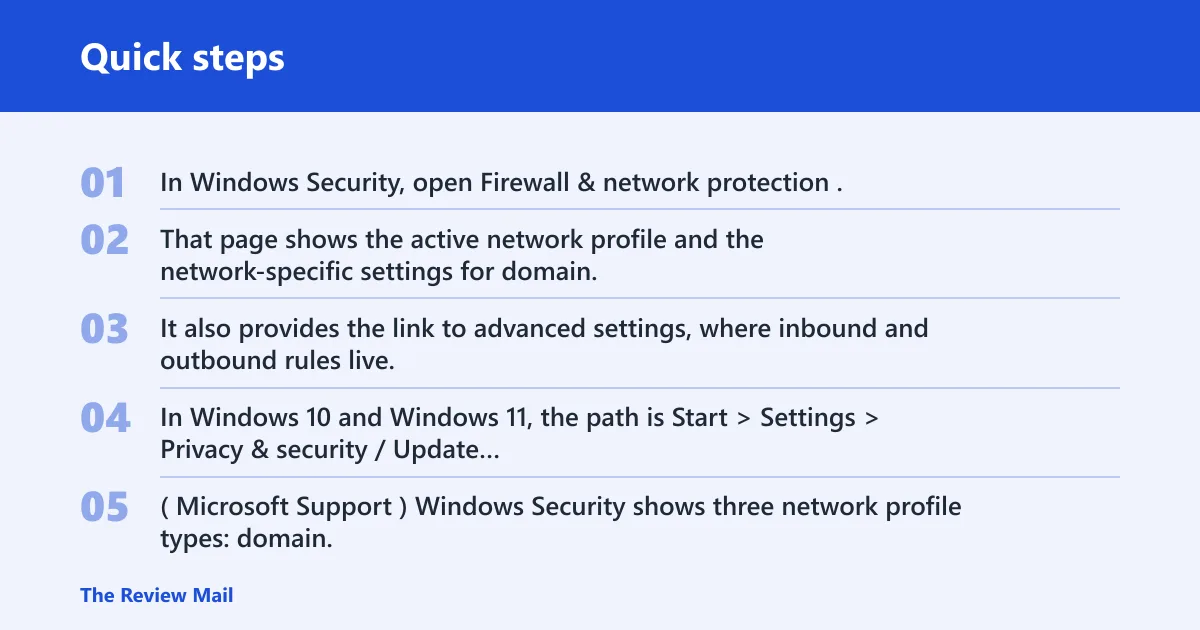
In Windows Security, open Firewall & network protection. That page shows the active network profile and the network-specific settings for domain, private, and public networks. It also provides the link to advanced settings, where inbound and outbound rules live. In Windows 10 and Windows 11, the path is Start > Settings > Privacy & security / Update & Security > Windows Security > Open Windows Security > Firewall & network protection. (Microsoft Support)
Check the active network profile
Windows Security shows three network profile types: domain, private, and public. A private network is treated as more trusted than a public network, while a domain network usually follows organization policy. The active profile matters because a rule may exist for one profile and not another. Microsoft documents these profile types in its Firewall & network protection guidance.
Use windows network troubleshooter first
Run the Internet Connections troubleshooter before you change firewall settings. Microsoft’s built-in automatic diagnosis can fix general connectivity problems that are not caused by firewall rules at all. That is the least risky first move when every site fails or the browser cannot reach anything.
Briefly test the firewall on/off switch
Use the On or Off control in Microsoft Defender Firewall only as a short diagnostic. If the internet works with the firewall off, the firewall is involved somewhere. Turn protection back on after the test, then use the symptom you saw to choose the right fix. Microsoft documents this control in its Windows Security firewall guidance. (Microsoft Support)
Say your laptop can reach email and chat, but Chrome times out on every page. That points to a browser-specific block, a bad proxy setting, or a security product that filters that browser, not a blanket internet outage. The next step is the browser path, not a full firewall reset.
Firewall blocking matrix
This table separates the most common symptom patterns from the safest next step. Use it before you change any setting. The goal is to avoid broad resets when a smaller fix will do.
| Symptom pattern | Likely firewall cause | Safest next step | Do not change |
|---|---|---|---|
| All internet blocked | Profile mismatch, broad rule conflict, or a broader network issue | Run Internet Connections troubleshooter, then check the active network profile and firewall state | Do not add random app exceptions; they rarely fix whole-device loss |
| One browser blocked | Specific executable path, profile checkbox mismatch, or third-party security filter | Allow that browser through the firewall for the correct profile, then retest | Do not turn off the firewall for the whole device just to test one browser |
| One website blocked | Usually DNS, proxy, browser privacy settings, certificate filtering, or site-side blocking | Check the browser, DNS, and proxy settings first; only then review firewall rules | Do not assume a firewall rule is the cause without checking other network layers |
| Corporate-managed PC | Organization policy may reapply firewall settings after a change | Check whether the device is managed before changing settings; ask IT for the approved fix | Do not reset firewall settings if policy enforcement is active |
| Third-party antivirus conflict | Vendor firewall or web filter conflicts with Windows Defender Firewall | Review the security suite’s firewall and web protection settings, then retest | Do not keep stacking resets in Windows before checking the other product |
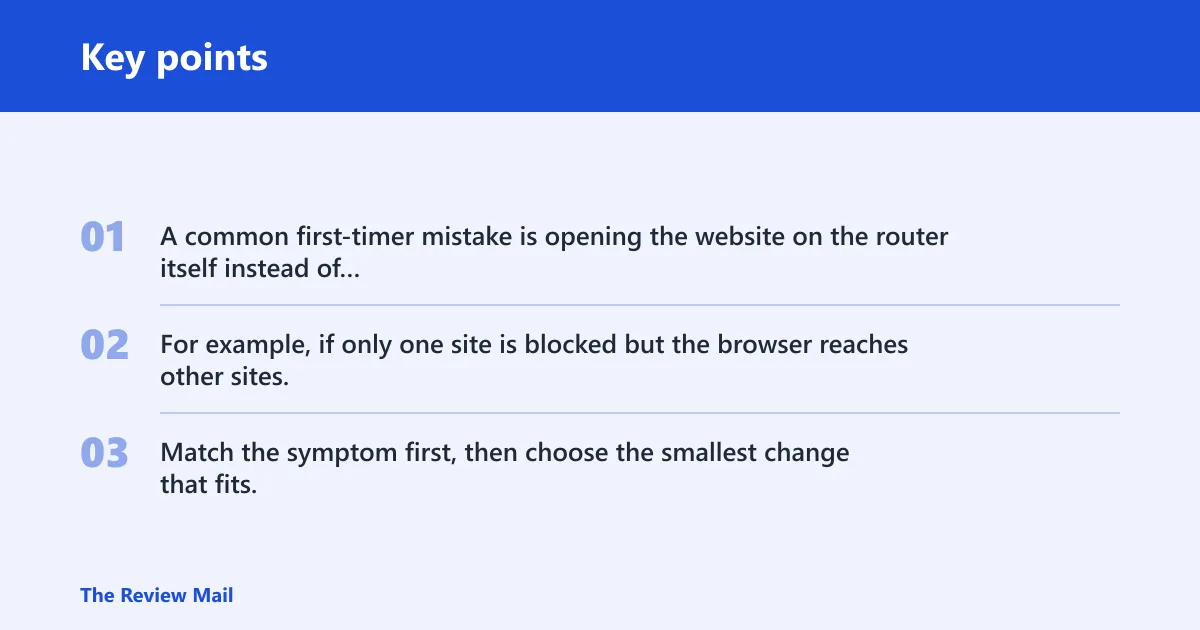
A common first-timer mistake is opening the website on the router itself instead of checking whether the office firewall is blocking the destination port. For example, if only one site is blocked but the browser reaches other sites, resetting Windows Firewall may do nothing while the proxy setting remains wrong. Match the symptom first, then choose the smallest change that fits.
All internet blocked
If every browser, app, and update check fails, treat this as a whole-device problem rather than a single app issue. Start with the Windows network profile and the Internet Connections troubleshooter, then verify whether Windows Defender Firewall changed behavior. On Windows 10 and 11, that sequence isolates a profile mismatch or broad rule conflict without immediately deleting custom rules.
- Open Windows Security and go to Firewall & network protection. Confirm whether the active network is domain, private, or public, because the wrong profile can make an allowed connection look blocked. Microsoft documents profile types and firewall status on the same page. (Microsoft Support)
- Select Internet Connections in the built-in troubleshooter and let Windows check the full network stack. If the troubleshooter repairs the connection, the problem was broader than a firewall rule and you do not need to change firewall exceptions. That is often the first visible change after a successful repair.
- Use the firewall On/Off control only as a brief test. If browsing starts working with the firewall off and stops again when it is on, the firewall is part of the failure. Turn it back on immediately, then review profile-specific rules instead of leaving protection disabled.
- If the firewall is involved and the device is not managed, consider Restore firewalls to default. Microsoft documents that this resets firewall settings back to the original state. The expected change is that custom allow/block rules disappear, which can fix a bad rule set but also removes intentional exceptions. (Microsoft Support)
One app blocked
When only one desktop app or browser cannot connect, the firewall fix is usually an app exception, not a full reset. The goal is to allow that exact executable for the right network profile while leaving the rest of the firewall intact. In Windows Security, Microsoft recommends allowing the app through the firewall instead of turning the firewall off. (Microsoft Support)
- Open Windows Security > Firewall & network protection > Allow an app through firewall. That page is the correct place to grant a browser or app exception by executable path rather than weakening the whole device.
- Find the app in the list or use Allow another app if it is missing. The key detail is the exact executable path, because a moved or updated app may not match the old entry you expected. After the right path is selected, Windows should stop blocking that app on the chosen profile.
- Check the Private and Public boxes that match the network you are using. If the app works at home but not on guest Wi-Fi, the public profile may be the missing permission. Microsoft’s profile model is what makes this a targeted fix instead of a global change. (Microsoft Support)
- Retest the app before touching any advanced rule. If the app opens sites or connects to its server after the change, the block was profile-specific. If it still fails, look next at outbound rules or a third-party security filter rather than turning off the firewall for the whole PC.
One website blocked
Single-site failures are often not Windows Defender Firewall at all. DNS, proxy settings, browser privacy controls, certificate checks, or the website itself are usually more likely than a firewall block. Use the firewall only after those layers are checked, because a browser reaching other websites usually means the issue is narrower than the firewall’s global network path.
- Confirm the site fails in more than one browser, if possible, and compare with another device on the same network. If other sites work and only one domain fails, the problem is more likely DNS, proxy, certificate, or site-side blocking than Windows Firewall.
- Check browser proxy settings and system proxy settings before editing firewall rules. A stale proxy can create a site-specific timeout that looks like a firewall block, but the fix is in the browser or Windows network settings instead of Windows Security.
- Inspect DNS behavior if the site name does not resolve consistently. A name resolution issue can break one website while the rest of the internet works. That pattern is not a typical Windows Defender Firewall symptom, so avoid broad firewall changes unless other evidence points there.
- If the site still fails and you have ruled out browser and DNS issues, review outbound firewall rules in Advanced settings. Outbound rules control traffic leaving the device, so a site can be blocked even when inbound settings look fine. Keep the change narrow and document the destination.
Managed PC
On a managed work PC, the first question is whether IT policy controls the firewall. If the device is joined to a domain or enrolled in management, a local change may be overwritten. The safest action is to confirm the active profile and ask IT for the approved exception, especially if the issue reappears after a restart.
- Check whether the device is domain-joined or managed before changing firewall settings. Microsoft’s domain profile concept exists because organizations can enforce rules centrally, so a local exception may not persist.
- Open Firewall & network protection and note which profile is active. A managed PC can show different behavior on domain, private, and public profiles, and the wrong local change may never take effect. (Microsoft Support)
- Do not use Restore firewalls to default unless IT asks you to. Resetting locally can remove approved exceptions and still be reversed by policy. On managed devices, the better fix is usually a centrally approved rule or a documented exception in the management console.
- If the block affects a business app, send IT the exact executable name, the profile involved, and whether the failure happens on all networks or only one. That information helps them create the right inbound or outbound rule without overexposing the device.
Third-party antivirus conflict
Security suites often add their own firewall, web filter, or network inspection layer, and that can conflict with Windows Defender Firewall. When a third-party product is installed, the visible symptom may still look like a Windows firewall block even though the decision is happening in the vendor’s filter. Check that product first if Windows changes do not stick.
- Open the third-party antivirus or internet security app and look for its firewall, web protection, or network protection controls. If the suite has its own filtering layer, it may block traffic even when Windows Defender Firewall is configured correctly.
- Temporarily disable only the vendor’s web or firewall module for a short diagnostic, then retest the same app or site. If the connection returns immediately, the conflict is in that product rather than in Windows Defender Firewall.
- Re-enable protection, then create the narrowest vendor exception possible. The right fix is usually an app allow rule or web exclusion in the security suite, not a permanent shutdown of both firewalls.
- If the vendor product has already been uninstalled, review whether its network filter driver or settings remain behind. Stale security components can keep traffic blocked until they are fully removed or repaired.
When should you allow an app through the firewall?
Use Allow an app through firewall when one specific program fails and you have confirmed the executable path is the one Windows should trust. Microsoft says to allow an app through the firewall instead of turning the firewall off. This is the right place for a browser-specific exception, not a whole-device outage. (Microsoft Support)
Use the app exception for a specific executable
The exception list is tied to an application path, not to every internet problem. If the app has moved, changed version, or been installed in a different folder, Windows may not be matching the path you expect. Check the exact executable path in the app exception list.
Check private and public boxes
For a browser or desktop app, check the Private and Public boxes only as needed. If the app works on a home network but not on a café Wi-Fi network, the public profile may be the missing permission. If the device is on a domain, follow organization policy first.
Browser-specific blocks and profile mismatches
When internet firewall is blocking a program, the fix is usually profile-specific, not global. Suppose Edge works on private Wi-Fi but fails on public Wi-Fi; that points to a permission mismatch, not a broken router. Allow the browser for the right profile before you change deeper firewall settings.
Which firewall settings matter most?
The key controls are in Windows Defender Firewall inside Windows Security. The page includes the On/Off control, the Blocks all incoming connections option, the app exception list, and a restore option that returns the firewall to its original state. Advanced settings add inbound and outbound rules. Microsoft documents these controls on its firewall and network protection page. (Microsoft Support)
Windows Defender Firewall profiles
The same source shows separate settings for private, public, and domain profiles. Those profiles do not behave the same way. A rule that allows traffic on a private network may still block it on a public network, and a domain network may be governed by IT policy.
Block all incoming connections
The Blocks all incoming connections option is about inbound traffic, including allowed apps. It is useful for tightening a device, but it is not the usual reason a browser cannot load web pages. Do not treat that checkbox as the default fix for internet access problems.
Allow an app through firewall
The app exception list is the least risky change when one program is blocked. It controls access for a named executable path and the selected network profile checkboxes. That makes it suitable for one browser or one desktop app, but not for all internet failures.
Restore defaults
Restore firewalls to default resets firewall settings back to the original state. Use it when custom changes caused the problem and you want a clean baseline. If the device is managed, policy may return after the reset, so check with IT before you do it. Microsoft documents the restore behavior on the same support page. (Microsoft Support)
What if advanced rules are the problem?
Open Advanced settings when the simple controls do not explain the failure. This console includes inbound rules, outbound rules, connection security rules, and monitoring logs. Outbound rules matter because internet access problems are often caused by traffic leaving the device, not only by traffic entering it.
Inbound rules
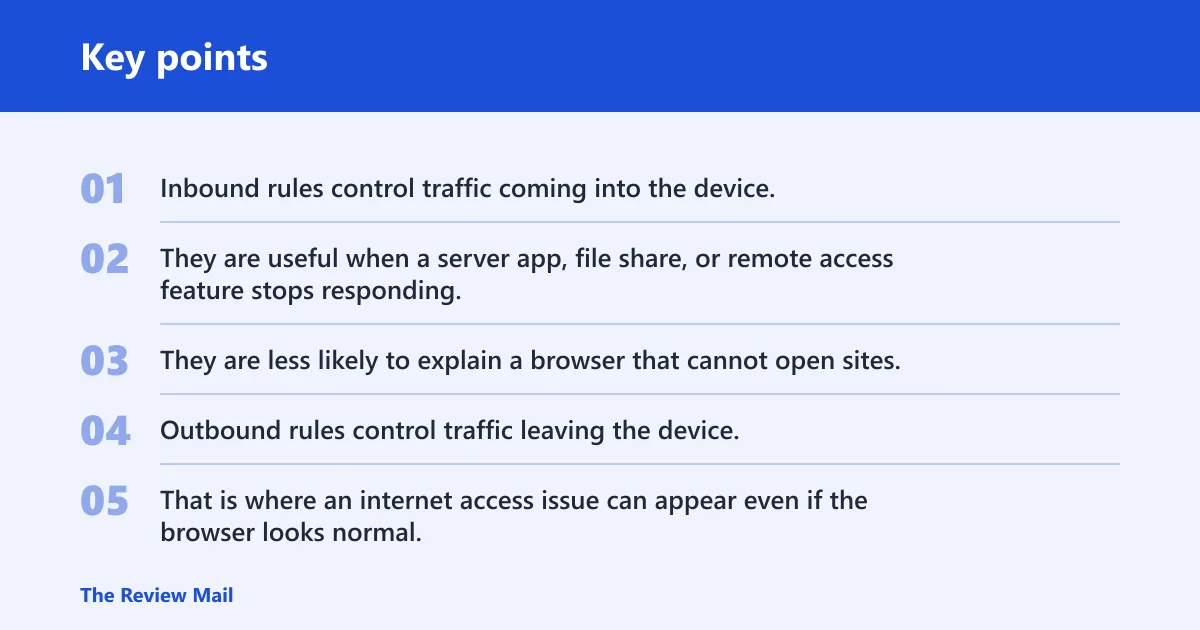
Inbound rules control traffic coming into the device. They are useful when a server app, file share, or remote access feature stops responding. They are less likely to explain a browser that cannot open sites, unless the rule set has been edited in an unusual way.
Outbound rules
Outbound rules control traffic leaving the device. That is where an internet access issue can appear even if the browser looks normal. If a single app cannot reach the network, inspect outbound rules for that executable path before you assume the browser itself is broken.
Connection security rules
Connection security rules apply to authenticated or protected connections. They are not the first place to look for a normal browsing failure, but they matter in managed environments or advanced setups. If you see one of these rules blocking traffic, keep the change narrow and document it.
Monitoring logs
Monitoring logs help confirm whether a rule is matching the traffic you care about. Use them when you need to see what the firewall is doing instead of guessing from symptoms alone. Logs are often most useful after you know whether the problem is whole-device, app-only, or rule-specific.
Reset with netsh advfirewall reset
netsh advfirewall reset resets the firewall from the command line and removes custom rules. Use it when the GUI reset is not enough or when you need to clear a badly edited rule set without changing other network settings. Microsoft documents netsh advfirewall as the Windows command-line firewall interface, and the reset command returns the firewall to its default configuration. (Microsoft Learn)
The safest way is to match the symptom to the smallest fix. If every site fails, run the troubleshooter and check the active profile. If one app fails, allow that app through the firewall. If one site fails, check DNS, proxy, browser settings, and site-side blocking before touching Windows Firewall.
How to block websites using firewall
You can block websites with firewall rules only when you know the destination IPs or the rule set you want to enforce. That is more precise than blocking by site name, and it can break shared hosting or cloud services. Use advanced rules carefully, and check local policy if the device is managed.
Frequently asked questions
Why is my firewall blocking my internet?
Answer: Most often, the firewall is blocking a specific rule, profile, or app path rather than the entire internet. A private network rule may not apply on a public network, and outbound rules can stop traffic leaving the device. Managed policies or a third-party security suite can also cause the block.
When internet firewall is blocking a program
Answer: Use Allow an app through firewall for that program’s exact executable path. Then check the Private and Public boxes that match the network you are on. If the program still fails, review outbound rules and any third-party firewall or web filter on the device.
When internet firewall is blocking a website
Answer: Do not assume the site failure is a Windows Firewall problem. Check DNS, proxy settings, browser privacy controls, and certificate filtering first. If the site is blocked only on one device profile or network, review advanced outbound rules. A single-site failure often sits outside the firewall.