Dhcp Server Not Found Windows 11
A Windows 11 “DHCP server not found” error usually means the PC cannot get an IP address. Check the router first if other devices also fail, and the PC if only one device is affected. If you guess wrong, you can waste time resetting healthy gear and leave the connection offline longer than needed. This guide helps you isolate the fault in the PC, router, or DHCP lease path before you try resets.
What “no DHCP server” means
DHCP, or Dynamic Host Configuration Protocol, assigns network settings to a device without manual setup. Those settings usually include the IP address, subnet mask, default gateway, and DNS server addresses. Windows 11 has a DHCP client built in, so the issue is usually not the feature itself, but the path between the PC and the server that hands out the lease. (Microsoft Learn)
What DHCP assigns besides the IP address
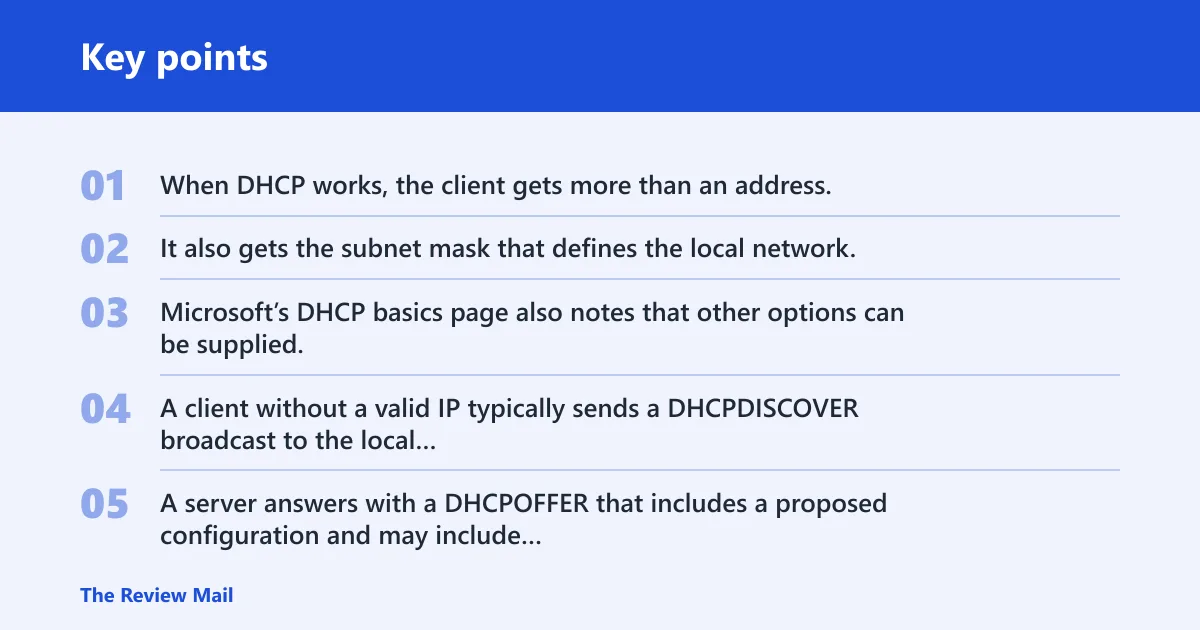
When DHCP works, the client gets more than an address. It also gets the subnet mask that defines the local network, the default gateway for traffic outside that network, and DNS server addresses for name resolution. Microsoft’s DHCP basics page also notes that other options can be supplied, so a failed lease often leaves several settings missing at once.
The four-message exchange: DHCPDISCOVER, DHCPOFFER, DHCPREQUEST, DHCPACK
The DHCP handshake follows four messages. A client without a valid IP typically sends a DHCPDISCOVER broadcast to the local broadcast address, often 255.255.255.255. A server answers with a DHCPOFFER that includes a proposed configuration and may include lease time and options. The client sends DHCPREQUEST to confirm one offer, then the server sends DHCPACK to authorize the lease.
Why ports 67 and 68 matter
DHCP uses UDP ports 67 and 68. Port 67 is the server side, and port 68 is the client side. That matters because a blocked adapter, a broken router service, or a failed local stack can interrupt the exchange at different points, which is why the fix order should start with the lease path before any resets.
Which part is failing?
Start by reading the symptom instead of resetting everything. If Windows shows an APIPA address in the 169.254.x.x range, the client did not get a lease. If the adapter has no default gateway or no DHCP details in ipconfig /all, the lease path is broken somewhere between the PC and the server.
Use ipconfig /all to spot a missing lease, APIPA address, or gateway problem
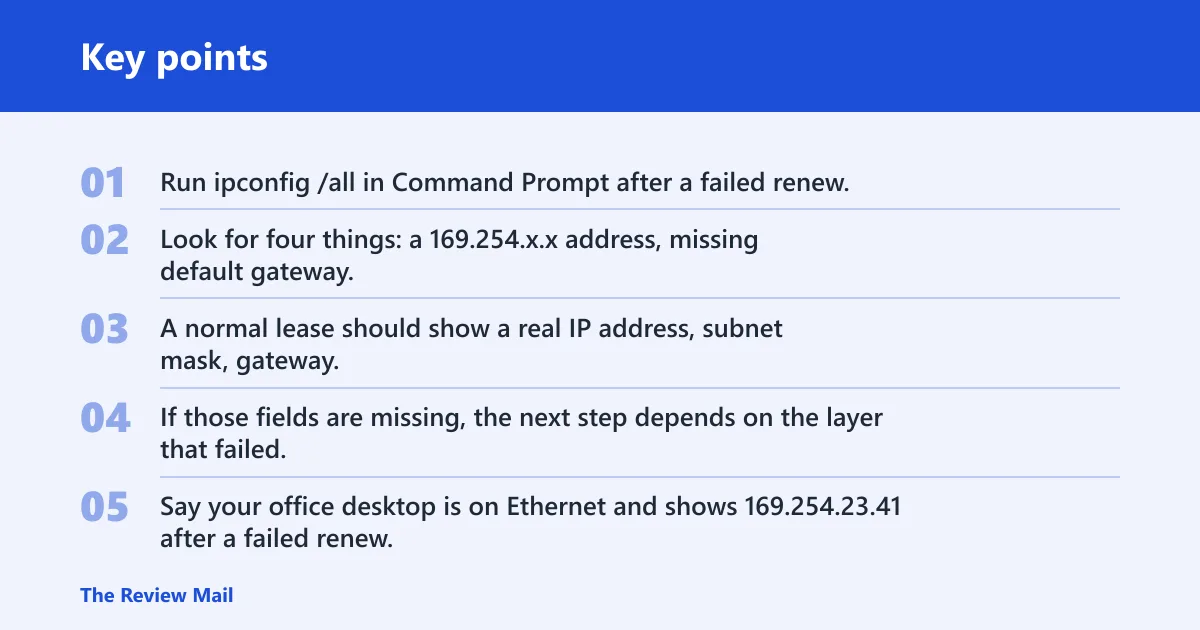
Run ipconfig /all in Command Prompt after a failed renew. Look for four things: a 169.254.x.x address, missing default gateway, missing DHCP server entry, or an empty DNS section. A normal lease should show a real IP address, subnet mask, gateway, and one or more DNS servers. If those fields are missing, the next step depends on the layer that failed.
Say your office desktop is on Ethernet and shows 169.254.23.41 after a failed renew. That points to a lease problem on the wired path, not a Wi‑Fi password issue. Suppose a laptop on the same network works on Wi‑Fi but the docked desktop does not; that difference points toward the adapter, cable, or the switch port before the router.
Use the triage table to separate service, adapter, router, and lease failures
| Symptom | Likely failing layer | Exact Windows 11 check | Next action |
|---|---|---|---|
| DHCP Client service is stopped | Windows service layer | Open services.msc, find DHCP Client, and confirm the status is Running. If it is stopped, start it and check whether it stays running. | Start the service, then run ipconfig /release and ipconfig /renew again. |
| No lease after renew, or Ethernet shows no DHCP server found | Adapter or driver path | In Device Manager, check the network adapter for errors, then run ipconfig /all to see whether the interface has a lease, gateway, and DNS fields. | Update or reinstall the network adapter driver, then test the lease again. |
| Multiple devices lose leases at the same time | Router DHCP scope exhaustion | Check whether another PC, phone, or printer can still get an address from the same router or modem. | Restart the router or modem, then verify that its DHCP pool is not exhausted. |
ipconfig /renew fails on one PC only | Lease-renewal failure | Run ipconfig /release, then ipconfig /renew, and inspect ipconfig /all for APIPA, missing gateway, or no DHCP server details. | Repair the Windows stack with netsh winsock reset and netsh int ip reset after the basic lease check. |
Check the DHCP Client service
The DHCP Client service generally needs to be running on Windows 11. If it is stopped, the PC can fail to request or process leases even when the router is healthy. Check it in services.msc first, because this is a local fault that is faster to confirm than a full network reset.
Open services.msc and confirm the service is running
- Open
services.msc. - Find DHCP Client.
- Check that the status says Running.
- If it is stopped, start it.
- Close the window and test the connection again.
Restart the service if it is stopped
If the service was stopped, starting it should allow Windows to request a lease again. If it stops right away, that points to a deeper Windows service problem or security software interference, not a router issue. At that point, keep moving through the checklist instead of repeating the same start command.
What to expect after it starts
After the service starts, the adapter should be able to request a lease and populate the IP fields again. If the service is running and the error remains, the fault is lower down the path: adapter, cable, switch port, router scope, or the lease exchange itself.
Renew the lease in Windows 11
Use ipconfig /release and ipconfig /renew in Command Prompt to ask for a fresh lease. These commands usually do not require administrator rights. They are the cleanest first move after checking the DHCP Client service, because they test the lease path without changing the TCP/IP stack.
Run ipconfig /release
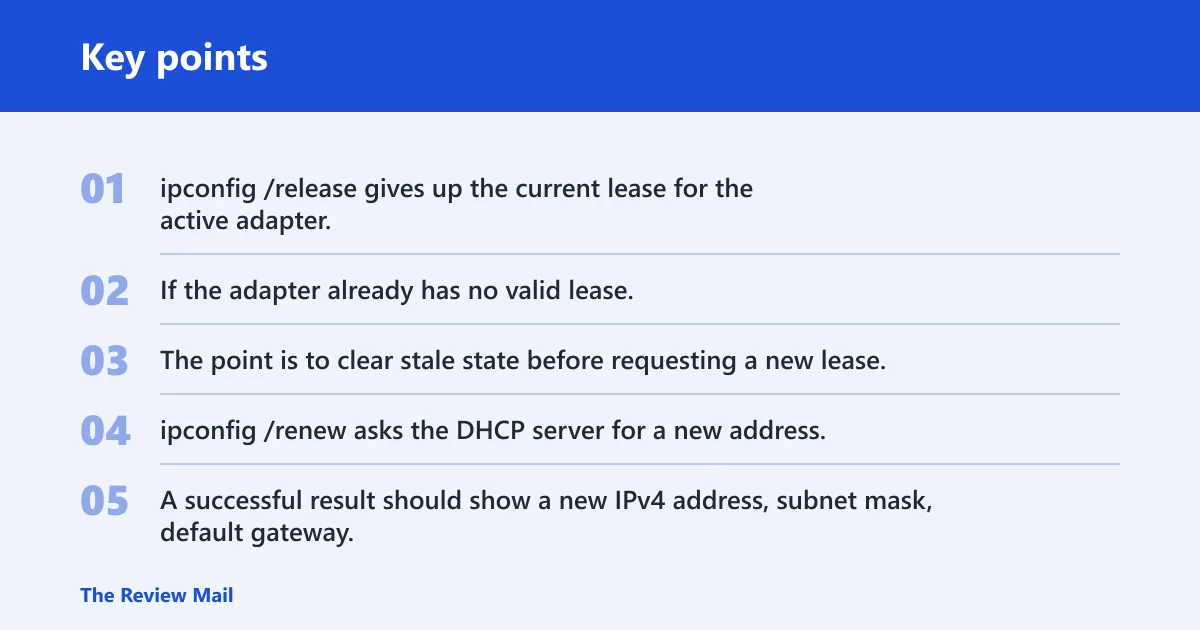
ipconfig /release gives up the current lease for the active adapter. If the adapter already has no valid lease, the command may return a short status message and no usable address change. That is fine. The point is to clear stale state before requesting a new lease.
Run ipconfig /renew
ipconfig /renew asks the DHCP server for a new address. A successful result should show a new IPv4 address, subnet mask, default gateway, and DNS server information in the output or in ipconfig /all. If the command times out or returns that no DHCP server is reachable, the fault is still on the path between the client and the server.
What success looks like in Command Prompt
Success means the adapter receives a valid IP configuration and the gateway is present. On a healthy network, ipconfig /all should no longer show 169.254.x.x. It should show DHCP enabled on the interface, a lease obtained time, and a lease expires time.
What to do if renewal fails again
If renewal fails again, stop before you jump to resets. Check whether the issue is only on Ethernet or also on Wi‑Fi. Ethernet failures often expose a bad cable, dock, switch port, or router DHCP issue first, while Wi‑Fi failures can point to a different radio path or access point. If both fail on the same router, the router side becomes more likely.
Repair the network stack
Use stack repairs after checking the lease, not before. netsh winsock reset and netsh int ip reset should be run from an administrator Command Prompt. They are broader fixes than a lease renewal, so they belong later in the sequence.
Run netsh winsock reset from an administrator Command Prompt
netsh winsock reset repairs the Winsock catalog, which can help when networking components are misregistered or damaged. Open Command Prompt as administrator, run the command, then restart the PC when prompted. Do not expect it to assign an address by itself, it prepares the stack for a clean renew.
Run netsh int ip reset from the same elevated window
netsh int ip reset resets IP stack settings. Run it in the same elevated Command Prompt after the Winsock reset, then restart again if Windows asks for it. This is a stronger step than renewing a lease, so keep it after the basic checks and service check.
When to move on to the adapter driver
If the lease still fails after both reset commands, the adapter path deserves attention. A driver issue can break the DHCP exchange even when the router is fine. Update or reinstall the network adapter driver, then test again with ipconfig /release and ipconfig /renew.
When the router is the problem
A router-side problem can block leases for every device on the network. DHCP scope exhaustion is one common cause: the router has no free addresses left to hand out. If multiple devices fail at the same time, the PC is usually not the only problem, and a Windows reset will not fix the root cause.
Why scope exhaustion can block new leases
If the router’s DHCP pool is full, a new client can send DHCPDISCOVER and still never receive a usable offer. That looks like a Windows failure from the chair, but the server side has no free address to assign. In that case, the router logs or admin page usually matter more than adapter settings on the PC.
What a router or modem restart can clear
Restarting the router or modem can clear a stuck DHCP service, stale leases, or a temporary scope problem. Use this step when more than one device fails to get an address, or when the same wired and wireless clients both lose connectivity. If the problem returns quickly, check the DHCP scope size and lease table.
When the same failure on multiple devices points away from Windows
If a phone, laptop, and desktop all fail after the same router restart window, the router or upstream modem is the better place to investigate. If only one Windows 11 PC fails while others keep working, focus on the local adapter, driver, and service path instead.
Frequently asked questions
Why is my dhcp server not working?
If only one Windows 11 PC fails, the local adapter, driver, or DHCP Client service is more likely than the server itself. If several devices fail at once, the router or modem is the better suspect. Check ipconfig /all first, then separate the single-device case from the whole-network case.
Can’t find dhcp server
This usually means Windows sent a DHCPDISCOVER and did not get a usable DHCPOFFER back in time. Check the DHCP Client service, then run ipconfig /release and ipconfig /renew. If other devices also fail, the router-side DHCP scope or service is more likely than the PC.
What does no dhcp server mean?
It means the PC could not complete the lease exchange and get a valid IP configuration. The result is often a missing gateway, missing DNS data, or a 169.254.x.x address. That points to a failure in the DHCP path, not just a vague Windows networking problem.
Why does Ethernet say no DHCP server was found?
Ethernet often exposes lease problems first because the wired path is direct and easier to trace. Check the cable, dock, switch port, and adapter driver, then confirm the DHCP Client service is running. If Wi‑Fi on the same network works, the router is less likely than the wired path.
What should I check if ipconfig /renew fails?
Check ipconfig /all for an APIPA address, a missing default gateway, or missing DHCP details. Then confirm the DHCP Client service in services.msc. If the service is running, move to the adapter, then the router, and only after that run netsh winsock reset and netsh int ip reset.
How do I fix DHCP on Windows 11?
Use a safe order: confirm the DHCP Client service is running, run ipconfig /release and ipconfig /renew, inspect ipconfig /all, then repair the stack with netsh winsock reset and netsh int ip reset if needed. If only one device fails, check the adapter and driver before restarting the router.