Force BSOD Windows 11: Safest Ways to Trigger It
Use the Ctrl+Scroll Lock crash shortcut on a nonproduction Windows 11 test machine: enable CrashOnCtrlScroll, then hold down the rightmost CTRL key and press SCROLL LOCK twice to trigger a bug check and, if dump capture is configured, write a kernel dump. A BSOD is a Windows stop error that halts the system. Done wrong, you can lose unsaved work or trigger a crash that leaves no usable dump. This guide shows the keyboard-based method, what dump file to expect, and the settings that stop the crash from working.
What a forced BSOD changes
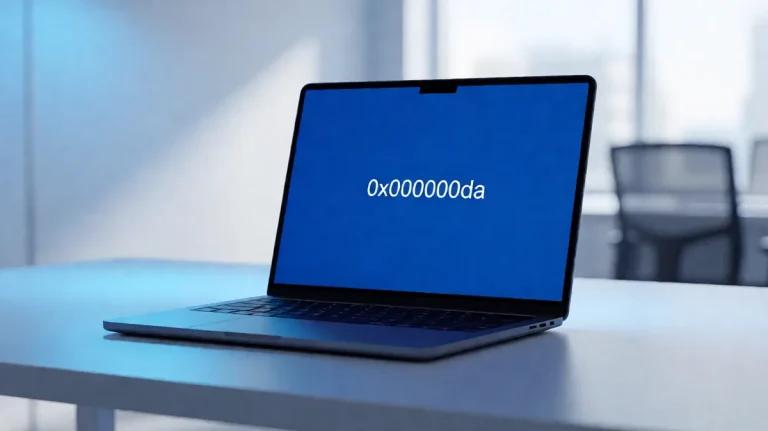
A forced BSOD is a fatal Windows stop error. Intentional crashes are mainly for testing, debugging, or creating a dump file. Windows stops normal processing, writes the dump type your settings allow, and then restarts or waits based on Startup and Recovery settings. Save work first.
That matters because open files, database writes, and unfinished driver activity can end up in an inconsistent state. A forced crash can also leave no useful dump if Windows is not set to write one, or if the crash happens before the dump path is ready.
What Windows writes after reboot
After restart, check whether Windows wrote a minidump in C:\Windows\Minidump or a full MEMORY.DMP in C:\Windows. The output depends on Startup and Recovery settings, especially the write debugging information choice: automatic, kernel, small, or complete memory dump.
Open Event Viewer to confirm the bug check code and any dump creation errors. If the system reboots too quickly, disable automatic restart in Startup and Recovery so you can read the stop screen and note the code.
Which crash method fits your setup?
Pick the method that matches your setup before you touch the registry. On a machine with a supported keyboard path, the keyboard shortcut is the cleanest option. On a lab box, the registry method is the built-in way to arm the shortcut. There is no standard Windows 11 Command Prompt command you should treat as the normal way to force a BSOD.
Match the method to the machine
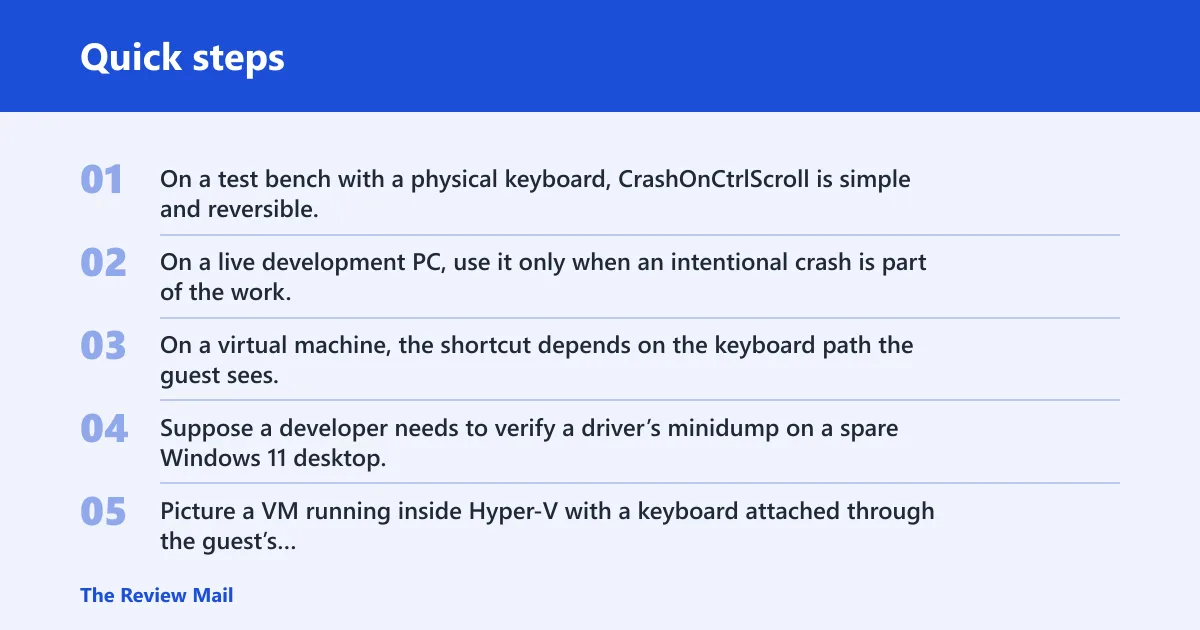
On a test bench with a physical keyboard, CrashOnCtrlScroll is simple and reversible. On a live development PC, use it only when an intentional crash is part of the work. On a virtual machine, the shortcut depends on the keyboard path the guest sees.
Suppose a developer needs to verify a driver’s minidump on a spare Windows 11 desktop. The registry shortcut is enough. Picture a VM running inside Hyper-V with a keyboard attached through the guest’s supported path; the shortcut only works if that path is active.
Know when a specific stop code matters
If your goal is any crash at all, the shortcut is enough. If you need a particular stop code for a vendor case, use the supported crash shortcut and confirm the resulting bug check in Event Viewer after reboot.
BSOD decision matrix
Use this matrix to choose the safest forcing method for your environment. The best choice depends on setup time, reversibility, whether the keyboard path exists, and what you need after reboot. The dump type still depends on Startup and Recovery.
| method | best for | required setup | reboot needed | works on laptop without Scroll Lock | risk level | what to verify after reboot |
|---|---|---|---|---|---|---|
| CrashOnCtrlScroll registry shortcut | Test bench, spare PC, or lab VM with the supported keyboard path | Create CrashOnCtrlScroll as a DWORD (32-bit) value and set it to 1 under the correct keyboard-driver Parameters path | Yes | Usually no, if the keyboard cannot send Scroll Lock | Medium, because the crash is immediate once enabled | Event Viewer bug check code, plus minidump or MEMORY.DMP |
| Command-line kill of a process | Narrow repro where a specific stop code is being checked | No standard supported Windows 11 crash command | No | Yes | High, because it is less predictable and not the usual supported path | Whether the stop code matches your target and whether the dump is usable |
Why does the CrashOnCtrlScroll shortcut fail?
The shortcut usually fails because Windows is looking at the wrong keyboard-driver path, because CrashOnCtrlScroll was not set to 1, because the system was not restarted, or because the keyboard cannot expose Scroll Lock. Laptops often expose the last problem first.
Wrong keyboard driver path
Use the path that matches the keyboard driver, not the one that looks familiar. For PS/2 keyboards, Microsoft documents HKEY_LOCAL_MACHINE\System\CurrentControlSet\Services\i8042prt\Parameters. If you are using a USB keyboard, a reported method is to browse to HKEY_LOCAL_MACHINE\SYSTEM\CurrentControlSet\Services\kbdhid\Parameters.
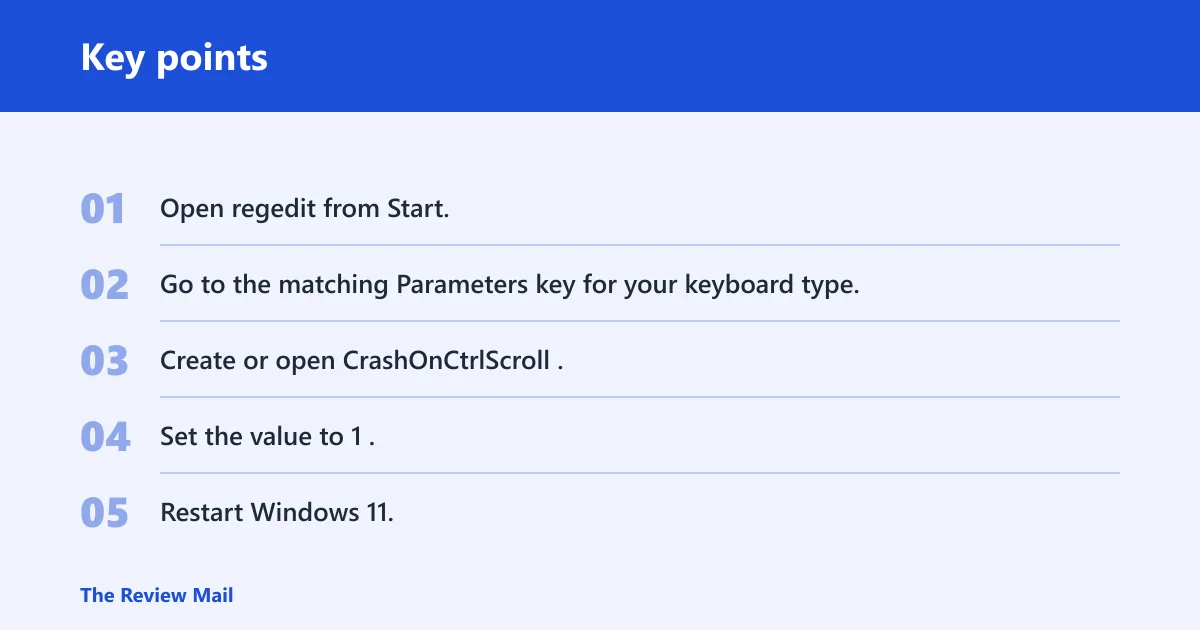
- Open regedit from Start.
- Go to the matching Parameters key for your keyboard type.
- Create or open CrashOnCtrlScroll.
- Set the value to 1.
- Restart Windows 11.
The registry value was not enabled or Windows was not restarted
CrashOnCtrlScroll is a DWORD (32-bit) value. Set it to 1 to enable the shortcut, and set it to 0 or delete it to disable the shortcut later. The change does not work until Windows restarts. (Microsoft Learn)
- Open regedit.
- Navigate to the correct keyboard path.
- Double-click CrashOnCtrlScroll and change 0 to 1.
- Close Registry Editor.
- Restart the PC, then try the shortcut again.
The keyboard or laptop does not expose Scroll Lock
Some laptops have no dedicated Scroll Lock key, and some compact keyboards hide it behind a function layer that does not behave like a real Scroll Lock press. In that case, the shortcut may be impossible even though the registry value is correct.
- Check whether the keyboard has a physical Scroll Lock key or a documented function-layer shortcut.
- Use another supported test setup if the keyboard cannot send Scroll Lock.
- On a virtual machine, confirm that the guest is using the keyboard path you configured.
- Retest only after confirming the right driver path and restart.
How do I enable CrashOnCtrlScroll in Windows 11?
Open Registry Editor, set CrashOnCtrlScroll to 1 under the correct keyboard-driver Parameters key, restart Windows, then hold down the rightmost CTRL key and press SCROLL LOCK twice. That is the supported keyboard-based crash shortcut for Windows 11 when dump creation is configured.
USB, PS/2, and Hyper-V registry paths
Use the path that matches the keyboard type in front of you. For PS/2 keyboards, Microsoft documents HKEY_LOCAL_MACHINE\System\CurrentControlSet\Services\i8042prt\Parameters. For USB keyboards, a reported method is HKEY_LOCAL_MACHINE\SYSTEM\CurrentControlSet\Services\kbdhid\Parameters. For other keyboard types, use the path documented for that device.
- Open regedit.
- Browse to the correct path for your keyboard type.
- Create a DWORD (32-bit) Value named CrashOnCtrlScroll.
- Set the value to 1.
- Restart the system.
- Hold down the rightmost CTRL key and press SCROLL LOCK twice.
Use the registry method only on a machine where an intentional crash is acceptable, and save your work before testing.
Use a supported alternative if the shortcut cannot be armed
If the keyboard shortcut cannot be enabled because the keyboard does not expose Scroll Lock or the guest machine does not present the expected keyboard path, use another approved crash method for your lab or support workflow.
When an alternate method is the better fit
Use another approved method when the keyboard layout blocks the shortcut, when you cannot restart the system right away, or when your environment already has a standard way to generate a test crash.
- Confirm whether the keyboard shortcut can be armed first.
- If it cannot, use the crash method approved for your environment.
- After the system stops and reboots, check the dump file and Event Viewer.
How do you verify the dump?
After reboot, confirm two things: the bug check code in Event Viewer and the actual dump file on disk. If you only see a restart and no dump, the system may not have been set to write one, or the crash may have happened before the selected dump type could finish.
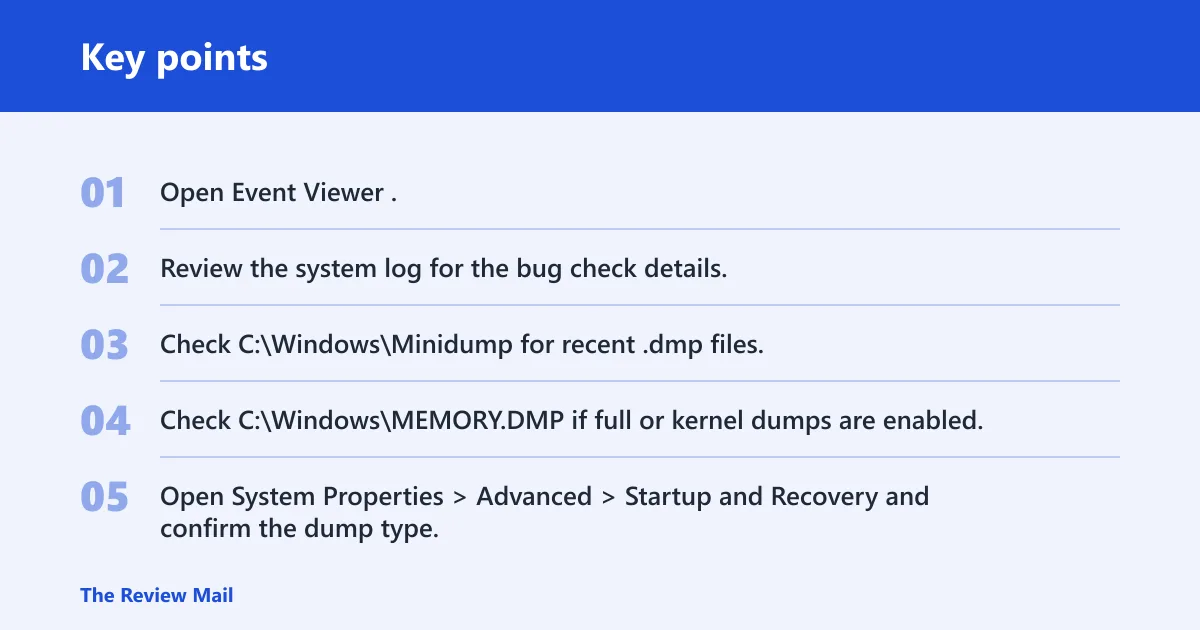
Check Event Viewer and dump locations
Open Event Viewer and look for the stop event tied to the crash. Then check C:\Windows\Minidump for small dumps or C:\Windows\MEMORY.DMP for a larger memory image, depending on your Startup and Recovery selection. If the files are missing, the dump setting is the first place to inspect.
- Open Event Viewer.
- Review the system log for the bug check details.
- Check
C:\Windows\Minidumpfor recent .dmp files. - Check
C:\Windows\MEMORY.DMPif full or kernel dumps are enabled. - Open System Properties > Advanced > Startup and Recovery and confirm the dump type.
Startup and Recovery settings to confirm
In Startup and Recovery, confirm that Automatically restart is set the way you want, and that Write debugging information matches the dump type you need. If you are testing driver failures, a kernel dump is often more useful than a small dump because it keeps more context.
Open System Properties, then Advanced, then Startup and Recovery, and review the settings there:
– Automatically restart: on or off as needed
– Write debugging information: automatic, kernel, small, or complete memory dump
If that didn’t work
If there is still no usable dump, verify that the page file exists on the system drive, confirm disk space, and test again with the dump size you need. If the machine belongs to a company or hardware vendor, pass along the exact stop code, the dump path you checked, and the Windows 11 build number.
How do I get the crash dump after forcing a BSOD?
After the machine comes back up, pull the dump from C:\Windows\Minidump or C:\Windows\MEMORY.DMP, then compare it with the Event Viewer bug check entry. The useful output is not the blue screen itself; it is the stop code, the parameters, and the dump file that a debugger can read.
What to collect for support or debugging
Capture the exact stop code and parameters from the blue screen if you can read them, or from C:\Windows\Minidump\*.dmp after reboot. If you are handing the case to a driver vendor, include the dump type and whether automatic restart was on.
- Open Event Viewer and note the bug check code.
- Copy the most recent dump file from
C:\Windows\MinidumporC:\Windows\MEMORY.DMP. - Check Startup and Recovery to confirm the dump type.
- Attach the stop code, dump file, and Windows 11 version to your ticket.
A common first-timer mistake is assuming any blue screen means a good dump was written. It does not. A full-screen crash with immediate reboot can still leave nothing useful if dump writing was disabled or the wrong memory-dump option was selected.
How do I turn off the forced BSOD shortcut afterward?
Disable the keyboard shortcut by setting CrashOnCtrlScroll back to 0 or deleting the value from the same driver-specific Parameters key. Then restart Windows so the change takes effect. That returns the machine to normal keyboard behavior.
Disable the shortcut cleanly
- Open regedit.
- Go to the same path you used to enable the feature.
- Set CrashOnCtrlScroll to 0 or delete it.
- Close Registry Editor.
- Restart the PC.
Only enable the shortcut on a machine where an intentional crash is part of the work, and turn it off again when the test is finished.
Frequently asked questions
How do I force BSOD Windows 11?
The cleanest supported path is the keyboard shortcut method: enable CrashOnCtrlScroll in the correct keyboard-driver registry path, restart, then hold down the rightmost CTRL key and press SCROLL LOCK twice. If you do not want registry changes, use another approved crash method for your environment instead.
How do I force a blue screen on Windows 11 with Command Prompt?
There is no standard, supported native Windows 11 Command Prompt command that should be treated as the normal way to force a BSOD. For controlled testing, use the registry shortcut.
Which registry path works for USB or PS/2 keyboards?
For PS/2 keyboards, Microsoft documents HKEY_LOCAL_MACHINE\System\CurrentControlSet\Services\i8042prt\Parameters. For USB keyboards, a reported method is HKEY_LOCAL_MACHINE\SYSTEM\CurrentControlSet\Services\kbdhid\Parameters. If the wrong path is used, the shortcut will not arm.
What happens if I force a BSOD in Windows 11?
Windows stops immediately, writes whatever dump type is configured, and reboots or waits depending on Startup and Recovery settings. Unsaved work can be lost, and files in use can be left inconsistent. The useful output is the bug check code and the dump file, not the screen itself.