Fix DHCP Issues Windows 11
To fix DHCP issues in Windows 11, first check adapter settings and automatic IP assignment, then restart the DHCP Client service, and only after that reset the network. If the DHCP exchange fails, Windows may not obtain a normal address from the router or server and can fall back to a 169.254.x.x address or lose connectivity. Start with the adapter, then the service, then lease renewal, and use reset steps only if those do not help.
Check the Wi‑Fi or Ethernet adapter on the affected PC first. If the adapter is set to manual IPv4 settings, Windows may not request an address automatically. After that, verify that the DHCP Client service is running, because Windows needs it to request and maintain leases.
What the error means
DHCP is the part of your network that hands out an IP address, subnet mask, gateway, and DNS settings. If that exchange fails, Windows 11 cannot finish normal network setup.
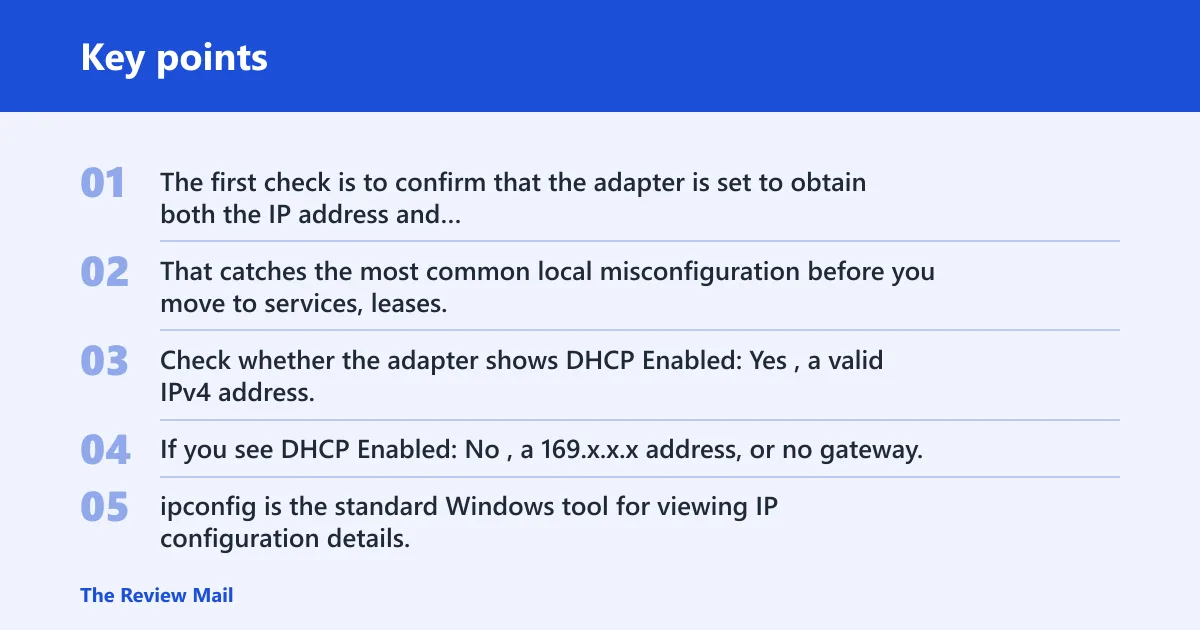
The first check is to confirm that the adapter is set to obtain both the IP address and DNS server address automatically. That catches the most common local misconfiguration before you move to services, leases, or resets.
What to look for in ipconfig /all
Open Command Prompt and run ipconfig /all. Check whether the adapter shows DHCP Enabled: Yes, a valid IPv4 address, a default gateway, and DNS servers. If you see DHCP Enabled: No, a 169.x.x.x address, or no gateway, the lease did not complete correctly. ipconfig is the standard Windows tool for viewing IP configuration details, and ipconfig /renew requests a new lease.
If other devices on the same network work, the problem is more likely local to this PC. If every device fails, the router, modem, or upstream DHCP server is the better place to check first.
Likely causes
Wrong TCP/IPv4 settings on the adapter
This is the most common local cause. Wi‑Fi and Ethernet adapters can both be set to manual IP values, which blocks normal lease assignment. If the adapter is not set to automatic addressing, Windows will not complete normal DHCP assignment.
DHCP Client service stopped or disabled
Windows needs the DHCP Client service to request and maintain leases. If that service is stopped, disabled, or unstable, DHCP can fail even when adapter settings are correct.
Router or DHCP server problem
If other devices also lose addresses, the issue may be on the router or on a DHCP server. A full pool or stale leases can block new assignments.
Driver, VPN, or security software interference
A mismatched Wi‑Fi adapter or Ethernet adapter driver can break DHCP. VPN clients and some security tools can also interfere with renewals or route handling.
Post-update mismatch
If the problem starts right after a Windows update, a driver mismatch or filter conflict is a possibility, especially if the adapter worked before the reboot and the issue appears only on one machine. In that case, check the adapter driver and any recent networking-related software changes.
Is DHCP turned on for your adapter?
If the adapter is not set to automatic addressing, Windows will not complete normal DHCP assignment. Check the Wi-Fi adapter and the Ethernet adapter separately, because each one can be misconfigured on its own. Set both IP and DNS to automatic, then confirm the change with ipconfig /all.
- Open Settings > Network & internet > Advanced network settings.
- Select Wi-Fi or Ethernet, then open the adapter’s Properties.
- Under More adapter options or the IP settings section, choose Edit next to the IP assignment setting.
- Set IP assignment to Automatic (DHCP).
- Set DNS server assignment to Automatic.
- Open Command Prompt and run
ipconfig /allto confirm DHCP Enabled: Yes.
If a laptop joins Wi‑Fi but shows no gateway in ipconfig /all, that points to adapter settings or lease failure, not a DNS-only issue. A DNS-only problem usually still shows a valid IP and gateway.
How to restart DHCP Client service in Windows 11
If the adapter settings are correct, the next check is the Windows service that handles leases. Restart DHCP Client and leave its startup type on Automatic when the system is healthy. That is a safe, low-risk repair step before any resets.
- Press Win + R, type
services.msc, then press Enter. - Find DHCP Client in the list.
- Right-click it and choose Restart.
- Open Properties and set Startup type to Automatic.
- Apply the change, then reconnect the network.
A common first-timer mistake is restarting the adapter before checking the service. If the service is stopped, the adapter can come back up and still fail to obtain a lease.
Can you renew the IP lease?
Renewing the lease forces Windows to ask the DHCP server for a fresh address. If the lease state is stale, this often clears it without deeper repair.
- Open Command Prompt as administrator.
- Run
ipconfig /release. - Run
ipconfig /renew. - Restart the device if the address still does not return.
If the adapter shows a self-assigned 169.x.x.x address after ipconfig /renew, the request did not reach a working DHCP server or the reply did not return. That is different from a DNS-only fault, where the address is valid but websites still do not resolve.
When should you reset TCP/IP?
Use TCP/IP and Winsock resets after the service and lease checks fail. These commands repair low-level network state, but they come later because they affect more than one setting and can be harder to trace if used too early.
- Open Command Prompt as administrator.
- Run
netsh winsock reset. - Run
netsh int ip reset. - Restart the PC.
- Run
ipconfig /releaseandipconfig /renewagain after restart.
If that did not work, keep this order: adapter settings, DHCP Client, lease renew, then netsh reset. Jumping straight to reset steps can hide the real fault and make later diagnosis harder.
If other devices work, what next?
If DHCP works on phones, tablets, or another PC, the router is less likely to be the problem. Focus on the Windows 11 device itself: one network only, one adapter only, or a driver or filter issue. If every device fails on the same network, restart the router and modem first.
- Restart the router and the PC.
- Check whether the problem appears on one network only or on every network.
- Open Device Manager, expand Network adapters, and update the Wi-Fi adapter or Ethernet adapter driver.
- If the issue began after a Windows update, uninstall the adapter driver and let Windows reinstall it, or install the latest driver from the hardware vendor.
- Turn off VPN software or security software that filters traffic, then test DHCP again.
If the device works on a phone hotspot but not on a local network, that points away from the PC alone and toward the network, its settings, or its access policy. If every network fails, stay on the PC and adapter path.
DHCP decision matrix
| Symptom | Likely cause | Check first | Safest next action |
|---|---|---|---|
| No IP address | Lease request failed | ipconfig /all | Set IP and DNS to automatic, then run ipconfig /release and ipconfig /renew |
| 169.x.x.x address | No DHCP reply received | ipconfig /all | Restart DHCP Client, then renew the lease |
| DHCP Enabled = No | Manual IP setting on the adapter | Settings > Network & internet > Advanced network settings | Switch TCP/IPv4 and DNS to automatic |
| Other devices work | Local PC issue | Test another Wi-Fi or Ethernet connection | Check drivers, VPN, and security software |
| Only one network affected | Router or server issue | Test a different network or hotspot | Restart the router, then check the network device or administrator settings |
| Breakage after update | Driver mismatch or filter conflict | Device Manager and update history | Reinstall the adapter driver or roll back the recent change |
Should you use network reset?
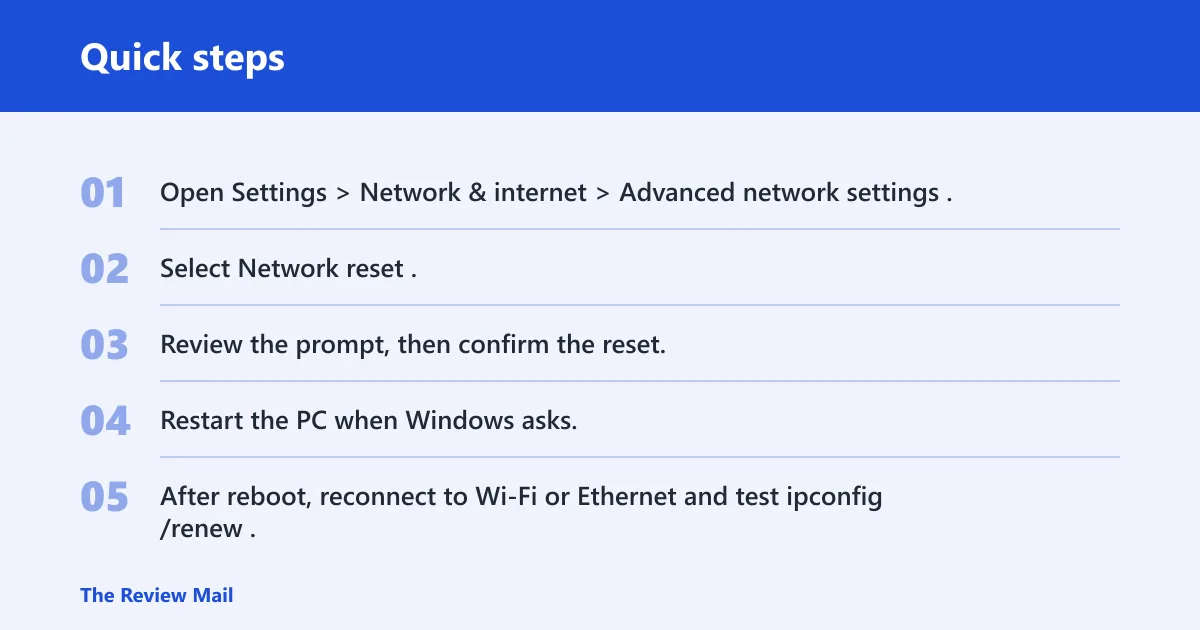
Use Network Reset only after the adapter settings, service restart, lease renew, and driver checks fail. It clears and rebuilds network configuration from Advanced network settings, so it is a good last resort, not a first move.
For a step-by-step companion, see also this Windows 11 network reset guide if you want the exact reset flow in one place. If the failure began after a driver update, check the adapter vendor’s release notes before resetting, because a vendor-supplied driver fix may be safer than a full network rebuild.
- Open Settings > Network & internet > Advanced network settings.
- Select Network reset.
- Review the prompt, then confirm the reset.
- Restart the PC when Windows asks.
- After reboot, reconnect to Wi‑Fi or Ethernet and test
ipconfig /renew.
On networks that use static addressing by design, a manual IP can be a temporary workaround if the network team instructs you to use one. It is not the default fix for home users, and it can create address conflicts if the wrong subnet or gateway is used.
Still not working?
If DHCP still fails after a clean adapter check, a service restart, a lease renew, driver work, and Network Reset, the next step is outside Windows itself. On a home network, check the router and modem. On a managed network, ask the network administrator to verify lease allocation, port policy, and server health.
If the hotspot works but the office LAN does not, stop local troubleshooting and escalate to the network admin; if every network fails, stay on the PC and adapter path.
Frequently asked questions
Why does Windows 11 say DHCP is not enabled for Wi-Fi?
That message usually means the Wi‑Fi adapter is set to a manual IPv4 configuration or the lease state is broken. Check the adapter properties and set both IP and DNS to automatic, then confirm with ipconfig /all that DHCP Enabled shows Yes. If the adapter still shows a self-assigned 169.254.x.x address after renewal, the server-side lease path still is not working.
How do I renew my IP address on Windows 11?
Open Command Prompt as administrator and run ipconfig /release, then ipconfig /renew. If the address still fails to return, restart DHCP Client and repeat the commands.
What should I do if Windows 11 cannot get an IP address from the DHCP server?
Check whether other devices on the same network work. If they do, focus on the PC: adapter settings, service status, driver updates, and VPN or security software. If every device fails, restart the router and modem, then check the DHCP server or network settings.
Why do I keep getting a 169.x.x.x address on Windows 11?
A 169.x.x.x address usually means Windows did not receive a valid DHCP reply and assigned itself a fallback address. Confirm that the adapter is set to automatic, then restart DHCP Client and run ipconfig /renew. If that fails, the router or upstream DHCP server needs attention.
Should I reset TCP/IP or change to a static IP when DHCP fails?
Reset TCP/IP only after adapter settings, service checks, and lease renewals fail. Use a static IP only as a temporary workaround on a network that explicitly allows it. For home use, a correct DHCP fix is the better goal.