Invalid Partition Table Error
An invalid partition table error means the computer cannot start from the disk it is trying to boot from. Check the boot order first, then use recovery tools only if the internal disk still will not start Windows.
Quick answer
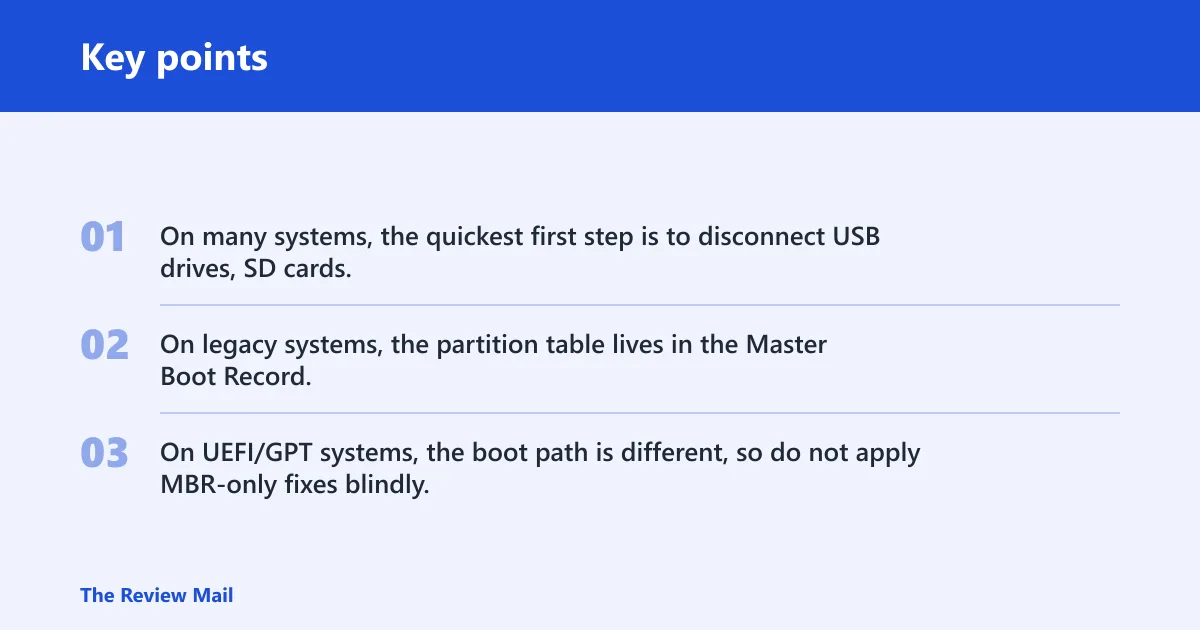
On many systems, the quickest first step is to disconnect USB drives, SD cards, and external hard drives, then check the boot order in BIOS or UEFI setup.
On legacy systems, the partition table lives in the Master Boot Record, which stores partition information and can become corrupted. On UEFI/GPT systems, the boot path is different, so do not apply MBR-only fixes blindly. (Wikipedia)
Invalid partition table triage matrix
Use this table to decide whether you should stay in read-only checks, boot installation media, run repair commands, or stop and preserve the drive first.
| Observed message | Recent change | Disk type | Boot installer media? | Run bootrec? | Use Diskpart? | Stop and image first? |
|---|---|---|---|---|---|---|
| Message appears after adding a USB drive or SD card | External device attached | Any | No, start with boot order check | No | No | No, unless the internal disk is dropping out |
| Message appears after a Windows update or power loss | Normal boot path changed | Legacy MBR | Yes | Yes | Only if the active partition needs checking | No, unless startup access to the disk is erratic |
| Message appears after a clone, repartition, or disk swap | Partition layout changed | Legacy MBR or GPT | Yes | Maybe | Maybe | Yes if the disk is unreadable or unstable |
| Repeated boot failure plus click, drop-out, or write errors | None or unknown | Any | Only after preserving data if possible | No, pause repair attempts | No | Yes |
Say your laptop started failing only after a second SSD was installed. Remove the new drive, keep the internal system disk first in boot order, and try again before running any command-line repair.
What causes it?
Possible causes include the wrong boot-device selection, a corrupted MBR or partition table, an incorrect active partition on a legacy disk, or disk errors.
Wrong boot device or boot order
If firmware points at a USB drive, SD card, or the wrong internal disk, startup can stop before Windows reaches its own boot files. Check the BIOS or UEFI boot sequence before changing partitions.
Corrupted MBR or partition
On MBR systems, the boot sector structure stores partition information that Windows needs to find the startup partition. If it is damaged, the machine may not locate the partition to boot from.
Wrong active partition on a legacy disk
On an MBR boot disk, the system expects the correct boot partition to be marked active. If the wrong partition is active, Windows may point at the wrong place. Diskpart can change active status, but that also changes partition state.
Bad sectors, write errors, or a failing drive
Disk errors can stop partition data from loading, whether the drive is an HDD or SSD. If the disk keeps dropping out, stop repair attempts and preserve the drive from another working PC first.
How do you check boot order first?
Start here because it is read-only. Remove external drives, then confirm that the system disk is first in the BIOS or UEFI boot sequence. If the machine starts normally after that, leave the partitions alone.
- Shut the computer down using the normal Windows shutdown command.
- Disconnect USB drives, SD cards, and external hard drives.
- Power on and enter BIOS or UEFI setup using the vendor’s startup key.
- Open the boot-order or boot-sequence screen.
- Move the internal system disk so it is first in the list.
- Save changes and restart.
On Dell systems, use the Dell startup key shown on-screen to enter setup, then verify the boot order and start from recovery media only if the internal disk still will not boot. Avoid jumping straight to BIOS updates unless you already have a vendor reason to do that.
How do I repair the MBR?
Use this branch only for legacy MBR systems. Start Windows from installation media or a recovery USB, open Command Prompt from the recovery environment, and run bootrec commands in order.
- Start the computer from Windows installation media or a recovery USB.
- Select Repair your computer.
- Open Troubleshoot > Advanced options > Command Prompt.
- Run bootrec /fixmbr.
- Run bootrec /fixboot.
- Run bootrec /scanos.
- Run bootrec /rebuildbcd.
If the drive becomes unreadable or the system behaves worse, stop the repair attempt and preserve the disk before continuing. Move to /rebuildbcd only when the disk still looks stable and the earlier commands complete without errors.
How do you fix an active partition issue?
Use Diskpart only after booting from recovery media or another recovery environment. It can list volumes and change active status, which is useful when the wrong partition is marked active on a legacy disk. (Microsoft Learn)
- Start from Windows installation media or a WinPE bootable USB.
- Open Command Prompt from the recovery options.
- Run diskpart.
- Run list disk and identify the system disk.
- Run select disk #, replacing # with the correct disk number.
- Run list partition.
- Run select partition # on the partition that should boot.
- Run active if the partition needs to be marked active.
- Type exit to leave Diskpart.
If a different partition is already active and the disk is unstable, stop changing boot flags. Preserve the drive first.
Partition table repair steps
Use this checklist to separate read-only checks from state-changing steps. The safest path is to finish the read-only items first, then decide whether to repair the boot record or preserve the disk.
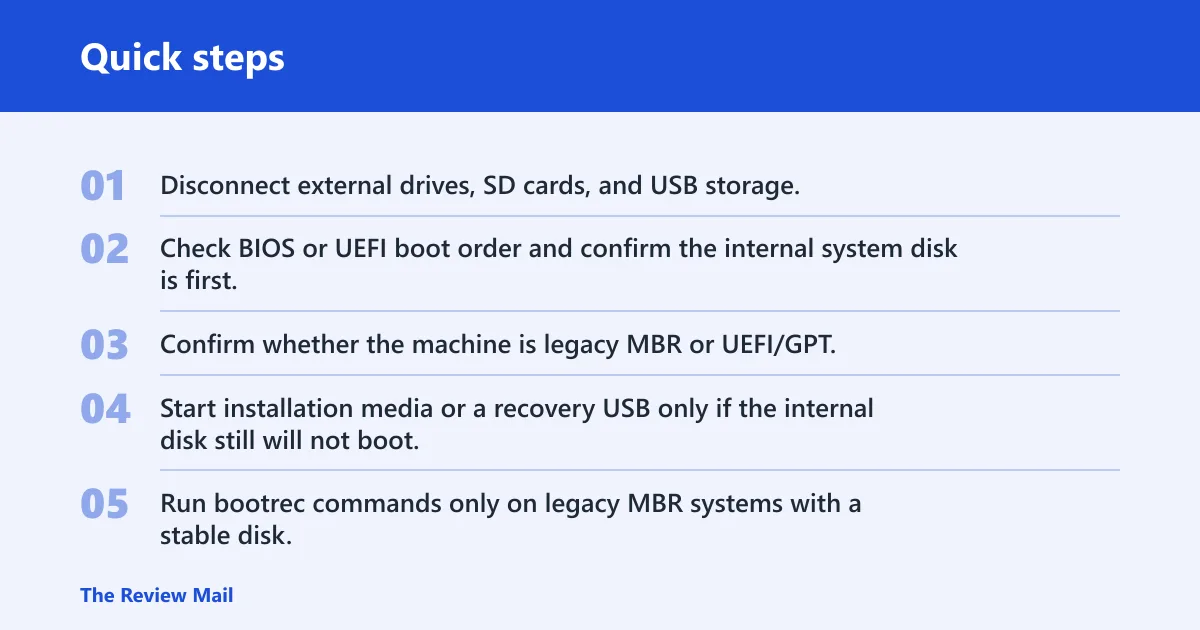
- Disconnect external drives, SD cards, and USB storage.
- Check BIOS or UEFI boot order and confirm the internal system disk is first.
- Confirm whether the machine is legacy MBR or UEFI/GPT.
- Start installation media or a recovery USB only if the internal disk still will not boot.
- Run bootrec commands only on legacy MBR systems with a stable disk.
- Use Diskpart only if you need to inspect or change active status.
- Stop if the disk keeps disappearing, clicking, or failing to read; clone or image it first.
Suppose a 500 GB SSD boots once after unplugging a USB enclosure, then fails again after a restart. That pattern points back to boot selection or partition state, not random Windows corruption. If the drive also vanishes in recovery tools, preserve it before any deeper repair.
Prevention: keep external boot devices unplugged during normal startup and avoid changing active partitions unless you are on a legacy MBR disk and have already confirmed the correct system volume.
Still not working?
If boot order is correct, the disk is stable, and bootrec does not help, the next step is recovery from backup or a clean reinstall after you preserve the data. If the disk keeps dropping out, stop. Preserve the drive before more commands.
For a missing installer, a working PC can create Windows installation media or a WinPE bootable USB on a USB drive. The repair work should be done from the recovery environment, not in normal Windows. That keeps the system volume out of the way while you inspect it.
Frequently asked questions
What does invalid partition table mean?
It means the computer cannot start from the disk it is trying to boot from. Start by checking boot order and removing external storage.
How do I fix invalid partition table
First disconnect USB drives, SD cards, and external hard drives, then confirm the internal disk is first in BIOS or UEFI boot order. If the machine still will not boot, use Windows installation media or a recovery USB and open Command Prompt from the recovery environment.
What causes invalid partition table
Possible causes include the wrong boot device, a corrupted MBR or partition table, an incorrect active partition on a legacy disk, or disk errors. Remove external devices before deeper repair.
Can a bad MBR cause invalid partition table
Yes. On legacy boot disks, a damaged Master Boot Record can block the system from finding the partition it should start from. The usual repair path is starting recovery media and running bootrec /fixmbr, then checking whether startup continues normally.
How do I check whether more than one partition is active?
Start from installation media or a recovery USB, open Command Prompt, run diskpart, then use list disk and select disk # for the system disk. Use list partition to view partitions, then inspect the active partition state on each partition with detail partition. On an MBR boot disk, only one partition should be active.
What should I do if my Windows installation media is missing?
Create Windows installation media or a recovery USB from another working PC, then start the non-starting computer from that USB. If you cannot make media and the disk is unstable, preserve the drive first so data loss does not get worse.
Can bad sectors or disk write errors trigger this error?
Yes. Disk errors can keep partition data from loading at startup, and they can affect both HDDs and SSDs. If the drive is unreadable, makes clicking sounds, or drops out in recovery tools, preserve it before more boot repairs.
How do I fix invalid partition table error on a Dell laptop?
Use Dell’s startup key to enter BIOS or UEFI setup, confirm the boot order, and start from installation media only if the internal disk still fails. Keep the fix limited to boot-path checks first; if the disk is unstable, preserve it before any command-line repair.
How do I use Command Prompt to repair the boot record?
Start from Windows installation media or a recovery USB, open Command Prompt, then run bootrec /fixmbr, bootrec /fixboot, bootrec /scanos, and bootrec /rebuildbcd in that order. That sequence is for recovery mode, not normal Windows.