Windows 11 Dhcp Client Not Working
If Windows 11 DHCP client is not working, check it in this order: adapter config, DHCP Client service, packet exchange, local filtering, then the server or router. Skip the failing step and you can waste time on fixes that cannot assign an IP address. This guide gives a decision tree for Wi‑Fi and Ethernet DHCP failures.
DHCP packet decision table
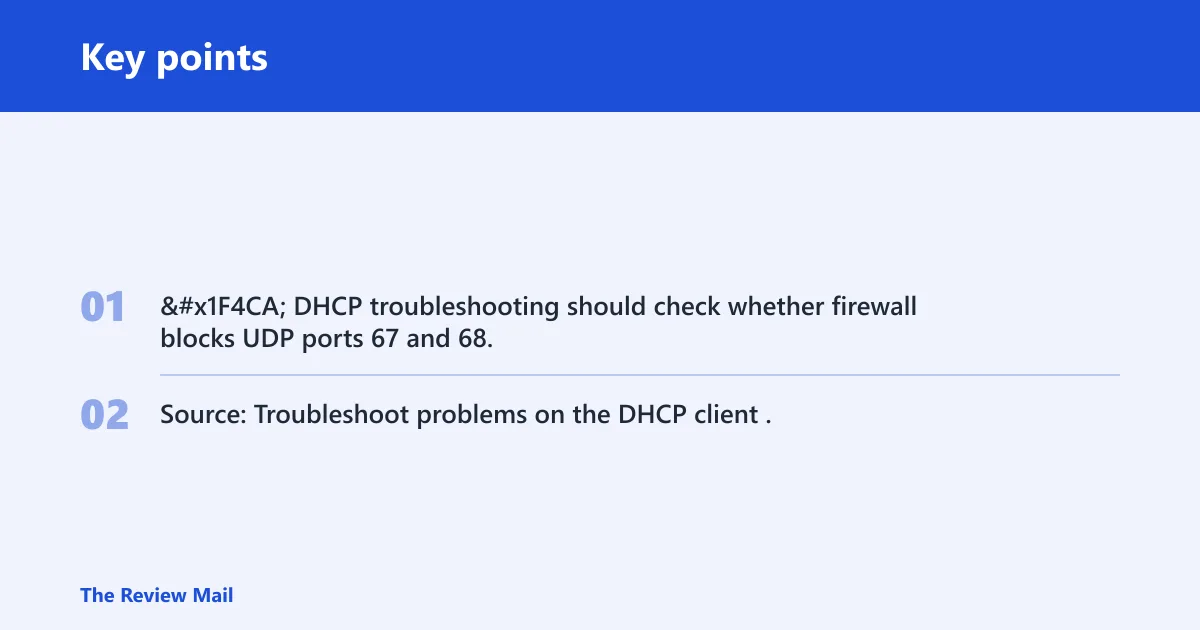
DHCP assigns the IP address, subnet mask, gateway, and DNS automatically through UDP ports 67 and 68. The client should move through Discover, Offer, Request, and Ack. When one stage repeats or stops, the table below shows where to look next. (Microsoft Learn)
| Symptom | What to check | Expected result | Escalation path |
|---|---|---|---|
| Discover repeats, no Offer appears | Adapter state, service state, firewall, MAC filtering | Adapter enabled; DHCP Client running; UDP 67/68 allowed | Check switch or AP MAC filtering, then capture traffic on both sides |
| Offer appears, but no Request or Ack follows | Local filtering, packet loss, server policy, lease conflict | Client sends Request and receives Ack | Inspect Event Viewer, then compare client and server traces in Wireshark |
| No automatic IPv4 address at all | IPv4 properties and Settings IP assignment | Select Obtain an IP address automatically and Obtain DNS server address automatically | Reset TCP/IP stack, then test with a static IP |
| Renew fails after a previous lease | DHCP Client service, stack corruption, router response | ipconfig /release and ipconfig /renew complete cleanly | Use netsh int ip reset and netsh winsock reset, then retest |
📊 DHCP troubleshooting should check whether firewall blocks UDP ports 67 and 68. Source: Troubleshoot problems on the DHCP client.
Why is Windows 11 not getting an IP?
The usual causes are a wrong adapter setting, a stopped DHCP Client service, or a server that never answers the client. Less often, a firewall, switch MAC filtering, or a damaged TCP/IP stack blocks the exchange before Ack arrives.
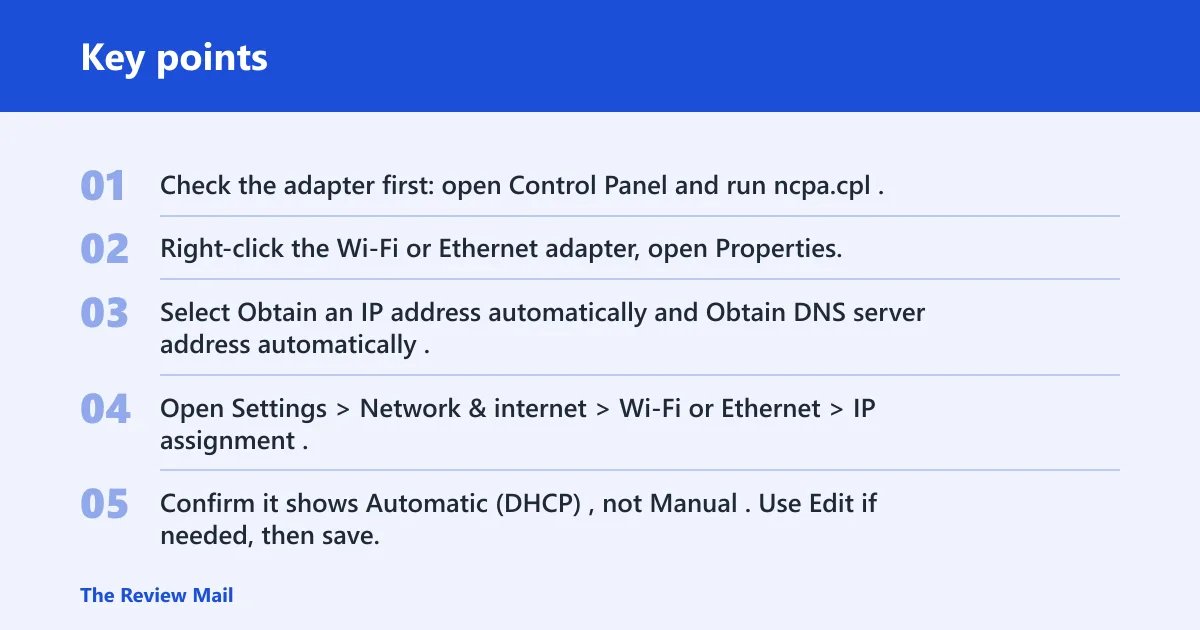
- Check the adapter first: open Control Panel and run ncpa.cpl.
- Right-click the Wi‑Fi or Ethernet adapter, open Properties, then select Internet Protocol Version 4 (TCP/IPv4).
- Select Obtain an IP address automatically and Obtain DNS server address automatically.
- Open Settings > Network & internet > Wi‑Fi or Ethernet > IP assignment.
- Confirm it shows Automatic (DHCP), not Manual. Use Edit if needed, then save.
Say your laptop gets a 169.254.x.x address after joining a home Wi‑Fi network. That points to DHCP failing before a usable lease arrives, so changing DNS alone will not fix it. The next check is the DHCP Client service, not the browser or the router app.
Is Windows 11 set to use DHCP?
If Windows 11 is set to manual addressing, it can ignore a working DHCP server. Check both the classic adapter dialog and the Settings app, because one can show automatic while the other still has manual values left behind.
- Open ncpa.cpl, right-click the active adapter, and open Properties.
- Open Internet Protocol Version 4 (TCP/IPv4).
- Verify Obtain an IP address automatically and Obtain DNS server address automatically.
- Open Settings > Network & internet > Wi‑Fi or Ethernet > IP assignment.
- If it shows Manual, choose Edit, switch to Automatic (DHCP), and save.
A common first-timer mistake is leaving a manual DNS server in place after turning the IP back to automatic. That does not always stop lease assignment, but it can make the connection look broken even after DHCP succeeds.
Is the DHCP Client service running?
The DHCP Client service must be started and running for automatic IP assignment. If it is stopped, Windows 11 may not be able to complete the lease process, even if the network cable or Wi‑Fi signal seems fine.
- Press Win+R, type
services.msc, and press Enter. - Find DHCP Client.
- Make sure its status is Running and startup type is not disabled.
- If needed, right-click it and choose Restart.
- Open Command Prompt and run net start; confirm DHCP Client appears in the list.
What commands renew the IP address in Windows 11?
Use ipconfig /release and ipconfig /renew to force a new lease attempt, then confirm the result with ipconfig /all. ipconfig /flushdns appears in many troubleshooting threads, but it only clears name resolution and is not enough when DHCP itself is failing.
- Open Command Prompt as administrator.
- Run
ipconfig /release. - Run
ipconfig /renew. - Run
ipconfig /alland check whether the IPv4 address, subnet mask, gateway, and DNS server came from DHCP. - If the stack still looks broken, run
netsh int ip resetandnetsh winsock reset, then restart Windows.
Why does Windows 11 keep repeating DHCP Discover and not getting an IP?
Repeated Discover messages usually mean the client is broadcasting, but the process stops before a usable Offer, Request, or Ack sequence completes. If an Offer arrives and Windows keeps rediscovering anyway, suspect local filtering, a lease conflict, or server policy that rejects the request.
- Check that the adapter is enabled and the correct driver is installed.
- Confirm the DHCP Client service is running.
- Check local firewall rules for UDP ports 67 and 68.
- Look for switch, AP, or router MAC filtering.
- Open Event Viewer and inspect Microsoft-Windows-DHCP Client Events/Operational and Microsoft-Windows-DHCP Client Events/Admin.
Suppose a desktop sends Discover frames every few seconds on Ethernet while another device on the same switch gets a lease instantly. That points away from the server as a whole and toward a client-specific block, such as MAC filtering, a firewall rule, or a damaged TCP/IP stack.
What do Event Viewer and Wireshark show?
Event Viewer can show where the client stopped in the handshake. Wireshark shows whether the packet left the client, whether the server answered, and whether the reply returned to the client. Use both when the error survives the basic GUI checks.
- Open Event Viewer.
- Go to Applications and Services Logs > Microsoft-Windows-DHCP Client Events > Operational.
- Check Admin for failures that line up with the lease attempt.
- Run Wireshark on the affected client and the server at the same time.
- Start capture, then run
ipconfig /releaseandipconfig /renew, and stop both captures after the attempt.
Could firewall or MAC filtering be blocking DHCP?
Yes. A local firewall can block UDP 67 and 68, and a switch, router, or access point can block the client by MAC address. Either one can let the adapter look connected while DHCP packets never complete the exchange.
- Check the client firewall for rules that block UDP 67 and 68.
- Review any router, switch, or AP MAC filtering rules.
- Confirm the network device is allowed to answer this client.
- If the policy is intentional, test from a port or SSID without filtering.
- Retest with
ipconfig /renewafter any change.
Static IP fallback and next steps
If DHCP still fails, a static IP can keep the machine online long enough to continue troubleshooting. Use it carefully. The address must fit the subnet, the gateway must match the network, and the chosen IP must not conflict with another device.
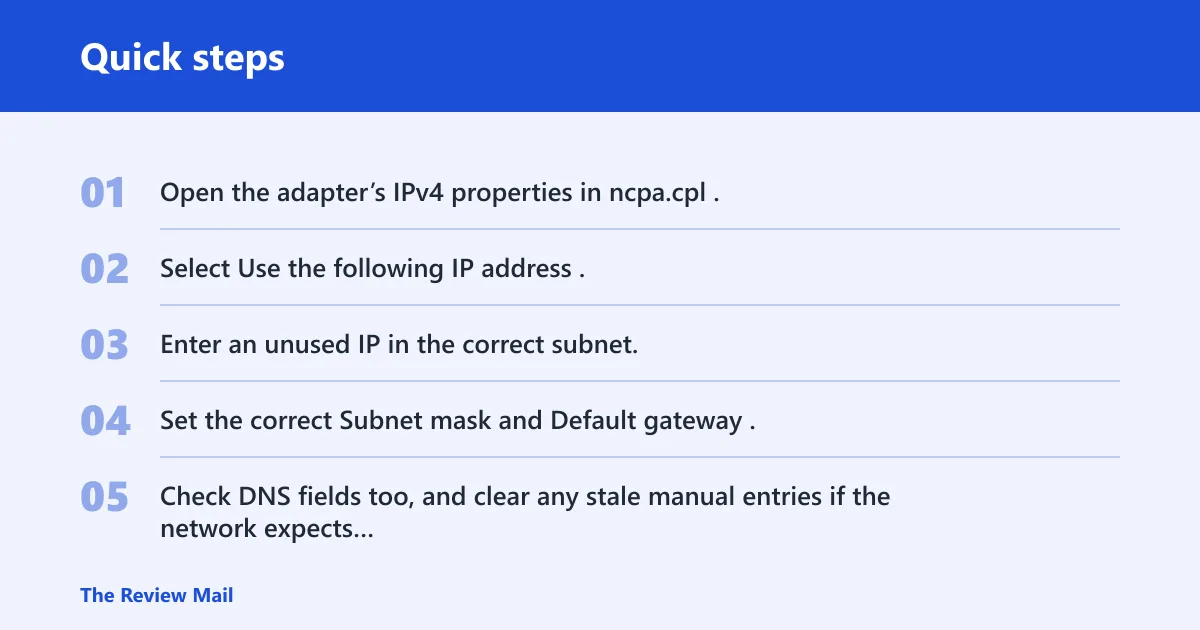
- Open the adapter’s IPv4 properties in ncpa.cpl.
- Select Use the following IP address.
- Enter an unused IP in the correct subnet.
- Set the correct Subnet mask and Default gateway.
- Check DNS fields too, and clear any stale manual entries if the network expects DHCP-provided DNS.
If that does not restore access, stop treating it as a local Windows-only problem. Check the router’s DHCP scope, server policy, and whether another device on the same network can lease normally. If multiple clients fail, the server or upstream device needs attention.
Prevention: after the fix, keep adapter settings on automatic unless your network requires manual addressing, and note any firewall or MAC-filter rule that caused the block.
Frequently asked questions
Why does Windows 11 say DHCP is not enabled for Wi-Fi?
That message usually means the Wi‑Fi adapter is set to manual IPv4 addressing, or Windows cannot complete the lease process. Check ncpa.cpl first, then Settings > Network & internet > Wi‑Fi > IP assignment. The fix is to switch both IP and DNS back to automatic.
How do I turn DHCP back on in Windows 11?
Open Settings > Network & internet > Wi‑Fi or Ethernet > IP assignment, choose Edit, and select Automatic (DHCP). Then open ncpa.cpl, check IPv4 properties, and set both IP and DNS to automatic so the adapter does not keep a leftover manual value.
What Windows service must be running for DHCP to work?
The DHCP Client service must be started and running. Verify it in services.msc and confirm it with net start. If it is stopped, automatic IP assignment will fail even if the network hardware and cable are fine.
Can a firewall block DHCP on Windows 11?
Yes. A firewall can block UDP ports 67 and 68 on the client computer. If DHCP fails after the adapter is set correctly, check any security suite or Windows firewall rule that filters those ports, then run ipconfig /renew again to confirm the lease attempt.
Should I use a static IP if DHCP keeps failing on Windows 11?
Use a static IP only as a fallback. Pick an unused address, match the subnet mask and gateway to the network, and clear stale manual DNS values if needed. A bad static setup can create an IP conflict or place the device on the wrong subnet.
How do I check whether Windows 11 got an IP from DHCP?
Run ipconfig /all. Look for an IPv4 address, subnet mask, gateway, and DNS information that match the network, plus a lease that came from the DHCP server. If you see a self-assigned address or no lease details, DHCP did not complete successfully.