Windows 11 Enable DHCP: Step-by-Step Fix and Checks
In Windows 11, enable DHCP by opening your adapter’s IPv4 properties and selecting Obtain an IP address automatically and Obtain DNS server address automatically; if the switch is already set, renew the lease and check the DHCP Client service. Skip that check, and you can keep a bad static IP, lose internet access, or miss a router lease issue. This guide shows how to verify, change, renew, and escalate based on whether the fault is in the adapter, service, or lease renewal.
What DHCP changes in Windows 11
DHCP gives your PC an address from the router, and it can also set DNS automatically. That matters on both Wi-Fi and Ethernet. If either setting is stuck on manual, Windows may keep an old address, miss a gateway, or fail to resolve names even when the cable or wireless link is fine.
In practice, “enable DHCP” means two things: switch the IP assignment from manual to automatic, then confirm the adapter actually received a fresh lease. DNS should usually move with it. If the adapter still shows a static address after the change, the problem is no longer just a toggle.
Why DNS should usually be automatic
Automatic DNS keeps the adapter aligned with the router’s addressing. When DNS is left on a manual server that is offline, blocked, or wrong for that network, Windows can show connected status while websites still fail to load. Check both the IP and DNS fields.
How do you enable DHCP in Settings?
Then set DNS to automatic too. That is the fastest fix when the adapter is stuck on manual addressing.
Wi-Fi path
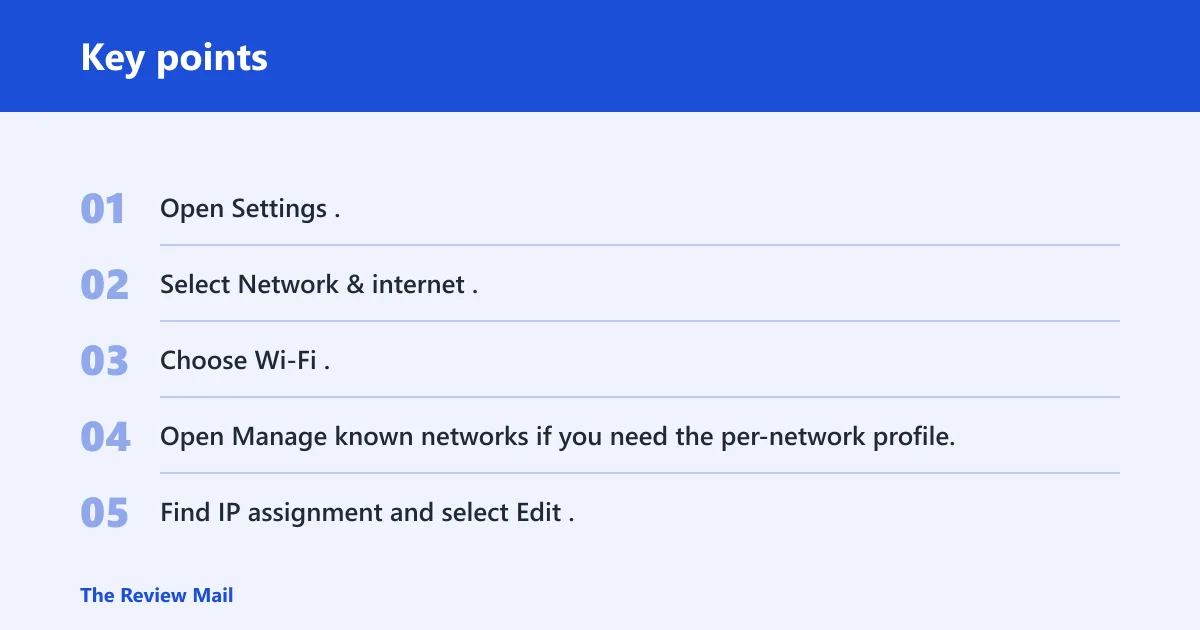
- Open Settings.
- Select Network & internet.
- Choose Wi-Fi.
- Open Manage known networks if you need the per-network profile, then open the active network.
- Find IP assignment and select Edit.
- Choose Automatic (DHCP).
- Set DNS to automatic if that field is separate on the page.
Ethernet path
For wired connections, stay in Settings > Network & internet and click Ethernet in the right pane. Then open IP assignment, select Edit, and switch to Automatic (DHCP). The same DNS check applies. Ethernet and Wi-Fi use the same DHCP method, but the page you click is different.
Suppose a laptop joins your home Wi-Fi and shows “No internet,” but the Ethernet port on the same device works when docked. That points to the Wi-Fi profile, not the router as a whole. Change the Wi-Fi network’s IP assignment first, then verify the lease renewed before touching the cable side.
How do you switch a static IP back?
If Settings will not hold the change, use the adapter properties in Control Panel. Open ncpa.cpl, open the adapter Properties, open Internet Protocol Version 4 (TCP/IPv4), and choose Obtain an IP address automatically plus Obtain DNS server address automatically. This path is often better when the GUI keeps reverting.
Control Panel method
- Press Windows + R, type ncpa.cpl, then press Enter.
- Right-click the active adapter and open Properties.
- Select Internet Protocol Version 4 (TCP/IPv4).
- Open Properties.
- Choose Obtain an IP address automatically.
- Choose Obtain DNS server address automatically.
- Confirm with OK, then close the dialogs.
If the adapter keeps snapping back to manual, suspect a profile override, a policy setting, or a broken network stack. A common mistake is setting Windows 11 to obtain an IP address automatically but forgetting to switch the adapter’s DNS setting to automatic as well; that can still cause websites and local devices to fail to resolve.
DHCP troubleshooting table
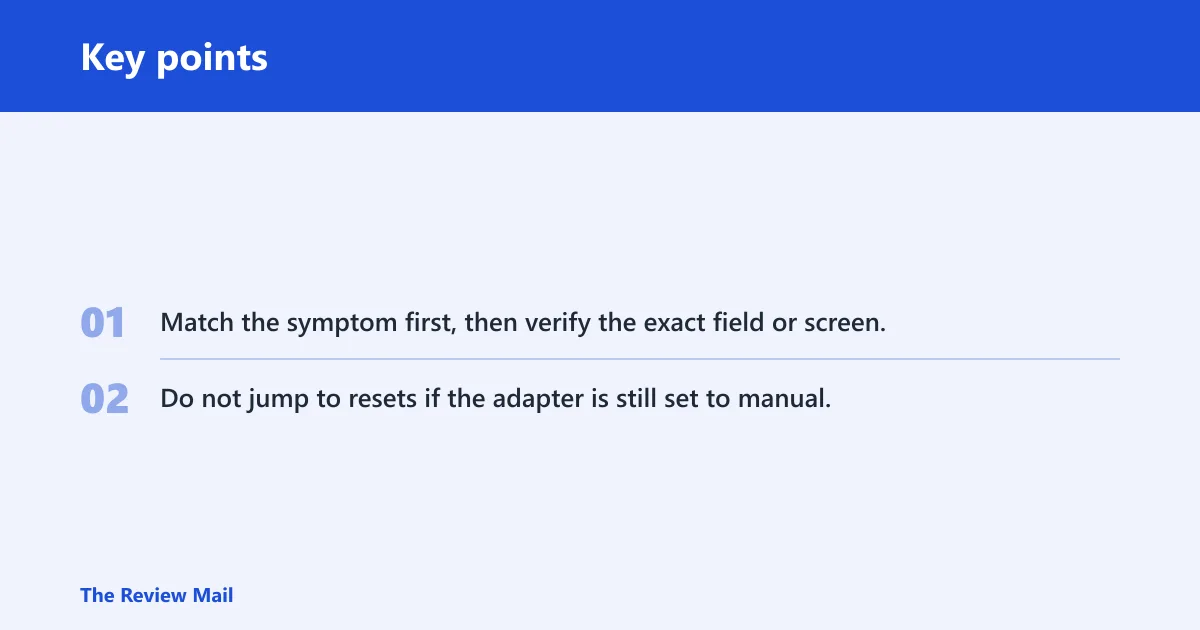
Use this table as a decision guide. Match the symptom first, then verify the exact field or screen, then move to the fastest fix. Do not jump to resets if the adapter is still set to manual.
| Symptom | Likely cause | Exact verification command or screen | Fastest fix | When to escalate |
|---|---|---|---|---|
| DHCP Enabled = No | Static IP is still set on the adapter | ipconfig /all and check DHCP Enabled | Switch IPv4 to automatic in Settings or ncpa.cpl | Escalate if the setting reverts after a restart |
| Adapter shows Manual in Settings | Per-network profile or adapter override | Settings > Network & internet, then the active Wi-Fi or Ethernet page | Set IP assignment to Automatic (DHCP) | Escalate if Edit is greyed out or policy blocks the change |
| IP assignment stuck on Manual | Adapter property conflict or saved profile setting | ncpa.cpl > adapter Properties > TCP/IPv4 | Select automatic IP and automatic DNS in IPv4 properties | Escalate to driver update or TCP/IP reset if it flips back |
| DHCP Client service stopped | Windows service not running | services.msc > DHCP Client | Restart the service and set Startup type to Automatic | Escalate if the service will not start or stops again |
| Auto-DNS missing | DNS left on manual values | IPv4 properties dialog or ipconfig /all | Set Obtain DNS server address automatically | Escalate if DNS stays blank after renewal |
| No lease or no default gateway | Router did not hand out an address | ipconfig /all and ipconfig /renew | Release and renew the lease | Escalate to router restart or cable/Wi-Fi review |
How do you check whether DHCP worked?
Run ipconfig /all and look for DHCP Enabled set to Yes. Then confirm the adapter has a valid IP address, default gateway, and DNS servers. If the adapter still shows an old address or no gateway, renew the lease with ipconfig /release and ipconfig /renew. (BU)
What to look for in the output
The key check is not just whether the adapter is “connected.” Look for three items together: DHCP Enabled = Yes, an assigned IPv4 address that matches the network, and a default gateway. If those are missing, the network path is still broken even if the Wi-Fi icon looks normal.
Use the renewal commands from an elevated Command Prompt or Windows Terminal if the adapter does not refresh on its own. A lease renewal is the proof step. Without it, you only know the setting changed, not that the router accepted it.
When does DHCP Client need attention?
If the adapter is set to automatic but Windows still will not get an address, open services.msc, find DHCP Client, restart it, and set Startup type to Automatic. That service is required for automatic IP acquisition. If it is stopped, DHCP can fail even when the adapter settings are correct. (Microsoft Learn)
Reset TCP/IP and Winsock when renewal still fails
Use a TCP/IP reset when the network stack appears corrupted, and pair it with a Winsock reset if socket behavior is also suspect. These changes are deeper than DHCP itself. Use them when automatic addressing is set correctly, the service is running, and the adapter still cannot secure a lease.
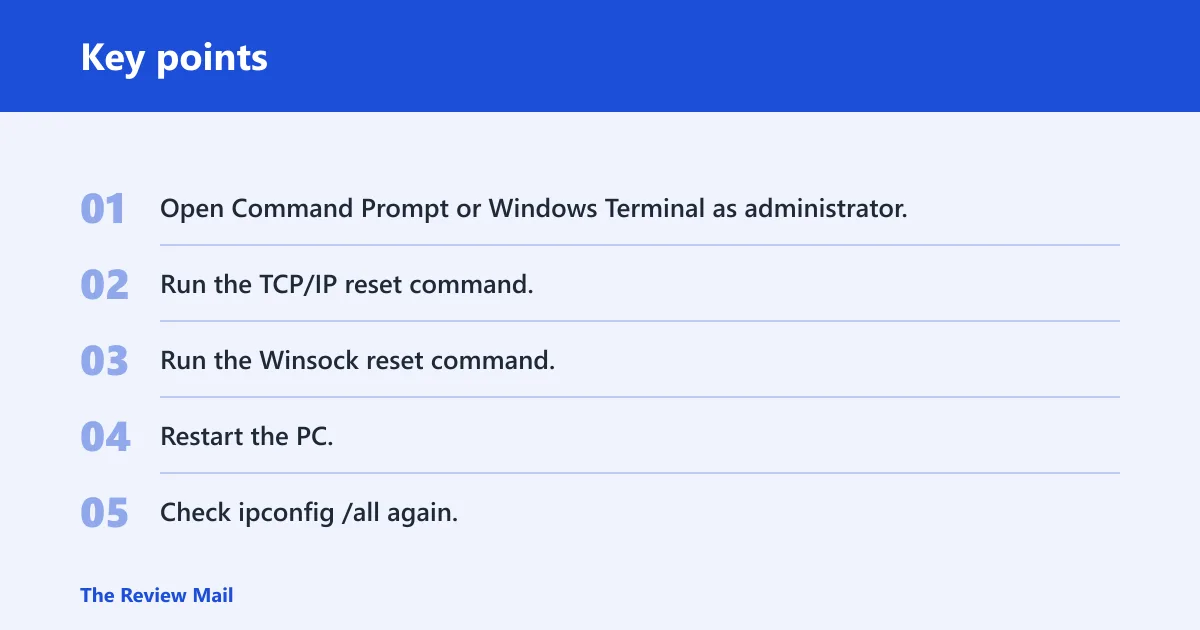
- Open Command Prompt or Windows Terminal as administrator.
- Run the TCP/IP reset command.
- Run the Winsock reset command.
- Restart the PC.
- Check
ipconfig /allagain.
Windows 11 DHCP problems are often a chain, not a single fault. If the adapter keeps reverting to manual, update the network driver. If no lease arrives after renewal, restart the router and try again. If both Wi-Fi and Ethernet fail on the same PC, the stack or service is more likely than the network hardware.
Frequently asked questions
How do I enable DHCP on Windows 11 for Wi-Fi?
Go to Settings > Network & internet > Wi-Fi, open Manage known networks for the active profile, then change IP assignment to Automatic (DHCP). Set DNS to automatic as well, then confirm the lease with ipconfig /all.
How do I enable DHCP on Windows 11 for Ethernet?
Open Settings > Network & internet, click Ethernet in the right pane, and change IP assignment to Automatic (DHCP). If needed, use ncpa.cpl and the adapter’s IPv4 properties. Then verify that DHCP Enabled is set to Yes.
How do I check whether DHCP is enabled in Windows 11?
Run ipconfig /all and check the DHCP Enabled line. If it says No, the adapter is still using manual addressing. If it says Yes, confirm that the adapter also has a valid IP address, gateway, and DNS servers.
What if DHCP Client service is stopped in Windows 11?
Open services.msc, find DHCP Client, restart it, and set Startup type to Automatic. Then renew the lease. If the service stops again or refuses to start, move on to a TCP/IP reset, driver update, or router-side check.
How do I reset TCP/IP when DHCP won’t work?
Use an administrator Command Prompt or Windows Terminal, reset the TCP/IP stack, then reset Winsock, and restart the PC. That is the right move when DHCP is already set to automatic but the adapter still cannot secure a lease. Check ipconfig /all afterward to confirm the change.