Cannot Connect to Proxy: Fix the Source First
When Windows or Chrome says it cannot connect to proxy, identify which layer changed the setting: Windows, Chrome, an extension, a policy, or a local app. Skip that step and you can keep chasing the wrong fix, break working network access, or restore a setting that another tool will change again. This guide shows how to trace the source on Windows 11 and Chrome, then fix the right layer.
What the proxy error usually means
The browser or app usually cannot reach the proxy server itself. That can mean the proxy host is wrong, the port is wrong, the protocol does not match, or the proxy is reachable but refusing the connection before the destination site is contacted.
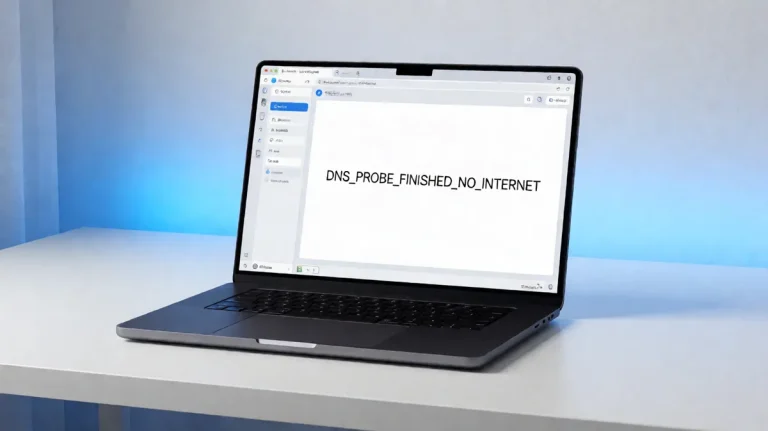
Proxy failure is not the same as a dead internet connection. A direct connection can work while the proxy path fails, which is why a quick no-proxy test matters before you change settings in three places.
Direct access versus proxy failure
Turn off the proxy for a moment and try a known good site. If the site loads directly, the internet path is working and the fault sits with the proxy layer. If nothing loads, the problem is broader than proxy settings and you need to check DNS, the network link, or the router path.
A common first-timer mistake is to assume the proxy is down and keep swapping ports before checking whether the device can reach any website without a proxy. That can hide the real source and make the next check harder to read.
Proxy error decision table
| symptom | likely source | confirm it by | fix now |
|---|---|---|---|
| Chrome shows proxy error only after installing a browser add-on | Chrome extension | Open Chrome’s proxy source label and disable the new extension | Remove the extension or reset its proxy permissions |
| Every Windows app starts failing after a settings change | Windows manual proxy | Check Settings > Network & internet > Proxy and the manual toggle | Turn off Use a proxy server or correct the host and port |
| Error appears only while a VPN is connected | VPN proxy settings | Disconnect the VPN and retry the same site or app | Adjust the VPN proxy profile or remove the VPN proxy route |
| Proxy settings return after you change them | Administrator policy | Look for Chrome saying the source is your administrator | Ask the admin to change the policy or allow the proxy you need |
| Proxy host is 127.0.0.1 and only one app is failing | Local loopback proxy | Check whether a local client is listening on the listed port | Start the local app or correct its listening port |
| Login prompts repeat even with known-good credentials | Expired proxy account | Test with a fresh account or ask the provider if the account is active | Renew the plan or replace the expired credentials |
| Proxy fails after security software changes | Firewall / antivirus block | Temporarily disable the product and retry the connection | Add an application exception for the proxy port or app |
| Proxy keeps returning after reboot or browser reset | Malware or persistent rewrite | Check startup items, scheduled tasks, and policy-controlled settings | Run a cleanup scan and remove the component that rewrites proxy settings |
Why does Chrome say it cannot connect?
Chrome’s older heading was Unable to connect to the proxy server. The modern line says there is something wrong with the proxy server, or the address is incorrect. Chromium also documents the issue as error -130, ERR_PROXY_CONNECTION_FAILED.
That error can appear while Chrome is resolving the proxy name or while it is opening a socket to the proxy. In other words, the failure can happen before the website is even involved.
What the source labels mean
Chrome may show the proxy source as your computer, an extension, your administrator, or several of them. Those labels matter. They tell you whether Windows, a browser add-on, or policy is controlling the setting.
If Chrome says several of them, stop treating the problem as one simple toggle. Two sources can fight each other, and the browser may keep reading the wrong proxy path until the conflict is removed.
When several sources conflict
Start with the source named by Chrome, then check the next layer only if the first one does not explain the symptom. If an extension sets a proxy and Windows also has manual proxy values, the browser can inherit one value while the system uses another.
Suppose Chrome says the source is an extension and the error began right after a new add-on was installed. Disable that add-on first. If the error disappears, the browser layer owns the problem.
How do you check Windows 11 proxy settings?
Open Settings > Network & internet > Proxy. Windows 10 and 11 store manual proxy settings there. Check the manual proxy setup, the Use a proxy server toggle, and Use setup script if a script URL was entered.
Windows proxy settings are separate from browser settings. That split matters on Windows 11, because one app can inherit the system proxy while another follows its own source.
Manual proxy setup and setup script
Under manual proxy setup, verify the proxy server name or IP address and the port. Microsoft’s setup expects both values. If the host is wrong, or the port does not match the proxy service, the browser can fail even when the internet connection is fine.
Also check the setup script field. A bad script path can rewrite the proxy setting every time Windows starts, which is why the same error can return after a reboot. (Microsoft Learn)
VPN-specific proxy settings
If you use a VPN, inspect its proxy options as well. Some VPN clients push their own proxy route, and that route can override Windows or browser settings. If the error appears only when the VPN is active, the VPN profile is a likely source.
How do you verify the proxy server itself?
Check the proxy address, the port, and the protocol first. The address can be a host name or IP address, and the port must match the service in use. An HTTP proxy cannot be used as a SOCKS proxy, so the protocol must match the server.
Then confirm username and password, if the proxy requires them. Some setups use IP-based authentication, which means the proxy allows traffic only from approved addresses. Valid credentials do not help if the network blocks the proxy port or the server rejects the client network.
Address, port, and protocol
If the proxy is HTTP, port 8080 is a common choice. If the proxy is SOCKS5, port 1080 is a common choice. Those numbers are not universal rules, but they are often used and are worth checking against the provider’s settings.
Picture a user entering a proxy host and leaving the port at a stale value from an old profile. The browser may resolve the host just fine, then fail at the socket stage because it is knocking on the wrong port.
Authentication and account status
Proxy authentication can fail for simple reasons: a wrong username, a wrong password, or a plan that has expired. If the provider ties access to a known IP address, a new network or VPN exit point can also trigger a block even when the password is correct.
If the login dialog keeps returning, ask whether the account is still active. An expired proxy account often looks like a connection problem until the provider checks the subscription or allowed IP list.
Why does the error keep coming back?
If the same proxy error returns after restart, the setting is probably being rewritten. The most likely sources are a browser extension, administrator policy, a startup app, or malware that re-applies the proxy path after boot.
That pattern is different from a one-time typo. A typo stays fixed once corrected. A rewrite returns because another layer owns the setting.
Extensions, policy, and startup apps
Chrome can inherit a proxy from an extension or from policy. If Chrome says the source is your administrator, the setting is controlled outside the browser. If it says an extension, remove or disable that add-on and retest.
For Windows, inspect startup items and any local app that manages network traffic. A local client for downloading, remote access, or security can write proxy values into the system profile at sign-in.
Firewall or antivirus blocking
Security software can block the proxy port or the app that is trying to reach it. A brief disable-and-retry test can help isolate the issue. If the proxy works while the product is off, add an application exception or allow the proxy port in the security tool.
That test should be brief and controlled. If the proxy starts working only when the filter is off, the block is in the security layer, not in the browser or the proxy host.
Malware or persistent local rewrite
Yes, malware can change proxy settings on a PC. It can also redirect traffic through a local service or a suspicious loopback proxy. Check whether the setting keeps returning after reboot, whether startup entries are unfamiliar, and whether the proxy points to 127.0.0.1 without a clear local app that owns it.
Say your proxy field keeps changing back to a local address after every restart. That is a strong sign that another process is rewriting the value, and the fix belongs in cleanup, startup review, or policy removal rather than in the browser alone.
How do you tell if it is a proxy problem or your internet connection?
Disable the proxy and test direct access to the same site. If direct access works with the proxy off, that usually points to the proxy as the source. If direct access fails too, check DNS, the network link, or router path before going back to the proxy settings.
Built-in Windows diagnostics
Use Windows network diagnostics after the direct test. The built-in troubleshooter can verify the connection and separate a proxy-only fault from a broader network problem. That separation saves time when one app works and another does not.
If the troubleshooter says the link is healthy, return to proxy settings instead of replacing cables, Wi-Fi settings, or browser data. The goal is to isolate the layer that owns the failure.
Frequently asked questions
Can’t connect to proxy
This usually means the app reached a proxy setting but could not reach the proxy server itself. Check the host, port, and protocol first. If direct internet access works with the proxy off, the proxy layer is the one to fix, not the whole network.
Can t connect to internet proxy server error?
That message often points to a proxy path problem, not a total internet outage. Turn the proxy off and test a known good site. If the site opens directly, return to the proxy address, port, authentication, and source label rather than changing unrelated network settings.
Can’t connect to proxy server
Start with Windows 11 proxy settings at Settings > Network & internet > Proxy, then check Chrome’s source label. If the source is an extension or administrator policy, fix that layer first. A browser reset will not help if the system proxy still points to the wrong host.
Why does my browser say it cannot connect to the proxy server?
The browser is warning that it cannot reach the proxy it is trying to use. That can happen because the address is wrong, the proxy is offline, the port is blocked, or an extension or policy changed the source. Chrome may also show the source as your computer or an extension.
How do I turn off a proxy in Windows 11?
Open Settings > Network & internet > Proxy, then switch off Use a proxy server under manual proxy setup. Also check Use setup script if a script URL is listed. After that, test direct access to confirm the network works without the proxy path.