Private vs Public Network Windows
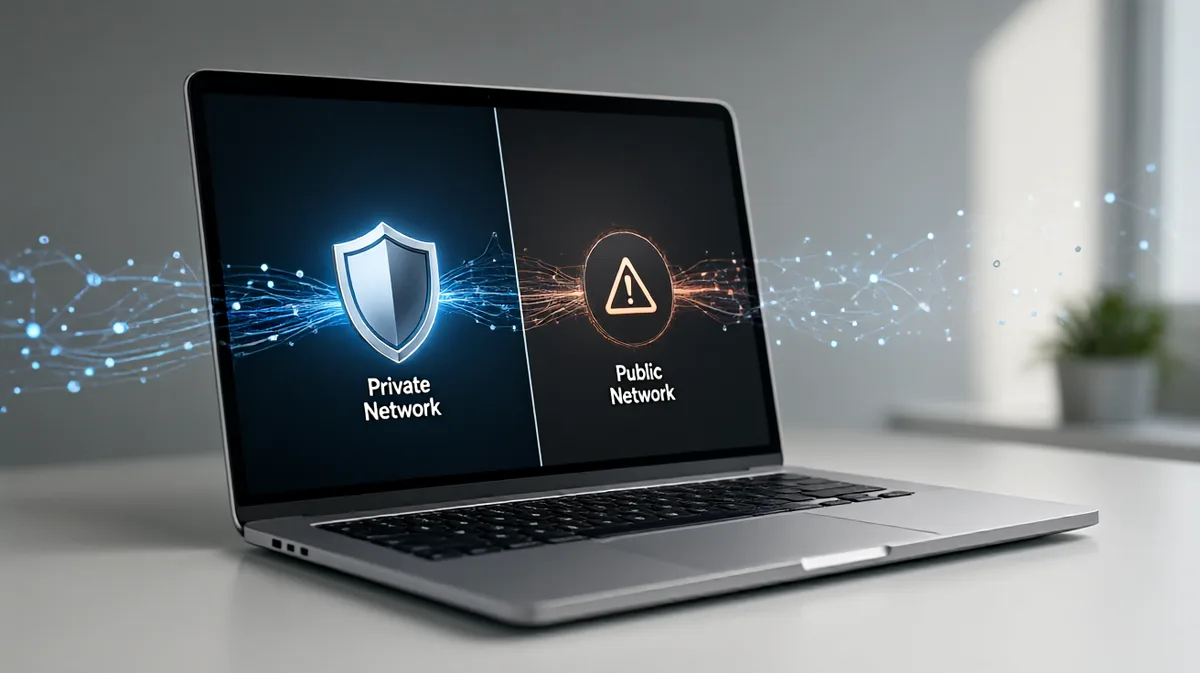
Choose Private on trusted home or work networks when you want device discovery, file sharing, or printers to show up. Choose Public on airports, hotels, coffee shops, and guest networks when you want the PC to stay less visible. This setting changes local discovery and firewall rules; it does not encrypt your internet connection by itself. Microsoft’s Windows network profile and firewall guidance explains the same trust-based split for discovery and sharing.
If the network profile is wrong, symptoms are usually local: shared folders vanish, printers disappear, or the PC shows up when it should not. The fastest fix is usually to change the active adapter’s network profile, then verify the separate network discovery and file/printer sharing settings. See also: Windows Firewall, network discovery, file sharing, and printer troubleshooting.
When to use private vs public network
| Decision factor | private | public network windows | Winner |
|---|---|---|---|
| Device discovery on the local network | Visible to other devices on the same network | Hidden from other devices on that network | private |
| File and printer sharing | Works better for local sharing | Disabled by default in public mode | private |
| Default safety on unknown networks | Trusted only when you choose it | Stricter security for unknown networks | public network windows |
| Home or office convenience | Best when you need browsing and sharing | Best when you do not want local visibility | tie |
| Wi-Fi and Ethernet flexibility | Can be set per adapter | Can be set per adapter | tie |
Private vs public: Key differences
Device discovery
Private wins this factor because Windows enables local network discovery for trusted networks, which makes the PC easier to find in File Explorer browsing and other local network lists. Microsoft documents that network discovery is intended for private networks and is normally turned off for public ones. On public network windows, Windows hides the PC by default to reduce local exposure.
File and printer sharing
Private also wins here. Public mode normally disables file and printer sharing behavior on the local network, so shared folders and network printers may disappear until the profile changes. Microsoft’s file-sharing and printer-sharing documentation ties those features to private-network behavior and firewall exceptions. If you want another laptop, a NAS box, or a home printer to appear reliably, the private profile is the one that supports it.
Firewall behavior
Public network wins the stricter firewall posture. Windows Security Firewall stays on in both profiles, but the rule set is tighter on public networks and more permissive on private ones for local sharing. Microsoft’s firewall guidance explains that the profile changes which local connections are allowed, not whether the firewall is disabled. That is why a trusted home network can still be protected while allowing discovery and sharing.
Security on unknown networks
Public network wins the safety factor for airports, hotels, coffee shops, and other networks you do not control. Windows treats public networks as unknown and applies stricter rules, which limits local access and discovery. That does not change your internet connection itself; it changes who on the local network can see your PC. Microsoft’s public-network guidance recommends this setting when you do not trust the local environment.
Private vs public network windows decision matrix
Use the profile that matches trust level first, then adjust for sharing needs. Windows can prompt you to make a network discoverable the first time you connect, but the exact wording and location vary by Windows build and management policy. The matrix below gives the practical choice for common cases and the quickest fix when a shared resource does not appear.
| Scenario | Recommended profile | Reason | What changes in Windows | If file sharing or printer discovery fails |
|---|---|---|---|---|
| Home Wi‑Fi | private | Trusted network where discovery and sharing are usually wanted | Network discovery on; local devices become visible; sharing rules loosen for the LAN | Check whether the Wi‑Fi adapter is still Public in Settings |
| Office Wi‑Fi | private, if IT says so | Workplace sharing often depends on the organization’s profile and policies | Local discovery may work; firewall rules follow workplace policy | Ask whether the network is managed and whether discovery is blocked by policy |
| Hotel Wi‑Fi | public network windows | Untrusted shared network; local visibility should stay off | Discovery off; PC hidden; file and printer sharing disabled | Do not switch to private; use public and troubleshoot a separate sharing method |
| Guest network | public network windows | Guests should not browse your devices by default | Local sharing stays off; PC remains less visible on the LAN | If you need to share to a guest device, confirm both devices are on the same trusted network segment |
| Ethernet at home | private | Useful for printers, media devices, and wired desktop sharing | Ethernet can be discovered separately from Wi‑Fi; sharing rules open for the wired adapter | Check the Ethernet profile, not only Wi‑Fi, because the two can differ |
| Shared printer network | private | Printer discovery usually needs local visibility | Devices appear in browsing; printer sharing can work on the local network | Make sure network discovery and printer sharing are not still off on the adapter |
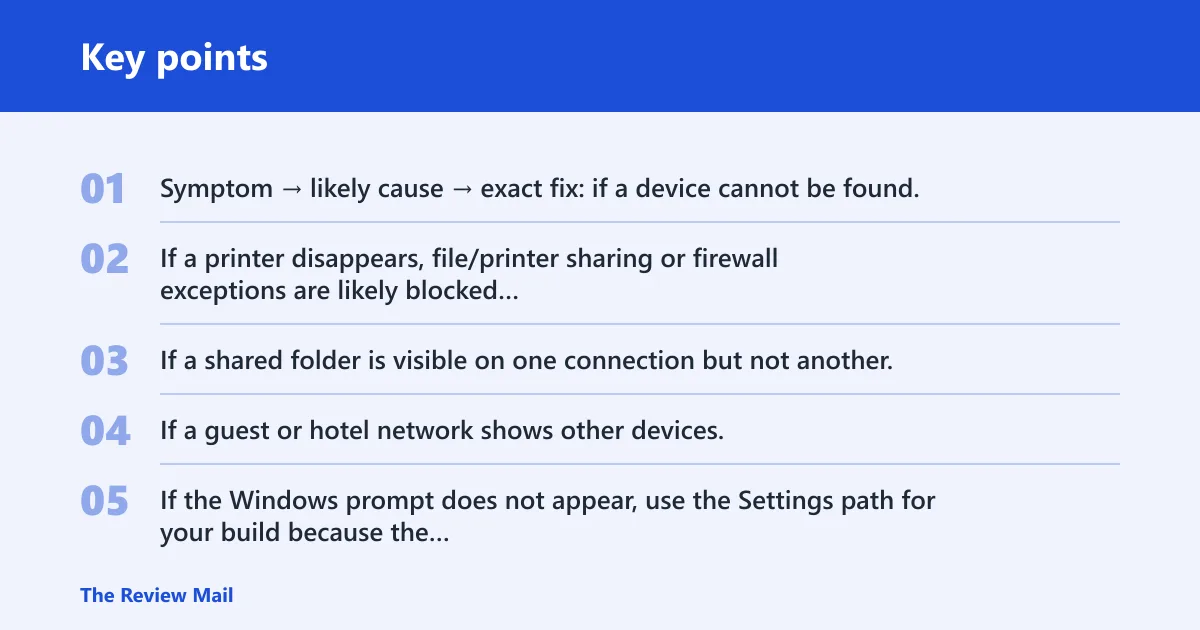
Symptom → likely cause → exact fix: if a device cannot be found, the active adapter is often still set to Public; change that adapter to Private, then confirm network discovery is on. If a printer disappears, file/printer sharing or firewall exceptions are likely blocked on that profile; keep the network Private and check the sharing settings. If a shared folder is visible on one connection but not another, the PC may have different profiles on Wi‑Fi and Ethernet; adjust the adapter you are actually using. If a guest or hotel network shows other devices, that can happen because of the network itself and is not, by itself, proof that your PC profile is wrong. If the Windows prompt does not appear, use the Settings path for your build because the exact prompt wording varies. If corporate policy overrides your changes, the organization may be controlling the profile and firewall through management tools.
What is private and public network in Windows?
Windows groups networks into private and public categories, and the category controls how visible the PC is to other devices on that network. Private is for trusted networks where local discovery and sharing matter. Public is for unknown or shared networks where Windows should limit local visibility. Microsoft’s Windows network profile documentation describes the same distinction as a way to control discoverability and sharing behavior on a per-network basis.
What changes for discovery, sharing, and firewall rules?
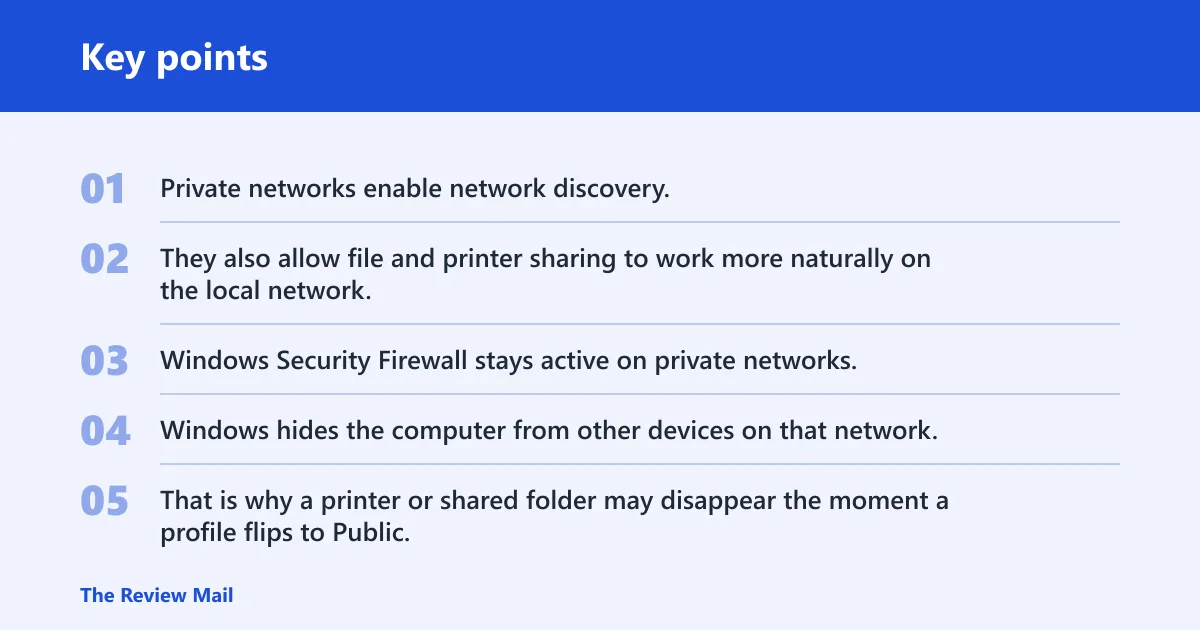
Private networks enable network discovery, which affects visibility in File Explorer and normal network browsing. They also allow file and printer sharing to work more naturally on the local network. Windows Security Firewall stays active on private networks, but it allows more local sharing than it does on public networks, consistent with Microsoft’s firewall guidance.
Public networks take the stricter path. Windows hides the computer from other devices on that network, disables file and printer sharing by default, and applies tighter firewall rules for local traffic. That is why a printer or shared folder may disappear the moment a profile flips to Public. Microsoft’s file-sharing and printer-sharing docs describe those features as expected private-network behavior.
Why Public is the safer default for unknown networks
Public is the safer default because Windows does not know whether the network owner is trustworthy. A first-time connection can be private if you choose the discoverable option, or public if you keep discovery off, but the system starts cautiously. That helps prevent accidental sharing on networks you do not control, which is the intent of Microsoft’s public-network and firewall behavior.
Why does Windows set a new network to Public?
Windows treats an unrecognized network cautiously because it cannot know whether the local environment is trusted. On Windows 10 and Windows 11, the system may ask whether you want the PC to be discoverable the first time you connect, and the exact prompt or path depends on the build, edition, and any management policy in place. If you keep discovery off, the network stays Public.
First-connection behavior on Windows 10 and 11
That first prompt matters because it decides whether Windows should turn on local discovery right away. Windows 10 and Windows 11 use the same overall trust model, but the wording, Settings location, and available toggles can vary by version and update. New connections start with a conservative stance unless you choose to make them discoverable.
How to tell whether one adapter is Public while another is Private
Windows lets you set each connected network separately. That means Wi‑Fi can be Public while Ethernet is Private on the same PC, or the reverse. Check each adapter in Settings, because the profile does not automatically copy across every connection.
How do you change a network from Public to Private?
Open Windows Settings, go to Network and Internet, select the network connection, and change the network profile type to Private. In Windows 11, the setting is usually labeled Network profile type and lets you choose between Public and Private. In Windows 10, the setting appears under Network & Internet and uses the profile label more directly. Microsoft’s Settings and network-profile documentation shows that the exact path can differ across builds, but the result is the same.
Windows 11 Settings
In Windows 11, the path is Settings > Network & Internet, then the active network connection, then Network profile type. Choose Private for trusted networks and Public for untrusted networks. The wording differs from Windows 10, but the result maps to the same profile choice. Microsoft’s Windows 11 networking support pages note that the location and naming may change with updates.
- Open Settings.
- Go to Network & Internet.
- Select the connected Wi‑Fi or Ethernet network.
- Find the Network profile type setting.
- Choose Private for trusted networks or Public for untrusted ones.
Windows 10 Settings
In Windows 10, the profile option appears in Network & Internet settings. The same trust decision applies: choose the private profile when you want local discovery and sharing, and keep Public when the network is not trusted. The change takes effect on the adapter you selected, not every connection on the PC.
Control Panel and Network and Sharing Center
Older Windows builds may still show Public or Private in Control Panel and Network and Sharing Center, but in current Windows versions that path is not always the practical place to view or change the profile. Use the Settings path first if it is available, and fall back to the older view only when you are following older instructions or checking a legacy configuration.
What changes when you switch to Private?
Switching to Private turns on local discoverability, allows better file and printer sharing, and lets the PC appear to other devices on the same network. Windows Security Firewall remains active, so the PC is not wide open. The change is mainly about who on the local network can see and reach shared services, not about internet encryption or VPN behavior.
Network discovery turns on for local browsing
When discovery is enabled, the PC can appear in local network lists and File Explorer browsing. That is the practical difference many readers notice first. If the network was Public before, devices that were invisible may suddenly appear once the profile becomes Private. Microsoft’s network-discovery documentation describes this as a private-network feature.
File and printer sharing becomes available on the local network
File and printer sharing usually depends on the Private profile. On Public, those features commonly fail because Windows blocks them by default. If a shared folder or printer appears missing, the profile is one of the first things to check. Microsoft’s file and printer sharing support pages tie those settings to trusted-network use.
Windows Firewall still filters traffic
Private does not remove Windows Firewall. It changes which local rules are allowed, while the firewall continues to filter traffic. That is why choosing Private on a trusted home network is not the same as exposing the PC to the wider internet. Microsoft’s firewall documentation explains that firewall behavior changes by network profile while staying enabled.
Network profile and sharing fixes
If sharing fails after you choose Private, check the adapter profile first, then verify discovery and sharing settings. Many problems come from a mismatch: the PC is on Private, but the adapter is still Public, or the printer and the PC are on different networks. The fix is usually local, not internet-related.
When File Explorer cannot see other devices
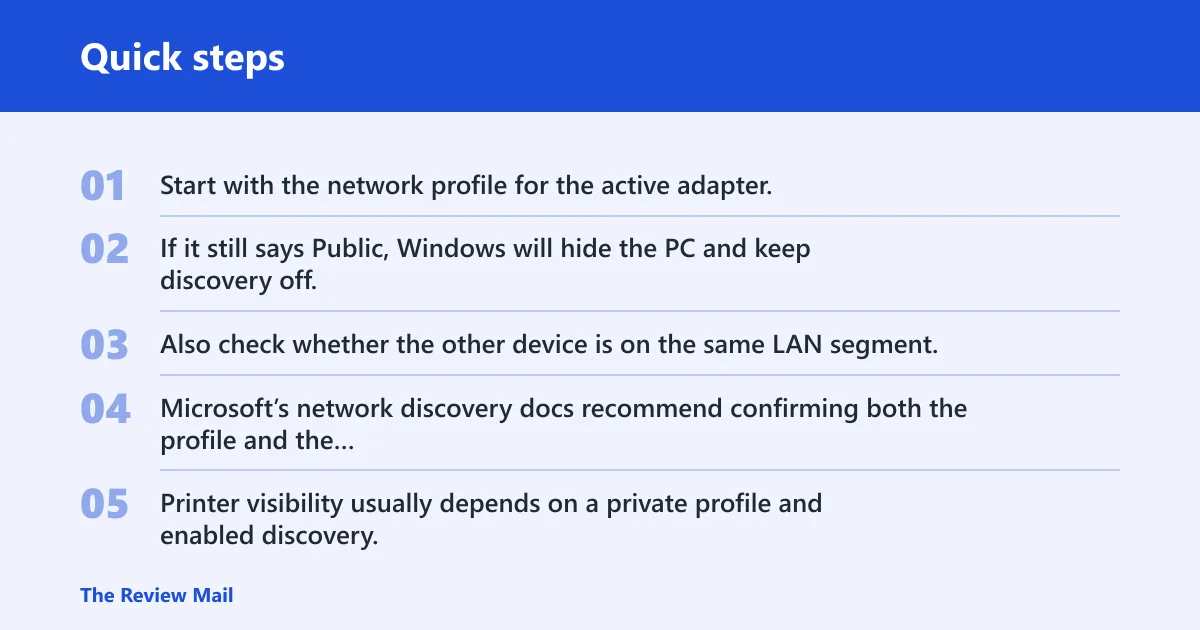
Start with the network profile for the active adapter. If it still says Public, Windows will hide the PC and keep discovery off. Also check whether the other device is on the same LAN segment, because discovery does not cross an unrelated guest network or a different office VLAN. Microsoft’s network discovery docs recommend confirming both the profile and the discovery setting.
When a printer does not appear on the network
Printer visibility usually depends on a private profile and enabled discovery. If the printer is shared from another Windows PC, that PC also needs the right profile and sharing settings. A common setup mistake is switching a laptop’s hotel Wi‑Fi to Private but leaving the cellular hotspot as Public, then being surprised when the media server is visible on one connection and hidden on the other.
Suppose a desktop is wired to home Ethernet, while a laptop is on home Wi‑Fi. If the desktop stays on Public, the laptop may not see its shared printer even though both are “at home.” The fix is to set the Ethernet adapter to Private as well.
When a smart TV or media device cannot be found
Media devices usually rely on local network discovery. If the PC is on Public, Windows may hide it from those devices and hide them from the PC. Make sure the adapter that talks to the TV or streamer is Private, and confirm the device itself is on the same trusted network. If the device still does not appear, use the related network discovery and printer troubleshooting guidance to separate profile issues from device-side issues.
When Ethernet and Wi‑Fi use different profiles on the same PC
Windows treats Wi‑Fi and Ethernet separately, so one can be Private while the other is Public. That matters on laptops that switch between home Wi‑Fi and a docked Ethernet connection. Check both adapters before assuming the profile changed everywhere.
Verdict
Choose private for home networks, office networks that permit local sharing, and any setup where you need printers, smart devices, or shared folders to appear. Choose public network windows for hotels, airports, coffee shops, guest networks, and any connection you do not control. If the network is trusted and sharing matters, Private is the right pick; if the network is shared or unknown, Public is the safer choice.
Frequently asked questions
Private vs public network windows 11
Windows 11 generally uses the same basic split: Private turns on local discovery and sharing, while Public typically hides the PC from other devices and blocks file and printer sharing by default. In Settings, the key choice is usually the Network profile type rather than a generic discoverable toggle. Microsoft’s Windows 11 networking support pages describe the same profile logic.
Private vs public network windows 10
Windows 10 also uses Private and Public profiles, and the Network & Internet settings area is where you change them. Public is the safer choice for first connections, while Private is the better choice when you need local browsing, file sharing, or printers on a trusted network. Microsoft’s Windows 10 support pages describe the same trust-based behavior.
Private vs public network settings windows 11
In Windows 11, open Settings, go to Network & Internet, and select the active Wi‑Fi or Ethernet connection. The Network profile type setting controls whether the network behaves like Private or Public. Use Private for trusted sharing, and keep Public for shared or untrusted networks.
How do I change a network from public to private in Windows?
Go to Settings, open Network & Internet, choose the connected network, and switch the profile to Private or use the Network profile type setting. On older paths, Control Panel and Network and Sharing Center show the same public/private labels. The change applies to that adapter only.
Why is my home Wi‑Fi showing as public in Windows?
Windows can keep a home Wi‑Fi network Public until you mark it as trusted, so a familiar network may still look wrong until you change it manually. That does not mean the internet connection is unsafe. It means local discovery and sharing are still turned off for that adapter.
Does private network make Wi‑Fi less secure?
No. Private does not weaken internet encryption by itself. It mainly changes local discoverability and firewall rules so trusted devices on the same network can find one another. Use it on home or office networks you control, and keep Public on untrusted networks.
Sources
- Microsoft Support: Windows network profiles, network discovery, file and printer sharing, and Windows Defender Firewall behavior on private and public networks.
- Microsoft Support: Windows 10 and Windows 11 network connection settings and discoverability prompts.
- Microsoft Learn and Microsoft Support: Windows Security Firewall rules and profile-based network protections.