How to Reduce Cpu Usage Windows 11
Start with Task Manager. If one app holds around 20–30% CPU or more, close the app, install its update, or reinstall it; if Windows processes stay high, disable unneeded startup apps, background app access, and repeating scheduled tasks. Sustained CPU load can cause heat, fan noise, lag, and battery drain, and it can point to a broken app or driver.
What you’ll need
- Task Manager open on the Processes tab
- Windows 11 Settings
- Device Manager
- The app, game, or launcher that is using CPU
- A restart window for graphics, update, or network changes
- Optional: HWMonitor for checking CPU temperature
Quick first steps and when to use each fix
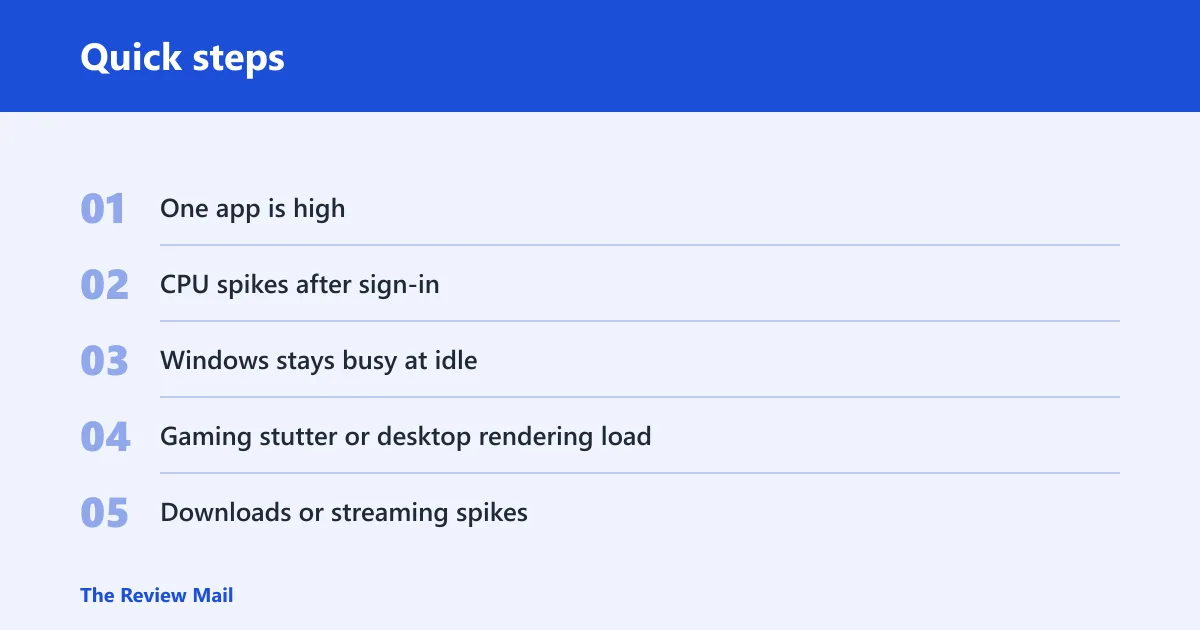
- One app is high: close it, update it, repair it, or reinstall it before changing Windows settings.
- CPU spikes after sign-in: disable nonessential startup apps in Settings > Apps > Startup.
- Windows stays busy at idle: check background apps, Windows Update, and any recurring scheduled task.
- Gaming stutter or desktop rendering load: review graphics options such as hardware acceleration and Hardware-Accelerated GPU Scheduling.
- Downloads or streaming spikes: adjust network adapter offload settings one at a time and record the defaults first.
- Laptop heat and throttling: check power settings and temperatures before changing app settings.
Use the least risky fix that matches the symptom. If you are not sure which layer is responsible, begin with the app, then startup apps, then background app activity, then scheduled tasks, and only after that move to graphics, network, or driver settings.
CPU fix decision table
| Symptom pattern | Likely cause | Exact setting to check | Expected impact | Rollback risk |
|---|---|---|---|---|
| One browser or Teams-like app stays near the top | App rendering, animations, or a bad app build | App settings for hardware acceleration, animations, update, repair, or reinstall | Often lowers app CPU quickly | Low if you change one app at a time |
| Game stutters while CPU stays busy | Work is staying on the CPU instead of the GPU or SSD | Windows 11 Settings > System > Display > Graphics, plus DirectStorage support in the game | Can reduce CPU load in supported titles | Low, but requires a restart for some changes |
| CPU climbs right after sign-in | Startup apps | Settings > Apps > Startup | Fewer boot-time background tasks | Low if you only disable nonessential apps |
| Idle spikes with no app open | Scheduled task, backup task, or background app | Task Scheduler and Windows Backup tasks such as ConfigNotification | Stops repeat background work | Medium if you disable the wrong task |
| Laptop gets hot and CPU speed drops | Thermal throttling | HWMonitor temperature readout | Shows whether cooling, not software, is the main issue | Low |
| CPU spikes during downloads or streaming | Network adapter offload not doing its share | Device Manager > Network adapter > Properties > Advanced | Can cut CPU overhead on heavy network traffic | Medium if driver defaults are changed |
| Windows updates trigger a spike | Update work or a stuck update process | Settings > Windows Update | Helps clear update-related load | Low |
| Desktop multitasking keeps the CPU high | Graphics work is still on the CPU | Settings > System > Display > Graphics for Hardware-Accelerated GPU Scheduling | Moves some work off the CPU | Low, but needs a restart |
What high CPU means in Windows 11
High CPU is a problem when the load stays high, has no clear cause, or comes with heat, lag, or battery drain. A process that peaks for one short task can be normal. A process that stays high after the task ends, or Windows sitting busy at idle, needs a fix.
One process versus the whole system
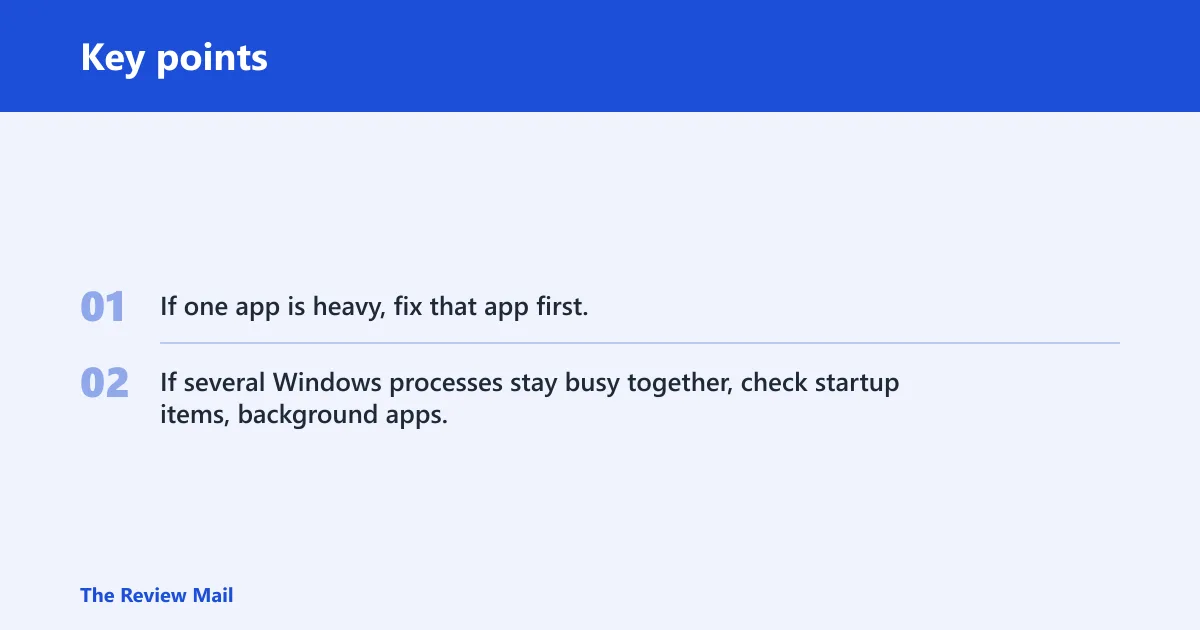
If one app is heavy, fix that app first. If several Windows processes stay busy together, check startup items, background apps, updates, and scheduled tasks before you touch graphics or network settings.
How do you find the process causing high CPU?
Open Task Manager, sort by CPU, and identify the top process before you change anything else. If the same app keeps returning, use that app’s own settings first, because the right fix is usually inside the app, not in Windows.
- Press Ctrl + Shift + Esc to open Task Manager.
- Open the Processes tab.
- Click the CPU column to sort from highest to lowest.
- If the app is one you recognize and can safely close, select it and choose End task.
- If the same app returns, open its own settings, update it, repair it, or reinstall it.
For example, a browser may sit at around 28% CPU while a meeting tab is open. Close the tab first, then check the browser’s own performance or acceleration setting before changing Windows.
Which CPU fix to use first in Windows 11?
Pick the least risky fix that matches the symptom pattern. Gaming points to GPU and SSD offload. Idle spikes point to startup or scheduled tasks. Laptop heat points to thermals. Download spikes point to network adapter offload. That order matters because it keeps you from changing the wrong layer first.
Gaming and launchers
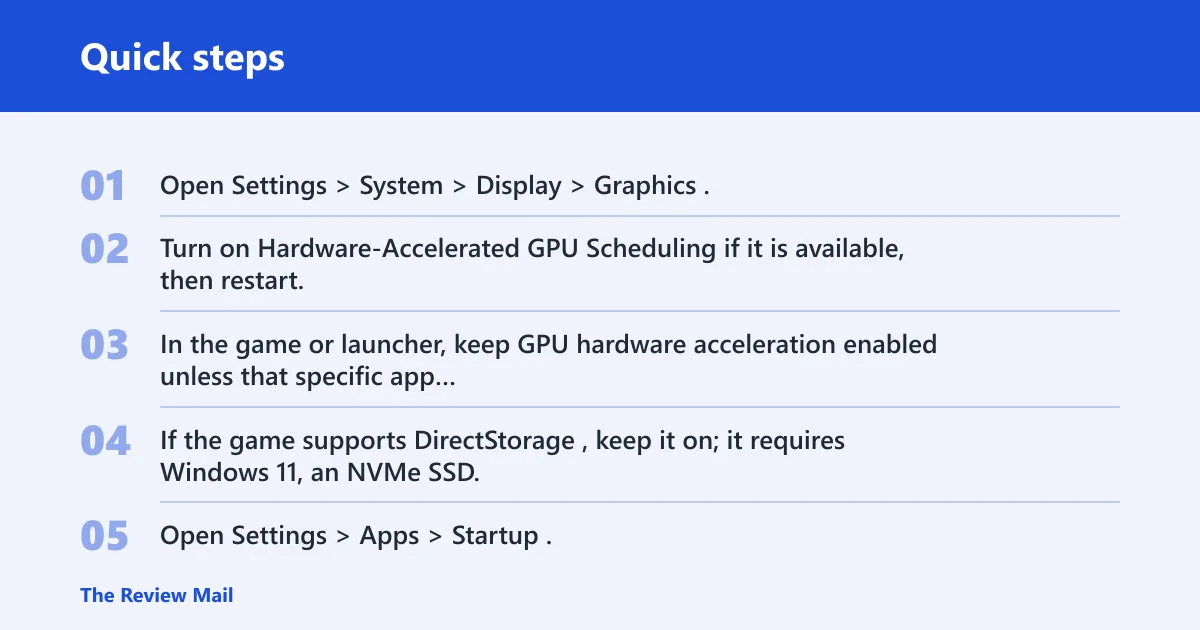
- Open Settings > System > Display > Graphics.
- Turn on Hardware-Accelerated GPU Scheduling if it is available, then restart.
- In the game or launcher, keep GPU hardware acceleration enabled unless that specific app is the problem.
- If the game supports DirectStorage, keep it on; it requires Windows 11, an NVMe SSD, and a compatible graphics card.
When an app misbehaves, change only that app’s acceleration setting first. For example, if a browser, launcher, or chat app starts spiking CPU after an update, turn off that app’s hardware acceleration, restart the app, and retest before changing Windows-wide graphics options.
Idle and startup spikes
- Open Settings > Apps > Startup.
- Turn off startup apps you do not need right after sign-in.
- Open Task Scheduler and check for backup-related tasks if idle CPU stays high.
- If ConfigNotification is the repeating trigger in a legacy backup case, disable that task only for that scenario.
Also check background app activity in Settings > Apps > Installed apps for apps that keep running in the background when you do not need them. Limit background activity app by app, especially for sync tools, launchers, messaging apps, and updaters. If the app has no background option, use its startup entry or uninstall it if you do not need it.
Laptop overheating
On a laptop, thermal limits can force the CPU to slow down. Check Settings > System > Power & battery first, then verify temperatures with HWMonitor if the machine still runs hot. A cooling issue can look like a software issue until you can see the temperature.
- Download HWMonitor from the HWMonitor page by choosing Setup • English under Versions, then Download now!
- Open the Downloads folder and run the installer.
- Install the tool and open it.
- Find your processor by its icon and model name.
- Open the Temperatures subsection and read the current value.
Network and download spikes
- Open Device Manager.
- Expand Network adapters.
- Open the adapter Properties and go to Advanced.
- Check Checksum Offload, Large Send Offload, and Receive Side Scaling.
- Test one setting change at a time, then recheck CPU while downloading or streaming.
Before you edit adapter properties, record the current defaults so you can undo the change quickly. Change one offload setting at a time and retest after each change, because multiple toggles at once make it hard to tell which one helped or hurt. Leave a setting alone if the driver vendor recommends it for your adapter model.
How do you reduce CPU load without new hardware?
Use Windows settings that move work away from the CPU or stop unnecessary background work. The safest first moves are startup apps, visual effects, and app updates. These changes usually help without touching drivers or hardware paths.
Disable startup apps you do not need
Startup apps launch on boot and keep using background resources. Turn off only the ones you do not need right away. That keeps sign-in lighter without breaking the system.
- Open Settings > Apps > Startup.
- Turn off nonessential startup apps.
- Restart and recheck Task Manager.
On Windows 11, this path is the fastest way to trim logon load without affecting normal app use later. If a startup app is important only sometimes, leave it on until you confirm it is not the source of the spike.
Reduce visual effects
Settings > Accessibility > Visual effects and the classic performance options can cut animation work. Adjust for best performance removes the most appearance effects, while custom choices let you keep the few effects you want. The built-in Windows visual effects settings are a safe place to reduce desktop overhead without changing app behavior.
- Open Settings > Accessibility > Visual effects.
- Turn off animations if you want a lighter desktop.
- For the strongest cut, use the performance option that matches Adjust for best performance.
Update Windows and the affected app
Update spikes often settle after Windows or the app finishes repair work. If the same app keeps spiking, update that app before blaming Windows.
- Open Settings > Windows Update.
- Install all pending updates and restart.
- Update the app that is still using CPU, then retest.
- If the app remains the source, repair it or reinstall it.
If Windows Update itself is the source of the spike, let the update finish first. If the load keeps recurring after restart, check for a stalled update, then move to the update troubleshooter or a repair install only after simpler steps fail.
Keep hardware acceleration on where it belongs
In browsers and creative apps, hardware acceleration should usually stay enabled because it moves decode and rendering work off the CPU. Treat it as an app-specific setting, not a Windows-wide switch. If a single app starts misbehaving after a driver change or app update, test that app with hardware acceleration off, then turn it back on if the problem is elsewhere.
Common mistakes
- Disabling the wrong background feature: change one startup app or one task at a time so you can reverse the right item.
- Turning off hardware acceleration everywhere: do that only when the app itself is the source of the spike.
- Changing graphics or network settings without matching the symptom: use graphics fixes for games and desktop rendering, and network offload for download or streaming spikes.
- Ending the same process after it already changed: if the process name changes after restart, sort Task Manager again before acting.
- Ignoring temperature on a laptop: if the CPU is hot, check thermals before you chase app settings.
A common first-time mistake is disabling a browser’s acceleration because the browser is busy during video playback. If the browser is the problem, close extra tabs first, then check its own performance settings and update it before turning features off.
If that didn’t work, try this next
If CPU stays high after the first pass, move to deeper system checks. Keep the order: app issue, startup load, visual effects, update work, scheduled tasks, then hardware or driver offload. That sequence avoids broad changes before you know where the load is coming from.
- Run
sfc /scannowin an elevated Command Prompt if Windows files may be damaged. - Run
DISM /Online /Cleanup-Image /RestoreHealthif SFC does not settle the issue. - Use ms-settings:troubleshoot for the Windows Update Troubleshooter if update CPU stays abnormal.
- In Device Manager, update, roll back, or uninstall the adapter driver only if the adapter path matches the spike.
- Use Safe Mode or a clean boot with msconfig if a third-party service keeps returning.
Frequently asked questions
How do I reduce CPU usage in Windows 11?
Start with Task Manager, then sort by CPU and close the app that is actually using the most. If Windows processes remain high, disable nonessential startup apps in Settings > Apps > Startup, then check Windows Update and any repeating scheduled task. Work from the top offender down.
How do I reduce high CPU usage in Windows 11 while gaming?
Open Settings > System > Display > Graphics and turn on Hardware-Accelerated GPU Scheduling if it is available, then restart. If the game supports DirectStorage, keep that path active on a compatible NVMe system. If a launcher is the offender, fix the launcher first.
How do I reduce CPU usage on a Windows 11 laptop?
Check Settings > System > Power & battery first, then verify CPU temperature with HWMonitor if the fan is loud or the case is hot. If the machine is cool but still busy, disable startup apps and trim visual effects. On laptops, heat and background load often appear together.
How do I limit CPU usage in Windows 11?
Windows does not offer a single global CPU cap for normal apps. The practical fix is to reduce the work each process does: end the app, change its own settings, disable its startup entry, or move work to GPU and SSD paths when those features are supported. Task Manager shows whether the cap is needed.
How do I reduce CPU and memory usage in Windows 11?
Close unused apps in Task Manager, then disable startup apps that auto-run at boot. If one app keeps returning, update or reinstall it. For apps that support it, keep background activity limited and use the app’s own performance settings before changing Windows system options.
What process is causing high CPU usage in Windows 11?
Use Task Manager’s Processes tab and sort by CPU. The top entry is usually the first thing to fix. If it is a browser, Teams-like app, or launcher, open that app’s own settings before changing Windows. If the top entry changes after you act, sort again.