How to Fix a Device Not Working
Fix a device by checking the link in this order: cable or pairing, whether Windows lists it, the driver status, device power, and VM passthrough. If Device Manager shows an error, start with the driver. If the device never appears, start with the port, cable, or Bluetooth pairing. Picking the wrong layer first wastes time and can hide a dead port, a bad driver, or a VM setting. This guide maps USB, Bluetooth, audio output, and virtual machine failures to the right fix.
What you’ll need
- A Windows 10 or Windows 11 PC.
- The device, plus a known-good cable, charger, or adapter if it uses one.
- Access to Device Manager.
- Access to Settings > Windows Update.
- The vendor driver or support page for the device.
- If relevant, access to the virtual machine app and its USB settings.
Device diagnostic matrix
| Symptom | Likely failure layer | Best first test | Next action |
|---|---|---|---|
| USB device not recognized | Enumeration or driver | Check Device Manager for a warning icon or code 10, 28, 31, 39, 43, or 45 | Uninstall the device entry, then scan for hardware changes |
| Device not showing up | Port, power, or pairing | Try a different USB port or re-pair Bluetooth in Settings | Check hidden devices and update the host driver stack |
| Port-specific failure | USB port or adapter compatibility | Move from USB 3.0 to USB 2.0, or the reverse | Reset the port path and test another cable or hub |
| Works in one app but not another | App-level access or audio routing | Check the app’s device picker and Windows sound or privacy settings | Set the device as default or repair the app |
| Virtual machine passthrough failure | Host versus guest USB assignment | Confirm the device works outside the VM first | Add a manual USB filter or map the device directly to the guest |
How do you tell where the failure starts?
Start by checking whether Windows sees the device at all. If it appears in Device Manager with an error code, treat it as a driver or enumeration problem first. If it never appears, treat it as a port, power, cable, pairing, or passthrough problem. That split saves the most time.
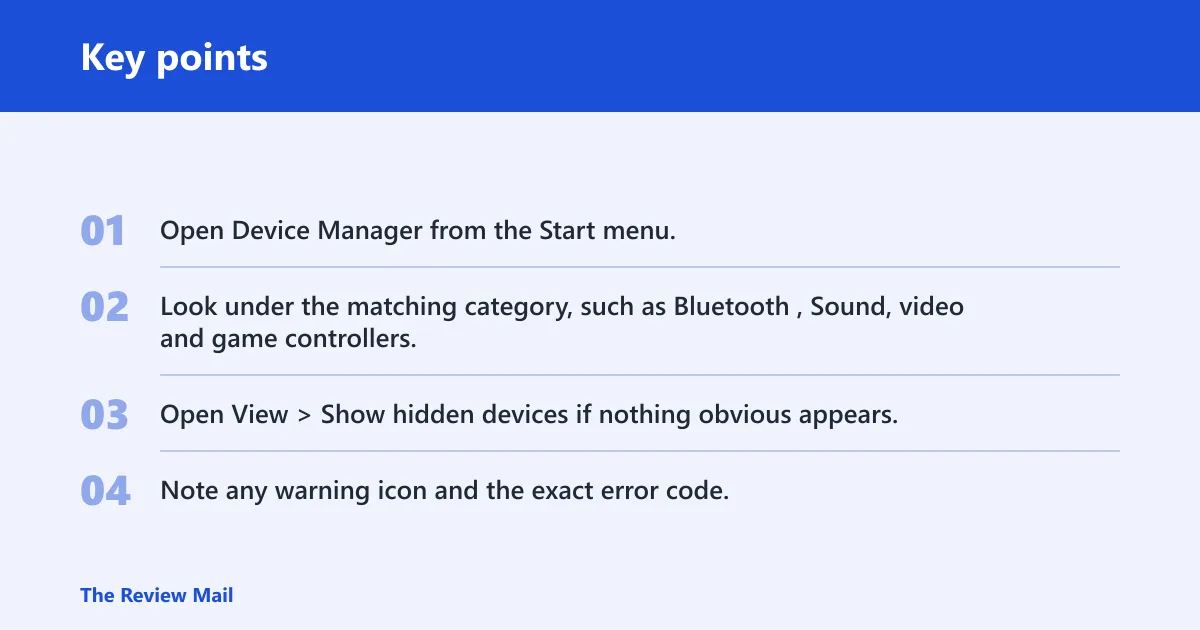
Check whether Windows sees the device at all
- Open Device Manager from the Start menu.
- Look under the matching category, such as Bluetooth, Sound, video and game controllers, or Universal Serial Bus controllers.
- Open View > Show hidden devices if nothing obvious appears.
- Note any warning icon and the exact error code.
Match the symptom to the failure layer
A USB device that powers on but never lists its full name often points to enumeration. A Bluetooth adapter that vanished after an update often points to the driver stack or a stopped service. A device that works on the host but not inside VirtualBox points to passthrough, not the device itself.
Use the error code as the next clue
Code 10 usually means the device could not start. Code 28 points to a missing driver. Code 31 and 39 often point to a driver or registry load problem. Code 43 usually means Windows stopped the device after a fault. Code 45 means the device is not present on the system right now.
How do you fix a USB or Bluetooth device?
Fix the simplest layer first: power, connection, and then the driver. USB 2.0 and USB 3.0 devices can fail for different reasons, and Bluetooth on Windows 10 or Windows 11 often breaks after an update, a missing service, or a bad driver package. If the device still fails after those checks, move to Device Manager.
Disconnect and retry the simplest path
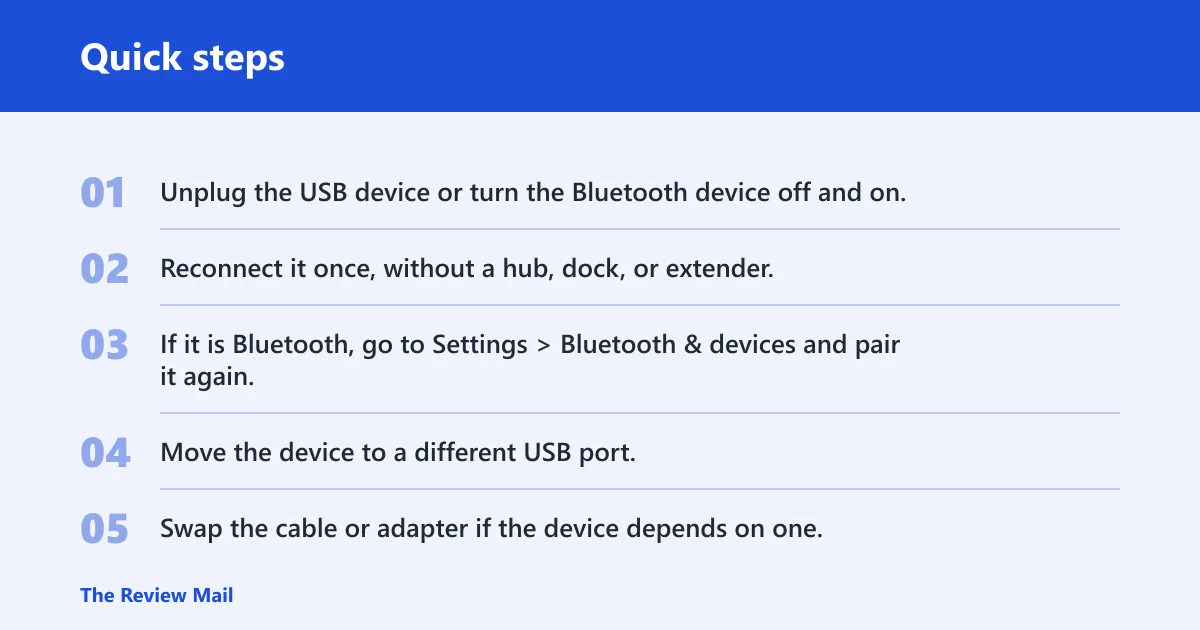
- Unplug the USB device or turn the Bluetooth device off and on.
- Reconnect it once, without a hub, dock, or extender.
- If it is Bluetooth, go to Settings > Bluetooth & devices and pair it again.
Try another port, cable, or adapter
- Move the device to a different USB port.
- Swap the cable or adapter if the device depends on one.
- If the device is USB 3.0, test a USB 2.0 port, then reverse the test.
Check power and service state
- Open
services.msc. - Start Bluetooth Support Service if it is stopped.
- Set it to Automatic if it keeps stopping after reboot.
Reinstall, update, or roll back the driver
- Open Device Manager.
- Right-click the device, then choose Uninstall device.
- Select Delete the driver software for this device if Windows offers it.
- Restart, then run Settings > Windows Update > Check for updates.
- If a vendor package was the last change, use Roll Back Driver instead.
Say your USB 3.0 external drive works on one laptop port but not the next. That points away from the drive itself and toward the port path or host controller. Test the drive in a USB 2.0 port before replacing anything.
How do you use Device Manager the right way?
Device Manager is the main Windows troubleshooting hub for this problem. It shows device status, error codes, and hidden hardware, and it is where you uninstall or reinstall the device entry. If a device disappears after a reboot, hidden devices can reveal the stale entry.
Find the device and open status
- Open Device Manager.
- Expand the category for the device.
- Double-click the device and read Device status.
Show hidden hardware
- In Device Manager, open View.
- Select Show hidden devices.
- Look for faded entries, warning icons, or duplicate devices.
Uninstall the broken device entry
- Right-click the problem device.
- Choose Uninstall device.
- Restart the PC if the device remains in an error state.
Scan for hardware changes
- In Device Manager, click Action > Scan for hardware changes.
- Wait for Windows to rediscover the device.
- Open the device again and recheck the status line.
Suppose a Bluetooth adapter works after pairing, then stops after a cumulative update. Uninstalling the adapter entry and rescanning often clears the stale stack state before you touch the app or the device.
Why does it work in one place but not another?
That pattern points to the layer that changed. If a device works in one USB port but not another, the port generation, power budget, or physical connector is suspect. If it works in one app but not another, the device path is fine and the app or Windows permission setting is the issue. If it works outside a VM but not inside one, treat passthrough as the fault.
Port behavior and USB generation differences
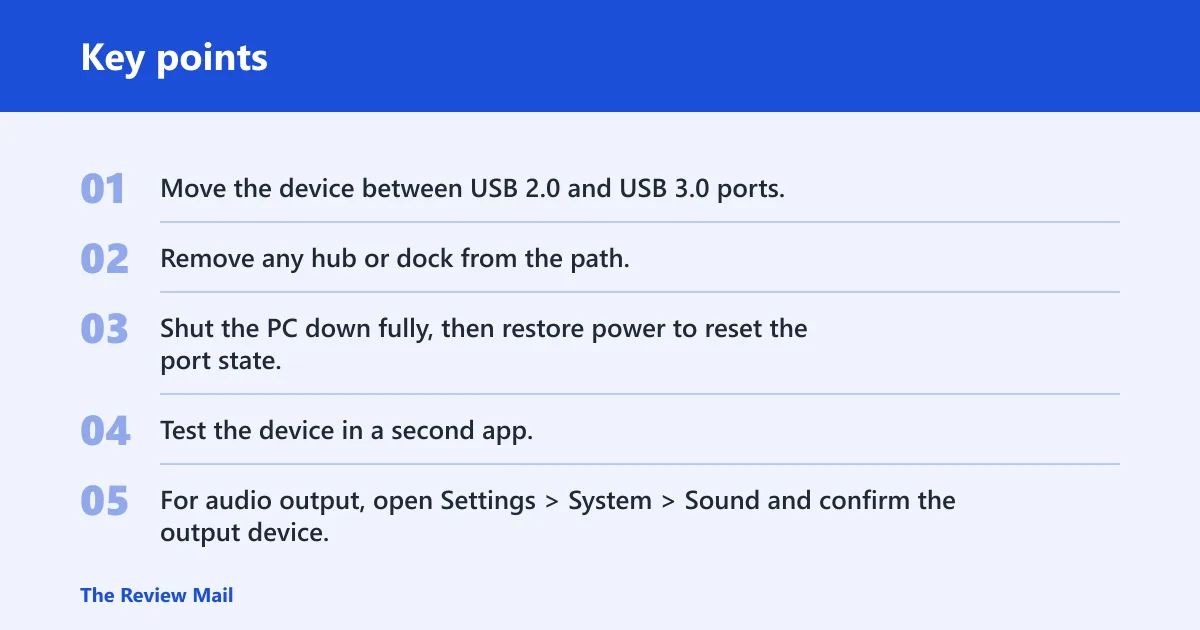
- Move the device between USB 2.0 and USB 3.0 ports.
- Remove any hub or dock from the path.
- Shut the PC down fully, then restore power to reset the port state.
App-specific versus system-wide failure
- Test the device in a second app.
- For audio output, open Settings > System > Sound and confirm the output device.
- Set the correct default device if Windows chose the wrong one.
VirtualBox USB filter and passthrough checks
- Confirm the device works on the host before touching the guest.
- In VirtualBox, open the VM settings and add the device to the USB filter list.
- If it still does not attach, use a manual map to the guest device.
Oracle VirtualBox ticket #9299 describes a device that “won’t be listed in the USB selection menue” and “won’t be used in e. g. a Windows XP virtual machine”. The workaround was “Define manually the USB filter” for the device, and a follow-up notes “Fixed in SVN”. Ticket #12274 is titled “USB 3.0 device not working” and says the guest “cannot access an external USB 3.0 hard disk”; its log shows “device descriptor read/64, error 18”, “Invalid ep0 maxpacket: 9”, and “unable to enumerate USB device”. It also says “USB 3 support was introduced with VBox 5.0.x”.
Common mistakes
Do not reinstall drivers before checking the port. A dead port can look like a bad driver. Do not ignore Device Manager codes, because code 28 and code 43 do not point to the same fix. Do not troubleshoot the guest before proving the device works on the host. And do not stop while the device is only partly detected.
When to stop and replace the hardware
- Test the device on another PC.
- Test a different cable, adapter, or port.
- If the same fault follows the device, replace it.
Common first-timer mistake: a Bluetooth mouse pairs, shows a battery icon, and then drops every few minutes. That pattern usually means the radio or driver stack is unstable, not that the mouse itself is the only problem.
Frequently asked questions
How do I fix a device not working in Windows 11?
Open Device Manager, check the device status code, then uninstall and reinstall the entry if Windows shows code 10, 28, 31, 39, or 43. After that, run Settings > Windows Update > Check for updates. If the device never appears, test another port or pairing path first.
How do I fix Bluetooth device not working on Windows 10?
Go to Settings > Bluetooth & devices, remove the device, then pair it again. Next, open services.msc and confirm Bluetooth Support Service is running. If the adapter is missing in Device Manager, reinstall the Bluetooth driver from the PC maker or adapter vendor.
Why is my USB device not recognized in Windows 11?
Check whether Device Manager shows a warning icon, a generic USB entry, or no entry at all. If it shows an error, reinstall the driver. If it does not show up, move to another USB port, remove any hub, and test the cable or adapter before changing software.
How do I fix USB device not working properly?
Disconnect the device, move it to another port, and check Device Manager for an error code. Then uninstall the device entry and choose Action > Scan for hardware changes. If the device is storage, test a different port generation, because USB 2.0 and USB 3.0 paths can behave differently.
How do I fix a device not recognized after plugging it in?
Open Device Manager and look for a hidden or warning-marked entry. If Windows never creates an entry, test the port, cable, or pairing first. If it appears and vanishes, reinstall the driver and check whether the device needs a vendor package rather than the generic Windows driver.
Why does my USB device work on one port but not another?
That usually points to a port-layer issue, not a device-wide failure. Try both a USB 2.0 port and a USB 3.0 port, then remove hubs and docks from the chain. If the same port still fails after a power reset, the connector or host controller may be the weak point.
How do I fix a boot device not found error on a HP laptop?
Enter the BIOS or UEFI setup, confirm the internal drive is listed, and then run HP startup repair or Windows recovery from installation media. If the drive is missing in firmware, reseat or replace the storage device. If it is listed, repair the boot files from Advanced options.
How to fix bluetooth device not working on windows 11
Remove the paired device in Settings > Bluetooth & devices, restart Bluetooth Support Service, and reinstall the Bluetooth adapter from Device Manager if needed. If the adapter disappeared after an update, use Roll Back Driver on the adapter entry.
How to fix bluetooth device not working on windows 10
Pair it again from Settings > Devices > Bluetooth & other devices, then check whether the adapter is still present in Device Manager. If the service is stopped or the driver changed recently, restart the service and reinstall the adapter driver from the vendor package.