Wi-Fi Disabled in Windows 11: How to Fix It Safely
If Wi-Fi is disabled in Windows 11, check the stack in this order: Airplane mode and the Wi-Fi toggle, Device Manager for the adapter, then WLAN AutoConfig and the driver. The first layer that fails usually points to the cause. Microsoft documents Airplane mode controls in Windows, Device Manager for hardware management, and WLAN AutoConfig as the service that configures wireless connections.
Why Wi-Fi is disabled in Windows 11
Disabled Wi-Fi is usually a UI block, a disabled or missing adapter, a stopped wireless service, or a driver or update problem. A missing toggle often points to the adapter or driver. A greyed-out toggle usually means Airplane mode, hardware radio control, or a policy restriction is blocking the radio before Windows can connect.
What a missing toggle usually means
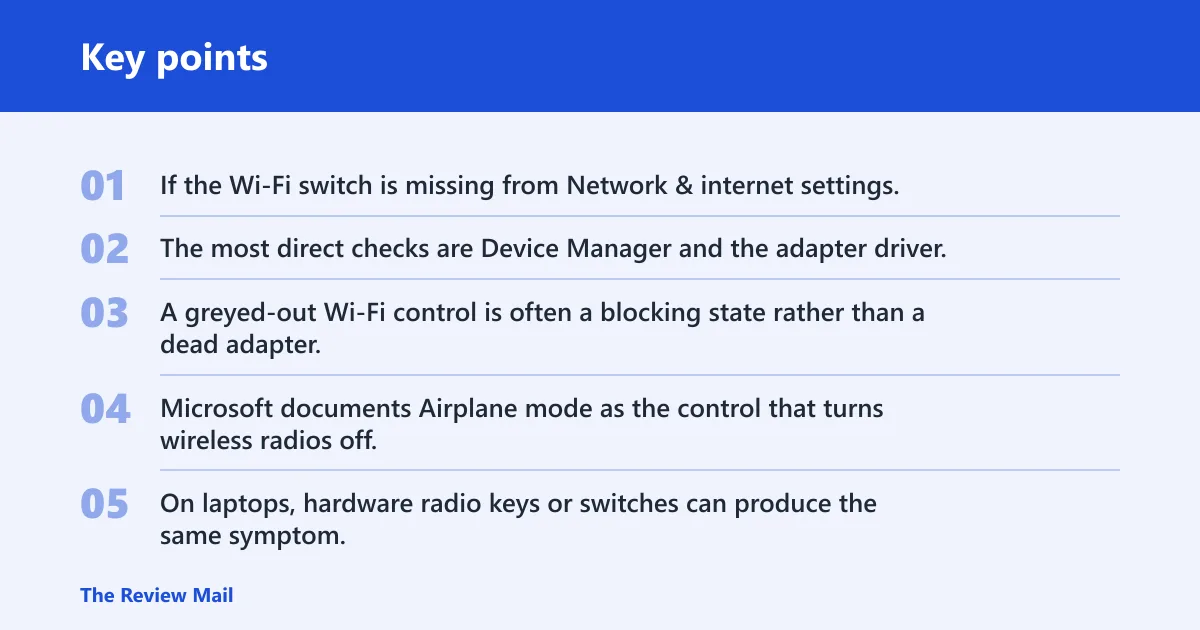
If the Wi-Fi switch is missing from Network & internet settings, Windows may not be seeing the wireless adapter at all. The most direct checks are Device Manager and the adapter driver, because Microsoft’s Device Manager guidance is where Windows exposes hardware status, enable/disable actions, and driver management.
What a greyed-out toggle usually means
A greyed-out Wi-Fi control is often a blocking state rather than a dead adapter. Microsoft documents Airplane mode as the control that turns wireless radios off. On laptops, hardware radio keys or switches can produce the same symptom, so check those before chasing a driver problem.
When the adapter, service, or policy is the real cause
Use the symptom to choose the layer. If the adapter is present but disabled, Device Manager is the fastest check. If the adapter is enabled but Wi-Fi still will not start, verify WLAN AutoConfig. If the machine is managed by work or school, policy may be hiding the wireless control or forcing a blocked state.
Wi-Fi disabled decision table
This table maps the symptom to the most likely layer, the exact place to check, the safest next step, and what the step rules out. Use it before commands. It cuts down on guessing and keeps you from restarting the wrong part of Windows first.
| Symptom | Likely cause | Exact place to check | Safe next step | What this rules out |
|---|---|---|---|---|
| Missing Wi-Fi toggle | Adapter missing, driver missing, or adapter disabled | Settings > Network & internet; then Device Manager | Open Device Manager, expand Network adapters, right-click the wireless adapter, and choose Enable device or Update driver as needed | A pure Airplane mode block; if the adapter is absent or disabled, the problem is lower in the stack |
| Greyed-out Wi-Fi | Airplane mode, hardware radio control, or policy block | Quick Settings and Settings > Network & internet | Turn Airplane mode off, check the laptop’s wireless key or switch, then confirm whether policy limits apply on a managed device | A healthy toggle path; if the radio is blocked here, changing drivers alone will not restore Wi-Fi |
| Adapter disabled in Device Manager | The wireless adapter is turned off | Device Manager from Windows + X | Right-click the wireless adapter and select Enable device, then test Wi-Fi again | A service-only fault; if the adapter was disabled, the hardware layer was the immediate issue |
| Airplane mode on | All wireless radios are blocked | Quick Settings and Settings > Network & internet | Turn Airplane mode off before checking Wi-Fi | A driver or service problem as the first cause; this is the simplest supported block state |
| WLAN AutoConfig stopped | Wireless service is not running or is not set to start cleanly | services.msc | Open Services, set WLAN AutoConfig to Automatic, and start the service | A hardware radio failure; if the service is stopped, Windows cannot manage wireless normally |
| After update failure | Driver regression or update conflict | Device Manager and Windows Update update history | Roll back the adapter driver if available, or uninstall the most recent quality update if the timing matches | A simple toggle problem; the failure timing points to software change rather than UI state |
| After sleep or wake failure | Power-saving state or adapter wake issue | Device Manager power management and adapter settings | Open the adapter’s Power Management tab and test a disable/enable cycle or restart | An always-broken adapter assumption; the issue may only appear after a power-state transition |
Could Airplane mode or hardware controls be blocking Wi-Fi?
Yes. Airplane mode shuts off wireless connections, so Wi-Fi cannot work until it is off. Laptop keys, side switches, and radio indicators can also block the adapter before Windows gets a chance to connect. Microsoft’s Airplane mode support is the safest supported place to verify that radios are not being forced off.
Check Airplane mode in Quick Settings and Settings
Open Quick Settings and look for Airplane mode. If it is on, turn it off. Also open Settings > Network & internet and verify the Airplane mode toggle there. Microsoft documents Airplane mode as the Windows control for wireless radios, so this is the first supported check when the Wi-Fi control is greyed out.
Check laptop wireless keys, switches, and radio indicators
Some laptops use a function key combination or physical switch to disable the radio. If a wireless indicator is dark, orange, or amber, the hardware control may still be suppressing the adapter even while Windows shows a normal desktop. That state can look like a software failure when it is actually a hardware block.
Check power-saving and wake-state behavior
Sleep and wake failures are common enough to check early. If Wi-Fi disappears after sleep or wake, the adapter may be entering a power state that prevents it from coming back cleanly. That points to the adapter, its driver, or its power-management settings rather than a simple settings-page toggle.
Related guides: Windows 11 network reset, Airplane mode stuck, and internet not working.
Check the wi-Fi adapter in Device Manager
Device Manager is the place to confirm whether Windows sees the wireless adapter at all. Open it from Windows + X, then look for the wireless network interface by its exact adapter name. Microsoft’s Device Manager help documents the path for viewing hardware, updating drivers, and enabling or disabling devices.
Open Device Manager from Windows + X
- Press Windows + X.
- Select Device Manager.
- Expand Network adapters.
- Find the wireless adapter entry, which may include the vendor name.
Find the adapter by its exact name
Before using CMD or PowerShell, confirm the exact adapter name. Many command failures happen because the interface is named something other than “Wi-Fi.” If the name in Device Manager differs, use that exact name in later commands so Windows can target the right interface.
Enable, disable, update, or uninstall the adapter
If the adapter is disabled, choose Enable. If it is already enabled but still broken, update the driver first. If the adapter is outdated, corrupted, or stuck after a bad update, uninstalling the device and restarting can force Windows to reinstall it. That is often safer than repeated random resets.
Related guide: Device Manager adapter errors.
Is WLAN AutoConfig running?
WLAN AutoConfig should be running for Wi-Fi to negotiate correctly. Microsoft’s WLAN AutoConfig documentation identifies it as the service that configures wireless connections. Open Services, confirm that WLAN AutoConfig is running, and set Startup type to Automatic if it is not already there.
Confirm the service status in services.msc
Press Windows + R, type services.msc, and open the Services console. Find WLAN AutoConfig in the list. If its status is stopped, that is a strong lead. If it is already running, move back up the stack to the adapter and driver.
Set startup type to Automatic
Set Startup type to Automatic so Windows attempts to start the service at boot. That is a sensible baseline, but it is not a guarantee. If the service still will not run normally, the adapter driver or a dependency may be blocking the wireless stack.
Restart the service if it has stopped
Restart WLAN AutoConfig after you change its startup setting. If the service starts cleanly and Wi-Fi returns, the issue was service-state related. If the service fails again, the problem is more likely to be driver, adapter, or policy related and needs the next layer down.
Use settings, CMD, or PowerShell
There are several ways to toggle Wi-Fi. Settings is the quickest for a normal user. CMD and PowerShell help when the UI is missing, but only if you use the exact adapter name. Microsoft documents adapter control through PowerShell, and the netsh interface command remains useful when you need a direct interface change.
Turn Wi-Fi on or off in Network & internet
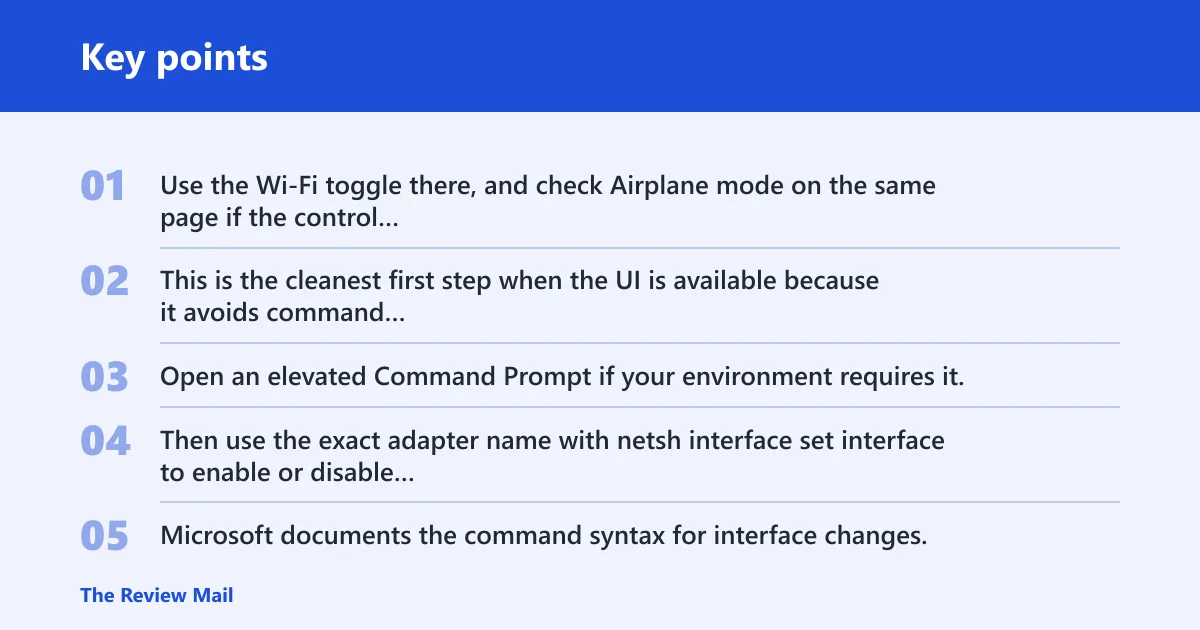
Open Settings > Network & internet. Use the Wi-Fi toggle there, and check Airplane mode on the same page if the control looks blocked. This is the cleanest first step when the UI is available because it avoids command syntax and confirms whether the block is only at the settings layer.
Use netsh interface set interface with the exact adapter name
Open an elevated Command Prompt if your environment requires it. Then use the exact adapter name with netsh interface set interface to enable or disable the connection. Microsoft documents the command syntax for interface changes, and the adapter name must match the one Windows uses internally.
Example format:
netsh interface set interface name=”Wi-Fi” admin=enabled
netsh interface set interface name=”Wi-Fi” admin=disabled
Use Disable-NetAdapter or Enable-NetAdapter in PowerShell
Open PowerShell and confirm the exact adapter name first. Microsoft’s PowerShell networking documentation covers Disable-NetAdapter and Enable-NetAdapter for adapter state changes. Then use the adapter name exactly as shown so you target the right device.
Example format:
Disable-NetAdapter -Name “Wi-Fi” -Confirm:$false
Enable-NetAdapter -Name “Wi-Fi” -Confirm:$false
If the command fails, check whether the adapter name is different, whether the interface is already disabled, or whether a managed-device policy is overriding local changes.
Did a Windows 11 update break Wi-Fi?
An update can break Wi-Fi by changing the driver, the adapter state, or the wireless stack. If the problem began right after a Windows 11 update, focus on driver rollback, driver reinstall, or removing the most recent update if the timing matches. Microsoft documents uninstalling recent updates when a problem starts after installation.
Check whether the issue started after an update
Start with timing. If Wi-Fi worked before the update and failed immediately after reboot, that is a strong clue. A post-restart failure can still be driver or power related, so confirm the adapter state and service status before assuming the update is the only cause.
Update or roll back the wireless driver
Go back to Device Manager, open the adapter properties, and check the Driver tab. If the driver looks outdated, update it. If the issue started after a newer driver, roll it back. Microsoft supports driver rollback from Device Manager when a recent driver causes trouble.
Remove the most recent update if the timing matches
If a Windows update is the clear trigger, uninstalling the latest update may be more effective than repeated adapter resets. Use this option when the break began immediately after the update and other layers check out. If the issue persists after removal, return to the adapter and service stack.
The safest supported way to disable internet in Windows 11 is to turn off Wi-Fi or disable the network adapter. That cuts network access without changing deeper settings. For a full disconnect, use Quick Settings, Settings > Network & internet, Device Manager, or the supported adapter commands, depending on how permanent you want the block to be.
Disable Wi-Fi from Quick Settings or Settings
Open Quick Settings and turn off Wi-Fi, or go to Settings > Network & internet and switch Wi-Fi off there. This disables wireless access only, which is the least disruptive option when you want a temporary internet pause without changing the adapter itself.
Disable the adapter in Device Manager
Open Device Manager, expand Network adapters, right-click the wireless adapter, and choose Disable device. This is more forceful than the settings toggle because it removes the adapter from active use until you re-enable it. It is also useful when the toggle does not stick.
Use a supported command when you need repeatable control
Use netsh interface set interface or Disable-NetAdapter when you need a repeatable, exact change. Microsoft documents both command paths for network control. Use the exact adapter name, and prefer the settings toggle first unless you need a scripted or administrative action.
During Windows 11 setup, the safest supported path is to use the setup screens to stay offline if that option is presented, or to avoid joining a network until you reach the desktop. If setup already has a live connection, the supported fallback is to disconnect from the network rather than forcing unsupported changes mid-install.
Prefer the setup option to skip connection or stay offline
If the setup flow offers a no-network or limited-setup path, use it rather than trying to break the adapter. That keeps setup within the supported flow and avoids changing drivers or services before Windows finishes installing.
Disconnect the network only when setup allows it
If setup already connected, disconnect the network through the setup UI if that option is available. Avoid registry edits or unsupported command tricks during setup unless your deployment process specifically requires them. The safest path is always the one Microsoft exposes in the setup flow.
Recheck Wi-Fi after first sign-in if setup exposed the adapter
If setup completes and Wi-Fi returns unexpectedly, check Airplane mode, Device Manager, and WLAN AutoConfig after the first sign-in. That sequence tells you whether setup only delayed the wireless stack or whether a real adapter problem is still present.
Frequently asked questions
How enable wifi windows 11
Open Settings > Network & internet and turn on Wi-Fi. If the toggle is missing, check Device Manager for the wireless adapter, then verify that Airplane mode is off. If the adapter is disabled, enable it there first. That usually tells you whether the block is UI, driver, or hardware.
How disable wifi windows 11
Use Settings > Network & internet and turn off Wi-Fi. You can also use Quick Settings if the tile is present. On a managed PC, policy may prevent the change from sticking, so a blocked toggle is not always a hardware fault.
How disable wifi windows 11 cmd
Use Command Prompt with netsh interface set interface and the exact adapter name. Microsoft documents this command path for interface changes. If the command fails, check the interface name, whether the adapter is already disabled, and whether your environment requires elevated rights.
How enable wifi windows 11 cmd
Use the same netsh command with the adapter set to enabled. The name must match the entry in Device Manager or the name returned by PowerShell. If the Wi-Fi adapter is missing entirely, CMD will not solve the real problem until the driver or adapter state is fixed.
Why is my wifi disabled windows 11?
Most often, the answer is one of four layers: Airplane mode, a disabled adapter, a stopped WLAN AutoConfig service, or a driver problem. A missing toggle points one way. A greyed-out toggle points another. The quickest clue is where the failure first appears in the stack.
Wifi greyed out windows 11
A greyed-out Wi-Fi control often means Airplane mode, hardware radio controls, or a managed-device policy is blocking the change. Check Quick Settings and Settings first. Then inspect the laptop’s wireless key or switch and confirm that the adapter is not disabled in Device Manager.