Error Device Not Found: How to Fix It in Windows
“Error device not found” often means Windows may not have enumerated the hardware first, so check detection before you swap parts or reinstall drivers. Fixing the wrong layer wastes time and can leave a USB drive, disk, or boot device still hidden. This guide separates USB, storage, and boot-device cases so you apply the right fix.
Likely causes
Most often, the problem is a bad connection path: a loose cable, a weak port, a non-powered hub, or a dock that cannot supply enough power. Less often, Windows has a driver, controller, or power-setting problem. If the device never appears anywhere, hardware failure becomes more likely.
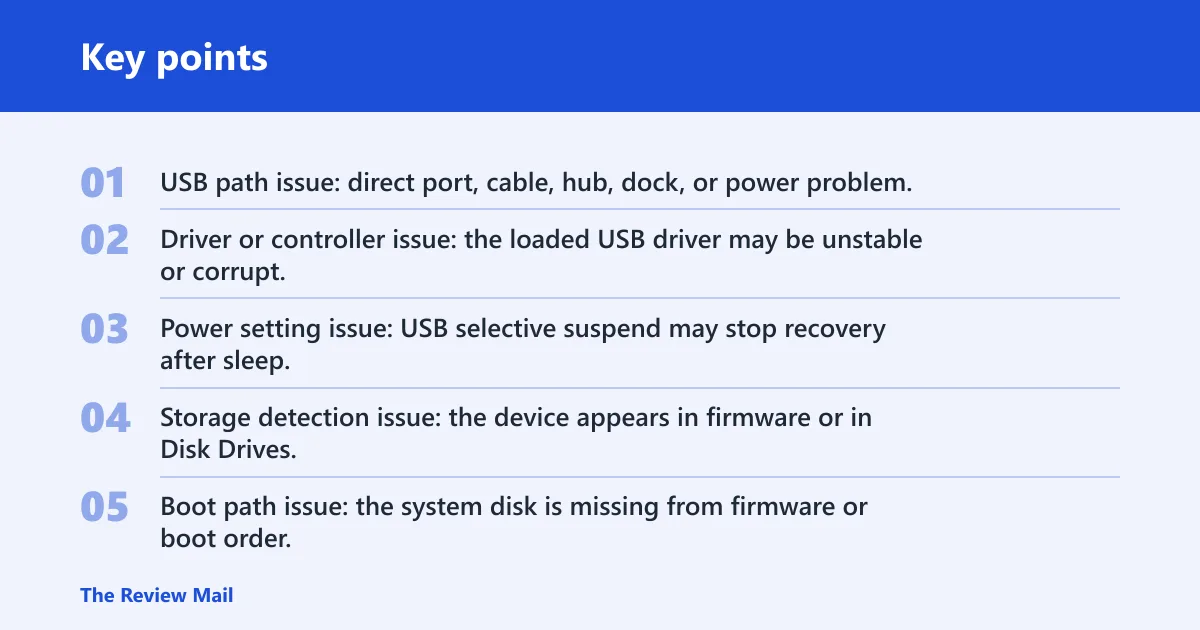
- USB path issue: direct port, cable, hub, dock, or power problem.
- Driver or controller issue: the loaded USB driver may be unstable or corrupt.
- Power setting issue: USB selective suspend may stop recovery after sleep.
- Storage detection issue: the device appears in firmware or in Disk Drives, but not where you expect.
- Boot path issue: the system disk is missing from firmware or boot order.
Device not found decision table
| Symptom | Where to check in Windows | Likely cause | First fix |
|---|---|---|---|
| USB peripheral is missing or marked with an error | Device Manager | Unstable or corrupt USB driver, cable, port, or hub problem | Move it to a direct USB port, then unplug and reconnect it |
| External hard drive is not detected | Device Manager > Disk Drives | Drive connection, power, or disk-device entry problem | Uninstall the affected disk device, wait one minute, then reconnect |
| Boot device not found at startup | Firmware or BIOS boot list | Boot order issue, missing drive visibility, or failed system disk | Check whether the drive appears in firmware before changing Windows settings |
| Several USB devices fail after sleep or restart | Device Manager > Universal Serial Bus controllers | USB controller instability or a power-management conflict | Uninstall the USB controllers, restart, then let Windows reinstall them |
How do I fix error device not found in Windows?
Start with the cable path, then move to Device Manager. If Windows cannot enumerate the device, swapping drivers first usually wastes time. A direct port, a full reboot, and a clean reconnect solve the most common cases before you touch deeper settings.
- Shut down the app using the device, if one is open.
- Unplug the device from any hub or dock.
- Connect it to a direct USB port on the PC.
- Restart Windows.
- If it still fails, open Device Manager and look for the device under the matching category.
Say your USB headset shows up on one desktop front port but triggers a device not found error on the rear port. That points to port power or a dock issue, not a disk-format problem. Test the same drive through a direct port before you change anything else.
Why does my device show not found in Device Manager?
That usually means Windows sees the hardware badly enough to flag it, but not well enough to use it. The fix path depends on where the entry appears. A disk under Disk Drives calls for a different first step than a controller under Universal Serial Bus controllers.
- Open Device Manager.
- Check Disk Drives for a storage device entry.
- Check Universal Serial Bus controllers for USB controller entries.
- Right-click the affected entry and choose Uninstall device.
- Reconnect the device and let Windows reload it automatically.
If the device vanishes and returns with the same warning, the driver or controller may be unstable or corrupt. If it never appears in Device Manager at all, the cable, port, hub, or device itself becomes the stronger suspect.
Why is my USB device not recognized?
Check the simplest path first: cable, port, and power. A non-powered hub can leave a drive underpowered, especially with external hard drives and some SSDs. If the device is on a dock, disconnect it and test a direct port instead.
- Unplug the USB device.
- Connect it directly to a USB port on the computer.
- Avoid a non-powered hub.
- Try a different cable if the device still does not appear.
- Wait one minute, then reconnect the USB cable.
A common first-timer mistake is to keep reconnecting the scanner to the same docking-station port after resume. If the drive needs more power than that path can supply, repeated reconnects will not change the result.
How do you fix a USB external hard drive?
For a USB external hard drive, the first useful check is Device Manager under Disk Drives. If the drive entry is there, uninstalling it and reconnecting it is the fastest clean reset. If it does not return, move on to the cable and port.
- Open Device Manager.
- Expand Disk Drives.
- Right-click the affected drive and choose Uninstall device.
- Wait one minute before reconnecting the USB cable.
- Reconnect the drive and let Windows reload it.
- If it still fails, try a different cable and a different USB port.
Microsoft’s guidance for this path also notes that the drive should automatically reload after reconnection. If it does not, a controller or power issue is more likely than a stale entry.
How do I reinstall USB controllers in Windows?
Use this when several USB devices misbehave or when the controller stack looks unstable. The target is Universal Serial Bus controllers in Device Manager. Windows should reinstall the controllers automatically after a restart, so you do not need to hunt for a separate package first.
- Open Device Manager.
- Expand Universal Serial Bus controllers.
- Right-click each USB controller entry and choose Uninstall device.
- Restart Windows.
- Let Windows reinstall the controllers automatically.
- Test the device again from a direct USB port.
If the problem returns after the reinstall, Windows Update can provide newer device drivers. Open Settings > Windows Update > Advanced options > Optional updates and install any relevant driver updates, then reboot.
How does selective suspend affect USB?
USB selective suspend lets Windows power down an idle USB device. That can break recovery after sleep or leave an external drive stuck in a low-power state. The setting lives in advanced power options under USB Settings, and turning it off is a clean test.
- Open Control Panel > Hardware and Sound > Power Options.
- Next to your plan, choose Change plan settings.
- Select Change advanced power settings.
- Expand USB settings.
- Expand USB selective suspend setting.
- Set it to Disabled, then click OK.
- Restart and retest the device.
How do I fix error boot device not found?
For a boot-device failure, do not start with Windows driver fixes. First check firmware or BIOS and confirm whether the system disk appears there. If the drive is visible there, the problem may be boot order or boot files rather than a dead disk.
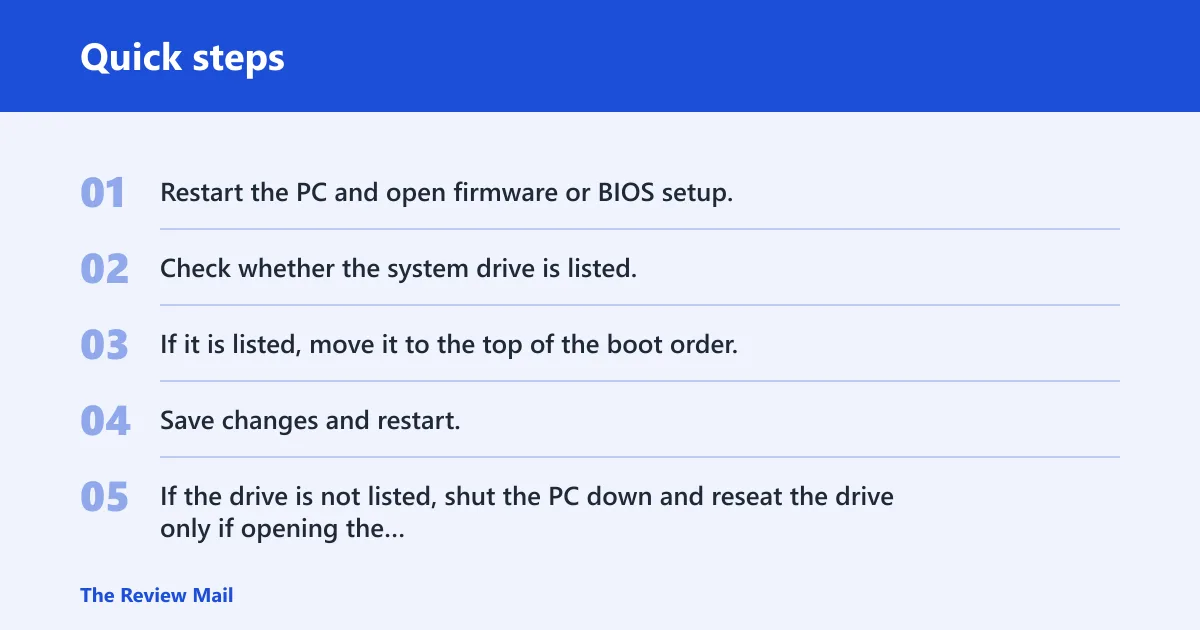
- Restart the PC and open firmware or BIOS setup.
- Check whether the system drive is listed.
- If it is listed, move it to the top of the boot order.
- Save changes and restart.
- If the drive is not listed, shut the PC down and reseat the drive only if opening the machine is appropriate.
- If the drive appears in firmware but Windows still fails later, the boot files or the disk itself may need repair.
Windows 7 has a separate legacy path for a reported USB conflict: hotfix KB976972 is commonly used on systems with 4 GB of RAM or more. On those systems, verify whether the system is 32-bit or 64-bit before using the matching hotfix path. If the hardware uses an NVIDIA USB EHCI chipset, treat that as a legacy compatibility check, not a universal fix. (Microsoft Support)
Still not working?
If the device still disappears after the cable, port, controller, and power-setting checks, the next step is escalation. A USB external hard drive that never appears in Disk Drives may need vendor diagnostics or replacement. A boot disk that is missing from firmware may need repair or service from a repair shop.
For a laptop, also test without the dock attached. Docking stations can hide a power problem, and a low-power USB port can make a good device look dead. If the same fault follows the device across more than one computer, hardware failure becomes the strongest explanation.
Frequently asked questions
How do I fix error device not found in Windows: open Device Manager, find?
Open Device Manager, find the affected entry, and choose Uninstall device. Then unplug it, wait one minute, reconnect it to a direct USB port, and restart Windows if needed. If the problem affects several devices, reinstall Universal Serial Bus controllers next.
Can a missing or corrupt USB driver cause this error?
Yes. A USB driver that is unstable or corrupt can stop enumeration. The quickest check is Device Manager; if the device appears there, uninstall it and reconnect it. If the issue involves multiple USB devices, reinstall the controller entries under Universal Serial Bus controllers.
What does selective suspend mean for USB devices?
It is a power-saving setting that can shut down an idle USB device. To change it, open Control Panel > Power Options > Change advanced power settings, then open USB settings and set USB selective suspend setting to Disabled.
How do I fix USB device not recognized on Windows?
Try a direct USB port first, then a different cable. Avoid a non-powered hub or dock while testing. If the device still fails, open Device Manager, uninstall the matching entry, and reconnect it so Windows can reload it automatically.
Should I uninstall and reconnect the external hard drive?
Yes, if the drive is listed under Disk Drives. Right-click it, choose Uninstall device, wait one minute, and reconnect the cable. If the drive still does not return, test a different port and cable before you assume the drive has failed.
How do I fix module not found error?
That message is different from a Windows device enumeration failure. If it appears in an app or script, the fix usually involves reinstalling the program, repairing the package, or restoring the missing file path. It does not call for USB controller changes unless the missing module is tied to hardware access.