Microsoft Device Manager Windows 11
Open Device Manager in Windows 11 from Search, Win+X, Run, Control Panel, or Computer Management. If one route fails, another often works. When it is missing or will not open, the next step is usually to switch paths, check admin rights, or isolate a driver problem in Safe Mode.
Quick ways to open Device Manager
Device Manager is Windows’ graphical hardware view for installed devices and drivers. Microsoft describes it as a place to view and manage hardware devices and their drivers, which makes it useful for checking status, conflicts, and properties. The quickest entry points in Windows 11 are Search, Win+X, and Run. (Microsoft Support)
Open it from Search
Open the Start menu, type Device Manager, and press Enter. Search is the simplest path when you want a direct launch and do not want to remember a command. It also works well when the desktop is crowded or the Quick Link menu is unavailable.
Open it with Win+X
Press Win+X to open the Quick Link menu, then choose Device Manager. This route is fast and dependable because it skips the Start menu search box. It is a strong first choice when you are already in Windows and want fewer clicks.
Open it with Run
Press Win+R, type devmgmt.msc, and press Enter. Run helps when Start menu search fails, when you want to launch the tool by name, or when you need a path that is easy to remember for repeat use.
Device Manager access checklist
Use this checklist when you need the fastest path for the situation in front of you. Each row includes a backup path and a specific action to take if the first route is missing or will not open.
| Scenario | Primary path | Backup path | If missing or won’t open |
|---|---|---|---|
| You want the quickest normal launch | Win+X, then Device Manager | Win+R, then devmgmt.msc | Try Search from the Start menu; if the Quick Link menu does not appear, open Device Manager from Search instead. |
| You prefer a text search | Start menu search for Device Manager | Win+X, then Device Manager | If Search shows no result or will not launch, use Win+R and enter devmgmt.msc. |
| You are already in Control Panel > System and Security > Windows Tools / Computer Management | Computer Management under System Tools | Win+R, then devmgmt.msc | If the management console opens slowly or not at all, use Search or Win+X as the fallback route. |
| You need a recovery path because normal Windows is unstable | Safe Mode, then Search or Run | Computer Management, if it opens | If Device Manager will not open in normal Windows, restart into Safe Mode and try Search or Run there. |
| You need device or driver checks right away | Run command devmgmt.msc | Search or Win+X | If the window opens and closes, sign in with an account that has administrator rights before trying again. |
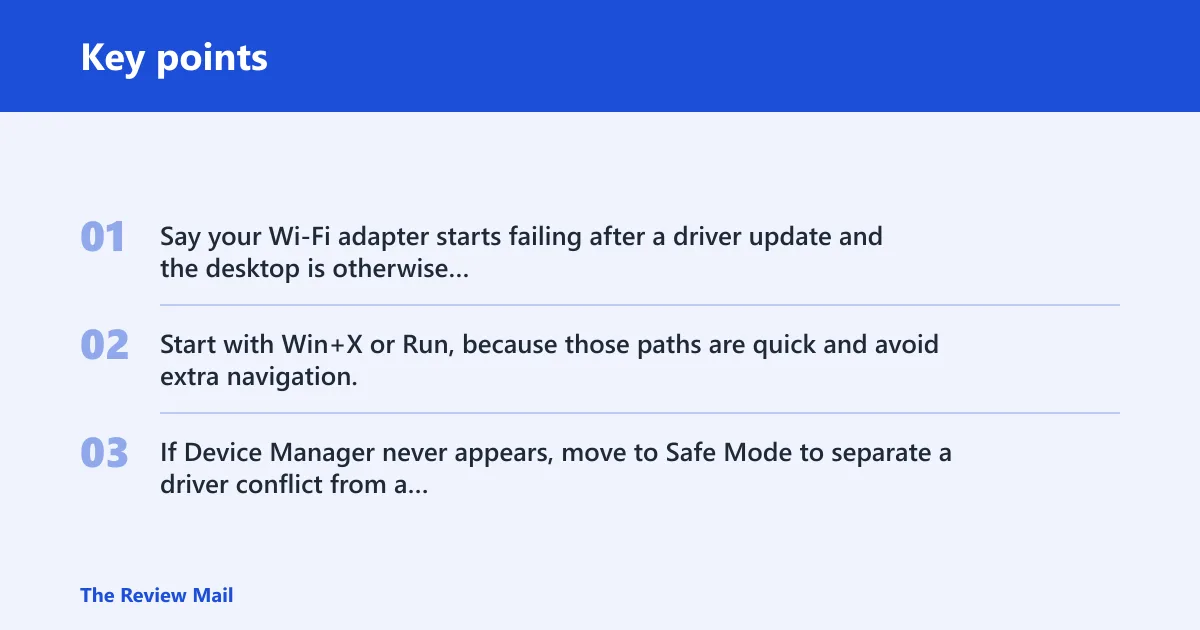
Say your Wi-Fi adapter starts failing after a driver update and the desktop is otherwise normal. Start with Win+X or Run, because those paths are quick and avoid extra navigation. If Device Manager never appears, move to Safe Mode to separate a driver conflict from a broader Windows issue.
How do you open Device Manager from Computer Management?
Open Computer Management, expand System Tools, and select Device Manager. This path is useful when shortcuts fail or when you are already working inside administrative tools. It leads to the same hardware view you get from Search or Run. On Windows 11, the Control Panel route can lead to Windows Tools and then into Computer Management, which gives you an alternate administrative path when direct shortcuts do not cooperate.
Find System Tools
In Computer Management, look at the left pane for System Tools. Device Manager sits under that group. The administrative console can take longer to open than a direct shortcut, but it is a dependable backup when you need a management view rather than a command.
Select device Manager
Click Device Manager and wait for the list of installed hardware to load in the right pane. Microsoft says you must be logged on as an administrator or in the Administrators group to add or remove devices and to configure device properties. Without that access, some actions can be blocked. (Microsoft Support)
Use this path when shortcuts fail
If Search, Win+X, or Run does not open Device Manager, Computer Management can still work because it uses a broader administrative path. This helps when a shell shortcut is broken but Windows still opens management consoles normally.
What to do when Device Manager is missing
If Device Manager seems missing in Windows 11, first check whether you are signed in with an administrator account or in the Administrators group. Then try Search, Win+X, Run, and Computer Management. If normal Windows blocks the tool, Safe Mode is the next practical fallback.
Check account and admin rights
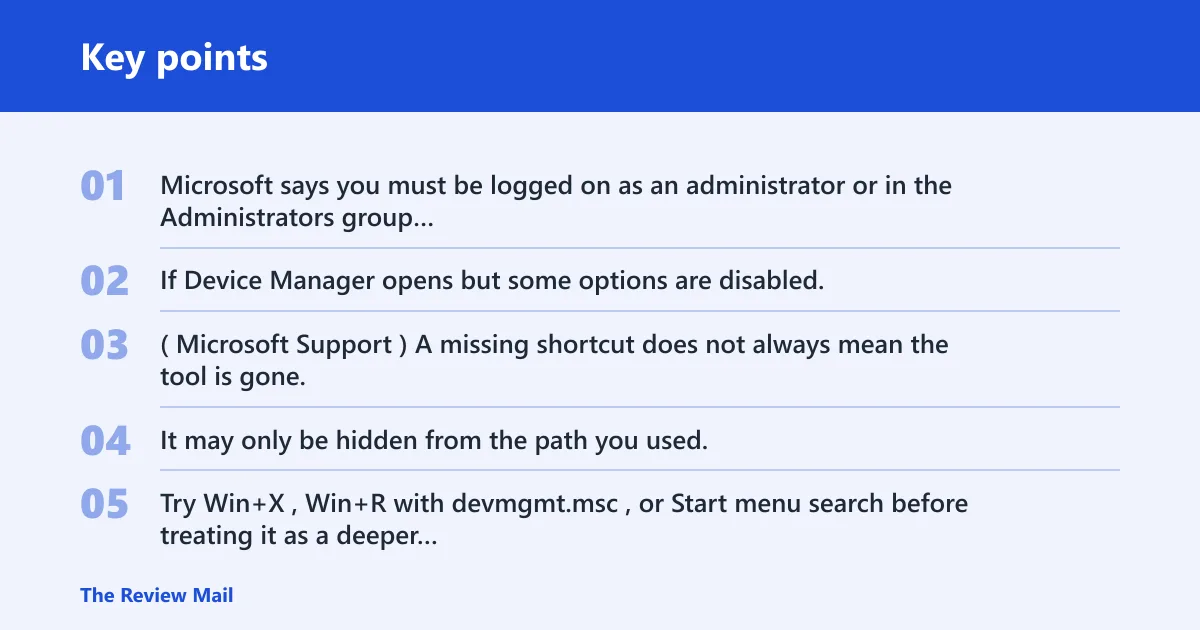
Microsoft says you must be logged on as an administrator or in the Administrators group for tasks such as adding or removing devices and changing device properties. If Device Manager opens but some options are disabled, the account may not have the rights needed for those actions. (Microsoft Support)
Try alternate launch paths
A missing shortcut does not always mean the tool is gone. It may only be hidden from the path you used. Try Win+X, Win+R with devmgmt.msc, or Start menu search before treating it as a deeper problem.
Use Safe Mode if normal Windows blocks it
Safe Mode can help when a bad driver or startup issue keeps Device Manager from opening normally. In that state, use Search or Run again. If the tool opens there, the issue is more likely tied to normal startup behavior than to Device Manager itself. This is also the best place to begin when you need to separate a startup conflict from a hardware or driver issue.
Suppose a laptop shows a yellow warning icon on a sound device, and Device Manager will not open in normal mode. Safe Mode gives you a cleaner path to inspect the device and its driver entries without the same startup load. That makes it easier to separate a broken driver from a broader Windows problem.
How do you open Device Manager in Windows 11 from Search?
Use the Windows 11 Start menu search box, type Device Manager, and launch the result. This is one of the best entry points for non-technical users because it avoids commands and menus. It is also a good option when the Start menu is crowded with pinned apps.
Search for Device Manager
Click Start, type Device Manager, and select the matching result. This method is quick, easy to repeat, and less dependent on remembering shortcuts. If the result appears but does not open, try the same search from a different account with admin rights.
Pin it for faster access
After it opens, pin the result if your system offers that option. That does not change how Device Manager works, but it can make later access faster when you need to check hardware or driver status again.
Use Search when the Start menu is crowded
Search is useful when the Start menu holds too many pinned apps or folders. It gets you to the tool without scanning menus. That matters when you need to check driver conflicts quickly and do not want to hunt through multiple screens.
What Device Manager shows for installed hardware
Device Manager provides a graphical view of hardware installed on a computer. It is used to view and manage hardware devices and their drivers. Installed devices appear in the right pane, and the tree view helps you inspect categories, individual devices, and status details. Microsoft’s support guidance also notes that this is the place to check hardware on the machine in a graphical format. (Microsoft Support)
Device tree and driver entries
The tree lists installed hardware by device type and often shows driver-related information when you open a device’s properties. That makes it useful when a printer, network adapter, graphics adapter, or storage controller is not working as expected.
Device status and conflicts
Device Manager can help you search for device conflicts. That does not mean it repairs every driver issue automatically, but it gives you a place to inspect the problem. Error symbols and device status fields are often the first signs that a driver or resource issue exists.
Device properties and resource data
From a device’s properties, you can view details that help with troubleshooting. That information matters most when you are checking for a hardware conflict rather than doing routine maintenance.
Resources, conflicts, and manual settings
Open the Resources tab when you need to inspect how Windows assigned hardware resources. Windows typically assigns these settings automatically for Plug and Play devices, so manual changes are usually unnecessary unless a specific conflict needs investigation. (Microsoft Support)
Read IRQ, DMA, I/O, and memory values
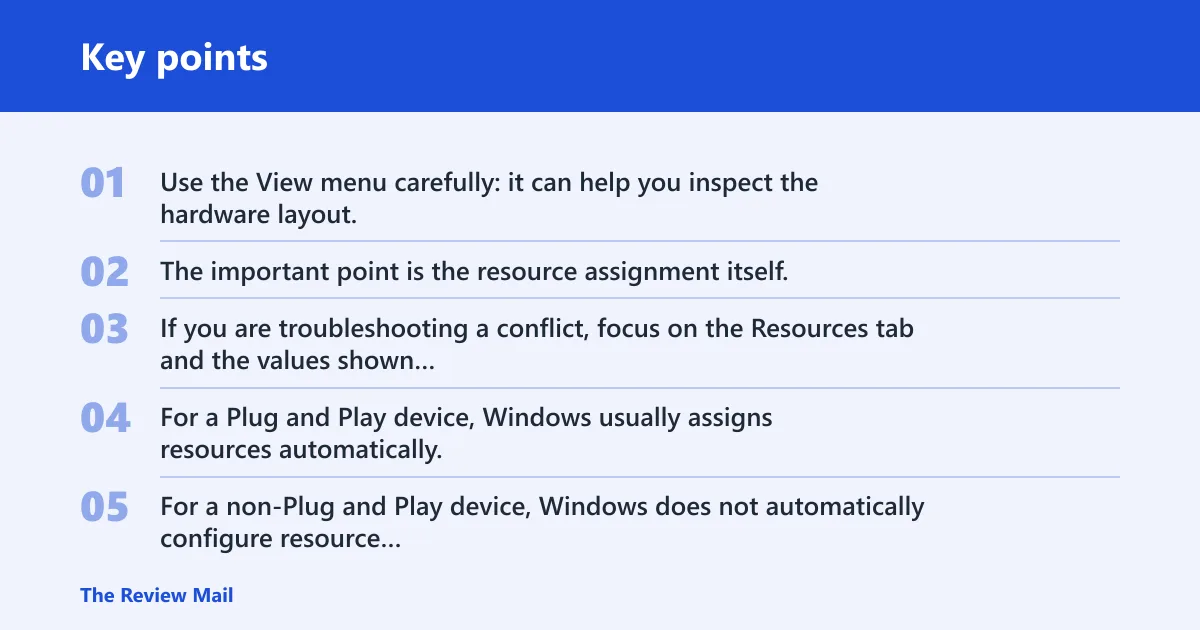
Use the View menu carefully: it can help you inspect the hardware layout, but it does not mean every device will switch into resource-type grouping on every system. The important point is the resource assignment itself. If you are troubleshooting a conflict, focus on the Resources tab and the values shown for the specific device.
When to avoid manual changes
For a Plug and Play device, Windows usually assigns resources automatically, and manual changes are discouraged unless necessary. For a non-Plug and Play device, Windows does not automatically configure resource settings, so manual configuration may be needed. Incorrect resource settings can disable hardware, so changes should be careful and deliberate. (Microsoft Support)
How conflicts affect troubleshooting
Device Manager helps when a driver error may actually be a resource conflict. If a device stops responding after a change, the Resources tab can show whether the hardware uses overlapping settings. That is the point where a careful rollback or correction matters more than repeated restarts.
A common first-timer mistake is changing resource settings because a device shows a warning icon. That is risky when the device is Plug and Play and Windows has already assigned resources correctly. Check the device status first, then review resources only if the failure points to a conflict.
Frequently asked questions
Where is device manager windows 11?
You can reach Device Manager from the Windows 11 Start menu, Search, Win+X, Run, Control Panel through Computer Management, or Safe Mode if normal access is blocked. The quickest options are usually Win+X and Run. If one path fails, another often works without further changes.
Can Device Manager fix driver conflicts?
Device Manager can help you inspect driver conflicts, device status, and resource assignments, but it does not automatically fix every problem. Use it to identify the device, review its properties, and check whether a resource issue exists. If the conflict is real, the next step may be a driver update, rollback, or careful resource review.