
Device Guard Disable Windows 10
To disable Device Guard in Windows 10, identify the blocker first: Device Guard, WDAC, Credential Guard, or VBS. If the issue is VBS-only, turn off Memory integrity and the virtualization features tied to it, then confirm the change in System Information and PowerShell. Pick the wrong control, and the protection can stay active, drivers can keep failing, or sign-in and virtualization-dependent tools can break. This guide shows the right branch, the exact settings to change, and how to confirm the result.
Device Guard or credential Guard?
Device Guard and Credential Guard are different controls, and the names are easy to mix up. Device Guard is an enterprise app-control stack associated with code integrity, WDAC, and virtualization-based security. Credential Guard protects secrets. If unsigned apps, drivers, or Code Integrity are being blocked, start with Device Guard; if sign-in or credential isolation is the symptom, check Credential Guard first. Related: Credential Guard vs Device Guard (Microsoft)
How to tell which one is blocking you
Device Guard usually appears as app or driver enforcement. Credential Guard usually appears around authentication, remote access, or protected secrets. If Windows blocks an installer, a kernel driver, or a line-of-business app that needs untrusted code, Device Guard or WDAC is the more likely path. If the complaint is about logon or credentials, do not change the Device Guard policy first. Related: Device Guard overview Related: Credential Guard guide
Say your laptop refuses to load a signed-but-not-allowlisted driver after a reboot. That points to app-control policy, not credential isolation. Suppose a remote sign-in tool fails after a security hardening change, while apps still open normally. That points more toward Credential Guard or another sign-in protection layer.
Windows 10 disable decision matrix
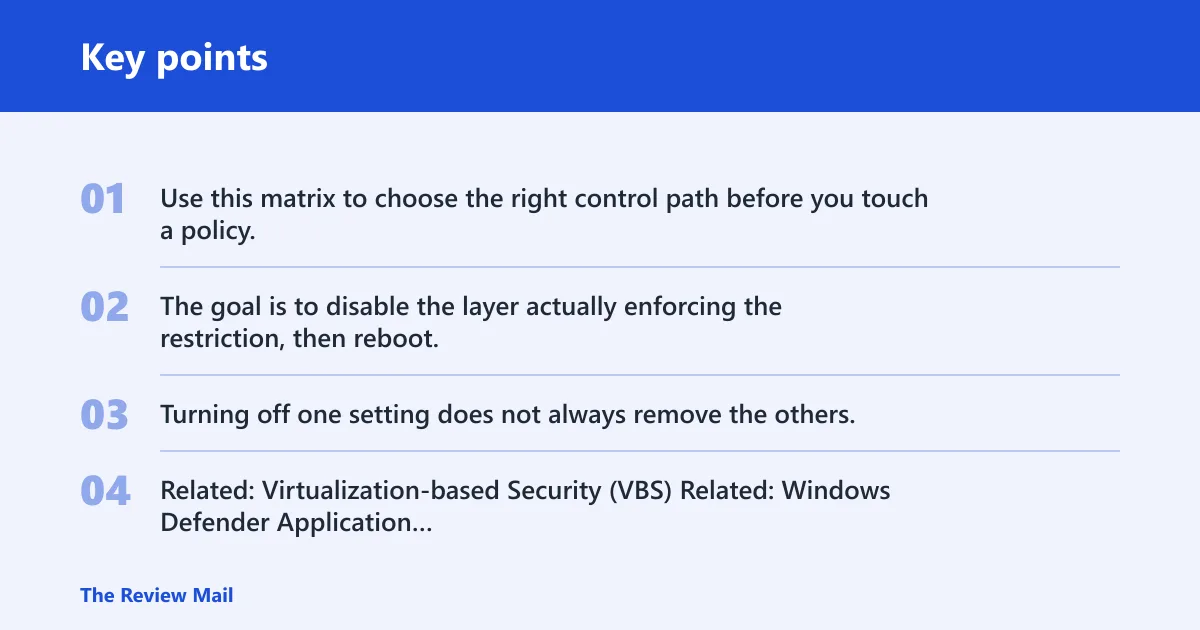
Use this matrix to choose the right control path before you touch a policy. The goal is to disable the layer actually enforcing the restriction, then reboot, then verify the result. Turning off one setting does not always remove the others. Related: Virtualization-based Security (VBS) Related: Windows Defender Application Control (WDAC) Related: Memory integrity
| Layer | What it is | Where it is controlled | What to disable | Expected reboot behavior | Verification command or sign |
|---|---|---|---|---|---|
| Device Guard | Enterprise security feature for trusted-code enforcement and code integrity | Group Policy Editor under Computer Configuration > Administrative Templates > System > Device Guard | Turn On Virtualization Based Security set to Disabled or Not Configured, if Device Guard is being driven by that policy path | Policy changes are applied before a reboot, then Windows must restart | Get-CimInstance Win32_DeviceGuard; DeviceGuard-related fields should no longer report active protection after reboot |
| Credential Guard | Credential isolation feature separate from app control | Often managed with the same Device Guard area or other security policy channels | Disable the Credential Guard policy, not the Device Guard app-control path | Usually needs a restart to unload protected credential isolation | System Information should no longer show the protection as active; authentication-related symptoms should change |
| WDAC / SIPolicy | Application control policy framework using signed-code enforcement and SIPolicy.p7b | Policy file deployment and enterprise management channels | Remove or replace the WDAC policy file; VBS alone does not remove it | May continue enforcing across reboot until the policy file is removed | App control still blocks untrusted code after VBS is off; that sign means WDAC is still active |
| VBS / HVCI | Virtualization-based Security and its code-integrity layer, including Memory integrity | Windows Security, Group Policy, and platform virtualization support | Turn off Memory integrity and the VBS policy path that enables it | Restart required; hypervisor and VBS state settle only after reboot | Windows Security should show Memory integrity off; Get-CimInstance Win32_DeviceGuard should no longer report the virtualization-based layer as active |
What Device Guard does
Device Guard is a Windows security feature for enterprises that want strict control over what runs. It limits apps to trusted or signed code and uses code integrity policies to decide what can run. The stack is tied to virtualization-based security, which is why a simple app block often leads back to VBS, WDAC, or both. Related: WDAC Related: VBS
How VBS and Hyper-V fit
Virtualization-based Security runs alongside the Windows kernel and depends on virtualization support. Hyper-V Hypervisor must be enabled first, then Windows must reboot before policy changes take effect. That order matters. If the hypervisor is off, the policy path that relies on VBS cannot settle the way it would on a supported setup. Related: VBS
Why editions matter
Windows Enterprise and Education editions are commonly required for Device Guard use. Unsupported editions include Windows Home and Pro. If gpedit.msc is missing or the policy path is absent on a Home or Pro machine, that is a strong clue that the edition does not support the same Device Guard path the way Enterprise or Education does.
Where the policy lives
Open gpedit.msc and go to Computer Configuration > Administrative Templates > System > Device Guard. The main setting is Turn On Virtualization Based Security. That is the policy to inspect first when Device Guard behavior is tied to VBS rather than a separate WDAC policy file. Related: Group Policy Editor Related: VBS policy paths
What the setting values mean
Enabled turns the VBS path on. Disabled turns that policy off. Not Configured lets another policy or default behavior decide. For a direct disable path, disable by selecting Disabled or Not Configured. Then click Apply and OK, then reboot Windows so the change can take effect.
What to do if gpedit.msc is missing
If gpedit.msc is missing, the machine is usually not on an edition that exposes the same local policy editor path, or the setting is managed elsewhere. Check whether the device is domain-managed or controlled by MDM or another IT policy channel. A local change may be overwritten on the next sync.
How do you disable it safely?
Disable the correct layer, not every security control at once. If Device Guard is being driven by VBS, change Turn On Virtualization Based Security to Disabled or Not Configured, click Apply and OK, then reboot. If Credential Guard is the real issue, turn off the Credential Guard policy separately. If WDAC policy files are enforcing, remove or replace the policy file too.
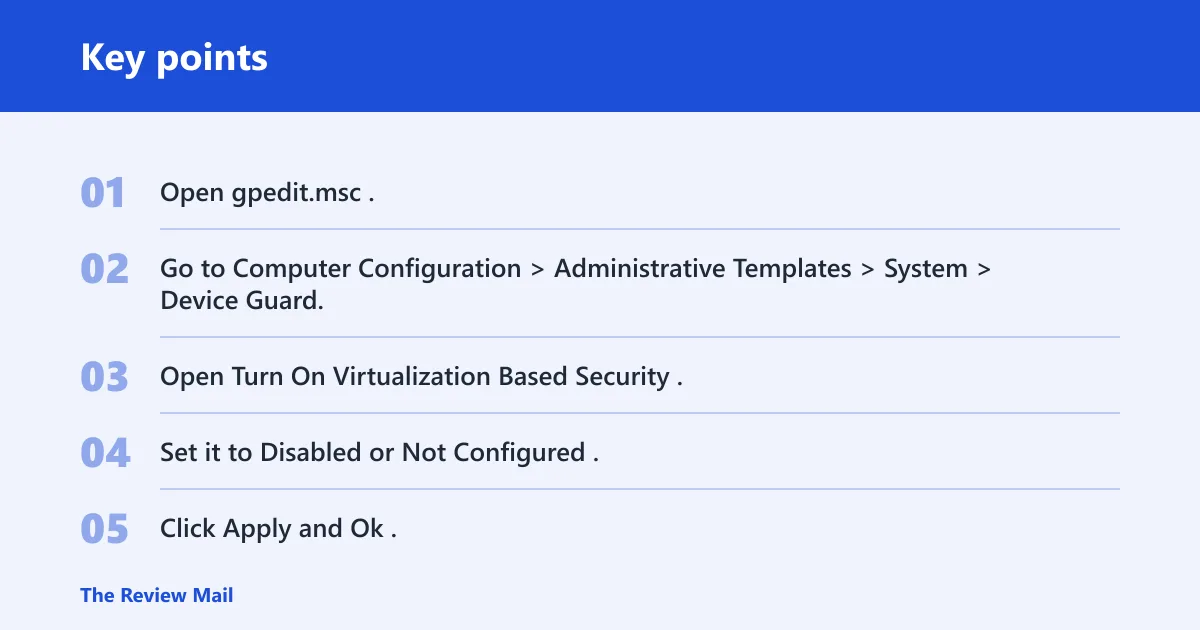
- Open
gpedit.msc. - Go to Computer Configuration > Administrative Templates > System > Device Guard.
- Open Turn On Virtualization Based Security.
- Set it to Disabled or Not Configured.
- Click Apply and Ok.
- Restart Windows.
- After reboot, verify the result with PowerShell and System Information.
What should you disable first: Hyper-V or the policy setting?
Start with the policy setting when the goal is to stop the VBS-driven Device Guard path cleanly. Hyper-V Hypervisor is a prerequisite for VBS features, so the policy change tells you whether the restriction is coming from policy or from another source. For troubleshooting, keep the sequence clear: policy change, Apply and OK, reboot, then verify. Related: Hyper-V
How to turn off Memory integrity
If the blocking layer is HVCI rather than app-control policy, open Windows Security, go to Device security, then Core isolation details, and turn off Memory integrity. That setting is part of the VBS/HVCI path. It does not remove a separate WDAC policy file, so app-control blocks can continue if SIPolicy is still deployed. Related: Memory integrity
A common first-timer mistake is disabling only the visible Memory integrity toggle and expecting every app-control block to disappear. If a WDAC policy file is still present, the system may keep blocking the same tool after reboot. The visual toggle changed, but the policy source did not.
How do you verify it is off?
A common verification approach is to check in PowerShell and look for a visible Windows sign after reboot. Run Get-CimInstance Win32_DeviceGuard. Then check whether DeviceGuard-related values still report active virtualization-based security or code-integrity enforcement. If the issue was VBS-driven, System Information and Windows Security should no longer show the same protection state as before.
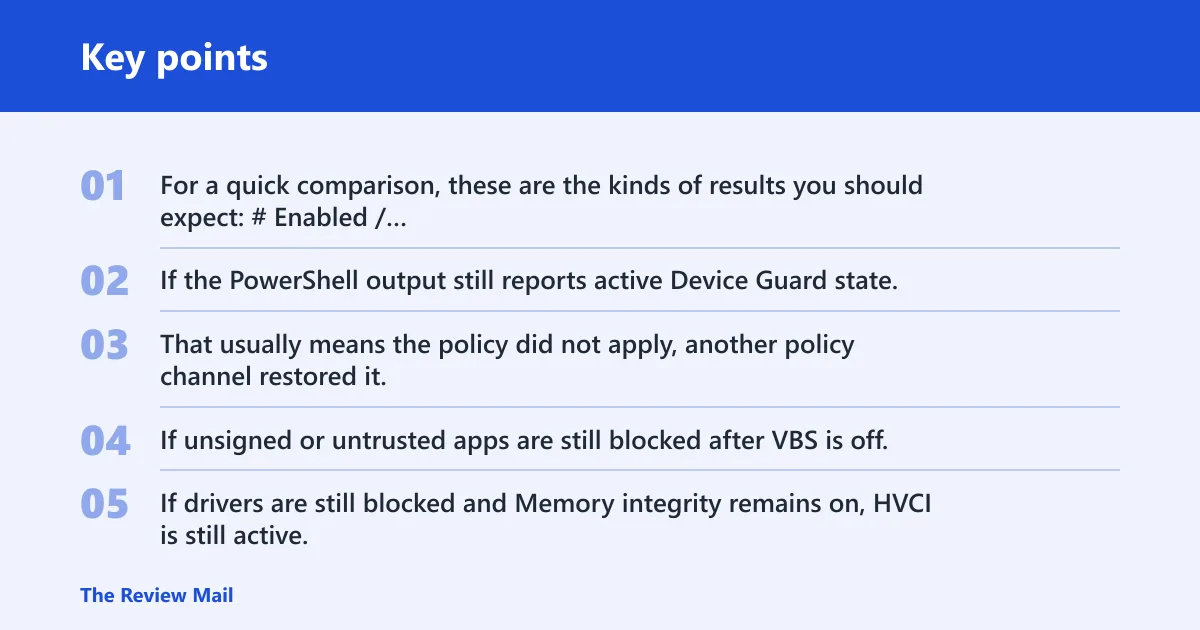
For a quick comparison, these are the kinds of results you should expect:
# Enabled / active state
PS C:\> Get-CimInstance Win32_DeviceGuard

AvailableSecurityProperties : {1, 2, 3, 4}
SecurityServicesConfigured  : {1, 2}
SecurityServicesRunning     : {1, 2}
CodeIntegrityPolicyEnforcementStatus : 1
RequiredSecurityProperties  : {1, 2, 3, 4}
VirtualizationBasedSecurityStatus    : 2

# Disabled / not configured state
PS C:\> Get-CimInstance Win32_DeviceGuard

AvailableSecurityProperties : {1, 2}
SecurityServicesConfigured  : {}
SecurityServicesRunning     : {}
CodeIntegrityPolicyEnforcementStatus : 0
RequiredSecurityProperties  : {}
VirtualizationBasedSecurityStatus    : 0
What the result should look like after reboot
After the restart, the Device Guard and VBS indicators should no longer show the feature as active in the same way. If the PowerShell output still reports active Device Guard state, the system is still enforcing something in that stack. That usually means the policy did not apply, another policy channel restored it, or a separate WDAC policy remains in place.
Signs that WDAC or HVCI still remain active
If unsigned or untrusted apps are still blocked after VBS is off, WDAC may still be enforcing. If drivers are still blocked and Memory integrity remains on, HVCI is still active. Those are different problems. The fix is to remove the WDAC policy file or turn off Memory integrity, not to assume the Device Guard policy switch handled everything. Related: WDAC
What changes with WDAC and VBS?
WDAC can keep enforcing separately because it is a policy framework, not just a VBS switch. Device Guard uses WDAC in its stack, and the policy file format SIPolicy.p7b can continue to block code even when VBS is off. That is why turning off one setting can leave app-control enforcement in place. Related: WDAC Related: VBS
S Mode and policy-file confusion
S Mode is a separate Microsoft lockdown mode and is often confused with Device Guard because both limit what can run. A policy file deployment can also be mistaken for Device Guard. If the device is in S Mode or has a deployed SIPolicy, the symptoms may look similar, but the disable path is not the same.
What to do on a domain-managed device
If the machine is managed by IT, use the rollback path that matches the management source. Do not fight a domain policy with local edits alone. Document the current policy state, ask for the WDAC or Credential Guard rule that is enforcing the block, and request a managed rollback or policy exception. Local changes can be reversed by the next policy refresh. Related: WDAC Related: Credential Guard
What changes in a VMware or virtual machine scenario?
On a virtual machine, hypervisor support and nested virtualization can change what VBS can do. If the VM does not expose the right virtualization features, Device Guard or HVCI may fail to start, or the policy may appear off even though the VM cannot support it cleanly. Check the VM settings before assuming the Windows policy is the whole story.
Frequently asked questions
What is device Guard in Windows 10?
Device Guard is an enterprise security feature that limits execution to trusted or signed code and ties that control to virtualization-based security. It is aimed at environments where control matters more than convenience. WDAC and code integrity policy files can be part of the stack that enforces those rules. Related: WDAC Related: VBS
Do I need Enterprise or Education to use Device Guard?
Yes. Windows Enterprise or Education is required for Device Guard use. If you are on Home or Pro, the same local policy path may be missing or limited, so the first step is confirming the edition before chasing a policy that may not apply.
Where is the Device Guard policy in group policy editor?
The path is Computer Configuration > Administrative Templates > System > Device Guard. The key setting is Turn On Virtualization Based Security. That is the main policy location to inspect when you are dealing with VBS-driven Device Guard behavior on a supported Windows 10 edition.
How do I tell whether Device Guard is actually enabled?
Run Get-CimInstance Win32_DeviceGuard and check the reported Device Guard state after reboot. Then open System Information and Windows Security for a second check. If the same protections still appear active, the system is still enforcing Device Guard, VBS, HVCI, or a related policy file.
Will disabling Device Guard affect S Mode or WDAC policies?
Disabling the VBS policy does not automatically remove WDAC enforcement, and it does not turn off S Mode. WDAC can continue to block code through its own policy file, and S Mode is a separate lockdown mode. If blocks remain after VBS is off, look at SIPolicy deployment or S Mode status next. Related: WDAC