How to Fix H in Windows 10
Fix Windows+H by checking the first failed layer: if the shortcut does nothing, verify keyboard input and app focus; if dictation opens but will not listen, fix speech permissions and language support; if Help opens instead, repair hh.exe file associations. Skipping the wrong layer wastes time and can leave both dictation and Help broken.
What you need before you start
- A working keyboard with a known-good H key.
- A text field in a supported app, such as Notepad, Word, or another editor that accepts typed text.
- Admin access for Device Manager and Windows Update changes.
- A microphone that Windows can detect.
- An internet connection if speech services need it.
- A recent Windows 10 restart, because pending updates often finish only after reboot.
Windows H troubleshooting matrix
| Symptom | Likely cause | Verification step | Fix | Escalation path |
|---|---|---|---|---|
| Windows+H does nothing | No supported text box is active, or the keyboard layer is blocked | Click inside a text field in Notepad, Word, or another editor, then press Windows+H | Move focus into a supported text box and retry | Check keyboard layout, Sticky Keys, Filter Keys, and Fn behavior |
| Windows+H opens the wrong app | The H key is being intercepted by another shortcut, utility, or layout layer | Try the same shortcut on the Windows sign-in screen or in another app | Disable remapping utilities, then test the keyboard in a second app | Check Device Manager for the keyboard driver and hotkey software |
| Microphone prompt never appears | Speech access is blocked or the app lacks focus | Open Settings > Privacy > Microphone and verify access | Allow microphone access and retest in a text field | Check language support and sign in status for speech services |
| Dictation starts then stops | Microphone input, language support, or network-backed speech service drops out | Watch whether the dictation pane closes after a few seconds | Recheck input device selection and language settings | Restart, then run Windows Update and retest |
| hh.exe will not launch | Help file association or the legacy help executable path is broken | Run hh.exe from the Run box and open a .chm file | Repair the .chm association or reinstall the app that owns the help file | Use SFC, then repair install if system files are damaged |
| The shortcut works only in some apps | The app does not expose a standard text input, or it blocks dictation | Test in Notepad and then in the problem app | Use a supported text field or a different app | Update the app, then check app-specific keyboard hooks |
| The failure began after an update | A recent cumulative update or reboot step is still pending | Check Settings > Update & Security > Windows Update | Install pending updates and restart | If the issue persists, check Event Viewer and consider rollback or repair install |
| The failure began after a keyboard or layout change | Language, IME, Fn, Sticky Keys, or Filter Keys changed the input path | Switch back to the intended keyboard layout and test again | Restore the original layout and disable conflicting accessibility options | Rollback the keyboard driver if the device still misroutes the key |
How do I troubleshoot H in Windows 10?
Start by splitting the two failures: Windows+H for dictation and hh.exe for classic Help files. The first needs a focused text field, microphone permission, and language support. The second needs the .chm association and the Windows HTML Help executable. That split saves time.
What to check first
- Click inside a text field in a supported app.
- Press Windows+H once.
- If nothing opens, switch to Notepad and test again.
- If dictation opens but will not listen, open Settings > Privacy > Microphone.
- If Help opens instead, test hh.exe by opening a .chm file.
Say your shortcut works in Notepad but not in a browser text box. That points to app focus or app-specific input handling, not a broken keyboard. Suppose the dictation pane appears and then closes after a few seconds; that points to speech permissions, input focus, or a speech language mismatch.
Why does Windows + H not work on my PC?
Most failures come from the wrong layer. The shortcut needs a supported text field, a keyboard layout that sends the H key normally, and speech features that can reach the microphone. If one of those layers is blocked, Windows+H may do nothing, launch the wrong thing, or stop after opening.
Check focus, layout, and hotkeys
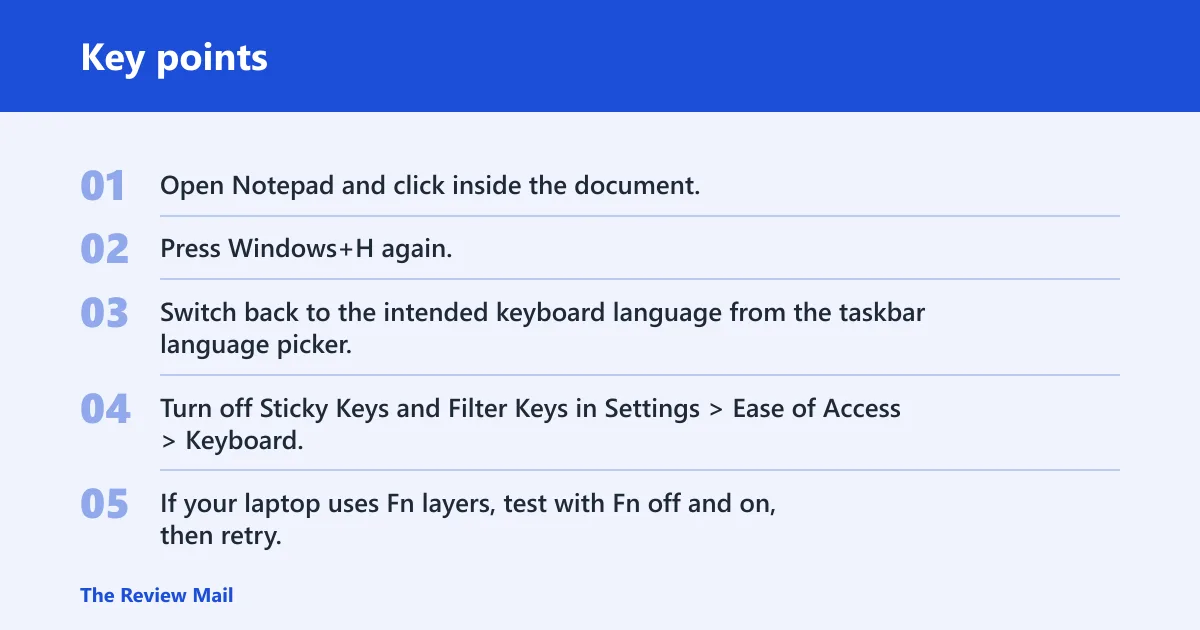
- Open Notepad and click inside the document.
- Press Windows+H again.
- Switch back to the intended keyboard language from the taskbar language picker.
- Turn off Sticky Keys and Filter Keys in Settings > Ease of Access > Keyboard.
- If your laptop uses Fn layers, test with Fn off and on, then retry.
A common first-time mistake is testing the shortcut while a menu, search field, or toolbar still has focus. That can block the dictation entry point even when the keyboard itself is fine.
How do I enable Windows + H in Windows 10?
Windows 10 does not appear to use a separate Settings toggle for a Win+H dictation shortcut. The shortcut works when the speech layer is available, the app can accept typed text, and Windows can access the microphone. Turn on the needed settings, then test the shortcut inside a text box.
Enable the prerequisites
- Open Settings > Privacy > Microphone.
- Turn on microphone access for the device and for desktop apps.
- Open Settings > Time & Language > Language.
- Confirm the active language supports speech input for your setup.
- Open Notepad and press Windows+H.
If the shortcut opens a speech pane but stays silent, the problem is usually not the keyboard. It is usually the speech layer, microphone permission, or the active language.
How do I fix Windows 10 so the H shortcut works again?
Use the shortest path first. Restart Windows, then test the shortcut in a plain text app. If that fails, install pending Windows updates, because recent cumulative updates can leave input or speech components half-updated until reboot. If the problem remains, check privacy, language, and keyboard layers one by one.
If that did not work, try this next
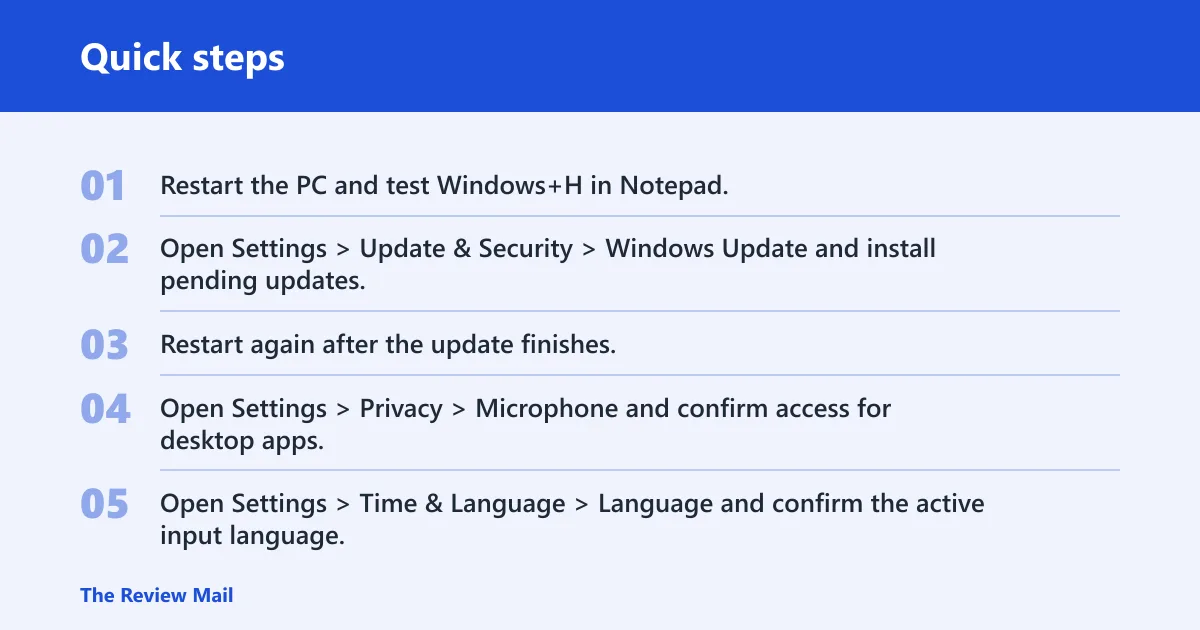
- Restart the PC and test Windows+H in Notepad.
- Open Settings > Update & Security > Windows Update and install pending updates.
- Restart again after the update finishes.
- Open Settings > Privacy > Microphone and confirm access for desktop apps.
- Open Settings > Time & Language > Language and confirm the active input language.
Should you update Windows or drivers first when Windows+H fails? Start with Windows Update, then reboot and retest. Driver work belongs after that, because the shortcut often fails from permission, focus, or update-state problems before the keyboard driver is involved.
Check the keyboard driver only if the key still misroutes
- Right-click Start and open Device Manager.
- Expand Keyboards.
- Open the keyboard device properties and check status.
- Use Update driver or Roll back driver if the failure began after a driver change.
- Restart and test Windows+H in Notepad again.
How do I get help with hh.exe?
hh.exe is the Windows HTML Help executable. It opens legacy .chm help files, so a failure there is separate from dictation. If it will not launch, check the file association first, then check the executable path. Do not chase speech settings for this problem.
Repair the help path and association
- Press Win+R, type hh.exe, and press Enter.
- Open a .chm file from File Explorer if the app expects one.
- Right-click a .chm file, choose Open with, and select the correct help viewer.
- If the association is wrong, set the correct app for .chm files.
- Reinstall the app that installed the help files if the file still will not open.
If the executable path is damaged, a repair install can solve many Windows 10 problems without a full reset. Tom’s Hardware frames that approach as an in-place upgrade reinstall. It is a later step, though, not the first answer for a broken help file.
Common mistakes
Do not test Windows+H outside a text field. Do not treat hh.exe as the same failure as dictation. Do not change keyboard, language, and privacy settings all at once, because that makes the next test meaningless.
Another common error is jumping straight to a repair install. Tom’s Hardware suggests a 30-60 minute troubleshooting window before moving to a larger repair, which is a useful boundary here too. Use that window to isolate focus, permissions, language, and driver state first.
Use these clues before deeper repair
- If Task Manager or another app remains normal while the shortcut fails, the issue is more likely app-specific than system-wide.
- If the microphone prompt never appears, check Privacy > Microphone before anything else.
- If the issue started right after an update, finish Windows Update and restart before changing drivers.
- If the issue started after a keyboard or language switch, restore the previous layout first.
When the problem follows a recent update cycle, check Event Viewer for crash entries that mention the component that changed. ZDNET notes FileHistory.exe and KERNELBASE.dll crash events in one Windows 10 update cycle; the same idea applies here: find the broken layer before choosing a broad repair.
Frequently asked questions
How do I get help in Windows using hh.exe?
Press Win+R, type hh.exe, and open a .chm file. If nothing opens, repair the .chm association in File Explorer or reinstall the program that installed the help file. Do not change speech settings, because hh.exe is the legacy HTML Help path, not dictation.
Should I update Windows or drivers first when Windows + H fails?
Update Windows first through Settings > Update & Security > Windows Update, then restart and retest. If the shortcut still fails and only the keyboard layer seems off, go to Device Manager and check the keyboard driver. That order catches the most common causes with the least disruption.
Do I need a repair install if Windows 10 shortcuts are broken?
Only after the shortcut has been tested in a supported app, Windows Update has been installed, microphone access is correct, and the keyboard driver has been checked. A repair install can fix many Windows 10 problems without a full reset, but it belongs near the end of the ladder, not the start.