Windows 11 Enable Guest Account: Edition-by-edition
Quick answer: Windows 11 does not provide a normal, always-visible built-in Guest sign-in that works the same way on every edition. If you need shared access, the safer default is a standard local account; on Pro and managed PCs, Guest account-style access is usually better handled with Assigned Access or a restricted local user. If you try to enable Guest, verify both the account status and whether your edition or policy hides it from the sign-in screen.
Windows 11 does not offer a normal built-in Guest account that you can just switch on; on Home, use a standard local account instead, and on Pro or Enterprise, a standard user or Assigned Access is the safer choice. If you set up the wrong model, guests can end up with too much access or with none at all. This guide shows which editions can expose Guest-like access, how to check whether the account is hidden, and the safest replacement when Guest is unavailable.
Guest account basics
The built-in Guest account is intended for short-term use by other people on a PC. It is a limited account, so it should not have broad privileges or access to private files. Microsoft’s policy text and Microsoft Q&A both point to Guest as a legacy account on modern Windows client releases, so behavior can vary by edition and policy rather than by a simple on/off toggle.
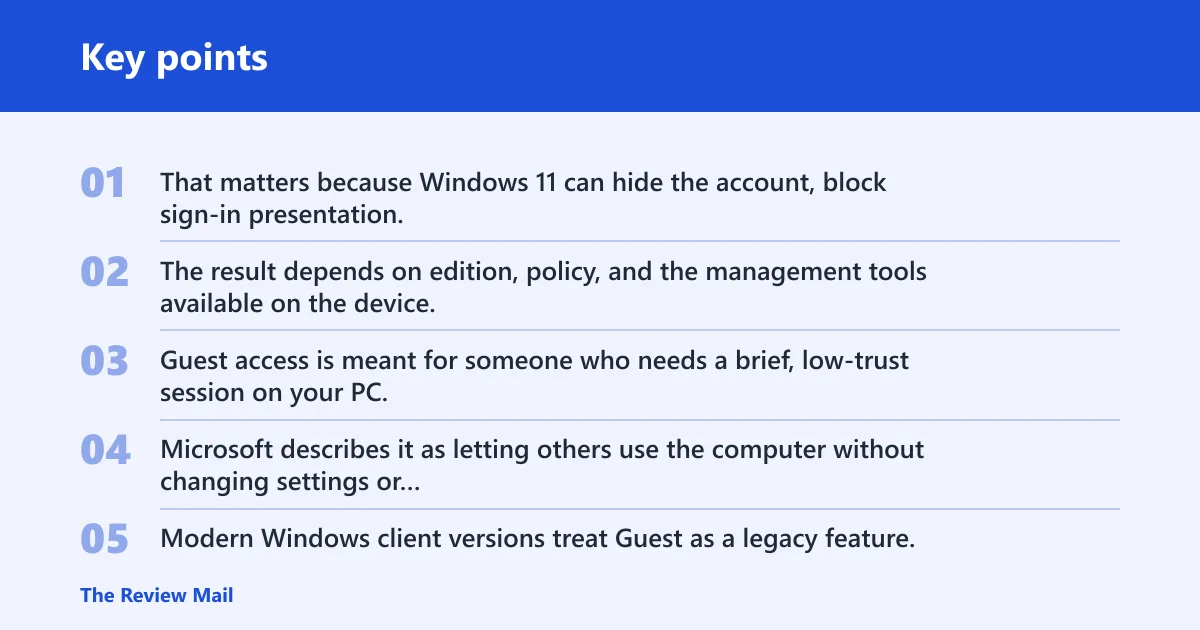
That matters because Windows 11 can hide the account, block sign-in presentation, or leave it enabled in a way that does not help a real shared-PC scenario. The result depends on edition, policy, and the management tools available on the device.
What Guest is used
Guest access is meant for someone who needs a brief, low-trust session on your PC. Microsoft describes it as letting others use the computer without changing settings or accessing private files. That is the narrow use case.
Why modern Windows limits it
Modern Windows client versions treat Guest as a legacy feature, not a default sharing model. Microsoft warns that the Guest account name is well known and can invite malicious access attempts. Microsoft also says renaming Guest can make it slightly harder to guess the account name, but that is a small defense, not a full security plan.
Guest vs. a restricted local account
A restricted local account is the safer substitute when you need repeatable shared access. It gives you a named local user with limited rights, which is easier to control than a legacy Guest profile that may be hidden, deprecated, or blocked by policy. For a family PC or front-desk workstation, that tradeoff is usually better.
Windows 11 enable guest decision matrix
This matrix separates the edition question from the visibility question. An account can be present in policy or Local Users and Groups and still not appear on the sign-in screen. Use the safest workaround column as the default path, not as an afterthought.
| Windows 11 edition | Can Guest be enabled? | Appears on sign-in screen? | Safest workaround |
|---|---|---|---|
| Home laptop | Sometimes, but the GUI tools are limited; command line may be the only practical route | No guarantee; the account can stay hidden even after enablement | Create a standard local account with a strong password and no admin rights |
| Pro desktop | More likely, because Local Users and Groups and Group Policy tools are available | Not guaranteed; policy can keep it hidden | Use a restricted local account, or Assigned Access for a single-app kiosk |
| Managed work PC | Only if policy allows it; domain or MDM rules can block it | Usually no, if sign-in is controlled by organization policy | Follow IT policy; use a managed standard account or approved kiosk setup |
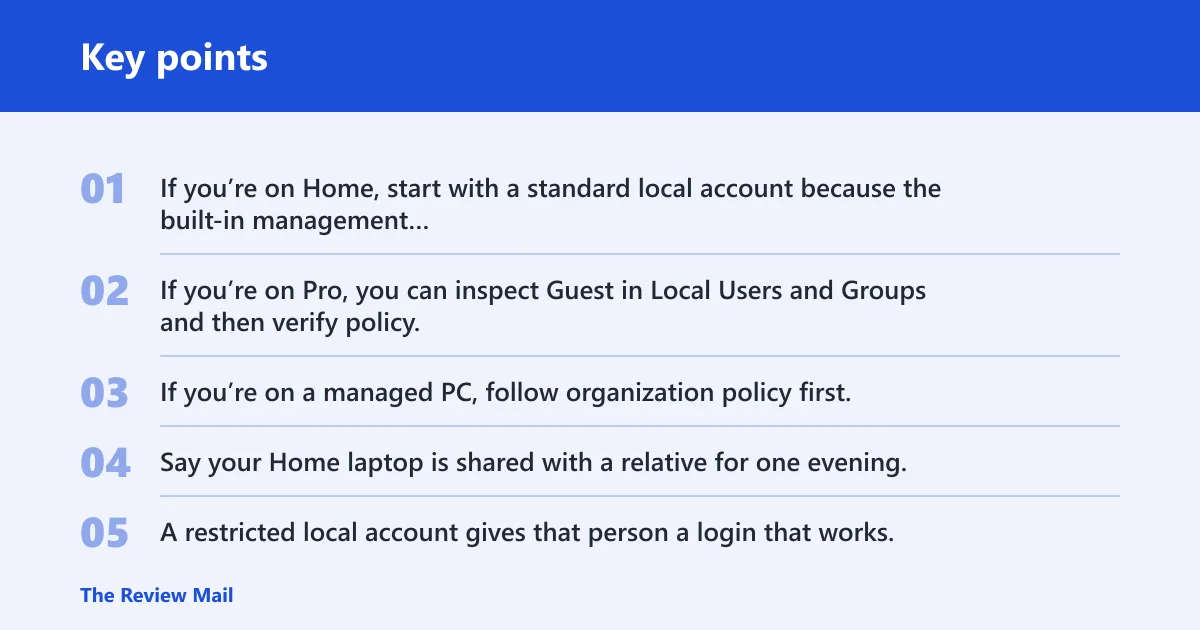
If you’re on Home, start with a standard local account because the built-in management tools are limited. If you’re on Pro, you can inspect Guest in Local Users and Groups and then verify policy. If you’re on a managed PC, follow organization policy first; Guest may be blocked even if the account exists.
Say your Home laptop is shared with a relative for one evening. A restricted local account gives that person a login that works, while your files and admin settings stay separate. Guest sounds simpler, but on Windows 11 it may not appear where you expect it.
Suppose a Pro desktop at a reception desk needs temporary access for visitors. Assigned Access or a limited standard user keeps the session predictable. Guest can still be hidden by policy, which means the sign-in screen may not offer the shortcut you want.
How do you enable the Guest account in Windows 11?
You can enable Guest only where the edition and policy tools expose it. On Windows 11 Pro, you have better access to Local Users and Groups, Group Policy, and local security settings. On Windows 11 Home, those GUI tools are missing, so command-line control or a different account model is often the practical path.
What Home edition can and cannot do
Windows 11 Home often lacks Local Users and Groups management through Computer Management. That means you do not get the same click-through path that Pro users have. Home can still support local accounts, but if Guest is hidden or blocked, a standard local account is the cleaner option.
What Pro edition can and cannot do
Windows 11 Pro is more likely to include the tools needed to inspect, enable, disable, and manage the built-in account. That does not mean Guest will automatically show at sign-in. Policy can still suppress it, and some modern Windows client behavior treats it as a legacy account rather than a normal sign-in choice.
When Guest is hidden instead of removed
The account can exist without being visible in the sign-in screen. That is the key distinction. If the account is hidden, the built-in tools may show it as present, but Windows may still refuse to present it as a normal login option.
Enable Guest in Computer Management
If your edition exposes Local Users and Groups, this is the most direct GUI route. The account is managed from Computer Management, where you can find the built-in Guest entry and toggle its status. The control is simple, but visibility after enablement is still a separate question.
Open Local Users and Groups
- Open Computer Management.
- Expand System Tools.
- Open Local Users and Groups.
- Select Users.
If Local Users and Groups is missing, that is an edition limit, not a user mistake. On Home, this path may not be available.
Find the built-in Guest account
Look for the built-in Guest entry in the Users list. If the entry exists, it is the account you are trying to control. If it is absent from the list, use the command-line check below before assuming it is gone.
Enable or disable the account
- Open the Guest account properties.
- Clear the disabled state to enable it, or set it disabled to turn it off again.
- Confirm the change and close the dialog.
Microsoft’s policy materials also connect Guest management to security options and account status controls, so the GUI is only one of several places where the account can be governed.
How do you enable the Guest account with Command Prompt?
Command Prompt can activate the built-in account with net user commands, which matters on editions where the GUI tools are missing or incomplete. This is not just inspection. It can change the account state, confirm whether the account exists, and help you check whether Windows accepted the change.
Check the account status with net user
- Open Command Prompt with administrative rights.
- Run net user Guest.
- Read the account state and note whether it is disabled.
If the system reports the account, you have a built-in target to work with. If Windows says the account does not exist, the edition or policy layer is getting in the way.
Activate the built-in Guest account
- In elevated Command Prompt, run net user Guest /active:yes.
- To turn it back off later, run net user Guest /active:no.
- Check the result by running net user Guest again.
Microsoft Q&A states that Guest can still be enabled with command line, but it will not show on the sign-in screen. That is the limit to keep in mind before you start.
Confirm the sign-in result
After activation, sign out or lock the PC and check the sign-in screen. If Guest does not appear, the account may be enabled but still hidden by Windows design or local policy. That is not the same as a failed command.
Why Guest may not appear
Guest can be enabled and still stay invisible at sign-in. Microsoft’s guidance on modern Windows says the account is deprecated or legacy in practice, and a Microsoft Q&A answer says activation does not make it appear on the sign-in screen. That behavior is a product-design change, not a sign that you made a mistake.
Sign-in screen behavior
The sign-in screen is not necessarily a simple list of every local account. Windows can suppress accounts that it considers legacy, disabled, or policy-controlled. Guest falls into that problem space on modern client versions.
Policy and edition restrictions
Managed devices can hide Guest through local security settings, Group Policy, or domain policy. Microsoft’s security policy path is Computer Configuration > Windows Settings > Security Settings > Local Policies > Security Options, where the built-in account status setting appears as Accounts: Guest account status. (Microsoft Support)
When the account is enabled but still unusable
A common mistake is to think turning on the Guest account is enough when you also need to verify it appears on the sign-in screen. It is only one step. If the account is enabled but the sign-in screen still ignores it, the better fix is usually a restricted local account, not more retries with the legacy Guest profile.
Group Policy and security settings
Group Policy and Local Security Policy are the right tools when you need to govern Guest in a controlled environment. Microsoft’s policy text says Guest is renamed through Group Policy security options, and the same security area also includes the enable or disable control for Accounts: Guest account status.
Accounts: Guest account status
This setting controls whether the built-in Guest account is enabled or disabled. That is the key policy knob. Microsoft’s policy reference also notes that Guest exists in supported Windows Server and client versions beginning with Windows Server 2003 and Windows XP Professional, and that it is disabled by default in Windows Server 2003, Windows 2000 Server, and Windows XP. (Microsoft)
Local Security Policy vs Group Policy
On a standalone Pro PC, Local Security Policy can be enough. On a domain-joined or managed device, Group Policy may override local settings. If the device is under organization control, local changes can revert or fail to take effect.
Managed domain or organization limits
Microsoft also warns that the Guest name is well known and can be used as a target for malicious access attempts. That is one reason organizations often block it, rename it, or replace it with a separate local account policy. Microsoft Q&A further recommends creating a restricted account instead of using Guest.
Two separate controls matter here: account status and account naming. Renaming Guest is not the same as enabling it. A policy that hides the name still does nothing useful if the account is disabled, and enabling it does not guarantee that Windows will offer it at sign-in.
Frequently asked questions
Can I use the Guest account in Windows 11 home?
Windows 11 Home is the least convenient edition for Guest management because Local Users and Groups is typically absent. That does not mean local sharing is impossible. It means the safer answer is a standard local account with limited rights, which is easier to manage and easier to see at sign-in.
Why is the Guest account missing in Windows 11?
It can be missing because the edition does not expose the management tool, because policy hides it, or because Microsoft treats it as legacy on modern client versions. A missing sign-in entry does not always mean the account is gone. It can still exist in the background and remain hidden.
How do I enable the Guest account with Group Policy?
Use the security-options path: Computer Configuration > Windows Settings > Security Settings > Local Policies > Security Options. Microsoft’s policy reference ties Guest control to that area and notes that the account can be renamed there as well. On managed devices, domain policy can override the local setting.
What’s the safest alternative to the Guest account in Windows 11?
A restricted local account is the safest default for shared access. It is easier to predict, easier to sign in to, and less dependent on legacy Guest behavior. If you need a kiosk-style setup, Assigned Access is another sensible option, especially on Pro or managed devices.