Windows Wi-Fi Adapter Missing: Fix It in Windows 10
If your Windows Wi‑Fi adapter is missing in Device Manager, first check hidden devices and error icons: visible but disabled usually means a software fix, while a complete disappearance points to driver or hardware trouble. Miss that split and you can waste time on resets that do nothing. This guide shows how to tell missing, disabled, and failing adapters apart, then what to do next in Windows 10 and 11.
Why the adapter is missing
Start with the simplest causes. A wireless switch, Fn key, airplane mode, BIOS or UEFI wireless setting, driver damage after an update, third-party security software, or power management can all make the adapter vanish or stop working. A true hardware fault becomes more likely when the adapter disappears across reboots, reinstall attempts, and rollback steps.
Check the physical and firmware controls first
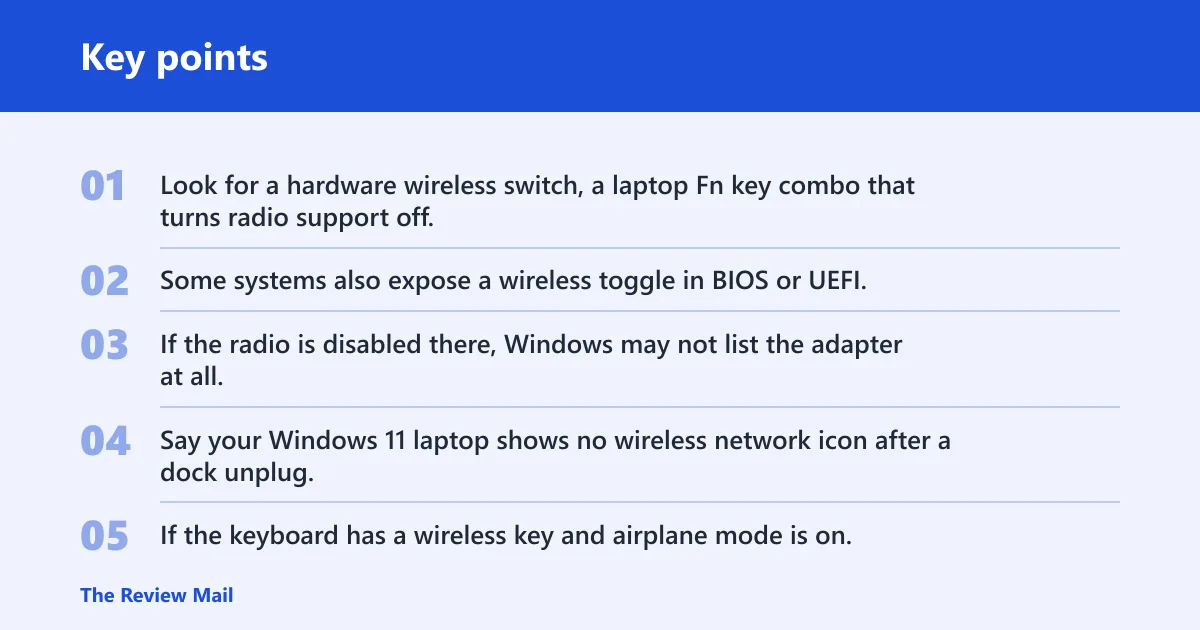
Look for a hardware wireless switch, a laptop Fn key combo that turns radio support off, and airplane mode. Some systems also expose a wireless toggle in BIOS or UEFI. If the radio is disabled there, Windows may not list the adapter at all, even though the Wi‑Fi card is still installed.
Say your Windows 11 laptop shows no wireless network icon after a dock unplug. If the keyboard has a wireless key and airplane mode is on, that is a faster check than a full reset. Turn the radio back on, then reboot once before moving deeper.
Why update-related disappearance matters
Windows 11 users often report that the wireless adapter is missing after an update, while Windows 10 users more often run into driver or service breakage after a driver change. If the adapter vanished right after a cumulative update, treat rollback and driver repair as a higher priority than a broad network reset.
Third-party apps can also interfere. Antivirus suites and VPN apps may change network components, disable services, or leave the adapter in a broken state after an update or profile change. A temporary disable test can help separate a software conflict from a deeper fault.
Check Device Manager first
Open Device Manager, expand Network adapters, and look for the Wi‑Fi device, a warning icon, or anything listed as disabled. Then use Action > Scan for hardware changes. If the adapter appears after a rescan, the problem was detection rather than permanent loss.
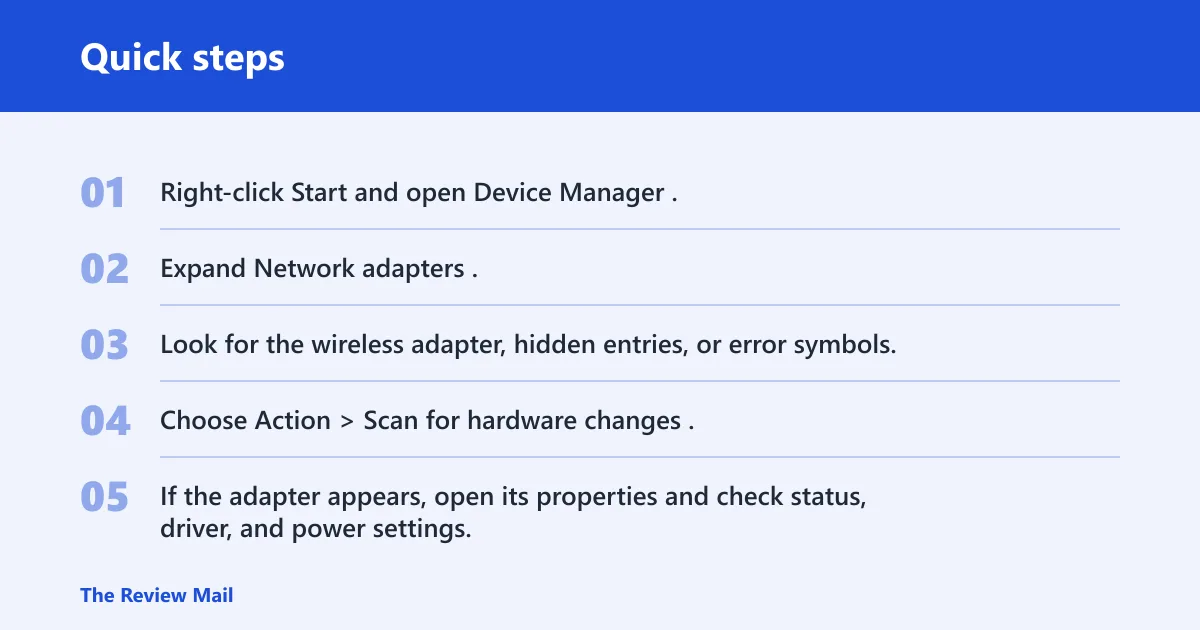
- Right-click Start and open Device Manager.
- Expand Network adapters.
- Look for the wireless adapter, hidden entries, or error symbols.
- Choose Action > Scan for hardware changes.
- If the adapter appears, open its properties and check status, driver, and power settings.
Use the driver and power tabs the right way
Open the adapter’s properties and check the Driver tab and Power Management tab. If Windows shows the device but marks it with an error, start with Search automatically for updated driver software. If that fails, uninstall the device and let Windows try again after restart.
The power setting matters because some adapters are turned off to save power. If Windows is allowed to shut the device down, the Wi‑Fi card can seem to disappear after sleep, docking, or a cold boot.
Get the correct OEM driver if Windows does not restore it
If Windows does not reinstall the adapter driver on its own, use the support page for the exact PC or motherboard model from the maker. That OEM package is safer than a random generic download when the adapter is missing, because the correct wireless chipset, antenna support, and management pieces are often bundled together.
Picture a Surface or other thin laptop that loses Wi‑Fi after a feature update. Device Manager shows no wireless adapter at all, but Ethernet still works. In that case, the right OEM driver package and a rescan matter more than a full network reset.
Wireless service checks
Windows 10 calls the service WLAN AutoConfig. It should be set to Automatic. If a third-party app disabled it, Wi‑Fi may stop working even though the adapter still exists in Device Manager. Restarting the service is a useful step, but it does not bring back missing hardware by itself.
How to enable WLAN AutoConfig in Windows
Open Services, find WLAN AutoConfig, and set the startup type to Automatic. Then start or restart the service. If it was disabled by another app, undoing that change can restore Wi‑Fi without touching the driver.
- Open Services from the Start menu.
- Find WLAN AutoConfig.
- Open its properties and set Startup type to Automatic.
- Select Start or Restart.
Legacy hosted-network note
Netsh wlan set hostednetwork mode=allow. That is a legacy hosted-network command, and it is tied to virtual Wi‑Fi behavior, not a normal fix for a missing physical adapter. The Microsoft Virtual WiFi Miniport Adapter can show up in older hotspot setups, but it is not the main answer for a modern adapter that vanished from Device Manager.
Recovery matrix
Use the symptom you see right now. That keeps you from running the wrong repair in the wrong order. A complete disappearance from Device Manager is a different problem from a disabled device, and both are different from a device that exists but shows an error code.
| Symptom state | Most likely cause | Fastest safe fix sequence |
|---|---|---|
| Missing from Device Manager | Driver failure, radio turned off in firmware, power issue, or hardware fault | Check wireless switch, Fn key, airplane mode, and BIOS or UEFI wireless setting; in Device Manager use Action > Scan for hardware changes; reinstall the OEM driver; check Power Management; if still absent, suspect hardware or board-level failure |
| Disabled | Manual disable, power saving, or app interference | Enable the device in Device Manager; set WLAN AutoConfig to Automatic; review Power Management; temporarily disable antivirus or VPN software; restart |
| Present with error | Driver damage, bad update, or corrupted settings | Search automatically for updated driver software; uninstall and reinstall the adapter; if the problem started after a change, use System Restore; consider Windows network reset only after the driver path fails |
Can a reset help?
Yes, but it should not be the first move. Windows network reset returns settings to default and is best used after driver, service, and visibility checks. It can remove stored network settings, saved Wi‑Fi profiles, and related VPN setup, so it is useful when the adapter exists but the stack is broken.
What network reset does and does not do
On Windows 10, the built-in Network reset tool is the standard built-in choice for stubborn network breakage. It resets network settings to default and can require you to re-enter Wi‑Fi passwords and rebuild VPN setup afterward. It is not a recovery tool for a radio that is gone from Device Manager.
Use this step when the adapter is present but connectivity is broken, or when Windows keeps misconfiguring the same device after normal repairs. It is better than a blind reset loop, but it should follow the visibility checks above.
Where Winsock fits
If the adapter is present and the problem looks like corrupted sockets or broken name resolution, netsh winsock reset can help. It is a lower-level network repair, not a hardware repair, so it belongs after the adapter and service checks, not before them.
Should you roll back changes?
If the adapter disappeared right after a Windows update, driver install, VPN change, or security app change, System Restore is often the cleaner next step. Pick a restore point from before the change that started the problem, then verify whether the adapter returns after reboot.
When rollback is the better bet
Use System Restore when a recent change lines up with the failure. That includes a Windows update, a driver replacement, or software that changed network components. It can return the PC to a previous state without forcing a full reinstall.
Suppose the adapter was working yesterday and vanished after a patch Tuesday reboot. In that case, a restore point from the day before the update is a better bet than repeated uninstall attempts that keep landing on the same damaged driver state.
When to suspect hardware failure
Hardware failure becomes a possibility when the adapter stays missing after a rescan, driver reinstall, WLAN service repair, and restore point rollback. If Wi‑Fi vanishes intermittently after boot, docking, or sleep, and the device never stays present long enough for a stable driver install, the network interface controller may be failing.
What to check before you stop trusting software fixes
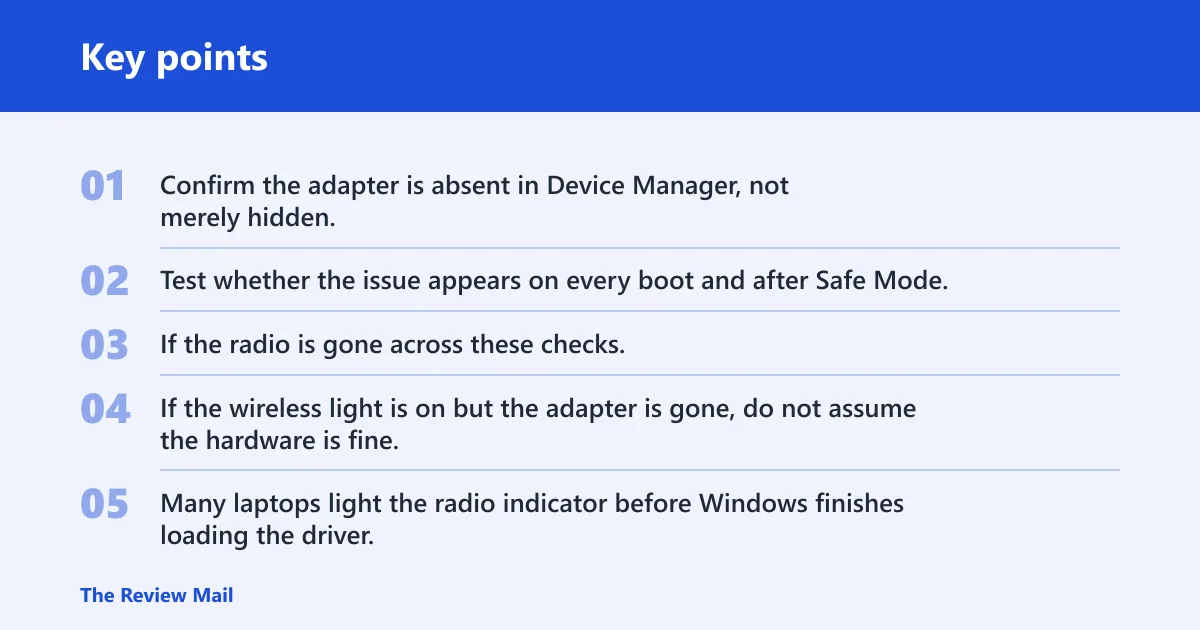
Confirm the adapter is absent in Device Manager, not merely hidden. Check BIOS or UEFI wireless settings again. Test whether the issue appears on every boot and after Safe Mode. If the radio is gone across these checks, the problem is more likely hardware than software.
Where the light is on but Wi‑Fi is gone
If the wireless light is on but the adapter is gone, do not assume the hardware is fine. Many laptops light the radio indicator before Windows finishes loading the driver. That is why the presence test in Device Manager matters more than the status light alone.
Legacy Wi‑Fi adapter note
The Microsoft Virtual WiFi Miniport Adapter is a virtual adapter used in older hotspot or hosted-network setups. If a guide about hotspot behavior mentions it, keep that separate from a missing physical Wi‑Fi adapter. A virtual adapter issue can look related, but it is a different problem class.
The same warning applies to older command-line advice around hosted networking. The command may appear in legacy repair notes, but it should not distract from the normal flow: check visibility, service state, driver state, and hardware presence first.
Frequently asked questions
Why is my Wi‑Fi adapter missing in Device Manager?
The most common causes are a disabled radio switch, a BIOS or UEFI wireless setting, driver damage, or hardware failure. If the adapter is completely absent from Device Manager, treat it as a visibility or detection problem first, not as a simple internet outage.
How do I get my wireless adapter back on Windows 11?
Open Device Manager, scan for hardware changes, check the wireless key or airplane mode, then reinstall the correct OEM driver. If the adapter disappeared after an update, System Restore may be faster than a network reset. A missing device needs recovery, not just reconnection.
Why did my Wi‑Fi adapter disappear after an update?
A Windows update can sometimes break the driver, change power behavior, or conflict with security software. If the adapter vanished right after the update, use a restore point from before the change or reinstall the OEM wireless driver. Do not start with a full reset unless the device is still present.
How do I reinstall a missing network adapter driver?
In Device Manager, remove the adapter if it still appears, then restart so Windows can try to reinstall it. If Windows does not recover it, download the exact wireless driver from the device maker’s support page and install that package manually. Then scan for hardware changes again.
How do I reset network settings when the adapter is missing?
You usually should not start there. Network reset is for broken settings and saved profiles, not for a device that has vanished from Device Manager. Use it after you confirm the adapter still exists, since it can clear Wi‑Fi profiles and related VPN setup.
Can antivirus or VPN software make the Wi‑Fi adapter disappear?
Yes. Antivirus and VPN apps can interfere with services, filters, or network bindings, and some users see the problem after an install or update. Try a temporary disable test, then restart. If the adapter returns, the app conflict is part of the cause.