How to Resolve Dns Issues Windows 11
To resolve DNS issues in Windows 11, test the PC, then the router, then the DNS provider; if only one site fails, the DNS service is usually the problem. Skip those checks and you can waste time changing the wrong setting while pages still fail or load slowly. This guide shows the exact order to isolate the fault and the fixes to try at each branch.
What you’ll need
- Administrator access for Command Prompt
- A working network connection on at least one other device
- Router and modem power access
- Access to Windows 11 network settings
- A second browser for a comparison test
DNS troubleshooting matrix
| Symptom | Likely layer | Fastest confirmation check | Exact next fix |
|---|---|---|---|
| Only one browser cannot open sites | Browser | Try the same site in Edge and then another browser | Clear that browser’s cache and disable browser DNS features or extensions |
| Only one PC fails on the same Wi-Fi | PC | Open the same site on a phone on the same network | Flush Windows DNS cache, disable VPN and proxy, then check the adapter driver |
| Every device on the network fails | Router or provider | Test mobile data or a different internet connection | Restart modem and router, then change DNS server if the fault stays on the network |
| Sites load after a delay, then fail again | Provider or routing | Compare two or three sites plus one that failed earlier | Switch to a reliable DNS server and check whether VPN or proxy is rerouting traffic |
Why does Windows 11 show DNS errors?
DNS sends a domain name to the correct IP address so your browser can reach a server. If that lookup breaks, Windows can stay connected to Wi-Fi and still fail to open pages. The fault can sit on the PC, the router, the browser, or the DNS provider.
Windows DNS cache and browser DNS cache are separate. One can be stale while the other is fine. That is why a site may fail in one browser, then load in another, even on the same PC and network.
Start with the quickest checks
Start with the least invasive fixes. Restart the PC, then unplug the router and modem for about 30 seconds, then test one browser and one device. If only a few sites fail, the problem is narrower than a full network outage and you can avoid a full reset.
- Restart Windows 11.
- Unplug the modem and router for 30 seconds, then reconnect power.
- Open the failing site in a second browser.
- Check one more device on the same network.
- Note whether one site, several sites, or every site fails.
Say your laptop reaches email and streaming apps, but one news site times out. That pattern points more toward DNS for that site than a full Wi-Fi failure, so the next step is to compare browsers and then compare devices.
How do you tell where the DNS fault is?
Use one device, one browser, and one network at a time. If the same site works on a phone using mobile data, the provider or router is less likely to blame. If the site fails only in one browser, the issue is local to that browser.
- Test the same site on a second device on the same Wi-Fi.
- Test the same site on mobile data or another network.
- Open the site in Edge, then in a different browser.
- Decide whether the fault points to the PC, router, or DNS provider.
Suppose two laptops fail on the same Wi-Fi, but a phone on mobile data opens the site immediately. That points away from the site itself and toward the home network path, so a router restart and DNS server change become more likely than a Windows-only fix.
Can your DNS server be the problem?
Yes. A DNS server can be slow, unreachable, or poorly routed for your connection. If Windows and the router both look fine, change to a reliable DNS server and retest. Also turn off VPN and proxy settings during troubleshooting, because they can send DNS traffic through another path.
- Open Settings > Network & internet > Wi-Fi or Ethernet.
- Select your connection, then open Hardware properties or DNS server assignment.
- Set DNS manually and enter a trusted server.
- Turn off any VPN and proxy in Settings > Network & internet > VPN and Settings > Network & internet > Proxy.
Common manual values include 1.1.1.1 and 1.0.0.1, or 8.8.8.8 and 8.8.4.4. Change one pair at a time, then test again before trying another pair.
Windows 11 network reset steps
Use a network reset after the earlier checks fail. It restores default network configuration and removes saved network data and conflicts, so you must reconnect to Wi-Fi afterward. It is useful when the PC keeps failing and the adapter, cache, and DNS server all look reasonable.
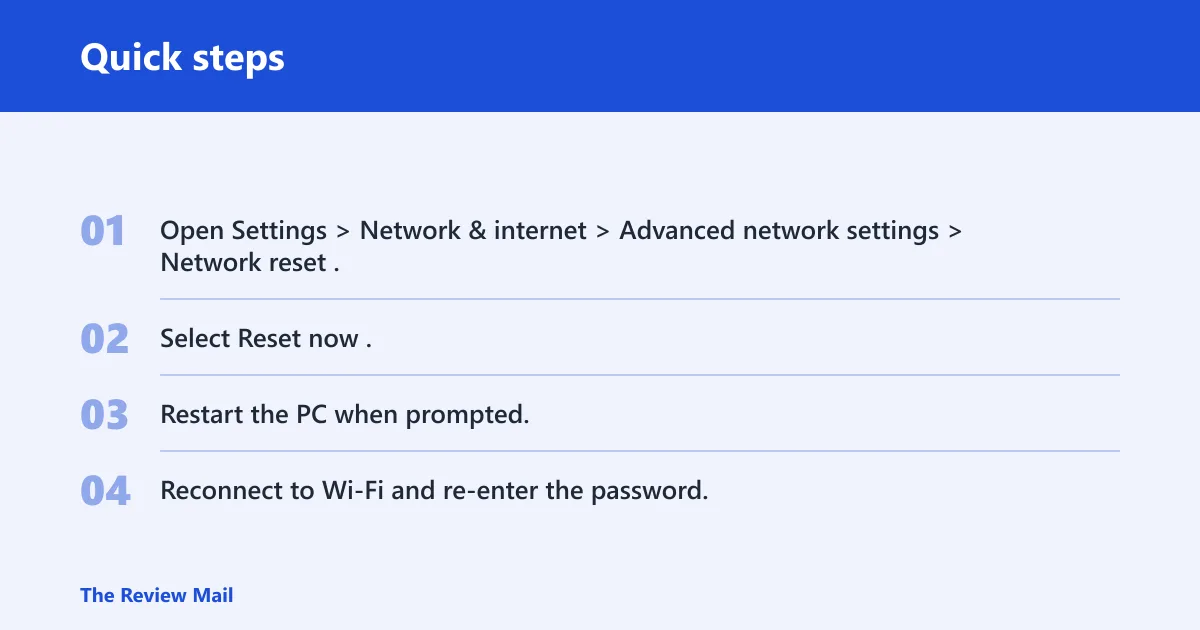
- Open Settings > Network & internet > Advanced network settings > Network reset.
- Select Reset now.
- Restart the PC when prompted.
- Reconnect to Wi-Fi and re-enter the password.
If the issue is broader than DNS, run Settings > System > Troubleshoot > Other troubleshooters before the reset. That built-in recovery can suggest a narrower fix and save you from wiping saved network data too early.
For a deeper recovery path, Windows can also rebuild networking from Command Prompt with this sequence: ipconfig /release, ipconfig /flushdns, ipconfig /renew, netsh winsock reset, and netsh int ip reset.
Common mistakes
- Changing DNS settings before testing another device on the same network.
- Clearing only the browser cache when Windows DNS cache is the real problem.
- Leaving VPN or proxy settings on during troubleshooting.
- Resetting the network before trying a router restart and DNS server change.
- Ignoring a driver issue after a Windows update or adapter replacement.
Frequently asked questions
How to fix network adapter not working windows 11
Open Device Manager > Network adapters, update the driver, and if needed uninstall the device and scan for hardware changes. If Windows update or a hardware swap came first, this path is often faster than a full network reset.