Svchost Error Windows 11
A svchost error usually means one hosted service inside svchost.exe is failing, restarting, or using too many resources. If you leave it alone, the PC may crash, fail to start normally, or feel slow and unresponsive. Start with the service name, then work through the safest checks in order.
What the error means
svchost.exe is the Service Host process, a shared-service process that serves as a shell for loading services from DLL files. The error usually points to a problem with one of the services running inside it, not necessarily with the svchost.exe container itself.
The first useful step is to identify the hosted service name in Task Manager or with tasklist /SVC, then decide whether the issue is with that service or with a Windows component that supports it. A crash dialog, repeated restart, update failure, or heavy CPU spike are different symptoms, and they do not always need the same fix.
Why are there so many svchost.exe processes?
Many svchost.exe entries are normal. Windows uses svchost.exe to host services, and multiple instances can appear because different services are loaded separately. On Windows 10, Microsoft says that beginning with version 1703, services that were previously grouped are separated automatically on systems with more than 3.5 GB of RAM, while systems with 3.5 GB or less RAM keep services grouped in a shared SvcHost process.
Why separate instances help
When services are separated into different Service Host processes, one failing service is easier to isolate from the others. That makes it simpler to identify which service is causing trouble and reduces the impact of a single service problem.
Picture a Windows PC showing several svchost.exe entries after startup. That can be normal. The important part is identifying which hosted service is tied to the process that is failing, because the fix depends on the service name, not the container.
Likely causes
Common causes include a stuck Windows service, a Windows component issue, or a service that keeps restarting after an update. A fake or tampered svchost.exe can also be a possibility if the file is not where Windows normally keeps it or its signature is invalid. Start by identifying the exact service before changing anything major.
Svchost troubleshooting matrix
| Symptom | Most likely hosted service category | Best verification step | First safe fix |
|---|---|---|---|
| High CPU in Task Manager | Background Windows service or update component | Task Manager > Details > Go to service(s), or tasklist /SVC | Restart the hosted service, then reboot |
| Startup error or crash dialog | Broken service or damaged component | Event Viewer or the service name from Task Manager | Run sfc /scannow, then DISM /Online /Cleanup-Image /RestoreHealth |
| Repeated restart loop | Service failure after update or dependency issue | Task Manager and Services.msc | Restart Windows, then use a clean boot if it returns |
| Windows Update failure | Windows Update service stack | Check whether the failing service is wuauserv, bits, or cryptsvc | Reset Windows Update components |
| Network-related svchost error | Networking or name-resolution service | Use Task Manager or tasklist /SVC to identify the service name | Restart the service, then flush and reset network stack if needed |
Say your PC slows to a crawl while svchost.exe holds 35% CPU and the fan starts spinning hard. That usually means one hosted service is stuck. Start by identifying the service, then restart only that service before trying broader repairs.
Is svchost.exe a virus or a normal Windows process?
svchost.exe is usually a normal Windows process. A valid copy should be in C:\Windows\System32\. If the file is elsewhere, is missing a valid Microsoft signature, or otherwise does not look right, treat it as suspicious and get malware help before making more Windows changes.
- Open Task Manager, right-click svchost.exe, and choose Open file location if available.
- Confirm the path is the Windows system folder location expected for a legitimate copy.
- Right-click the file, open Properties, then check the Digital Signatures tab for a Microsoft signature.
- If the file is elsewhere or the signature is not valid, treat it as suspicious before changing services.
If the file is outside the Windows folder, do not start by disabling random services. Verify the file first.
How do you find the service behind it?
Use Task Manager first, then move to tasklist /SVC if you need a precise service name. In Task Manager, the Processes tab shows the svchost entry, the Details tab shows the PID, and Go to service(s) jumps to the hosted service. Process Explorer is a portable Sysinternals alternative when Task Manager is not enough. (Microsoft Learn)
- Open Task Manager and go to Processes.
- Right-click the svchost entry and choose Go to details.
- Note the PID, then open a Command Prompt and run tasklist /SVC.
- Use the PID to find the hosted service name shown in the list.
- Open
Services.mscand inspect that service, or check Event Viewer for its name in the error record.
Process Explorer can do the same job with a fuller process view. Use it when Task Manager does not show enough detail or when several svchost instances look similar.
What should I do if svchost.exe is using high CPU?
High CPU usually comes from one service inside svchost.exe. Start with the hosted service name, restart that service, then reboot if the spike returns. If the problem persists, repair Windows files and isolate the culprit with a clean boot. That is the shortest safe path.
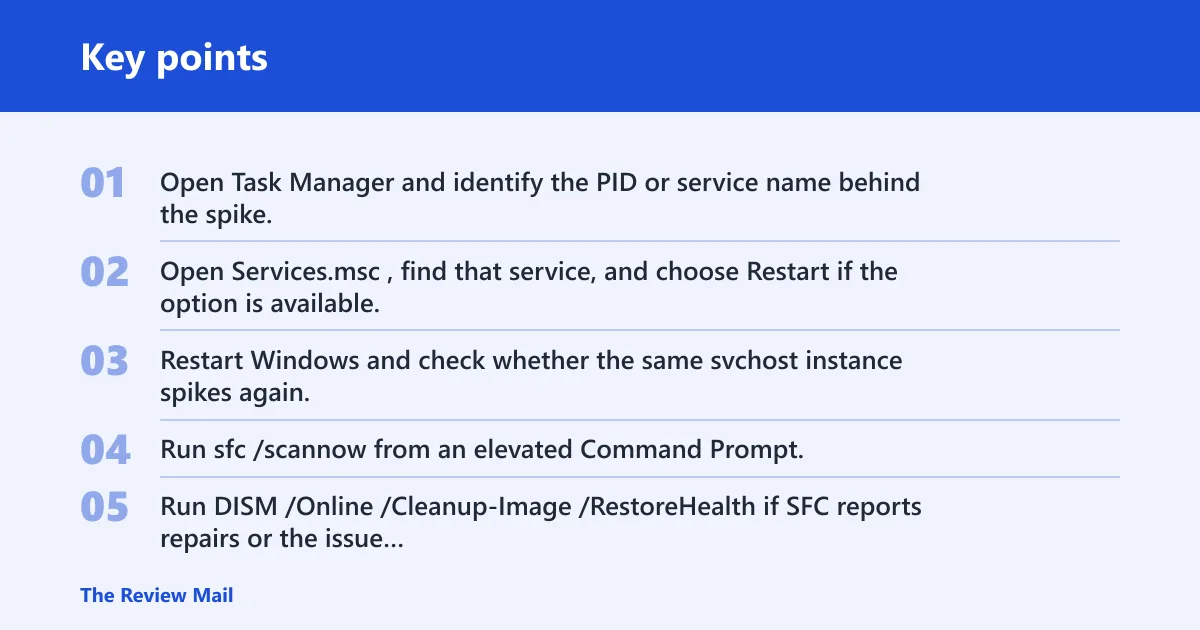
- Open Task Manager and identify the PID or service name behind the spike.
- Open
Services.msc, find that service, and choose Restart if the option is available. - Restart Windows and check whether the same svchost instance spikes again.
- Run
sfc /scannowfrom an elevated Command Prompt. - Run
DISM /Online /Cleanup-Image /RestoreHealthif SFC reports repairs or the issue returns. - If the spike comes back, perform a clean boot with msconfig and re-enable services in small groups until the problem returns.
A common first-timer mistake is disabling the entire svchost group because one service is noisy. That can break networking, printing, updates, or logon behavior. Disable only a service you have identified, and only after you know what it does.
Can I safely disable the service causing the svchost.exe error?
Sometimes, but only if you have identified a nonessential third-party service or a feature you truly do not need. Do not disable core Windows services just because they live inside svchost.exe. A safer move is to restart the service first, then test whether the error returns after a reboot or clean boot.
- Open
Services.mscand open the service properties. - Check the Dependencies tab before changing anything.
- If the service is nonessential and clearly tied to a third-party app, set Startup type to Manual or Disabled only as a test.
- Reboot and confirm whether the svchost error stops.
- If Windows features break, restore the original startup type immediately.
Windows Update-related failure
If the error appears during updates, the issue often involves the update service stack. That usually means wuauserv, bits, cryptsvc, or a related Windows component. The right move is to reset Windows Update components, then run system repair commands if the failure keeps coming back.
- Open an elevated Command Prompt.
- Run
net stop wuauserv,net stop bits, andnet stop cryptsvc. - Rename the SoftwareDistribution and catroot2 folders.
- Run
net start cryptsvc,net start bits, andnet start wuauserv. - Restart the PC and try Windows Update again.
- If the update still fails, run
sfc /scannowand thenDISM /Online /Cleanup-Image /RestoreHealth.
Suppose Windows Update fails every time a cumulative update reaches 100 percent, and svchost.exe jumps into heavy disk use at the same moment. That pattern points to the update stack first. Reset the update components before chasing unrelated services.
Still not working?
If the error returns after a restart, service restart, SFC, DISM, and an update reset, use a clean boot to narrow the culprit further. If the problem survives with only Microsoft services enabled, back up important files and consider Reset This PC or a repair install of Windows.
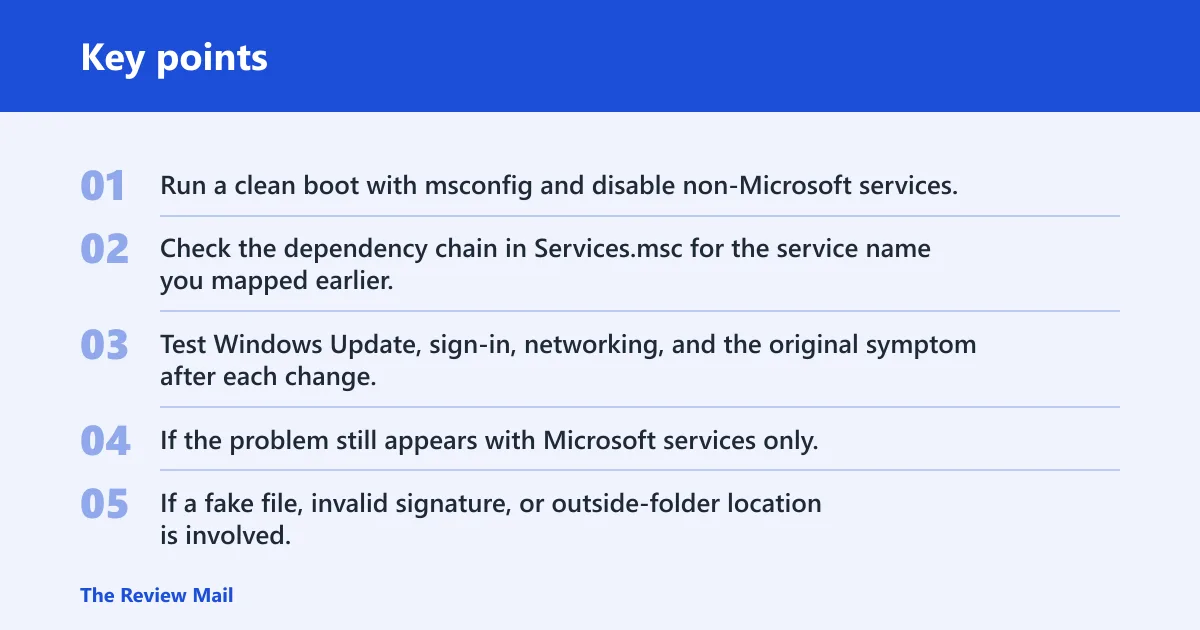
- Run a clean boot with msconfig and disable non-Microsoft services.
- Check the dependency chain in
Services.mscfor the service name you mapped earlier. - Test Windows Update, sign-in, networking, and the original symptom after each change.
- If the problem still appears with Microsoft services only, back up important files and consider Reset This PC or a repair install.
- If a fake file, invalid signature, or outside-folder location is involved, get malware help before making more Windows changes.
Keep Windows Update current and avoid stopping services you have not identified. That lowers the chance of recurring svchost errors caused by damaged components or repeated update failures.
Frequently asked questions
Why am I getting an svchost.exe error?
It usually means one hosted service inside svchost.exe is failing. The shortest useful check is to map the PID to a service name with Task Manager or tasklist /SVC, then restart that service or repair system files if the error repeats.
How do I tell which service inside svchost.exe is failing?
Open Task Manager, jump to the Details tab, and use Go to service(s) on the svchost entry. If that is not enough, run tasklist /SVC and match the PID to the hosted service. Event Viewer will usually show the same service name in the error record.
Why are there so many svchost.exe processes in Task Manager?
That can be normal. Windows uses svchost.exe to host services, and some services are separated into different Service Host processes. On Windows 10, Microsoft notes that services previously grouped are separated automatically on systems with more than 3.5 GB of RAM, while systems with 3.5 GB or less keep services grouped in a shared SvcHost process.
How do I find the services hosted by one svchost.exe instance?
Use Task Manager’s Details tab, note the PID, then run tasklist /SVC in Command Prompt to map that PID to the service names. If you prefer a GUI, Process Explorer can show the hosted services directly and is a portable Sysinternals tool.